Overview
The Manual Scheduler reschedules a single appointment by hand. On one screen you can change the appointment’s:
- Scheduled date and timeslot
- Duration
- Fieldworker
- Work type
The current booking is pre-selected when the screen opens, so a small change - for example swapping the fieldworker - is a matter of clicking the new name and confirming. Every choice stays visible and can be revisited before you confirm.
Opening the Manual Scheduler
-
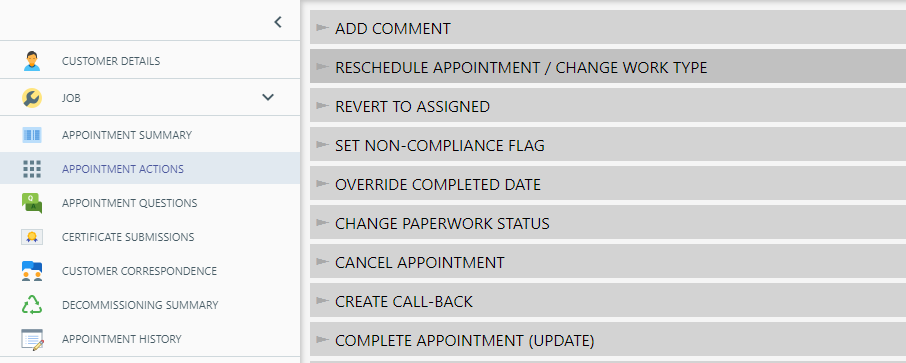
- Select the Actions tab on the appointment toolbar
-
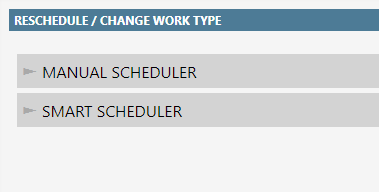
Select Reschedule Appointment / Change Work Type and then Manual Scheduler
The scheduler opens with the existing date, time, duration, work type and fieldworker already selected. The current timeslot card and the current fieldworker are tagged CURRENT.
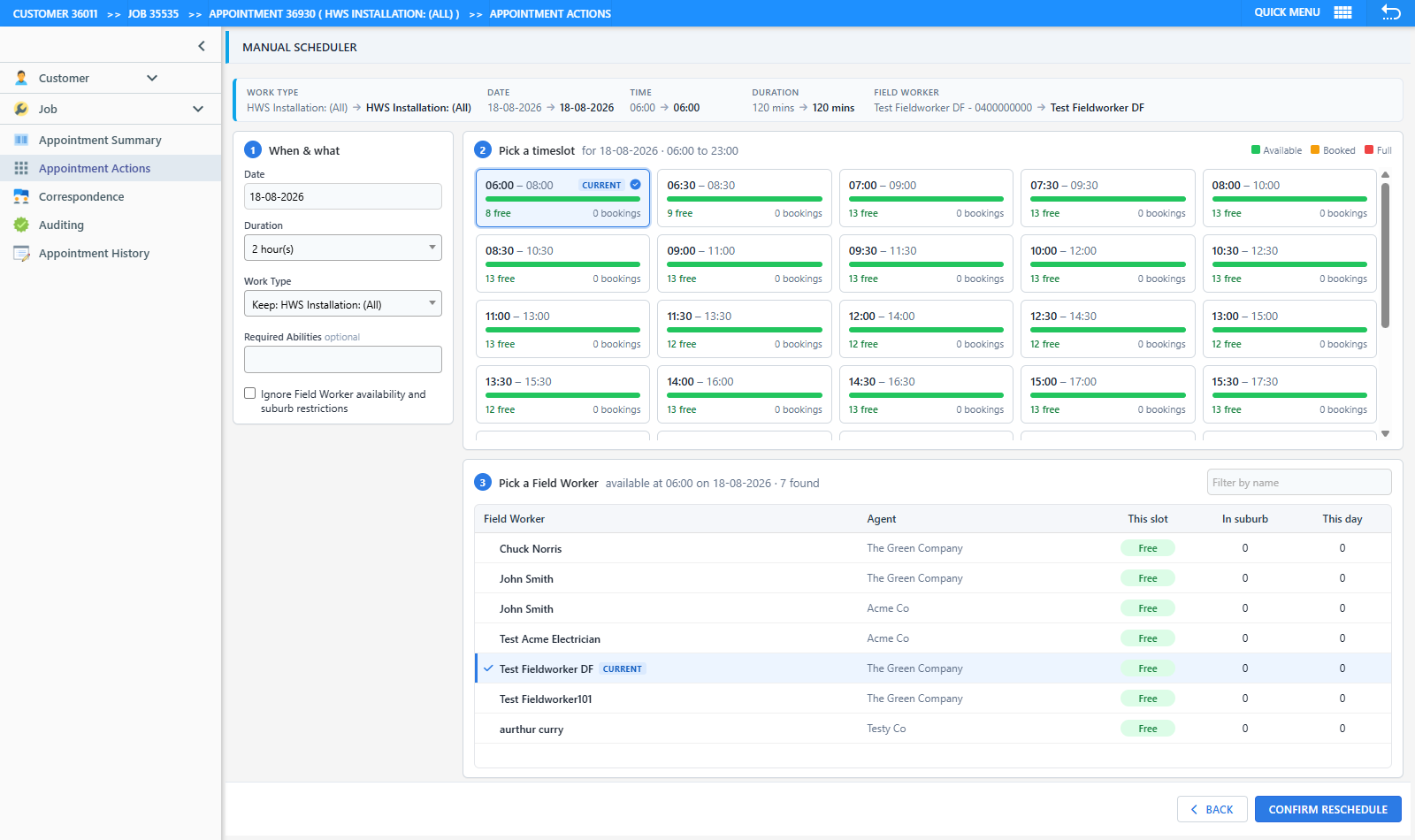
The screen
Summary strip. The bar across the top shows each value as existing new. Values you have changed are highlighted; anything not yet chosen reads Pending.
1 - When & what. Set the Date, the Duration (in multiples of the work type’s timeslot), the Work Type (defaults to Keep the current one) and, optionally, any Required Abilities the fieldworker must have. Users with the Field Worker (admin) permission also see Ignore Field Worker availability and suburb restrictions, which lists every fieldworker regardless of roster or suburb.
2 - Pick a timeslot. Timeslot cards load as soon as a date is set and reload whenever the date, work type, abilities or the ignore-restrictions option change. Each card shows the start and end time, a bar of booked versus free capacity (green Available, amber Booked, red Full), how many fieldworkers are free and how many appointments are already booked. Hover over a card for the in-suburb and nearby breakdown. Slots that would finish after the end of the shift for the chosen duration are greyed out. If the appointment’s current time is not on the regular grid, it is still listed so that it can be kept.
3 - Pick a fieldworker. Click a timeslot to list the fieldworkers who can take it. The table shows the fieldworker and their agent, This slot (Free, or the number of bookings they already have at that time), In suburb (their appointments in the customer’s suburb that day) and This day (all their appointments that day). Type in Filter by name to narrow the list, then click a row to select it.
Making changes
Selections are kept wherever possible: changing the day keeps the chosen time if it still exists and fits, and changing the time keeps the chosen fieldworker if they are still available. When a selection can no longer be kept it is cleared and a note explains why - for example that the fieldworker is not available at the new time.
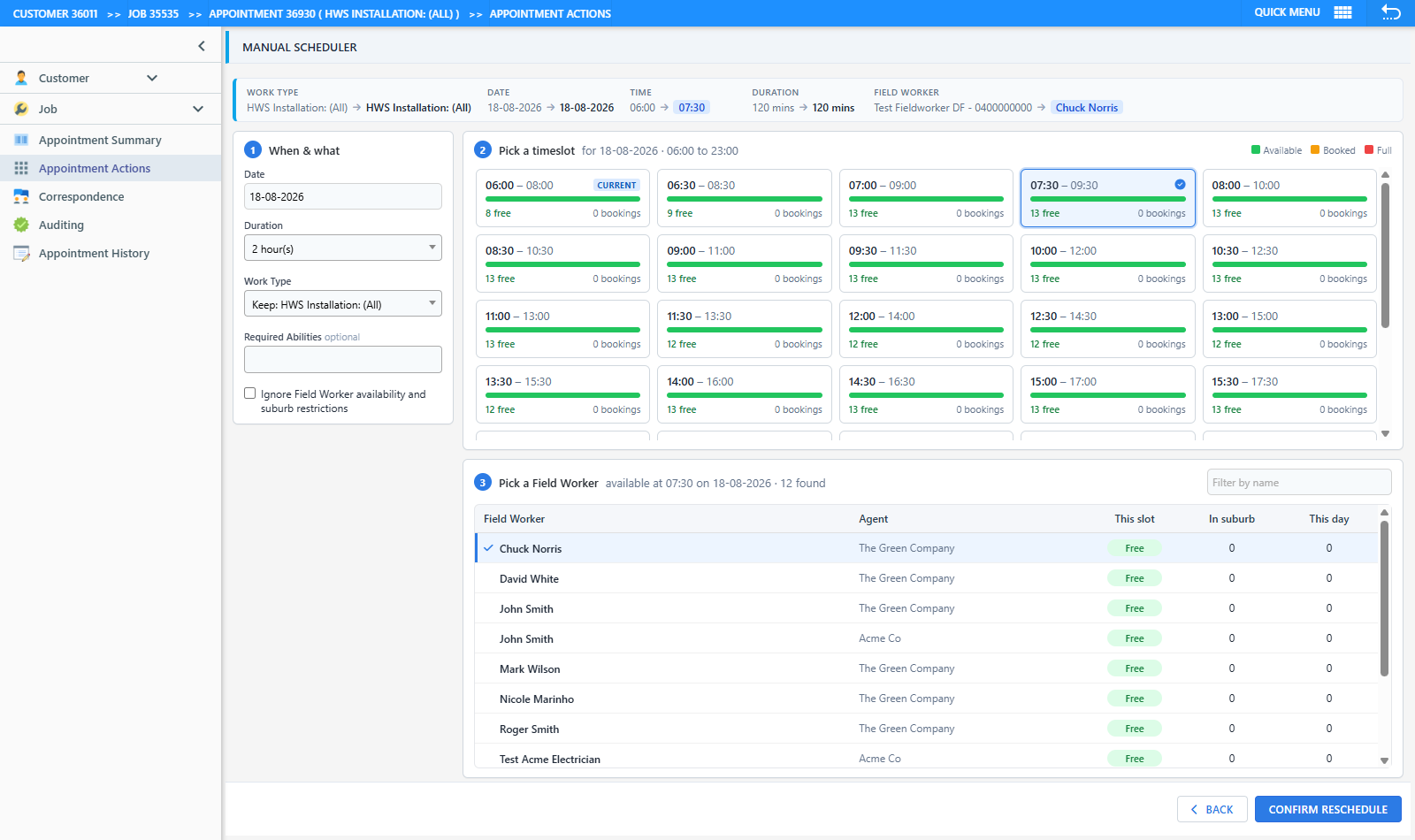
Click Back at any time to leave without saving. Reopening the Manual Scheduler starts again from the current booking.
Confirming the reschedule
Click Confirm Reschedule. If a date, timeslot, duration or fieldworker is missing you are told which; otherwise the Confirm Reschedule dialog opens with:
- The existing new summary of your changes
- Warnings, where relevant - for example that the chosen fieldworker already has a booking at that time, or that no fieldworkers were listed as available for the slot
- Reschedule Reason (shown when your program has reschedule reasons configured)
- Comment - the same editor as Add Comment, including formatting and Text Snippets
- Email booking confirmation - untick to reschedule without sending the customer a new booking email
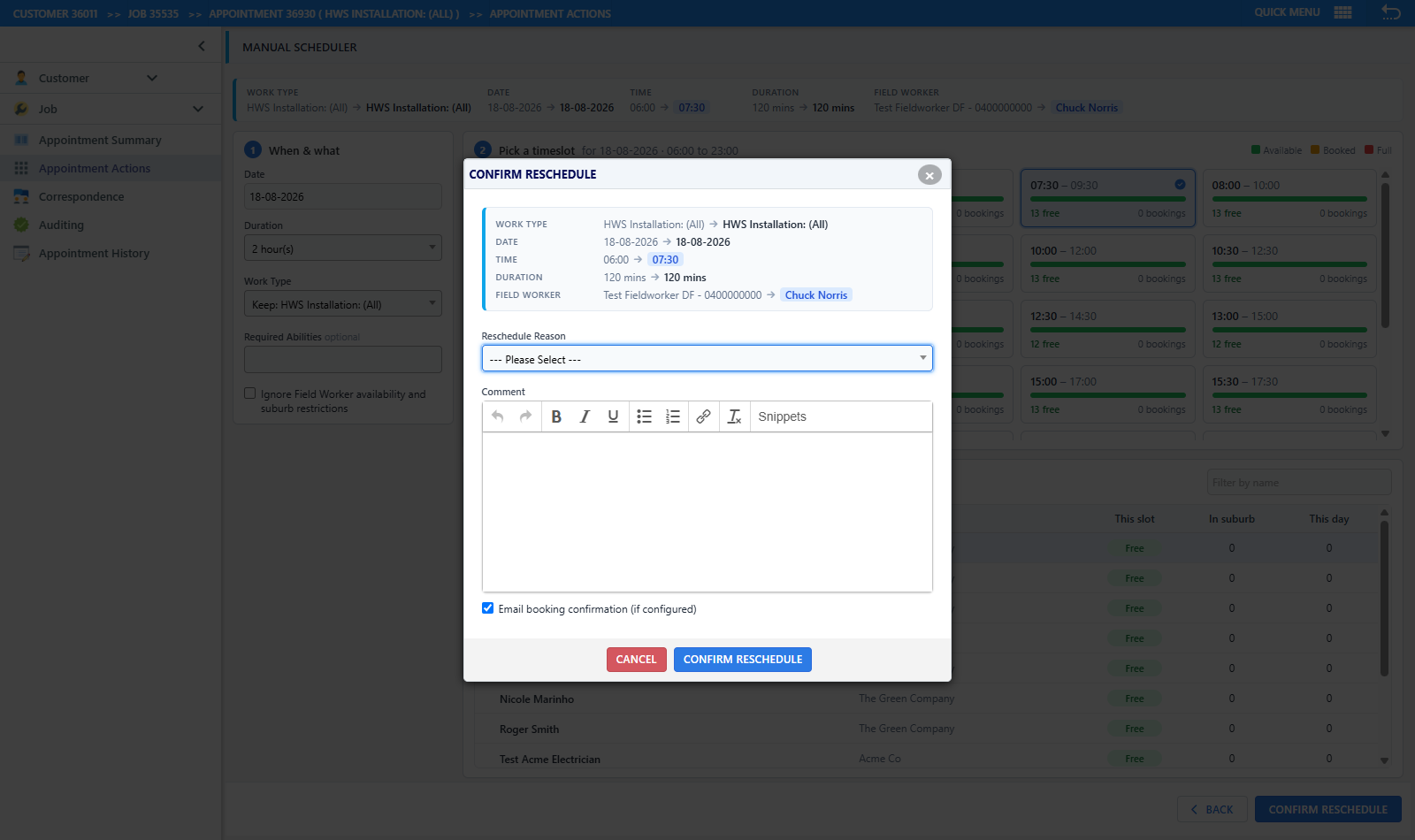
A reason (when offered) and a comment are required. Click Confirm Reschedule in the dialog to save, or Cancel to return to the scheduler - anything you typed is kept for when you reopen the dialog.
Once saved, the appointment’s date, time, duration, fieldworker and work type are updated, the comment is recorded against the appointment with the action Manual Scheduler, and an Appointment Rescheduled entry is added to the history.
Permissions
- The Manual Scheduler option is shown to operators whose role has the Manual Scheduler permission (in addition to the permission to reschedule appointments).
- The Ignore Field Worker availability and suburb restrictions option requires the Field Worker (admin) permission.