Overview
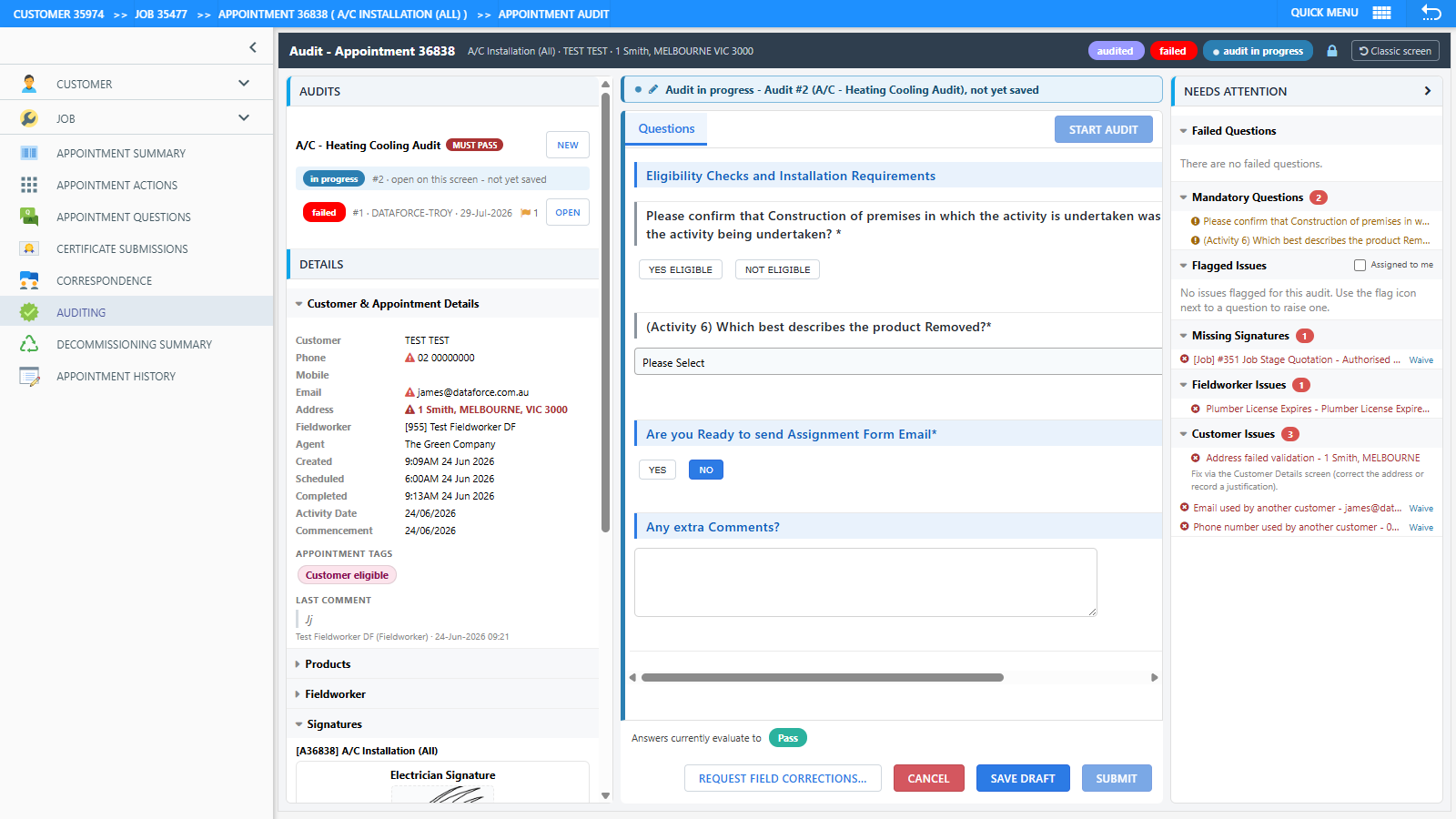
The desktop audit screen has been rebuilt from the ground up. The new screen keeps everything on one page - questions, photos, forms, signatures and issues - and adds:
- Photo Review - pass or flag every audit photo, one by one
- Issue flagging - raise an issue against the exact question or photo it relates to, and route it to the fieldworker or an office staff member
- Needs Attention panel - failed questions, mandatory questions, flagged issues and missing signatures at a glance
- A redesigned submit flow that shows the evaluated result, status override and outgoing emails/SMS in a single dialog before anything is sent
Trying the new screen
When the trial is enabled for your program, the classic audit screen shows a banner at the top:
A new audit screen is available to trial. Failed questions at a glance, one-click field corrections and more - you can switch back here at any time.
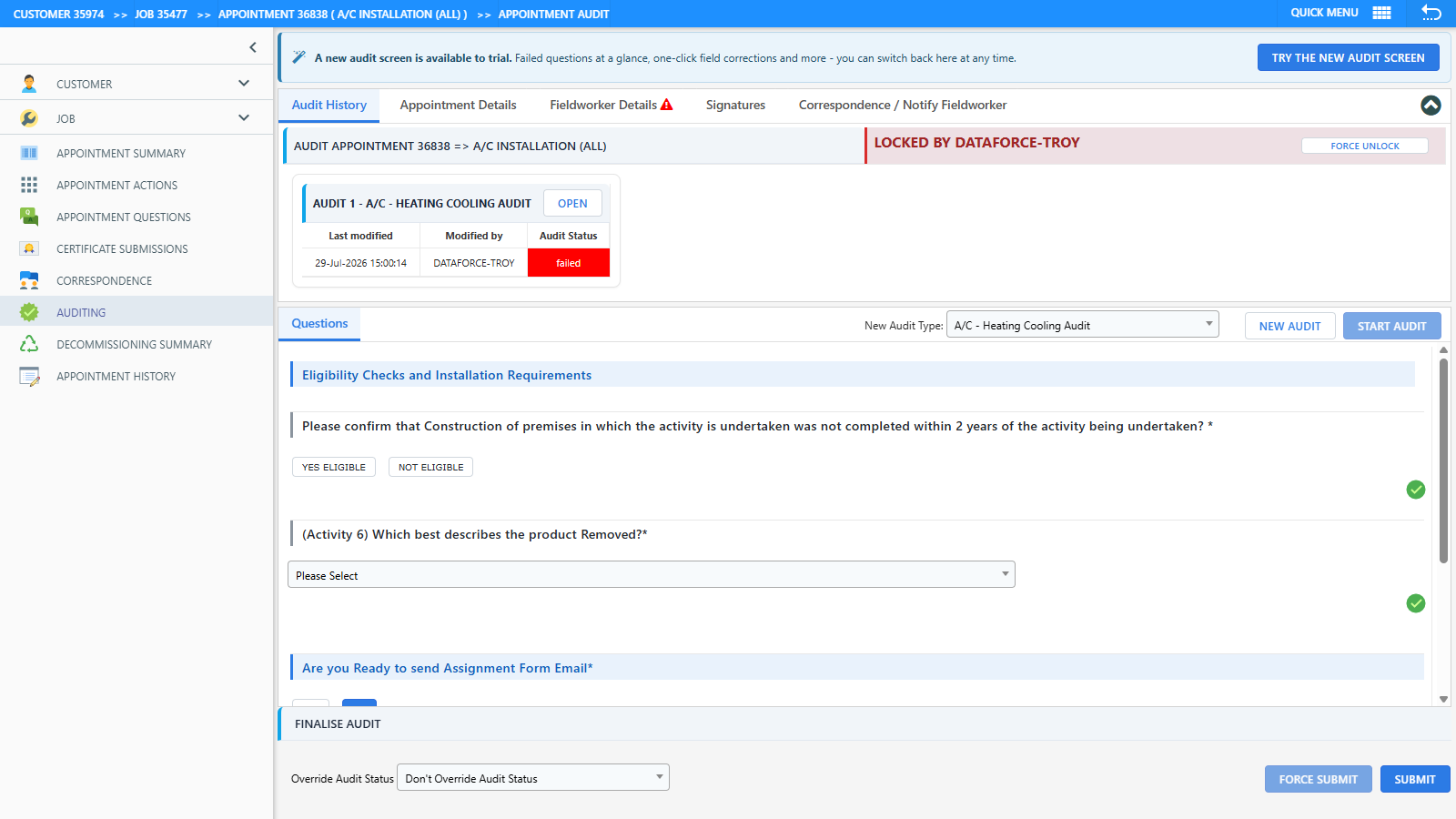
- Click Try the new audit screen to switch. Your choice is saved to your operator account and persists across logins.
- To switch back, click Classic screen in the header of the new screen.
- The screen is reached the same two ways as before: the appointment’s Auditing tab, or Tasks Audit Desktop Audit Center.
Screen layout
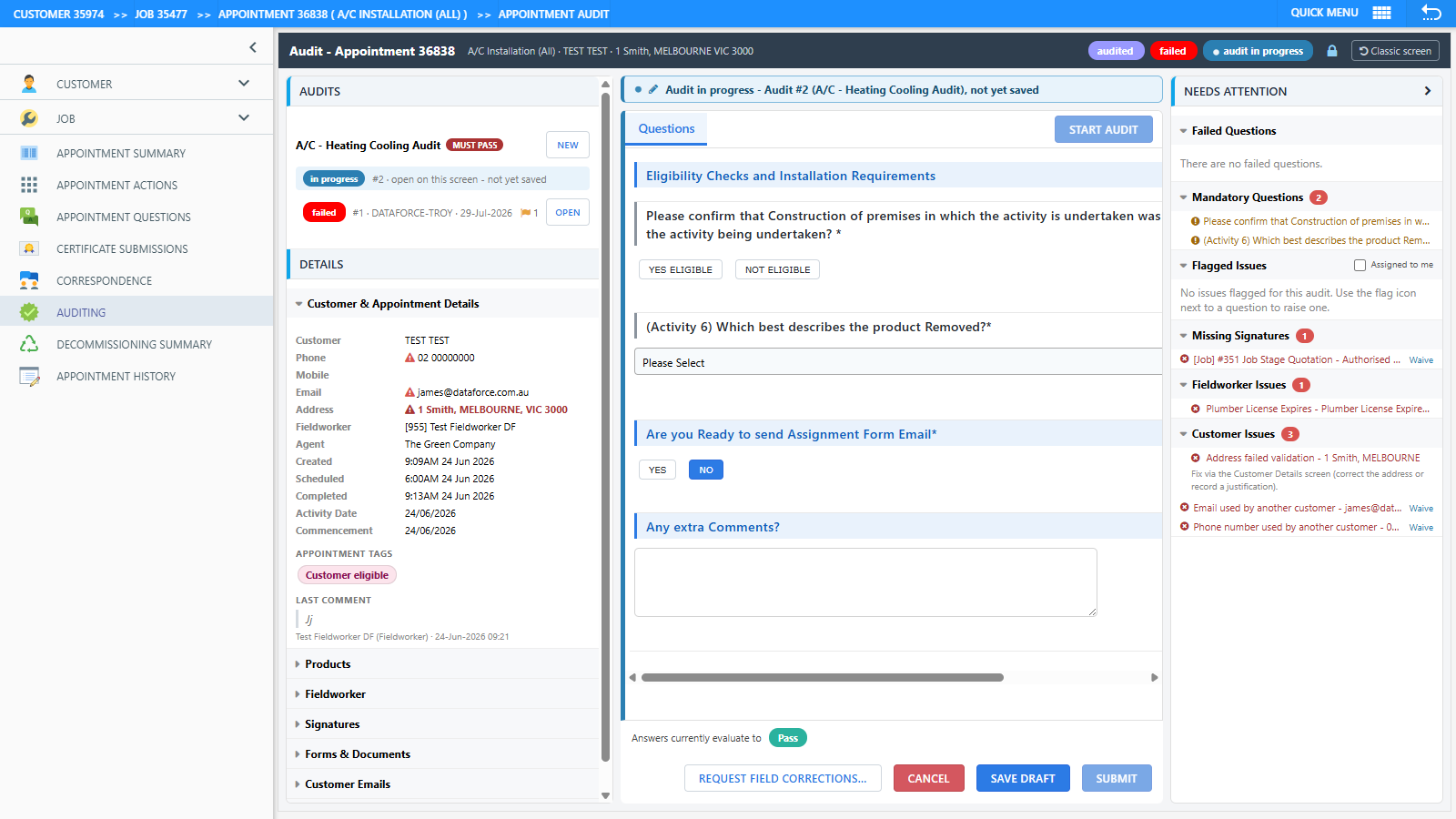
The screen is arranged in three columns:
| Area | Contents |
|---|---|
| Header | Appointment title, work type, customer and address, status pills, the audit lock padlock, and the Classic screen button. A Ready for re-audit badge appears when the fieldworker has resubmitted corrections. |
| Left column | The Audits panel (the audit timeline for each audit type), then collapsible detail sections: Customer & Appointment Details, Products, Signatures, Forms & Documents, Customer Emails, and Correspondence / Notify Fieldworker. |
| Centre | The question tab strip (pinned while you scroll), the audit questions, and the Photo Review pane. The outcome bar sits at the bottom. |
| Right column | The Needs Attention panel: Failed Questions, Mandatory Questions, Flagged Issues, Missing Signatures, Fieldworker Issues and Customer Issues, each with a count badge. |
The two gaps between the columns are drag handles - drag them to resize the side panels to suit your monitor. Your chosen widths are remembered. On smaller windows the side columns collapse into slim rails that expand on click.
Starting an audit and audit locking
The Audits panel lists every audit type configured for the appointment’s work type, with Mandatory and Must Pass chips. Click Start New (or New next to an existing audit type) to begin, or Open to view a previous audit.
Where audit locking is enabled for your program:
- The lock is taken automatically when you start an audit or change an answer - a blue padlock in the header shows you hold it.
- Other operators opening the same appointment see a red padlock with your name, and cannot save changes until the lock is released.
- Clicking your own padlock (or Cancel) discards unsaved changes and releases the lock. Clicking someone else’s padlock offers a Force Unlock if you are sure they are not mid-audit.
- Submitting or saving a draft releases the lock.

Photo Review
If the appointment has photos in file categories marked Requires Audit, a Photo Review section appears after the questions, with an “n of m reviewed” progress counter. Every photo must be passed or flagged before the audit can be submitted.

- Photos follow their questions: photos that belong to a block (for example, a specific installed unit) appear in a Photo Review section on that block’s tab, under its questions. All other photos appear on the main Questions tab.
- Each card shows the photo’s category, capture date, fieldworker, and how it was captured (camera, device gallery, or uploaded).
- For categories that require GPS data, each card also shows the photo’s coordinates and its distance from the property - highlighted in red when the photo was taken too far away or has no geotag.
- Click a photo to zoom. Use the arrow keys to move between cards, P to pass and F to flag.
Click Pass to approve a photo, or Flag to raise an issue against it (see below). If you later pass a photo that has an open issue, you are offered the option to resolve the related issue in one click.
Flagging issues
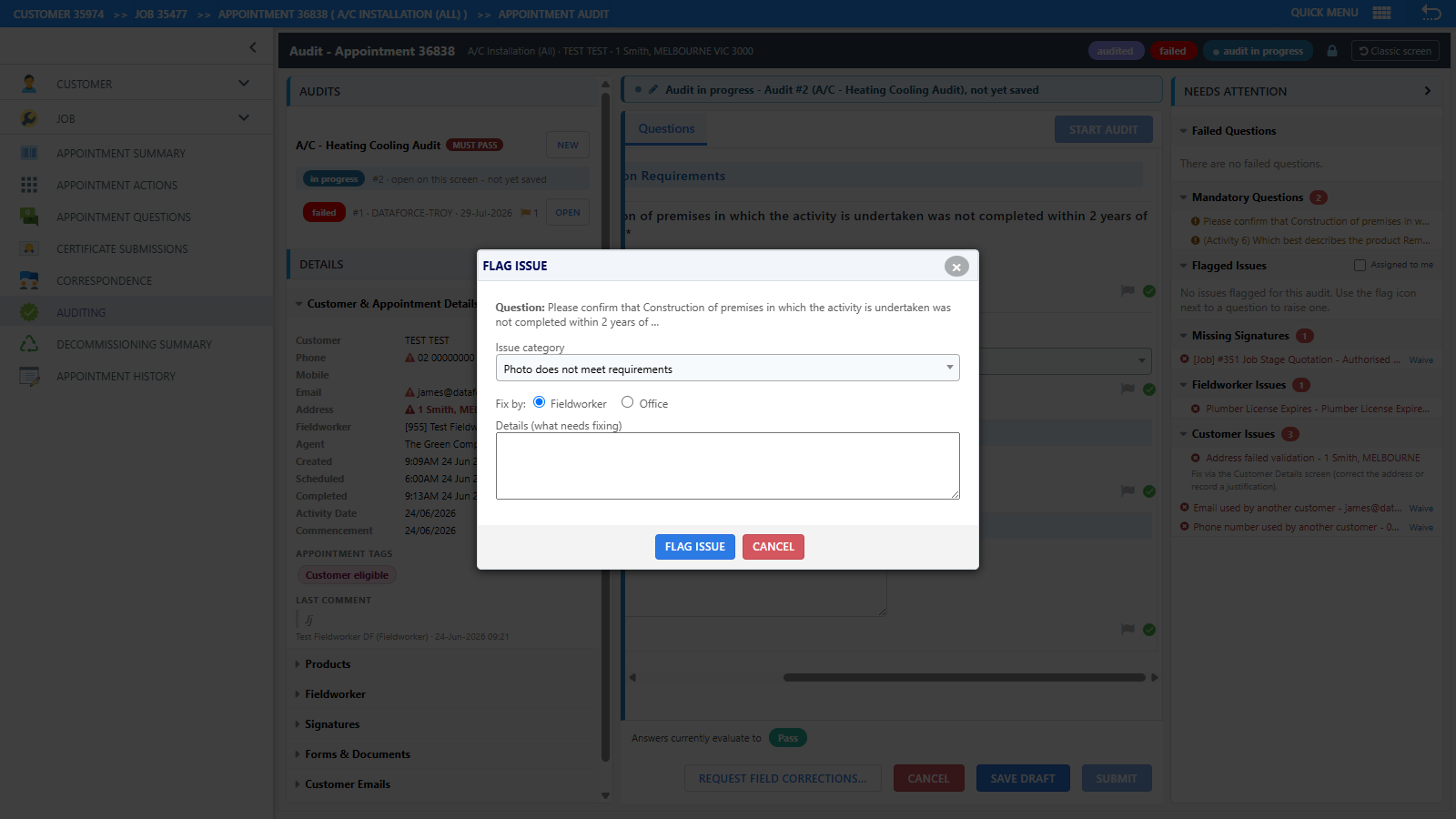
Every question has a flag button, and every photo card has a Flag button. Both open a flag dialog:
| Field | Purpose |
|---|---|
| Issue category | Classifies the issue. Categories are configured on the Audit Issue Categories screen (below). When flagging a photo, categories scoped to that photo’s file category are listed first. |
| Fix by | Fieldworker or Office. Defaults from the category, but can be changed per issue. |
| Assign to | Office issues only - pick the staff member responsible. A TODO is added to their list. |
| Details | Describe what needs fixing. Included in the corrections request for fieldworker issues. |
When flagging a photo, “Archive this photo so the fieldworker retakes it” is ticked by default - the photo is removed from the appointment (restorable from the Files screen) and the corrections notification tells the fieldworker a retake is required.
Office issue routing
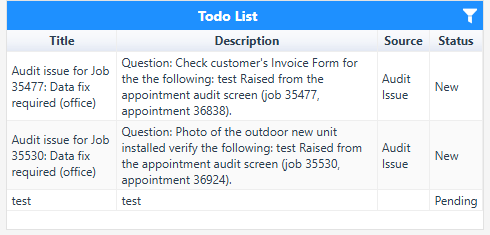
When an issue is routed to Office and assigned:
- A TODO titled “Audit issue for Job {N}: {category}” is created on the assignee’s TODO list and dashboard widget.
- The assignee receives a bell notification - “Audit issue assigned to you” - that deep-links straight to the audit with the issue highlighted.
- Resolving or waiving the issue automatically completes the TODO; reopening the issue reopens it.
Issue lifecycle
Issues move through these states:
- Open - raised, not yet actioned
- Sent - included in a corrections request to the fieldworker
- Awaiting review - the fieldworker has resubmitted the appointment; the issue is ready to re-check
- Resolved / Waived - closed, with a note recording who and why. Closed issues can be Reopened.
The Flagged Issues section in Needs Attention lists all issues, unresolved first. Tick Assigned to me on the section header to see only your own.
Missing signatures
The new screen checks every form on the job for required signatures that have not been captured - across all appointments, not just the one being audited. Missing signatures are listed in the left column’s Signatures section and in Needs Attention.
- Each missing signature can be Waived with an optional reason; waived rows show who waived them and can be Reopened.
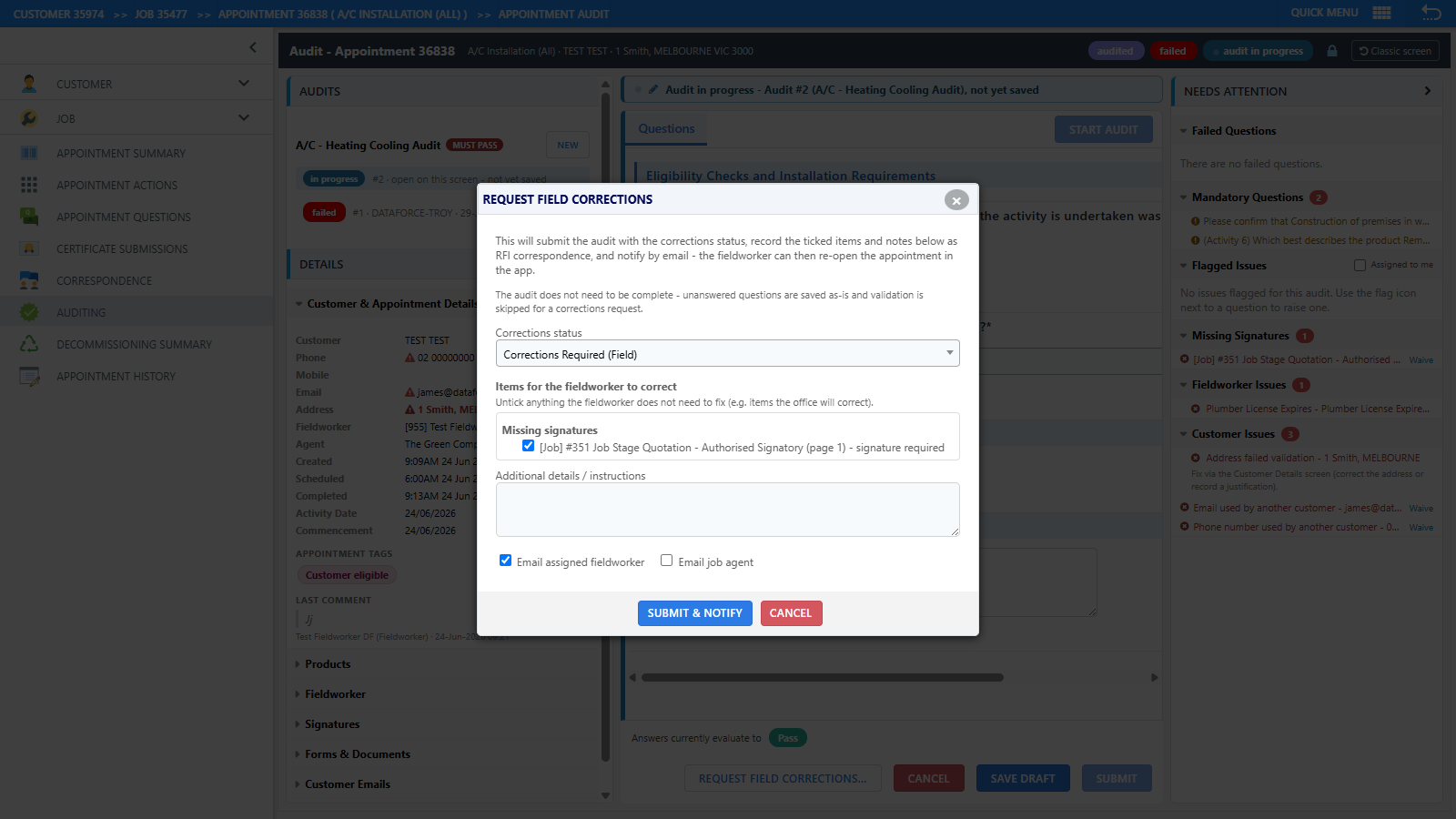
- Unwaived missing signatures are included in field corrections requests automatically.
Submitting an audit
The outcome bar shows live how the answers currently evaluate (Pass or Fail), with counts of failing answers and unresolved issues.
- Submit stays disabled until every mandatory question is answered (the tooltip tells you how many remain - check the Mandatory Questions section in Needs Attention).
- If unresolved items remain, an Unresolved Issues warning lists them first, with the choice to Submit anyway or Go back.
Clicking Submit then opens a single Submit Audit dialog:
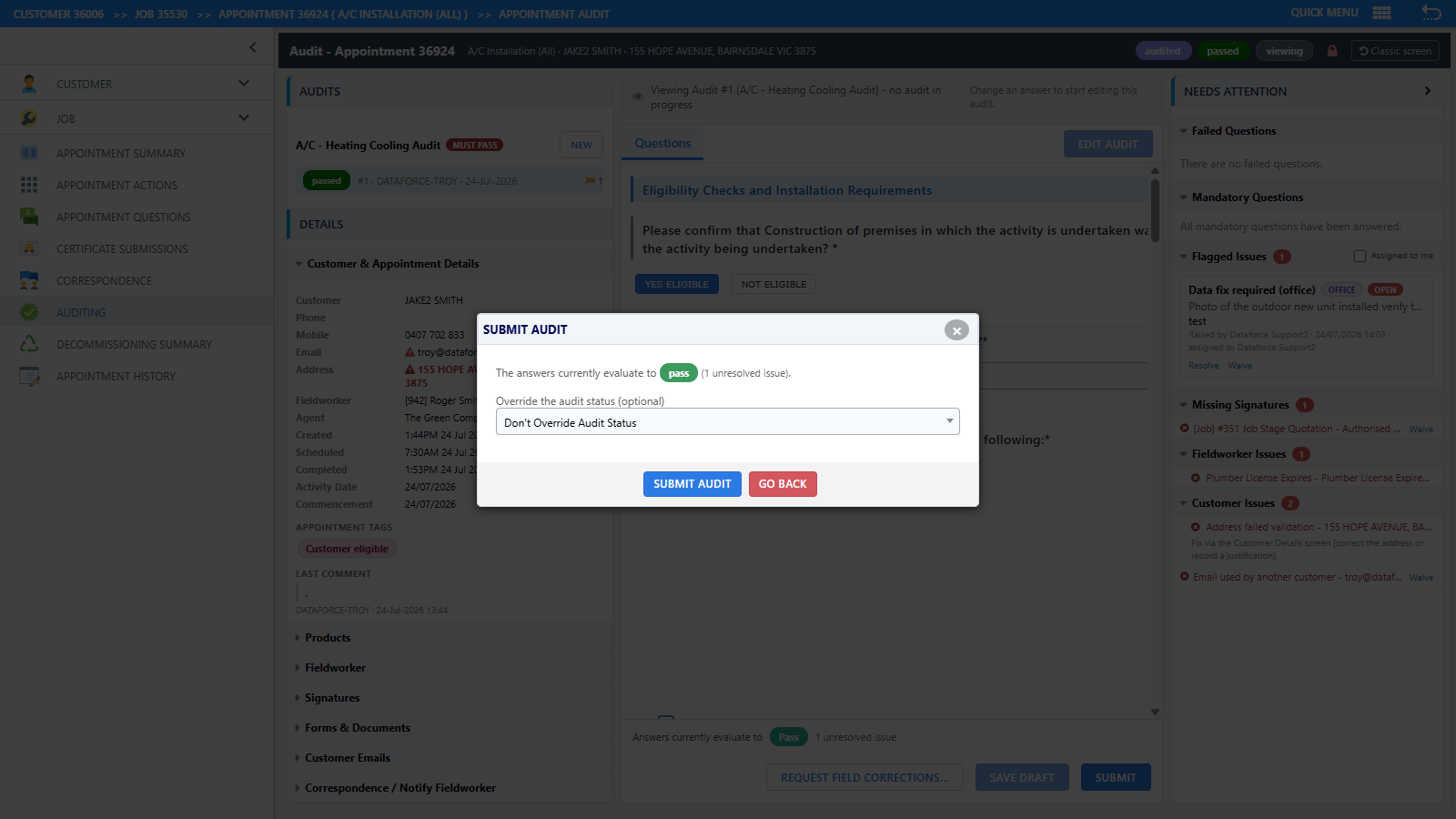
- The evaluated result (Pass / Fail).
- Override the audit status (optional) - replaces the override dropdown that used to sit in the outcome bar. Choosing an override requires a reason, which is recorded in the appointment log.
- Emails to send / SMS messages to send - everything that will go out on completion, all ticked by default. Untick anything that should not be sent. (The separate email confirmation popup from the classic screen no longer appears.)
Two other actions are always available:
- Save draft - saves your progress without validating or sending anything. Resume later by opening the audit in the timeline and clicking Edit Audit. (This replaces the classic screen’s Force Submit.)
- Request field corrections… - opens a dialog listing all failing questions (tick/untick to include), any fieldworker-routed flagged issues with their category instructions, and unwaived missing signatures. Sending sets the audit to Corrections Required (Field), notifies the fieldworker, and reopens the appointment on Runabout.
Audit Issue Categories (Admin)
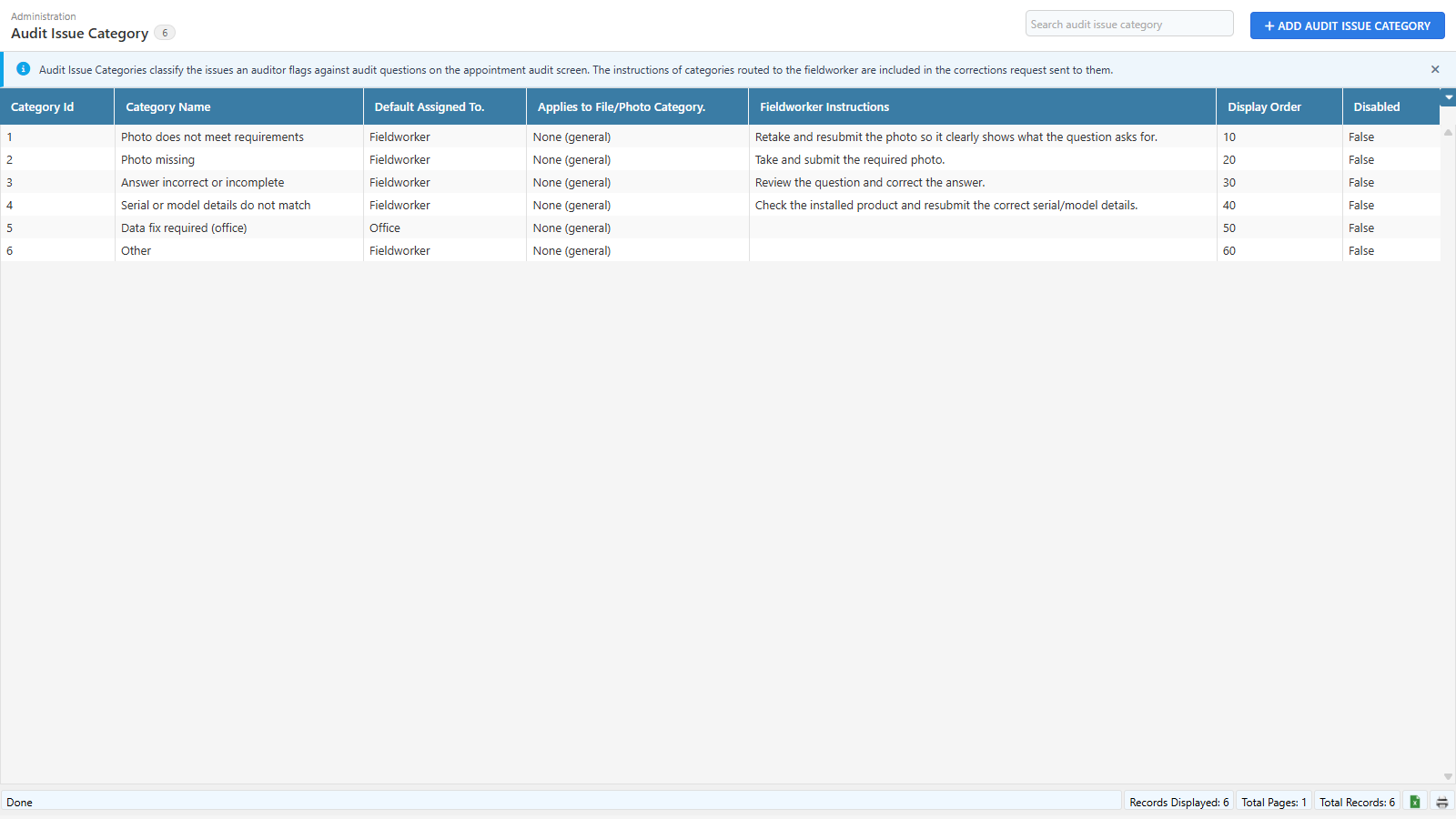
Audit issue categories classify the issues auditors flag, and carry the instructions sent to fieldworkers. Manage them under Admin Desktop Auditing Audit Issue Categories.
| Field | Purpose |
|---|---|
| Category Name | Shown in the flag dialog and the Flagged Issues panel. |
| Default Assigned To | Fieldworker or Office - the default route; auditors can change it per issue. |
| Applies to File/Photo Category | Optional. Ties the category to a photo category so it is listed first when flagging those photos. |
| Fieldworker Instructions | Included automatically in the corrections request message for issues of this category. |
| Display Order | Order in the flag dialog, lowest first. |
| Disabled | Hides the category from the flag dialog; existing issues keep it. |
A starter set of categories (for example Photo does not meet requirements, Photo missing, Answer incorrect or incomplete) is provided with the release.
admin_audit_issue_category).Permissions
| Action | Requirement |
|---|---|
| Open and view the audit screen | Audit Verify or Audit Approval permission |
| Record photo verdicts, flag/resolve/waive issues, submit audits | Audit Approval permission |
| See the Correspondence section and request field corrections | Correspondence view permission |
| Manage Audit Issue Categories | Audit Issue Categories admin permission |
Operators without the update permissions can view everything in read-only mode.