Overview
The Calculation Simulator lets you run the real calculation engine against a what-if scenario - a work type, location, date and a set of question answers - and see the certificates and indicative discount that would result. No job or appointment is created and nothing is saved.
It comes in two forms:
- A desktop screen for office and configuration users, under Tasks Calculation Simulator. The screen is a side-by-side workspace: a Questions column on the left and a Results column on the right, each scrolling independently so the results stay in view while you adjust answers.
- A mobile version for fieldworkers, opened as a tab in the Runabout app - ideal for estimating outcomes with a customer on site
Running a simulation
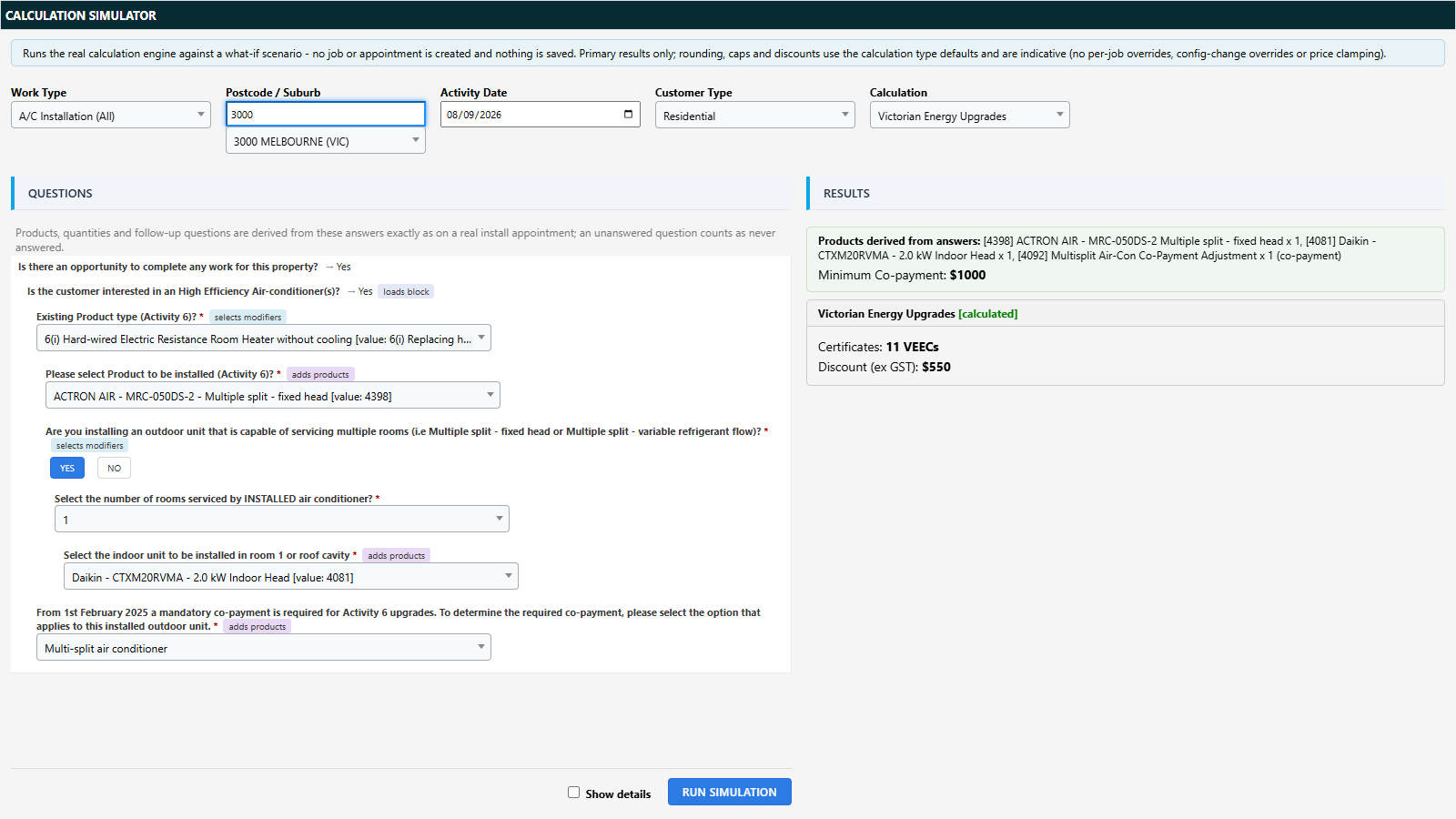
- Select a Work Type (only install work types are listed).
- Search for the property’s Postcode / Suburb and pick a result - this drives zone selection.
- Set the Activity Date (defaults to today).
- Choose the Customer Type - Residential or Business. If the work type is restricted to one customer type, the field locks to it automatically.
- Optionally narrow the Calculation to a single calculation type - it defaults to the work type’s default calculation. (Calculation types whose result feeds into another listed type are not offered separately; their figures appear inside the consuming type’s breakdown.)
- Answer the Questions that apply to your scenario. These are the same questions a real appointment for that work type would ask - follow-up questions appear as you answer their parents, and mandatory questions (starred) must be answered before running.
- Click Run Simulation.
Each question carries a badge explaining its role in the calculation - for example adds products, quantity, selects modifiers, provides value, condition or loads block - so you can see which answers drive the result. A few rendering conveniences:
- Questions with up to three answers show as pill buttons (click the selected pill again to clear it); longer lists use a dropdown.
- A question with only one possible answer shows as a compact single line with its answer pre-selected.
- Questions still awaiting an answer are highlighted with an amber accent until answered.
Reading the results
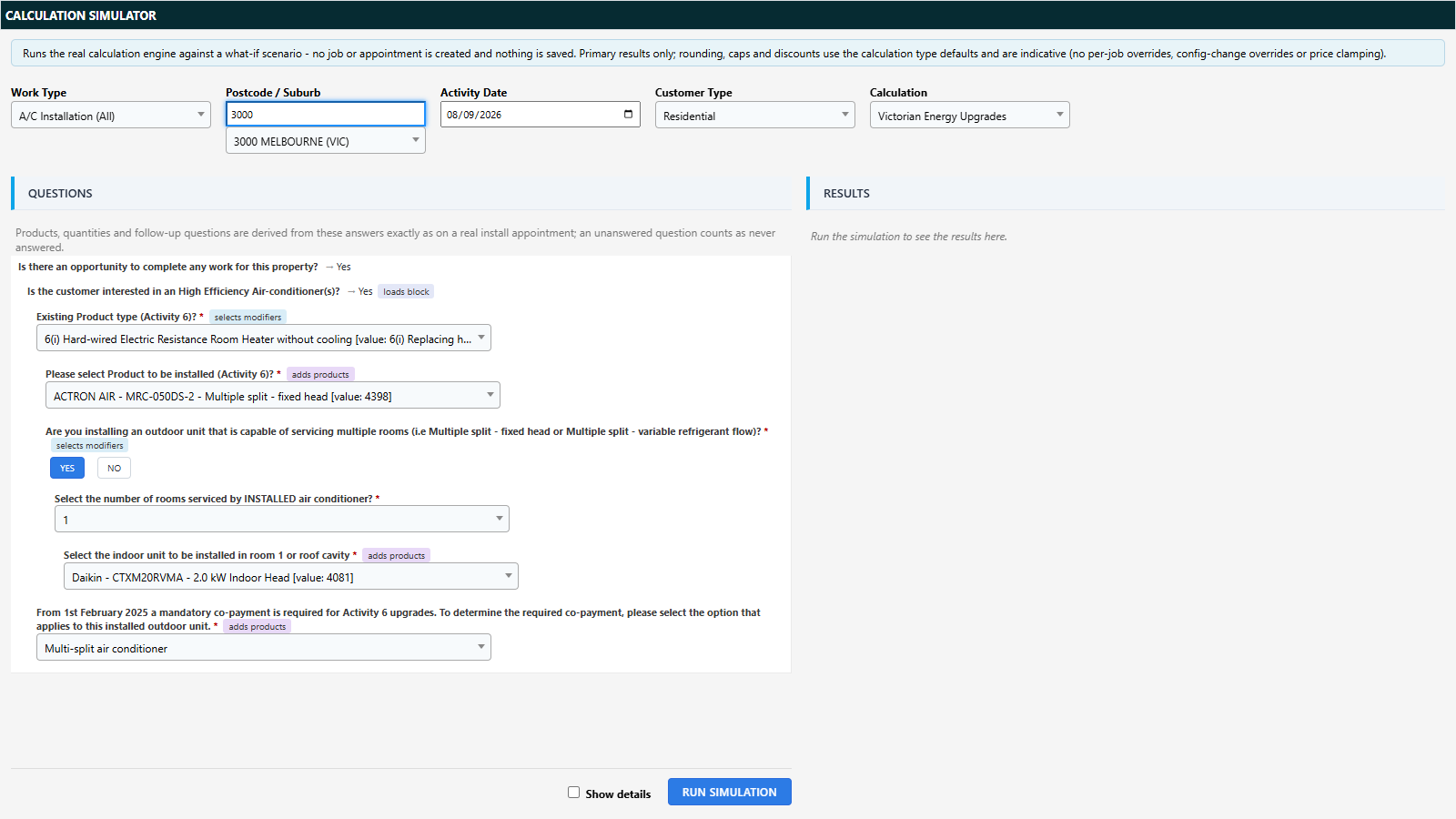
- A strip lists the products derived from your answers, with quantities (manual and co-payment products are marked, and decommissioned/removal products are included where they affect a calculation). If nothing derives, check you have answered the questions tagged adds products.
- A Minimum Co-payment figure appears when the answers derive a co-payment product.
- The default simple view shows one card per calculation type with a status - calculated, no result, or no zone match for suburb - the total (with (capped) shown when the cap applies) and the Discount (ex GST).
- Tick Show details for a full per-product breakdown: base value, quantity, per-unit value after modifiers, every modifier applied (group, multiplier, adder, stream), and the raw vs rounded/capped total.
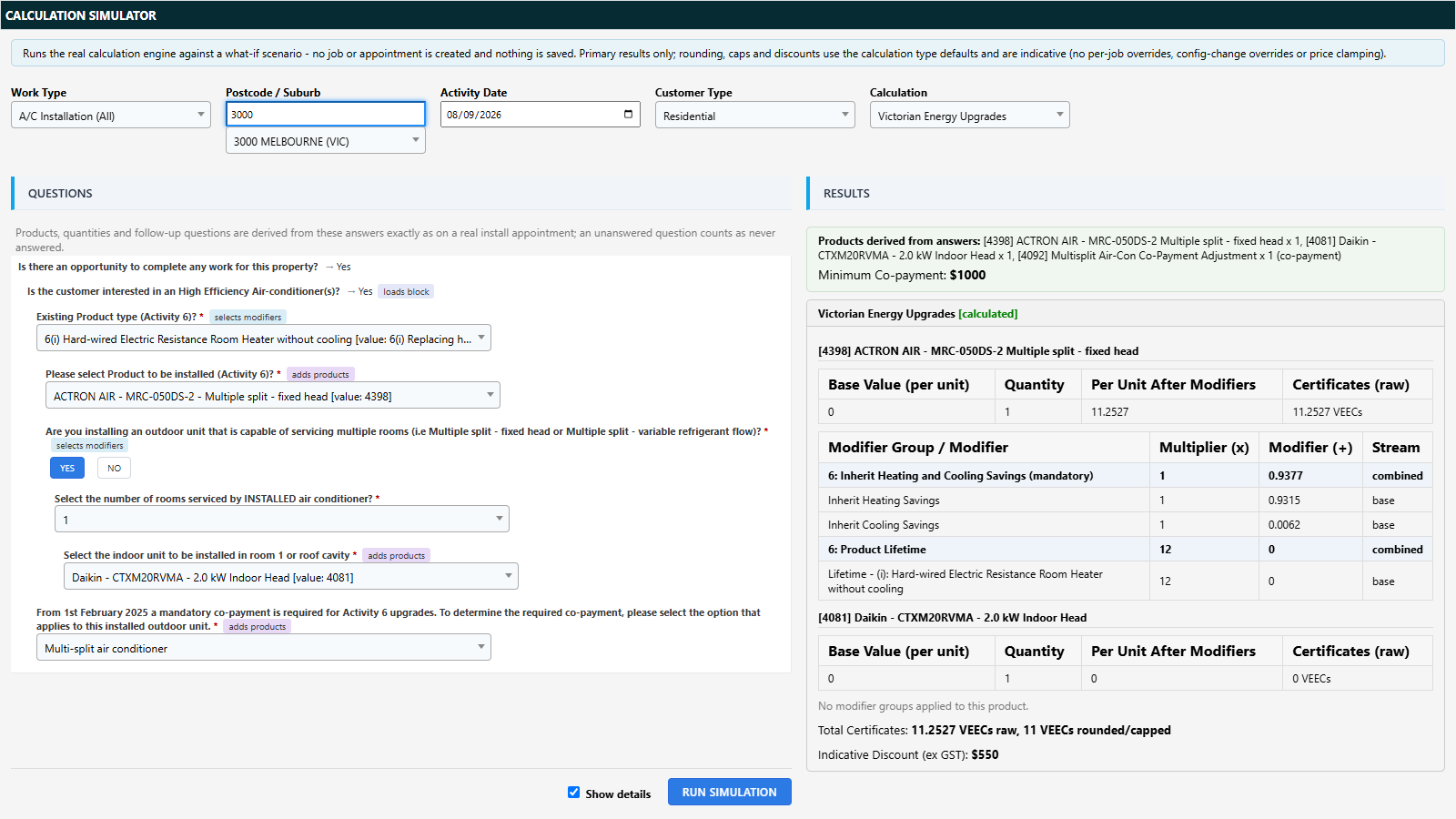
Changing the Calculation filter or the Show details toggle re-renders the last run instantly without re-simulating.
Accuracy - what is exact and what is indicative
The simulator runs the production calculation code, so the following are exact: product derivation from answers, question scoping by work type, zone resolution, base values, the full modifier algorithm, calculation chaining and manual products.
The following are indicative:
- Rounding and caps are applied at the calculation-type level (per-activity or per-block rounding on a real appointment can differ slightly)
- The discount uses the calculation type’s default rate - job- or agent-level overrides are not applied
- GST is not included
Not currently supported: quote-stage scenarios, job- and customer-level questions, the secondary/energy stream, repeating question-block instances (each block runs once), and client/agent/fieldworker question filters.
The fieldworker (mobile) version
The mobile simulator offers the same inputs and results in a phone-friendly layout, and is opened from a tab on the Runabout home screen - fieldworkers do not log into Dataforce ASAP to use it.

Requirements:
- The Runabout tab must be configured for your program (contact Dataforce to arrange this)
- The fieldworker must be Active and have an API password set on their fieldworker record
If a fieldworker sees “Not authorised. Please reopen this tab from the Runabout app.”, check the two requirements above.
Access
The desktop screen sits under the Tasks menu and requires the Certificate Types admin permission (the same permission as the calculation configuration screens), or global administrator access.