Desktop or phone audits can be viewed in two different screens:
Audit Management
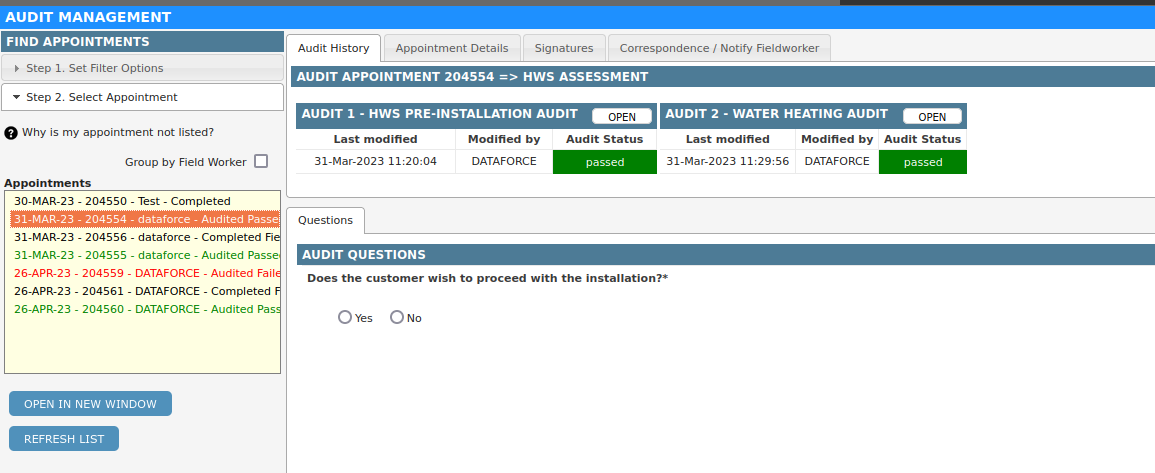
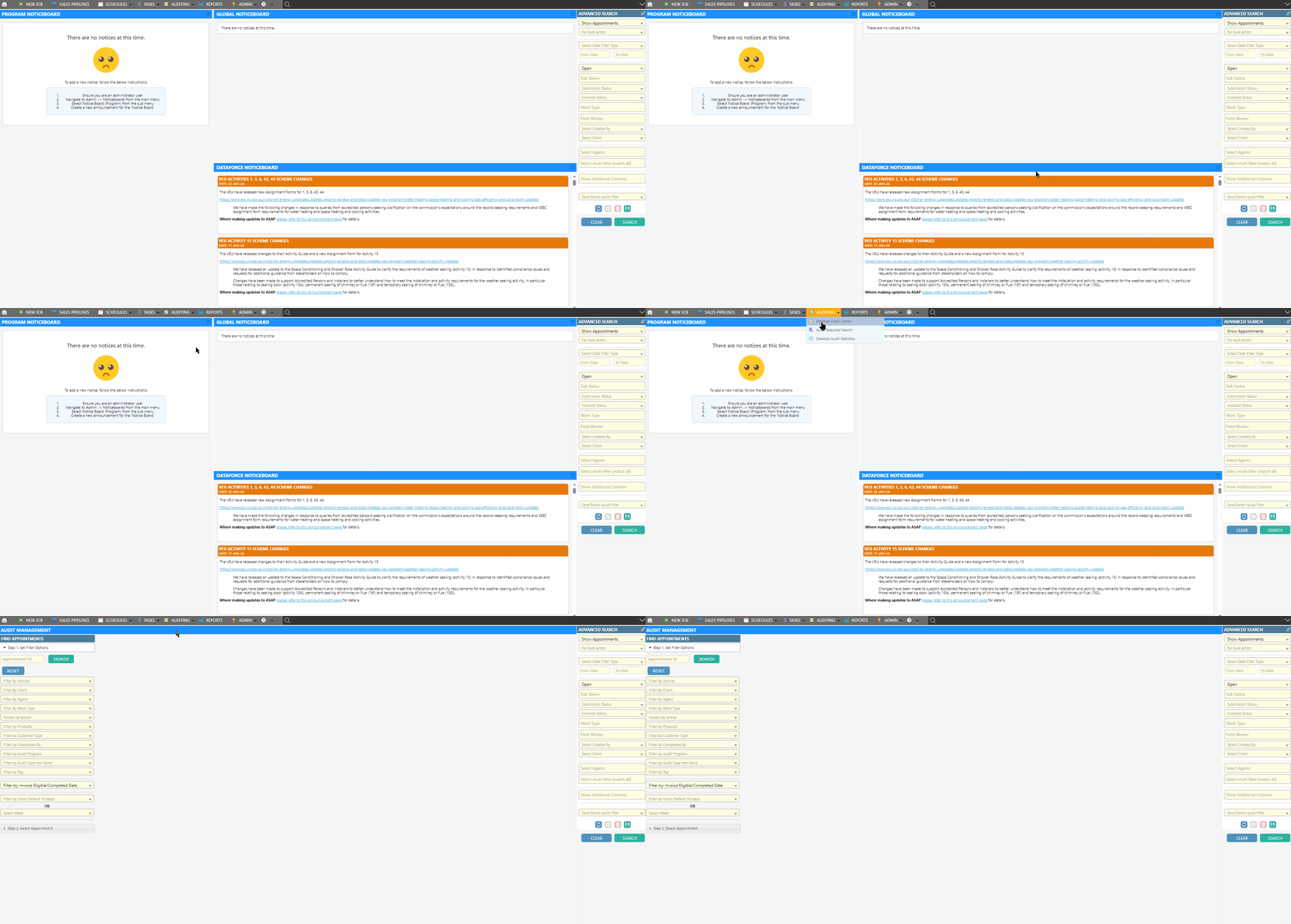
This view allows the completion of multiple audits at once and provides the ability to build lists of appointments that require audits.
- Add any required filters to build a list of relevant appointments that require a specific compliance.
- Either select a field worker to view all of their appointments within the filtered list or de-select group by field worker to view the entire list.
- Complete an audit.
Fieldworker Details
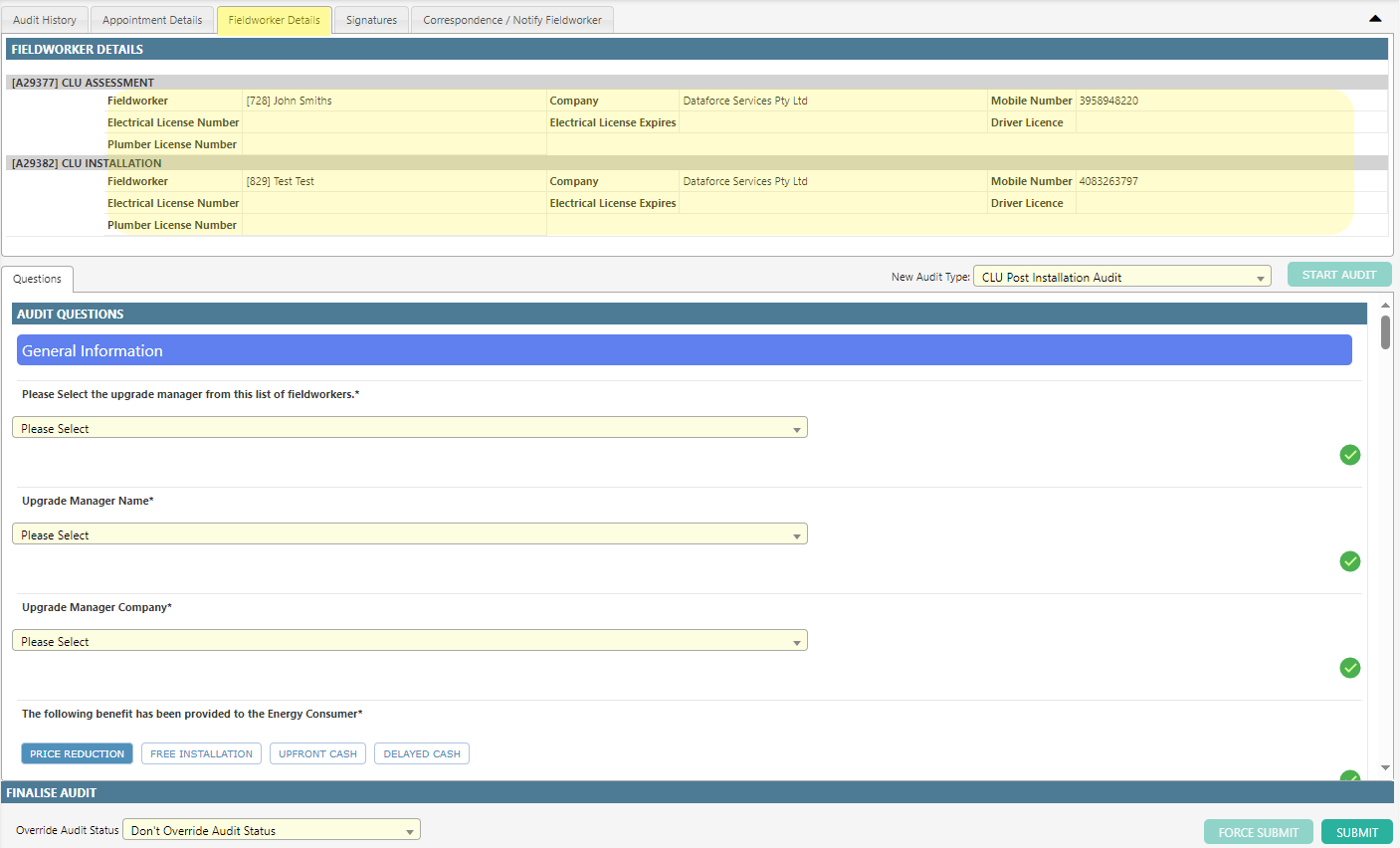
This tab in the auditing screen:
- Provides the details of all fieldworkers involved in the job.
- Lists fieldworker attributes
- Highlights any ‘expiry date’ type attributes that were expired at the time the fieldworkers’ appointment was completed.
Appointment Audit
This screen can be accessed through the Auditing tab in a specific appointment.
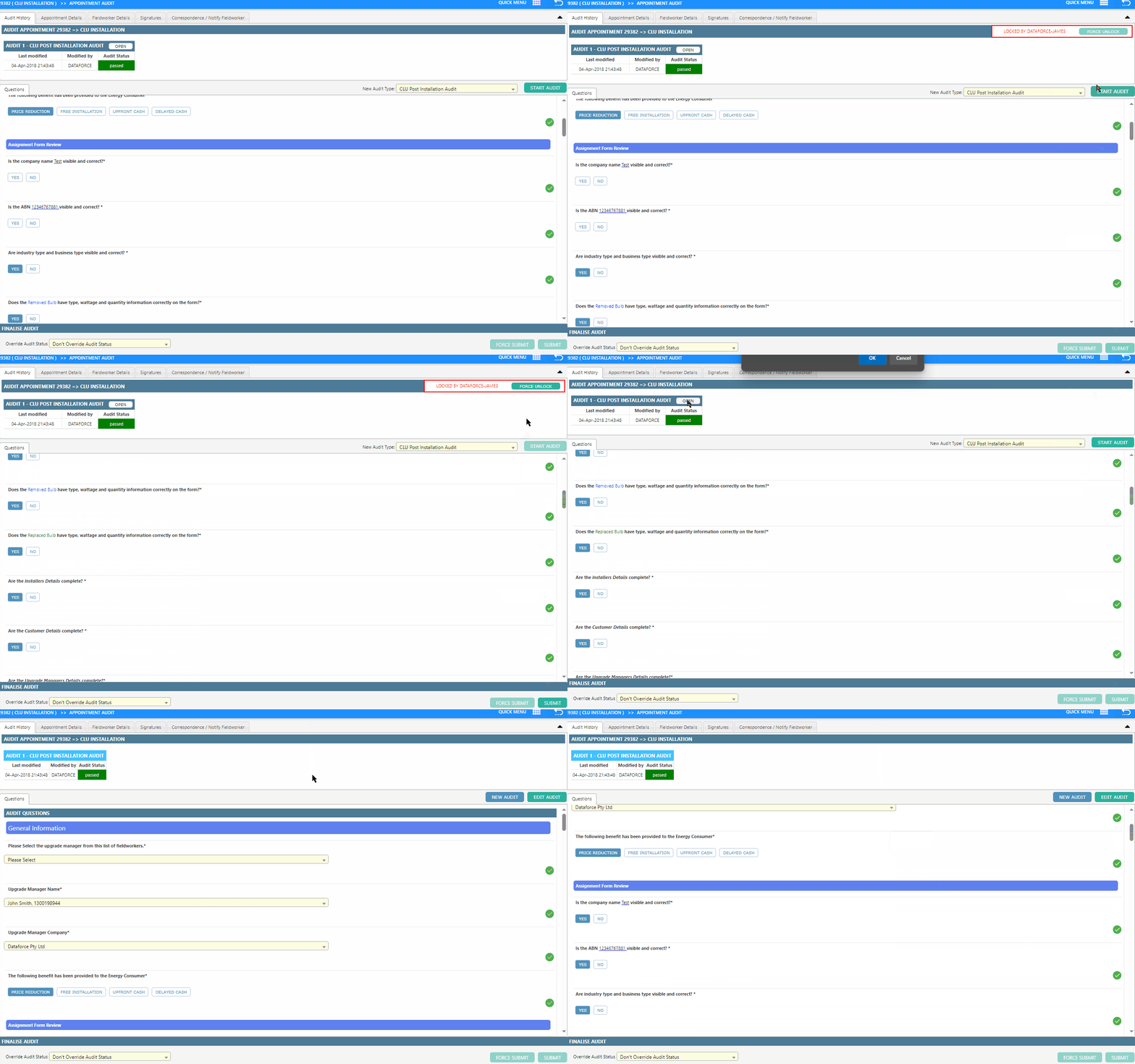
This option is mostly used for viewing or amending audits completed in bulk through the global Auditing tab.
- Select an appointment.
- Select the Auditing tab on the appointment (grey).
- Complete an audit.
Regardless of the method for viewing appointment audits, the interface for completing the audit will remain the same.
Inline Images in Audit
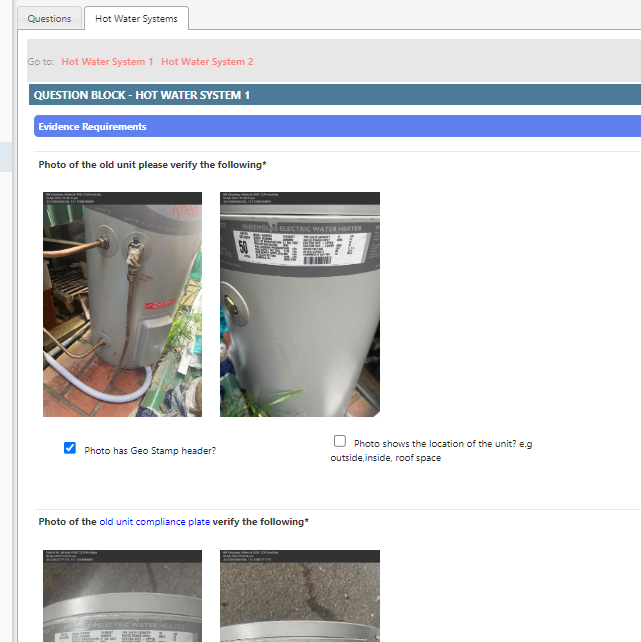
Auditing can include inline images to help audit efficiency.
Communicate Audit Issues to a Fieldworker
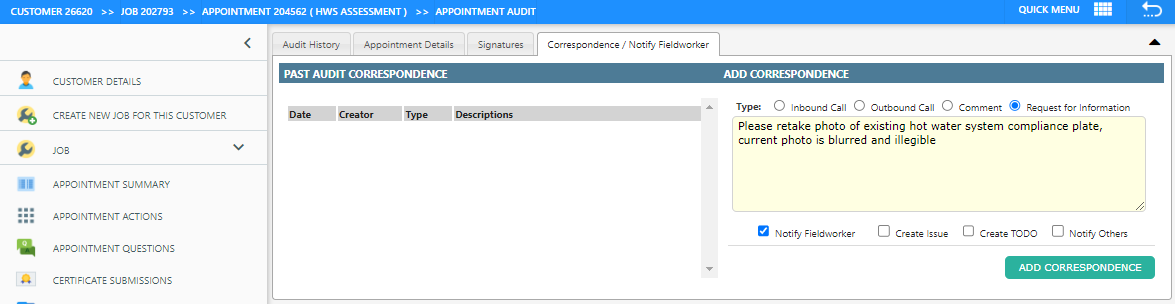
There is a feature to allow auditors to communicate issues to fieldworkers.
When an auditor is auditing a job, they can add a comment to the job via the ‘Correspondence / Notify Fieldworker’ tab in the audit.
- If ‘Request for Information’ is selected as the correspondence type, then this comment will be visible to the fieldworker on Runabout.
- If ‘Notify Fieldworker’ is checked, the fieldworker will receive an email notification with the comment.
More information
Refer to Audit Overview for more information about the concept of auditing in Dataforce ASAP.