What notifications can I receive?
You can be notified when:
- A payment is received on a job you own
- A customer completes a signature request you sent
- You are mentioned in job comments
- You are mentioned in appointment comments
- You are mentioned in appointment correspondence
- A support issue you created is escalated
- A reply is received to an SMS you sent (SMS Reply Notifications - on by default; the notification shows the reply text and links to the job. Automated and campaign messages do not trigger it)
- An audit issue is assigned to you from the audit screen (the notification links straight to the audit)
How to view notifications
Click the notification bell in the top-right corner next to your user information.
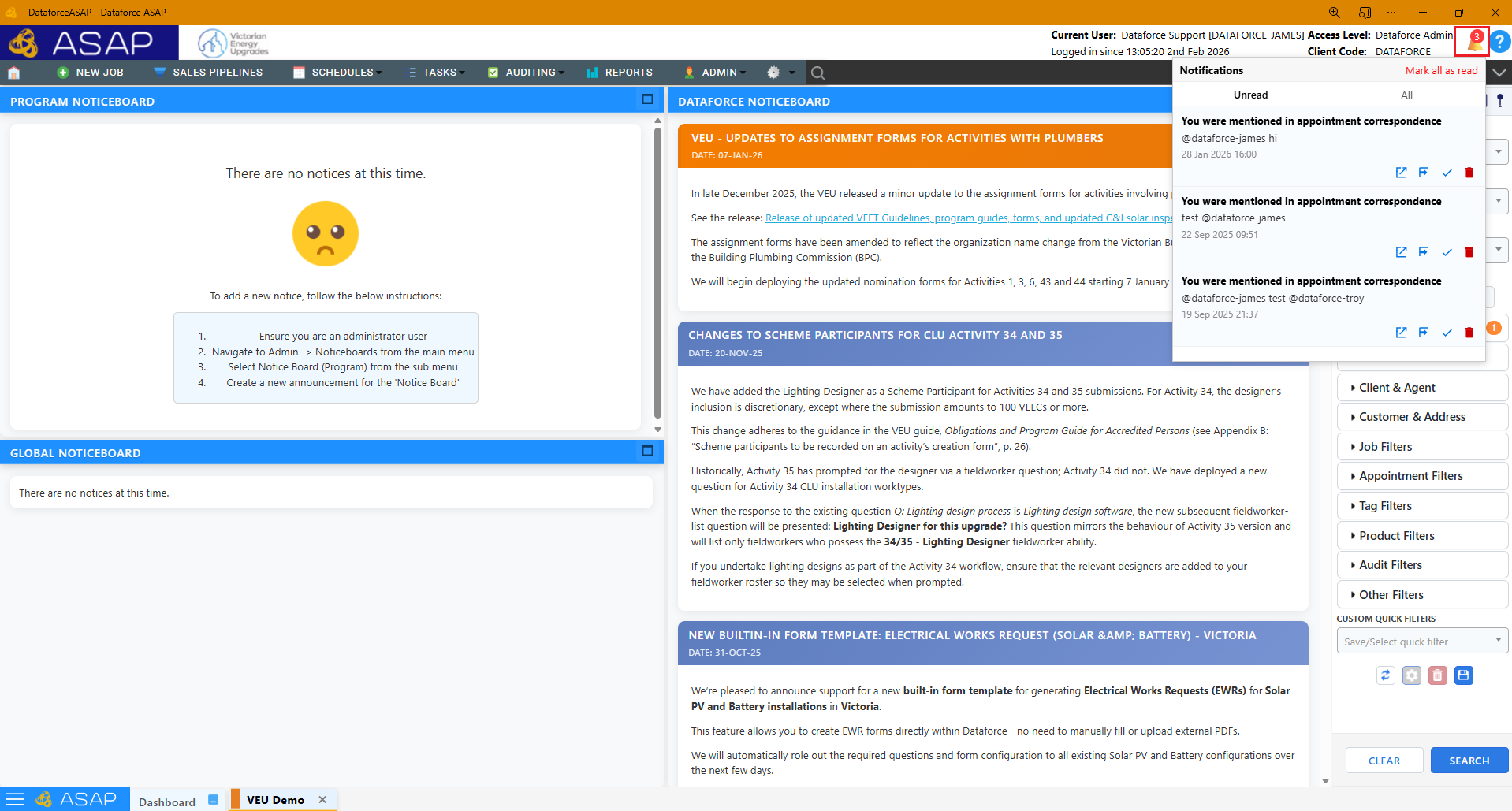
This opens the notifications panel:
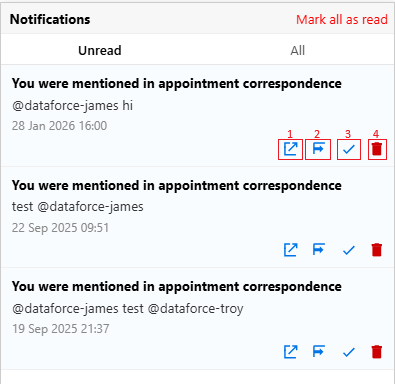
The numbered controls are:
- Open the linked item in a new window
- Open the linked item in the current window
- Mark as read
- Delete notification
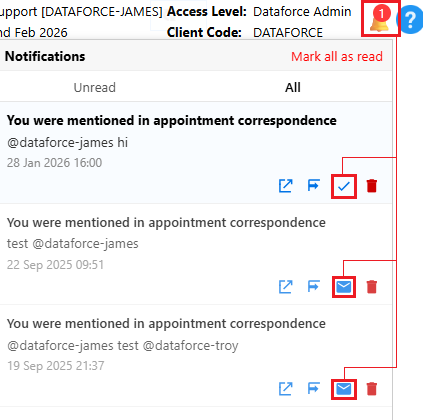
Marking a notification as read moves it to the All tab.
In the below example, two notifications have been marked as read, leaving one unread. The unread count is reflected on the notification bell.
Opening a notification automatically marks it as read and opens the related job summary.
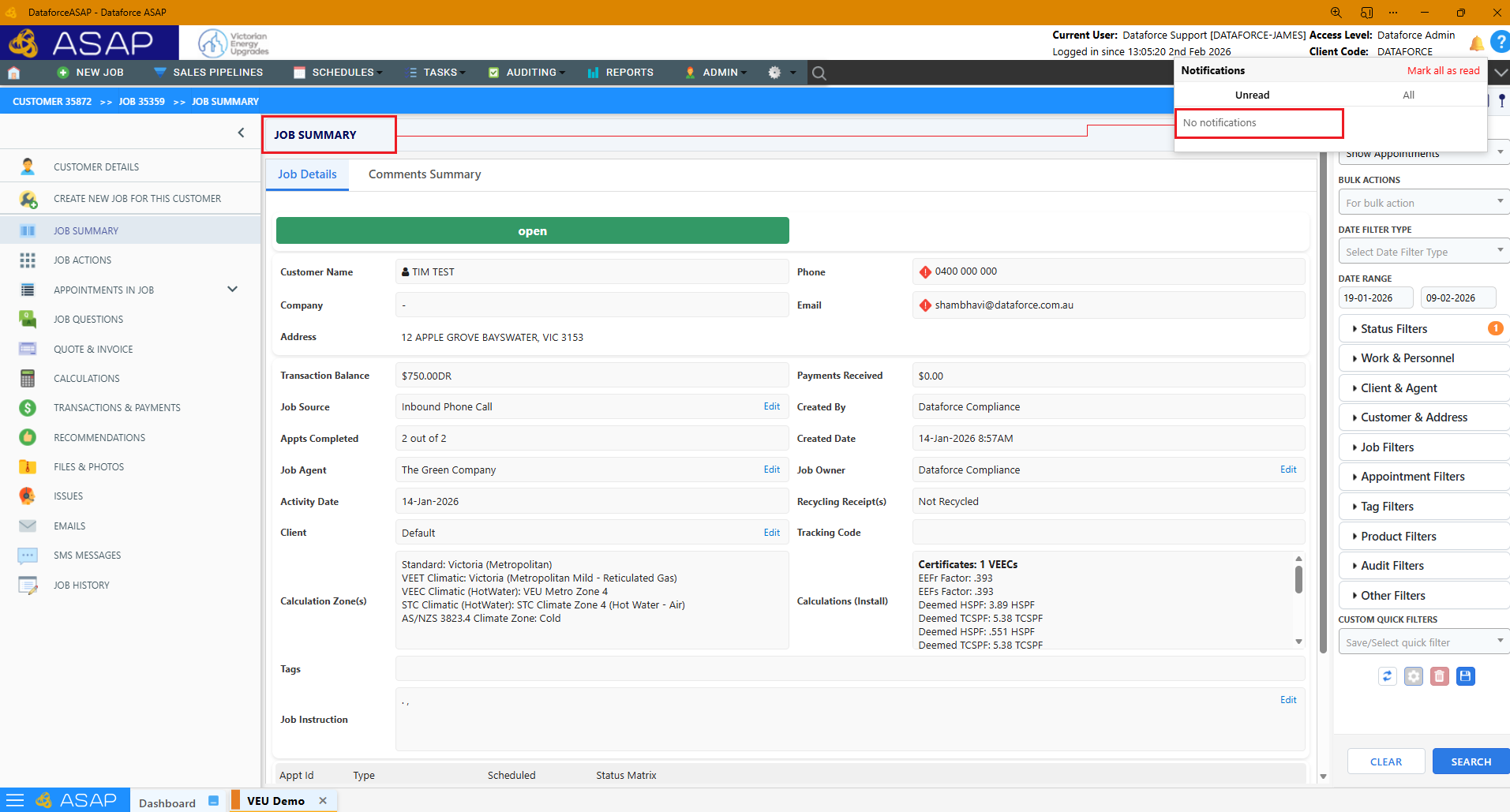
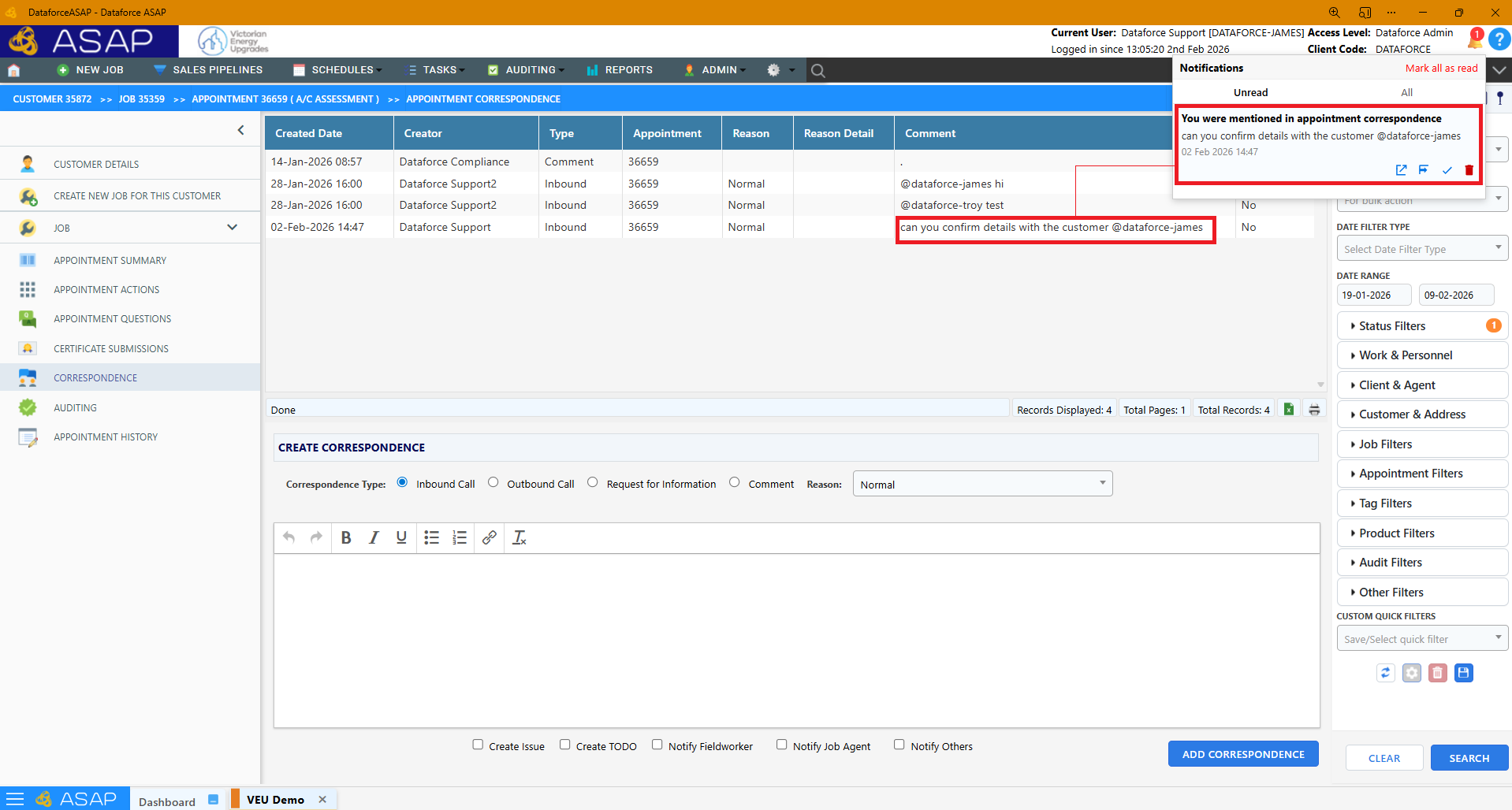
In this example, the user received a notification after being tagged in appointment correspondence.
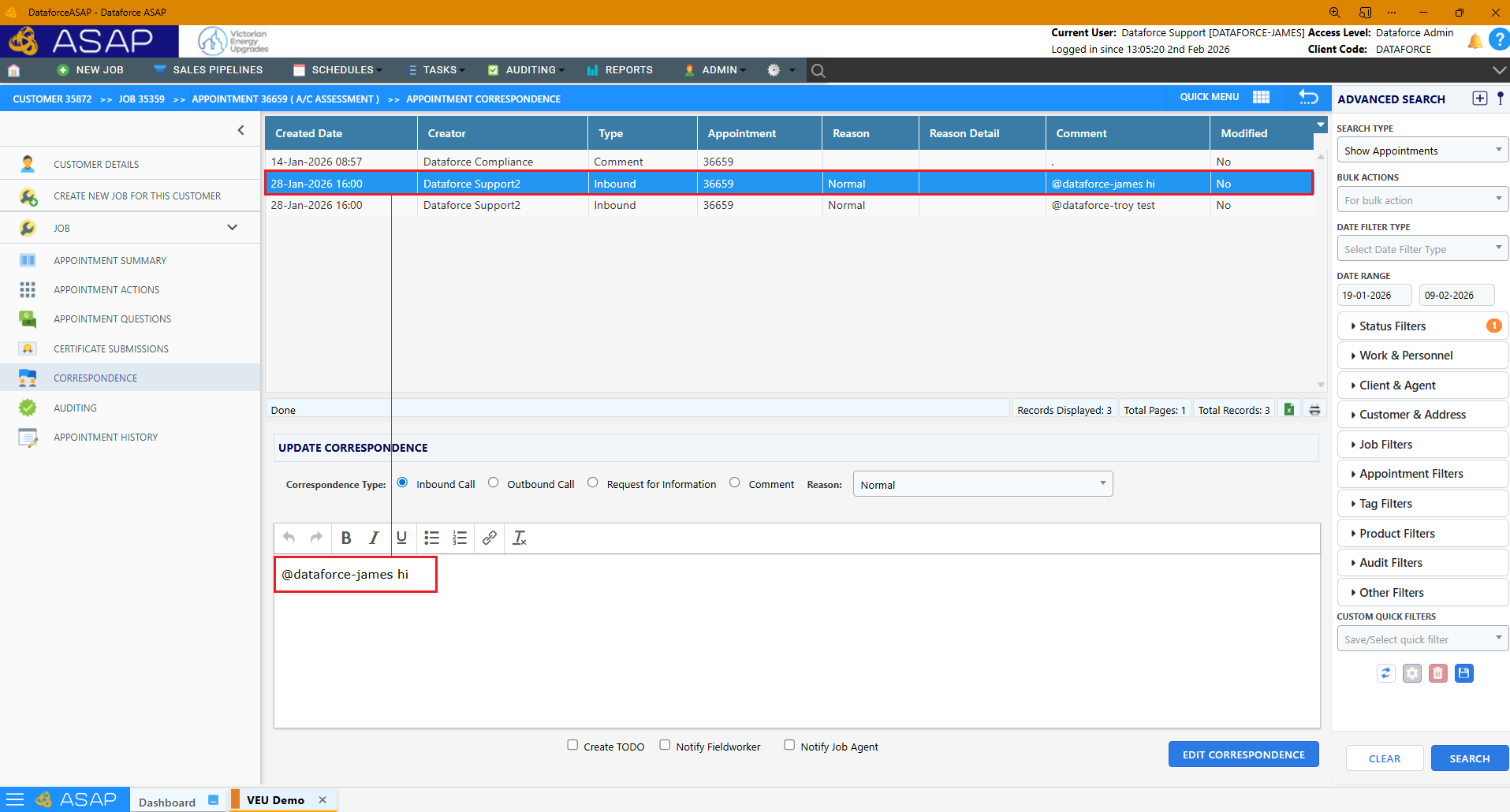
How to notify other users
You can notify users by tagging them in correspondence using the following syntax:
@username
A list of matching users will appear. Select the correct user from the list to tag them.
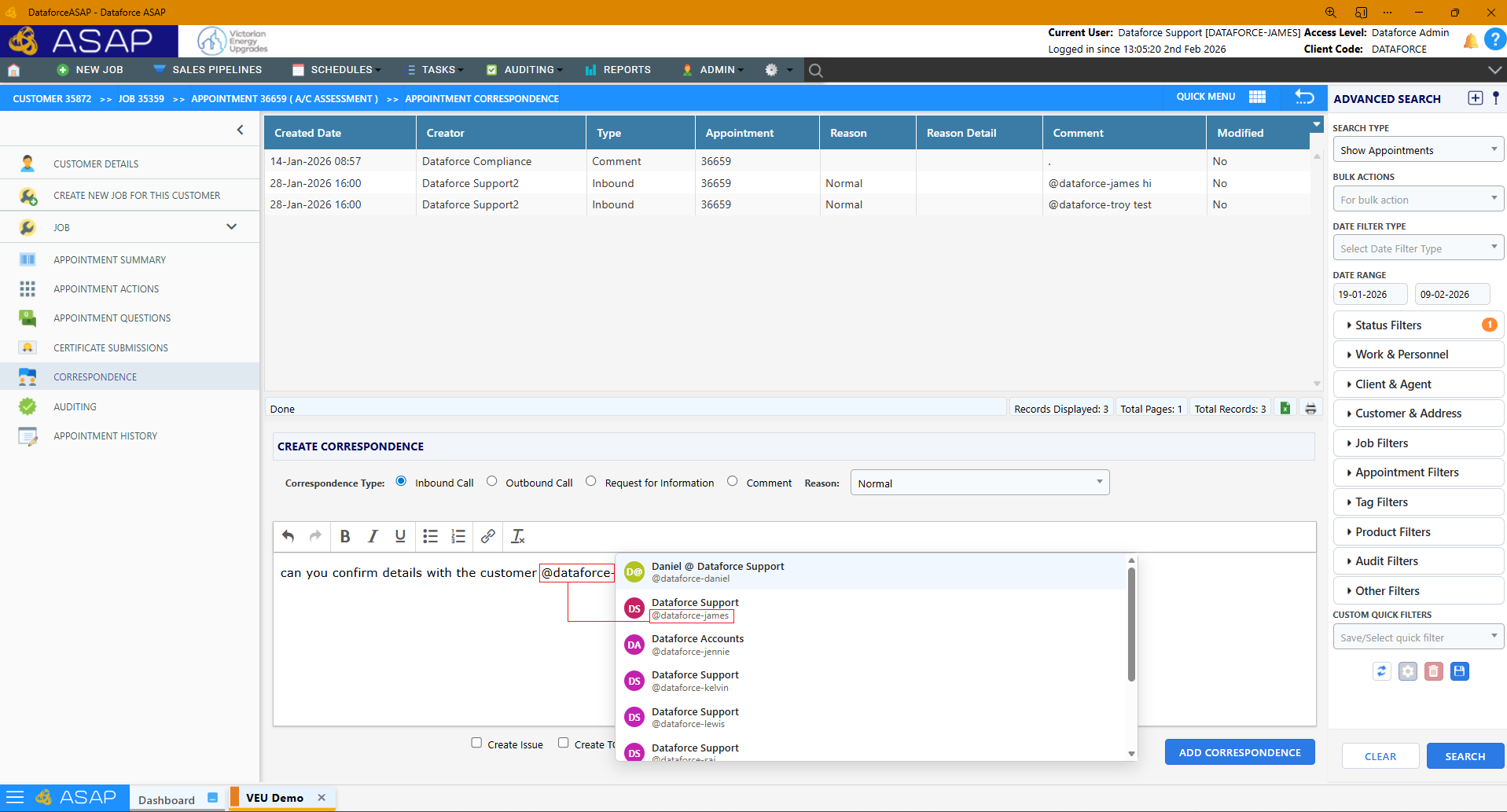
Once the correspondence is posted, the tagged user is notified immediately.
Signature request notification example
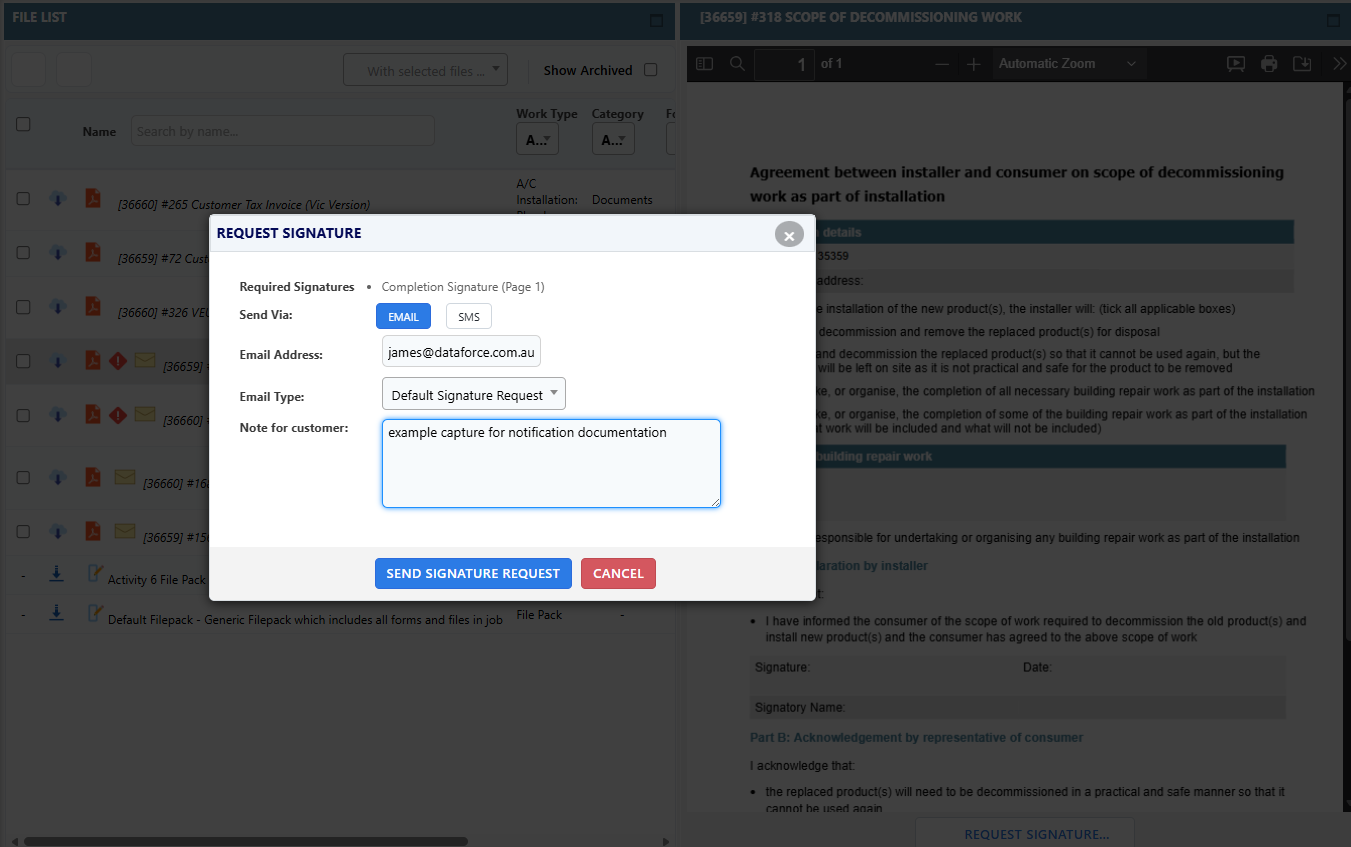
When a customer signs the form, the user who initiated the request receives a notification.
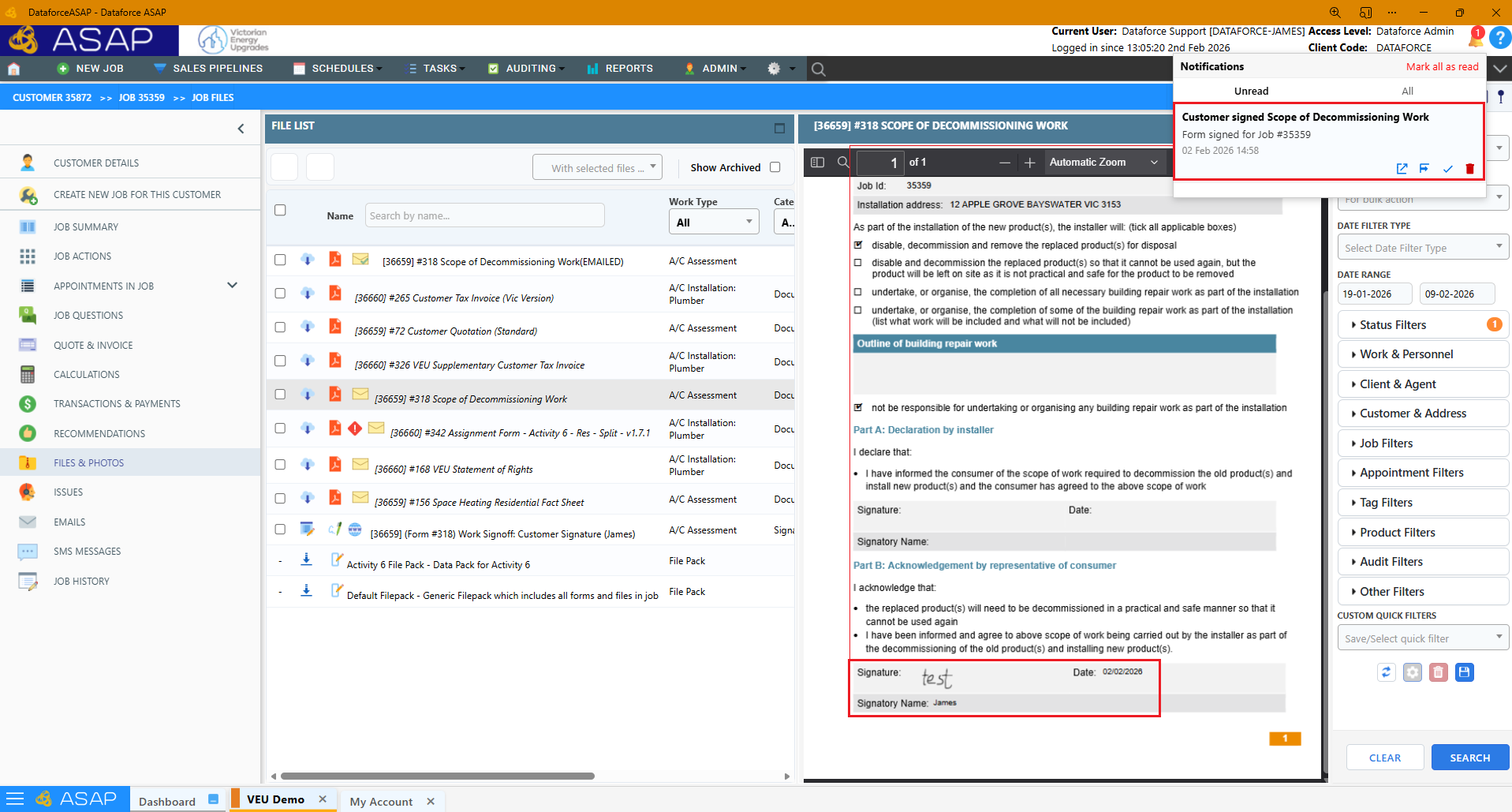
Each notification includes a short description so you can quickly identify what action occurred.
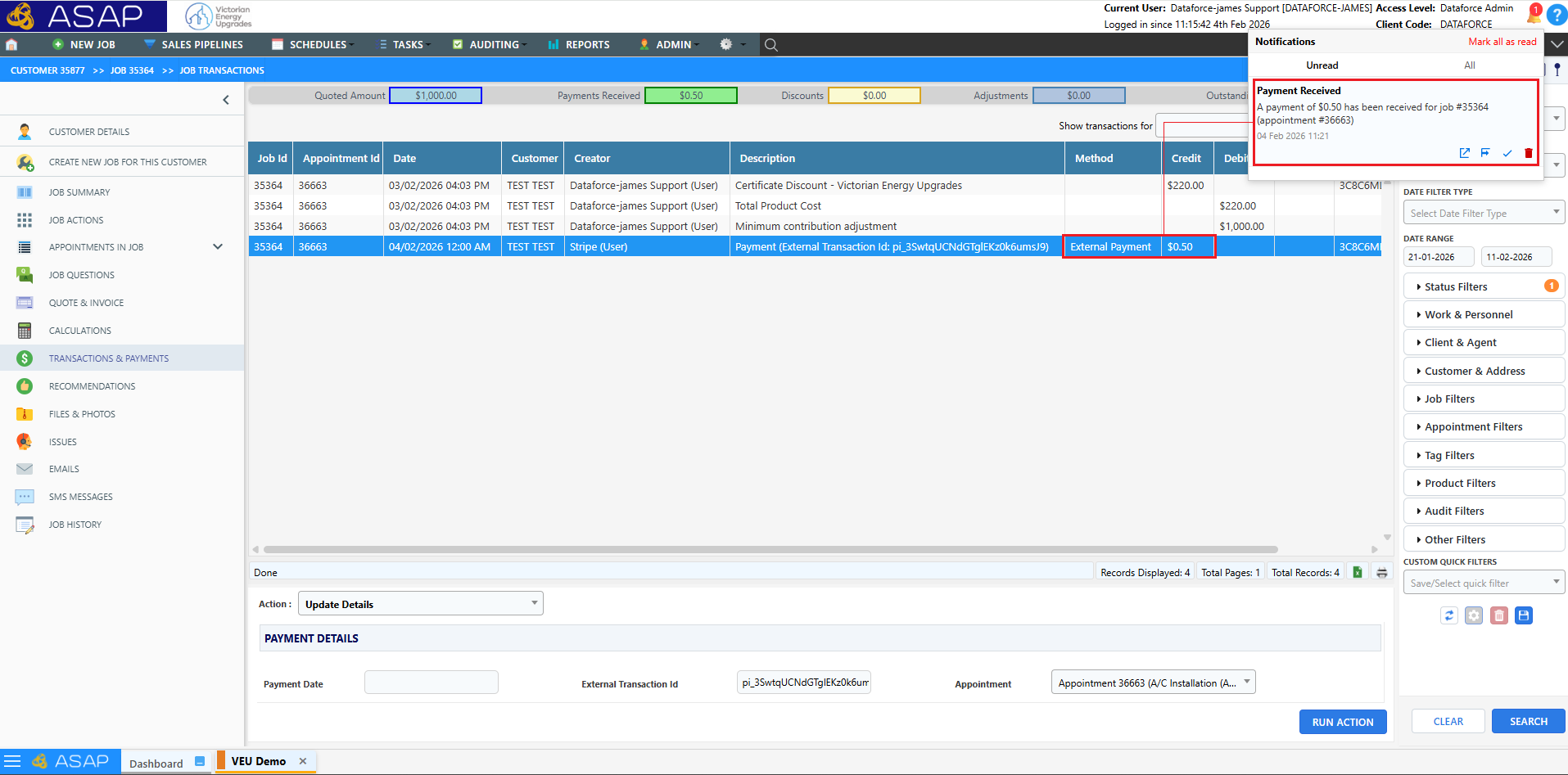
Payment received notification example
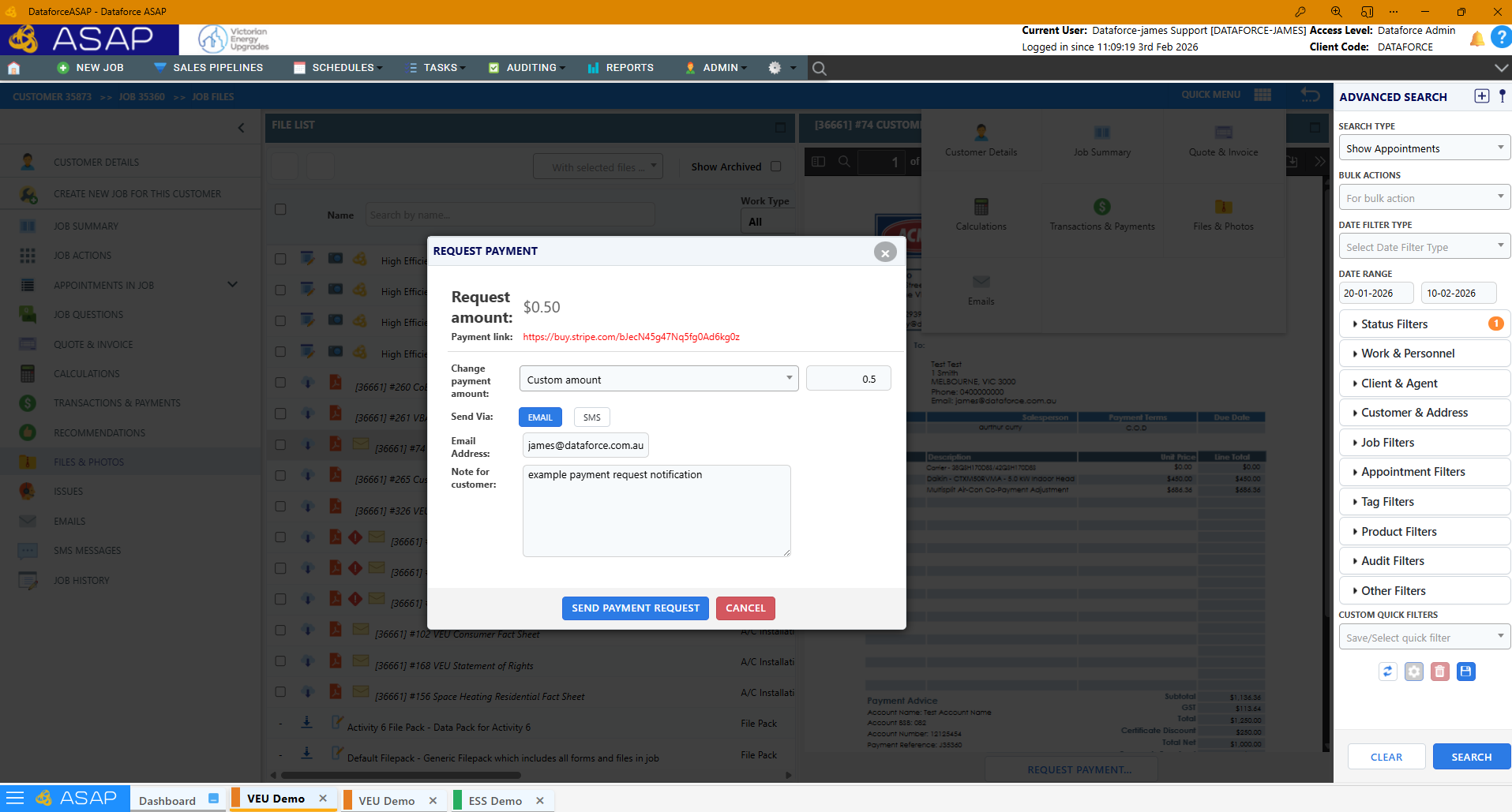
When a customer makes payment, the user who initialised the request, the job owner, as well as the job creator will all receive a notification of payment
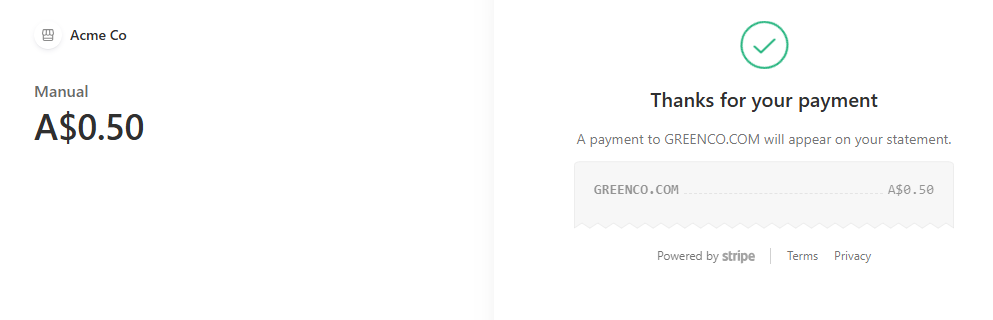
The notification will contain the $amount the customer paid as well as the job id and appointment id