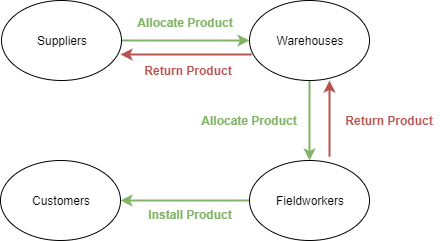
Note: The following diagram displays the flow of products in Dataforce ASAP.
Instruction
-
Open the Stock Management screen by clicking Tasks Stock Management Stock Management.
-
Select the New Stock Movement tab.
-
Choose the movement type:
Movement From To Use when Receive Supplier Warehouse Stock arrives from a supplier Issue Warehouse Field worker Stocking a field worker’s vehicle Field worker Return Field worker Warehouse A field worker returns unused stock Supplier Return Warehouse Supplier Faulty or excess stock goes back to the supplier Warehouse Transfer Warehouse Warehouse Moving stock between warehouses Field worker Transfer Field worker Field worker Moving stock between field workers 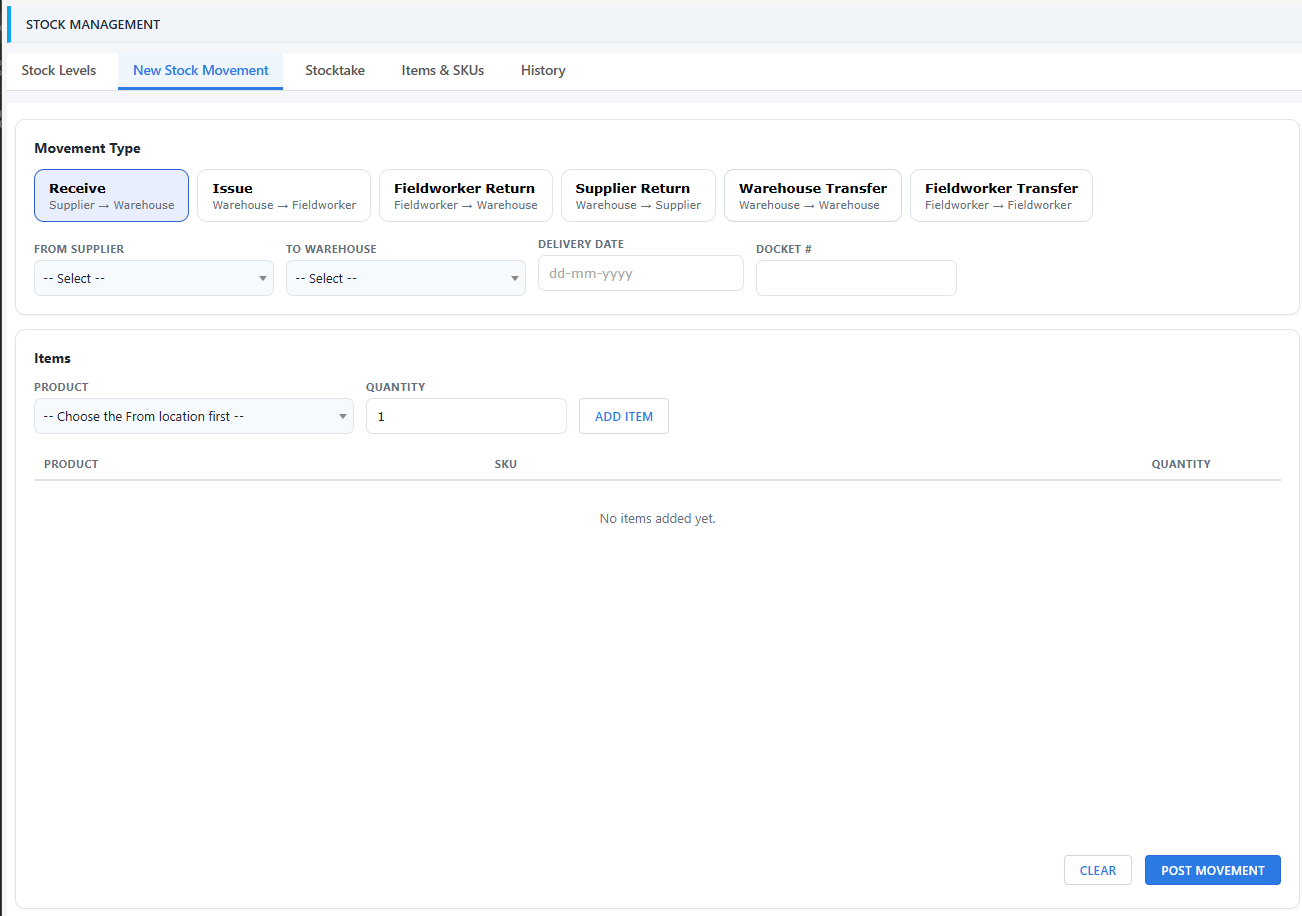
-
Select the From and To locations for the movement.
-
Enter the movement date and the docket number from the paperwork. For returns, also select the Return Reason.
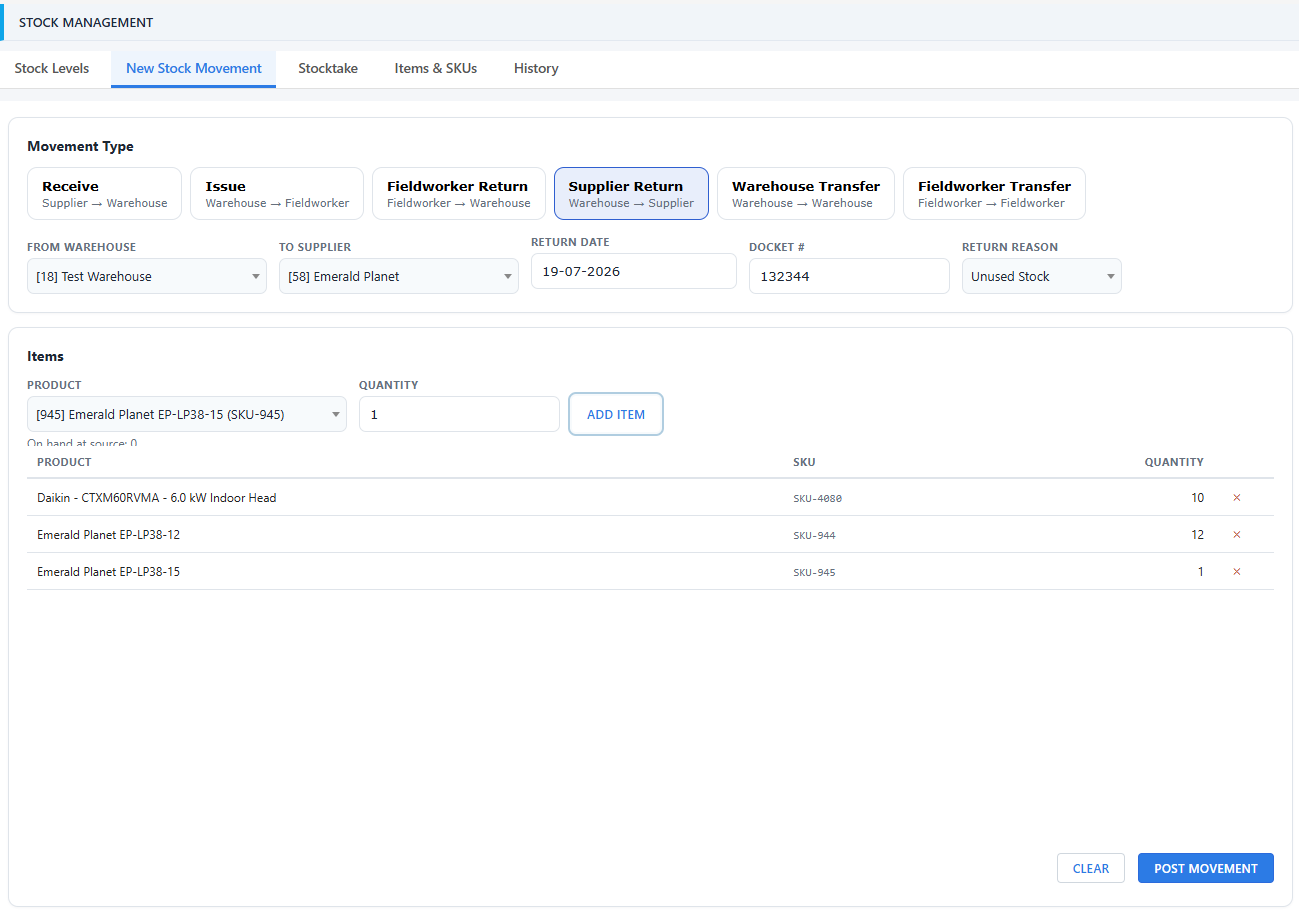
- Add the items being moved:
- Open the Product dropdown and search by product name, SKU or barcode - a barcode scanner can be used directly in the search box. For issues, returns and transfers the list only offers products the From location actually holds, and shows its stock on hand as a hint.
- Enter the quantity and click Add Item. Repeat for each product on the docket.
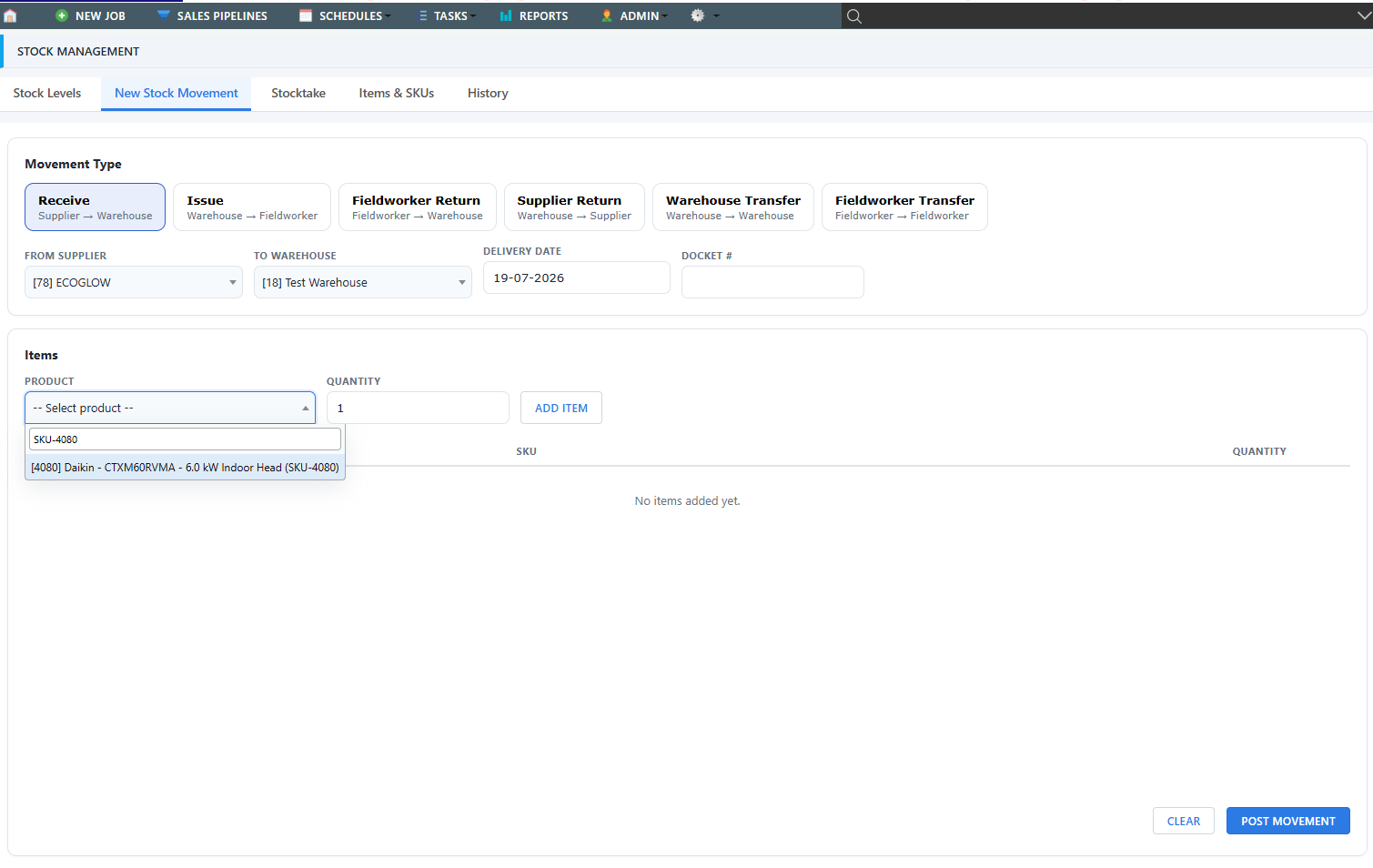
- Click Post Movement. Stock levels update immediately, and the movement appears on the History tab.
Note: Posted movements are permanent and cannot be edited. If a movement was
recorded incorrectly, post the opposite movement to undo it - refer to
Correcting Stock Mistakes.
Requisition slips
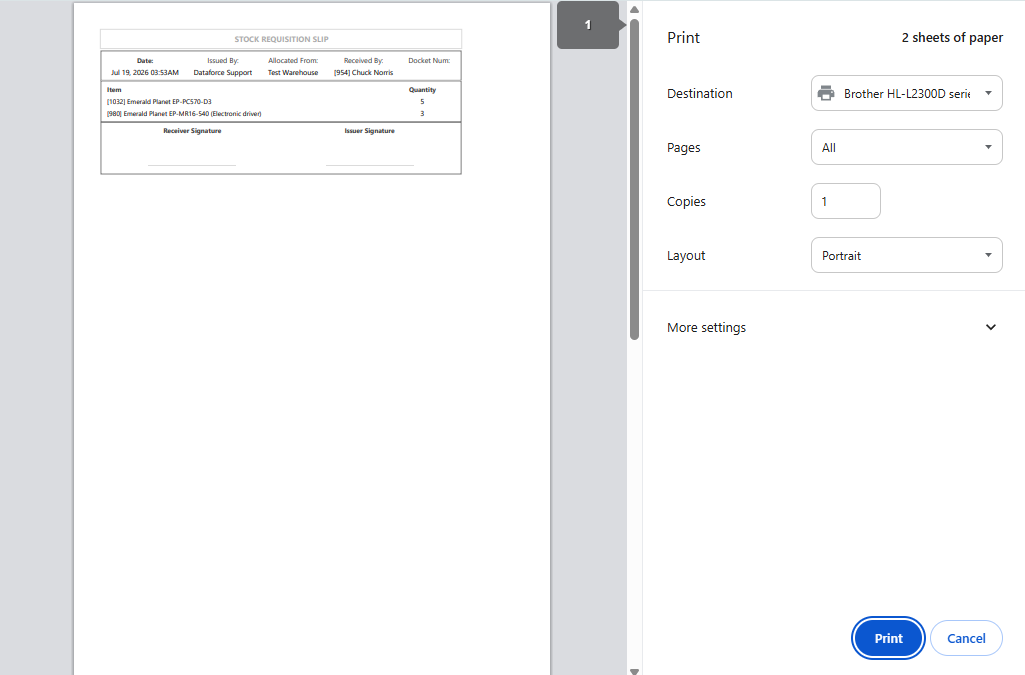
To print a requisition slip for a field worker allocation or return, open the History tab, select the movement, and click Print Requisition Slip.