Overview
Multi-Factor Authentication (MFA) adds a second step to login: after entering their password, the user enters a 6-digit code from an authenticator app on their phone (such as Google Authenticator or Microsoft Authenticator).
Users can set up MFA themselves at any time from My Account, and administrators can now enforce MFA for a program so that nobody can open it without MFA on their account.
Setting up MFA (any user)
- Open My Account. The profile shows a Multi-Factor Authentication row - Enabled or Not Configured.
- Click Set Up MFA.
- Scan the QR code with your authenticator app (or enter the setup code manually). Store the setup code somewhere safe - it is what lets you re-establish the account if you change phones.
- Enter the 6-digit code from the app and click Verify.
From then on, login asks for the 6-digit code after your username and password.

Enforcing MFA for a program
MFA enforcement is a program preference: Config Program Preferences (category Other) - “Force users to set up Multi-Factor Authentication (MFA) before opening this program”.
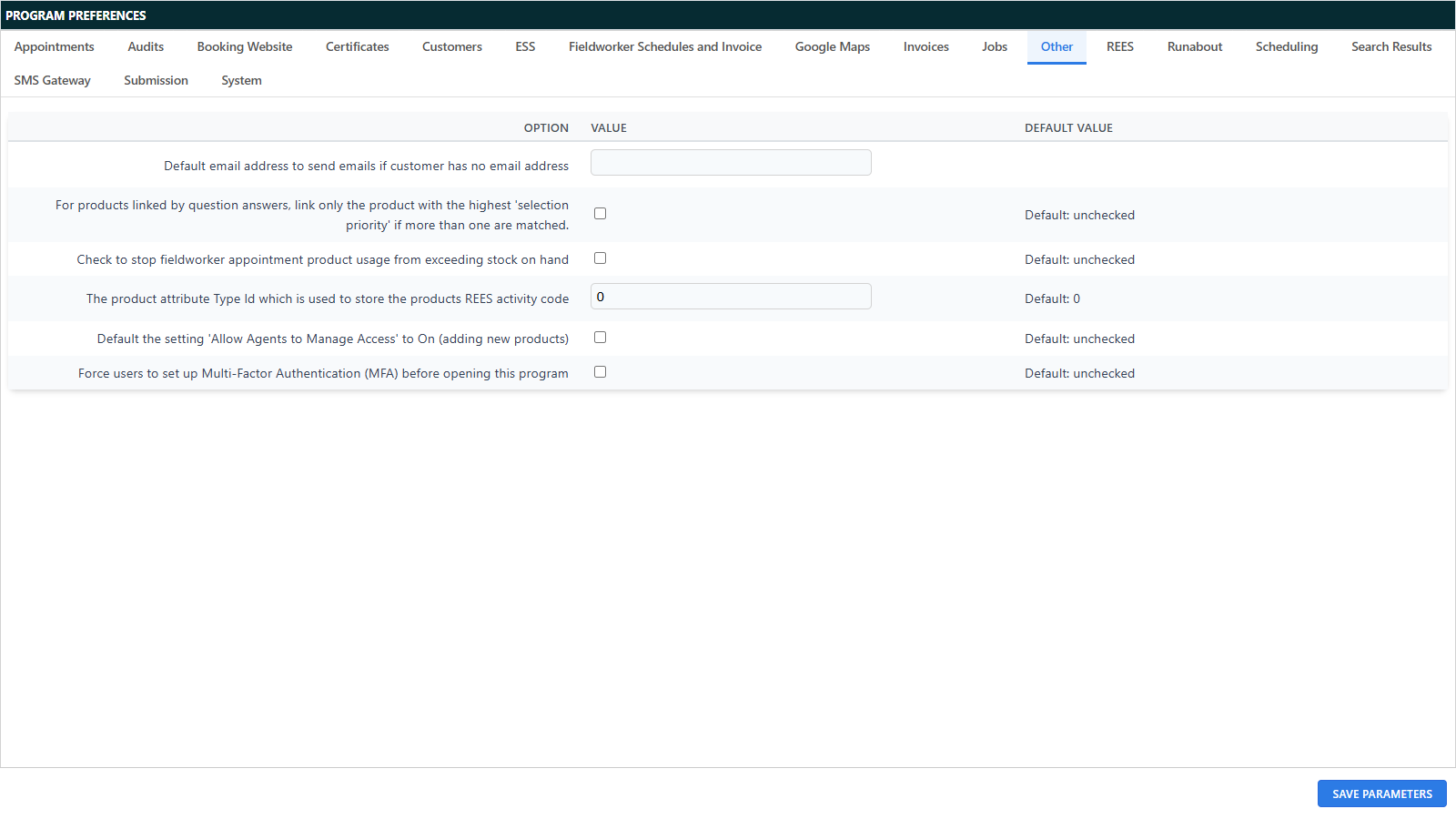
When it is on:
- A user without MFA who clicks the program on the main menu is stopped by a Set Up Multi-Factor Authentication dialog and walked through the setup steps above. Once verified, the program opens immediately. If they cancel, the program simply does not open - other programs are unaffected.
- The setting is per program - a user can keep working in programs that do not enforce MFA.

Disabling MFA
Disabling MFA now requires proof of possession: clicking Disable MFA in My Account asks for a current 6-digit code from the authenticator app before MFA is turned off. An invalid code is rejected.
Two further rules:
- If any of the user’s programs enforces MFA, the Disable button is not offered at all - the profile shows “(Required by your administrator)” instead.
- Disabling clears the stored secret, so re-enabling later means scanning a new QR code.
