Overview
Suppliers represent the vendors that supply the stock/products to your business.
Suppliers are essential for stock tracking as they are the source of all stock that enters the system.
Warehouses can receive stock from Suppliers which can then be allocated to Field workers.
The general flow of stock is:
Before you can begin allocating stock from your Suppliers you will first need to
Add Supplier
-
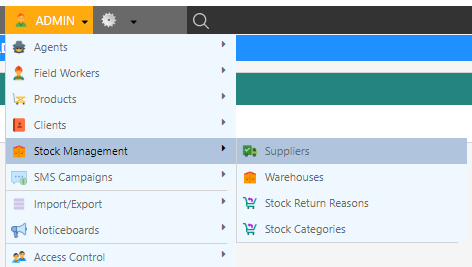
Open the Supplier screen by clicking Admin Stock Management Suppliers.
-
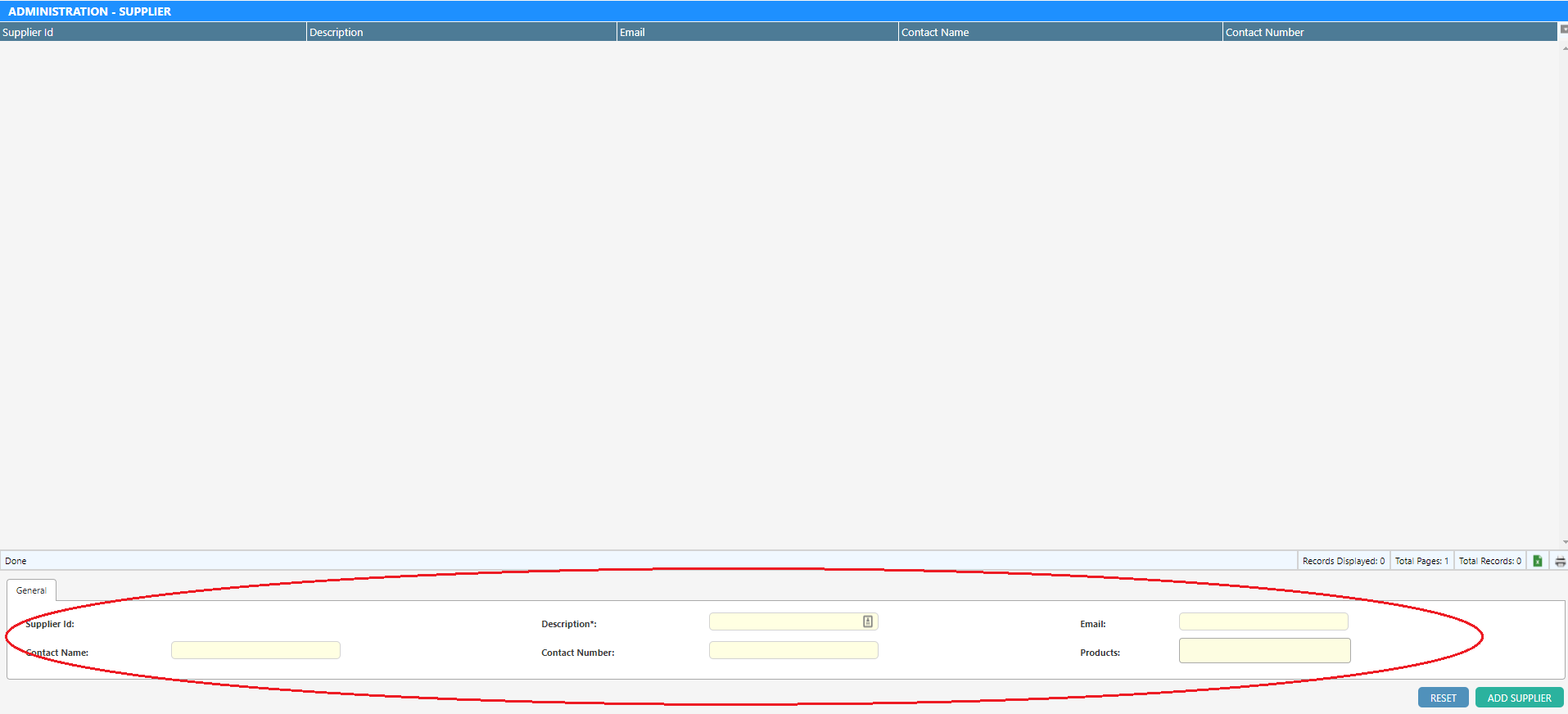
Click ”+ Add Supplier”. The supplier editor opens in a drawer.
-
Enter the supplier details into the provided fields. Refer to Supplier Property Details for more in-depth explanation of each field.
-
Click “Add Supplier” to save. To edit an existing supplier later, click its row in the list.
Supplier Property Details
| Property | Description |
|---|---|
| Description* | The supplier’s name, shown in the Supplier dropdown when receiving or returning warehouse stock. |
| Contact email address for the supplier, for reference. | |
| Contact Name | Name of the primary contact at this supplier. |
| Contact Number | Phone number of the supplier contact. |
| Products | The products this supplier supplies. When receiving stock, choosing the supplier limits the product list to these products. |
| Disabled | Hides the supplier from the supplier dropdown for new movements. Existing stock movements keep their supplier. |
| Sort Order | Controls the order suppliers appear in selection lists (lowest first). |