How the redesigned configuration editor screens work - the record list, the editing drawer, search, filters and conditional fields
Overview
More than 110 configuration screens (Work Types, Email Types, Forms, Attributes, and many more) share a common editor layout. This page describes how it works - the individual screens’ fields are covered by their own pages.
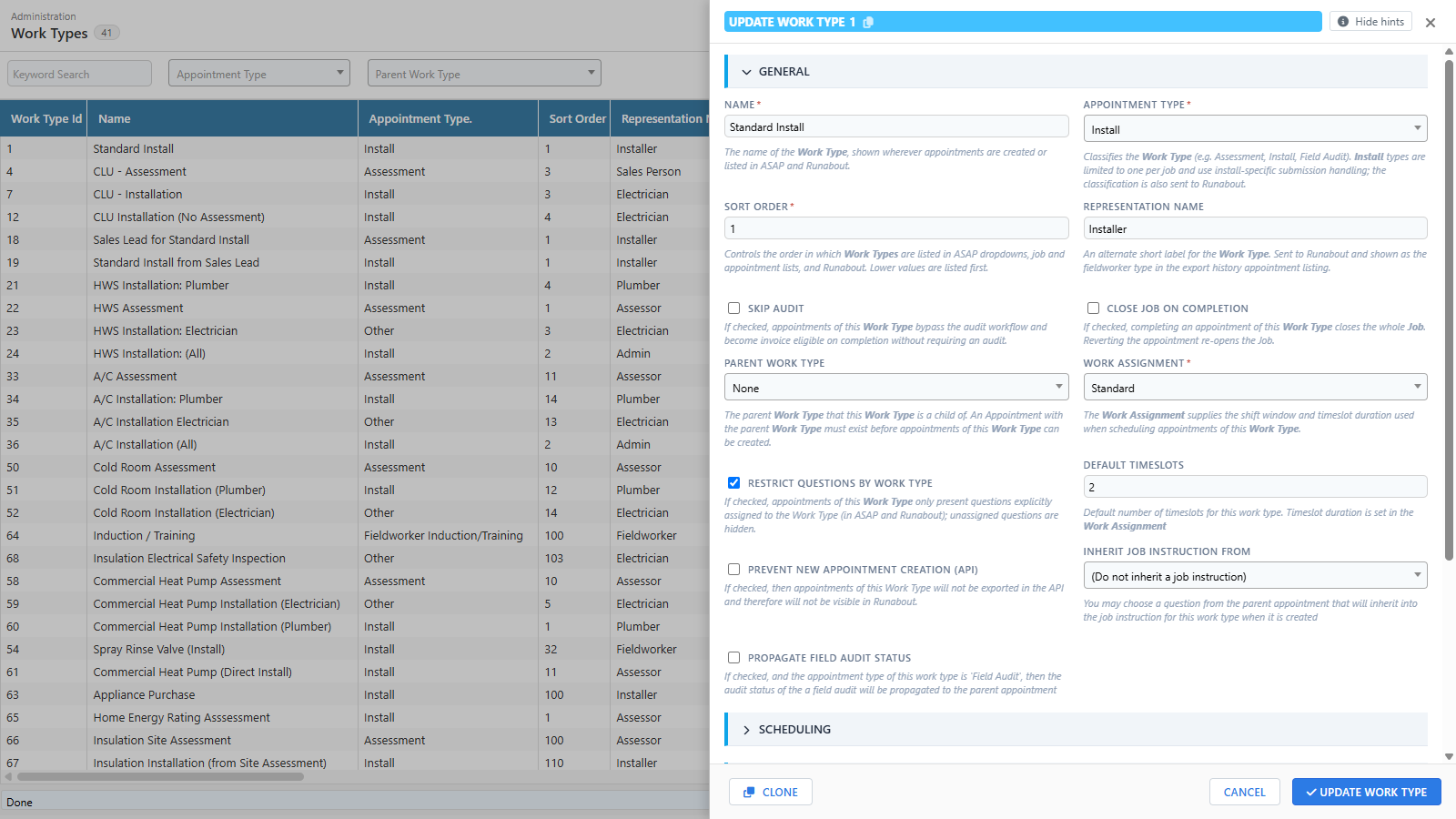
The record list
- The list fills the page height, with the page title showing the record count.
- A keyword search box in the toolbar (on screens that support it) filters the list as you search; clear it to restore the full list.
- The Filters button (funnel icon) shows or hides the filter panel - the icon is solid while filters are visible.
- Click Add to create a record, or click a row to edit it. Right-clicking a row offers Edit, Clone and Delete (plus screen-specific actions such as Test Email).
The editing drawer
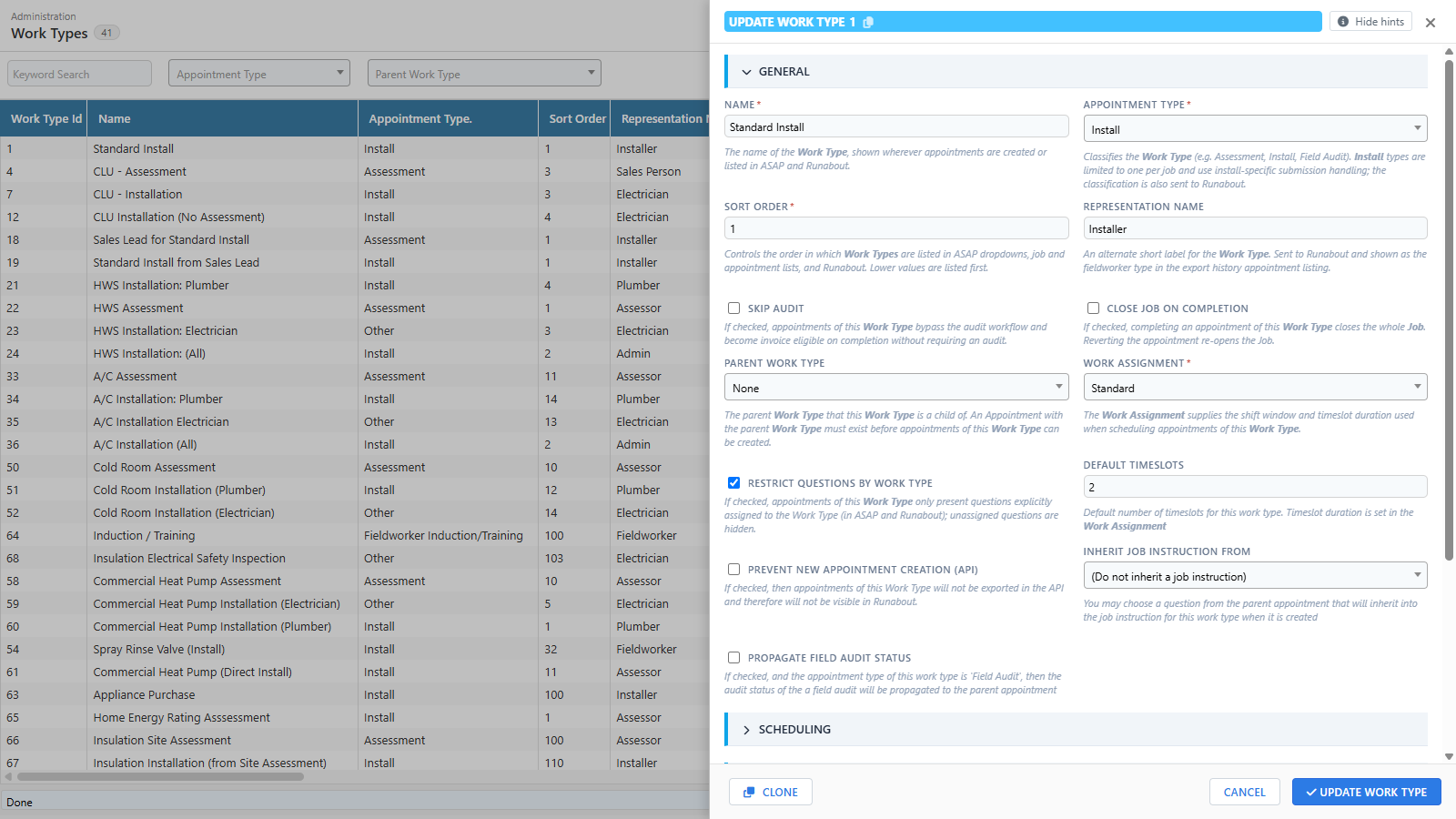
Records are edited in a drawer that slides in from the right, titled “Add {record}” or “Update {record} {id}” - a copy icon next to the id copies it to the clipboard.
- Fields are grouped into collapsible sections; the first section opens automatically.
- Every field has a hint underneath explaining what it does (the same text appears as a tooltip on the field label). The Hide hints button (Ctrl+Alt+Q) switches to a compact view - hints are hidden and every section expands, which is handy when comparing records.
- Unsaved changes are tracked - closing the drawer with unsaved changes asks for confirmation.
- Footer buttons: Delete, Clone, Cancel and Save. Keyboard: Esc closes, Ctrl+S saves.
- Clone copies the current record into a new one - adjust and save. Password fields are cleared on a clone, so the copy starts with no secret.
- Secret (password) fields are write-only - once saved, the stored value is never shown again (the field reads “•••••••• (unchanged)”). To change it, tick “I want to update this value” and enter the new secret; saving without ticking it leaves the stored value untouched.
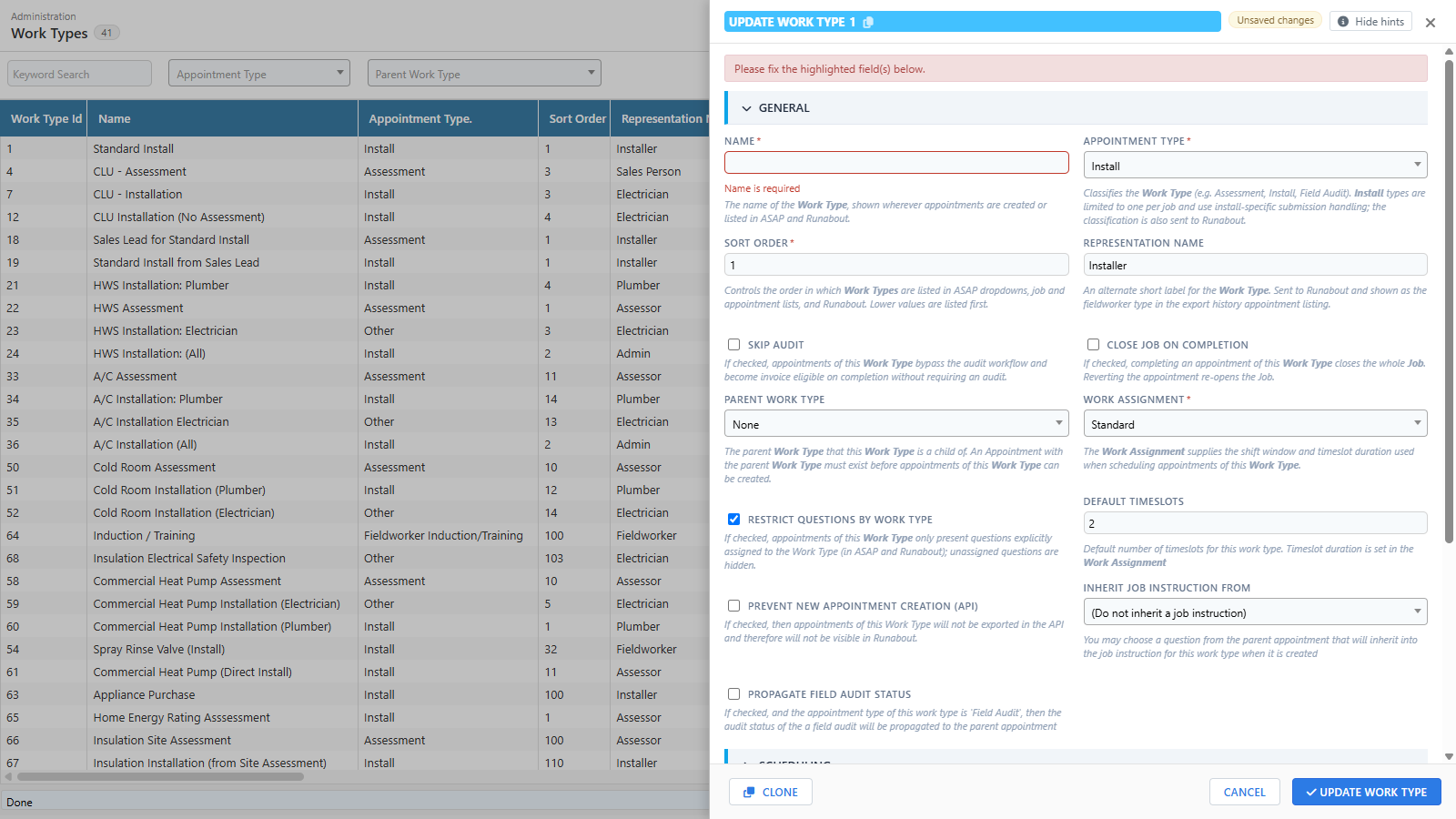
Validation
- Mandatory fields are marked with
*. A failing field shows its error inline under the field - its section expands and the drawer scrolls to it. - Server-side problems (such as a duplicate value) are also shown against the offending field; the drawer stays open so nothing is lost.
- On success, a toast confirms the save and the list refreshes.
Conditional fields
Some fields only apply when another field has a particular value - these now show and hide live as you edit. Two things follow from this:
- A hidden field is never mandatory and can never block a save.
- When you save, values in hidden fields are cleared. If you change a controlling field (for example, a Work Type’s Auto Create mode), the settings that no longer apply are discarded rather than silently kept.
Sharing a link to a record
Opening a record adds edit=<id> to the browser address. Copy that address and send it to a colleague - opening the link lands on the screen with the same record already open in the drawer.