Overview
The Payment Request feature allows users to send a payment request to customers via email or SMS. This streamlines the process of obtaining payments, providing an efficient and paperless workflow.
Requesting a customer payment
Via Files & Photos tab
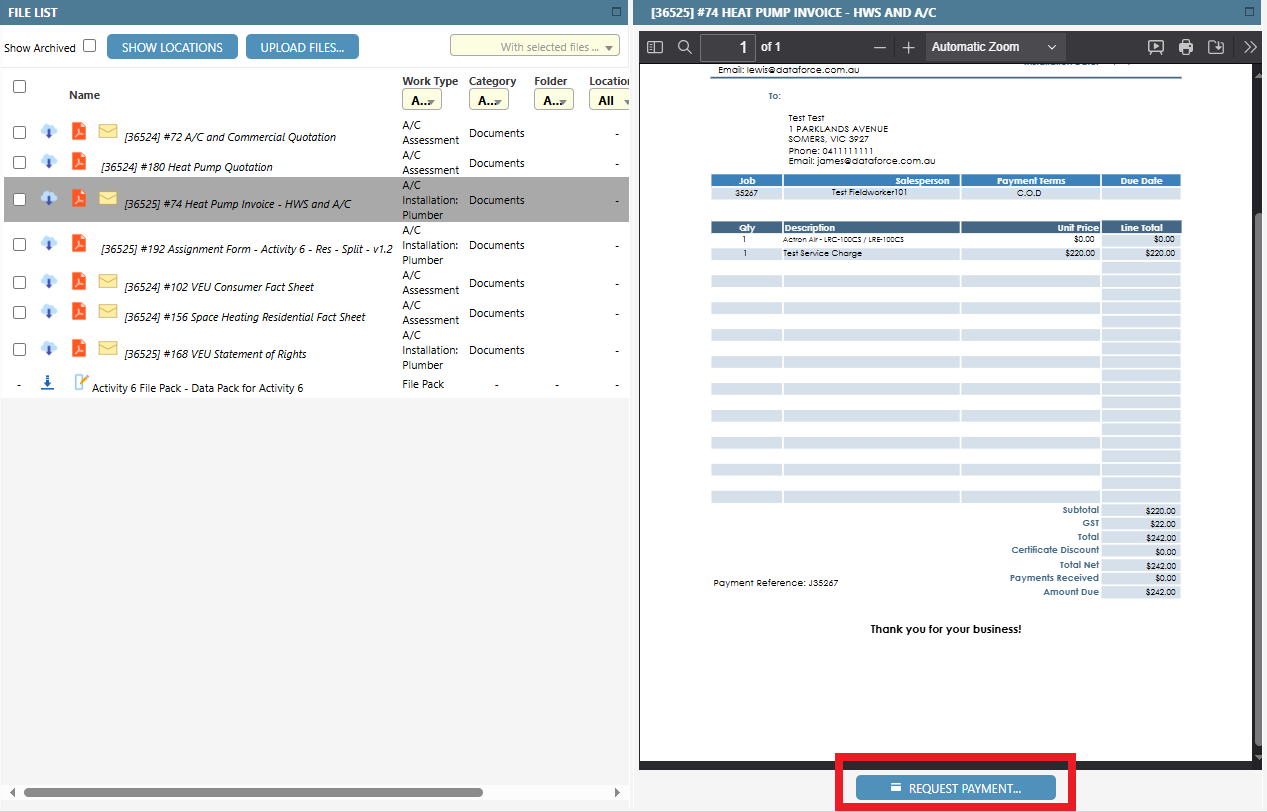
- Navigate to the Files & Photos section of a job.
- Locate the invoice or quotation that requires a payment and click the Request Payment button.
Via Quote & Invoice tab
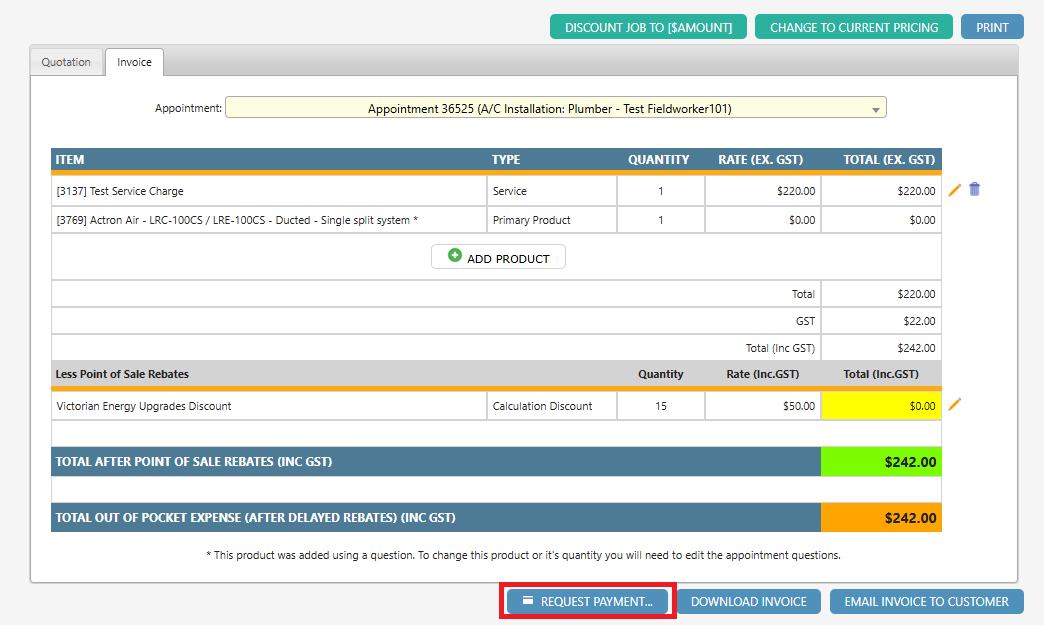
- Navigate to the Quote & Invoice section of a job.
- Click on the ‘Quotation’ or ‘Invoice’ tab.
- Click the Request Payment button.
Request Payment dialog
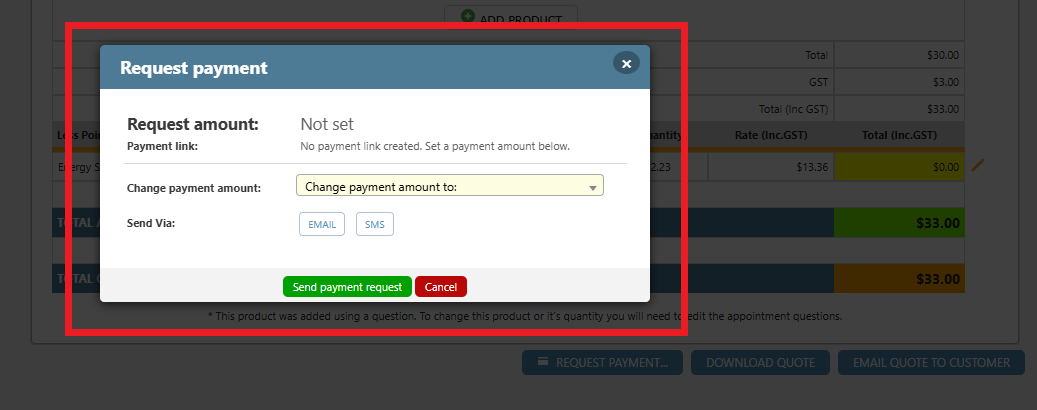
The payment request dialog allows you to generate a payment and specify a payment amount, recipient and method of contact.
You can choose to send a request for payment for the entire balance, the deposit amount, or a custom amount of your choice.
-
Select the desired payment amount. If custom, enter a custom amount.
-
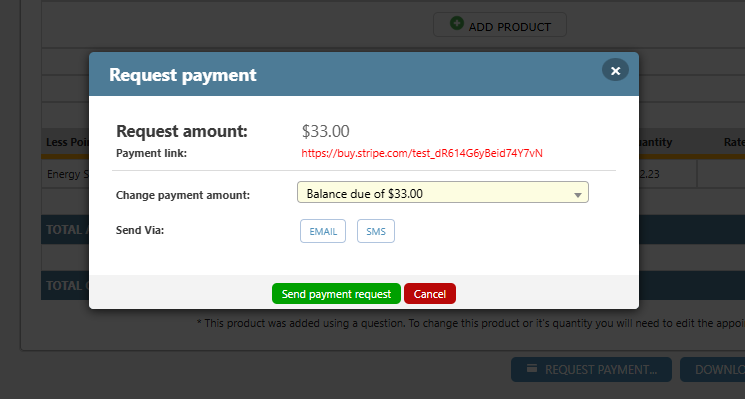
After selecting the payment amount, a stripe payment link will automatically be generated.
-
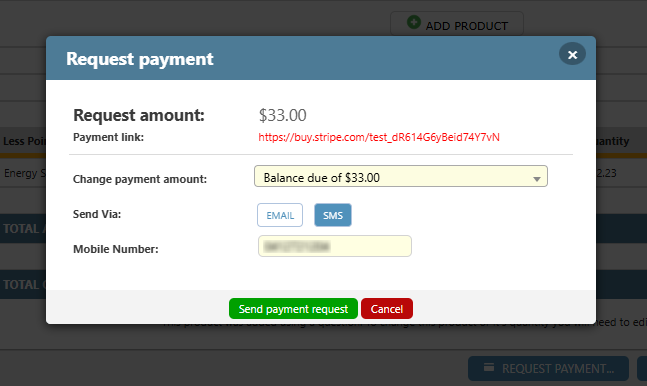
Choose the desired notification method. You have the choice between notifying the customer via SMS or via Email.
Note: The email address or phone number defaults to the recorded customer email/phone. However, this can be edited directly in this screen.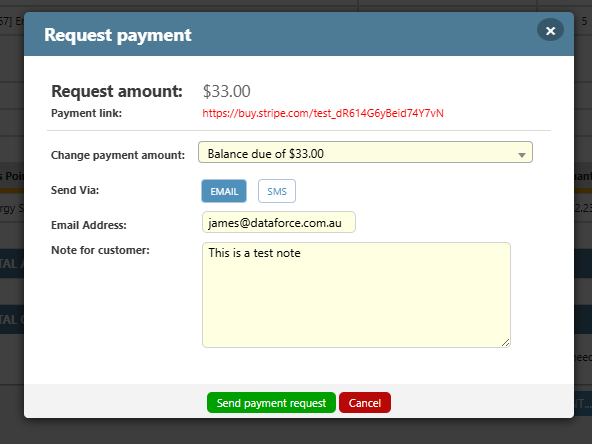
-
When sending via Email, you may enter a note to the customer, this will appear in the email. (optional)
-
If required, edit the email address or phone number.
-
Click Send Payment Request to send the request.
Receiving the request
Customers will receive either an email or SMS depending on the method chosen.
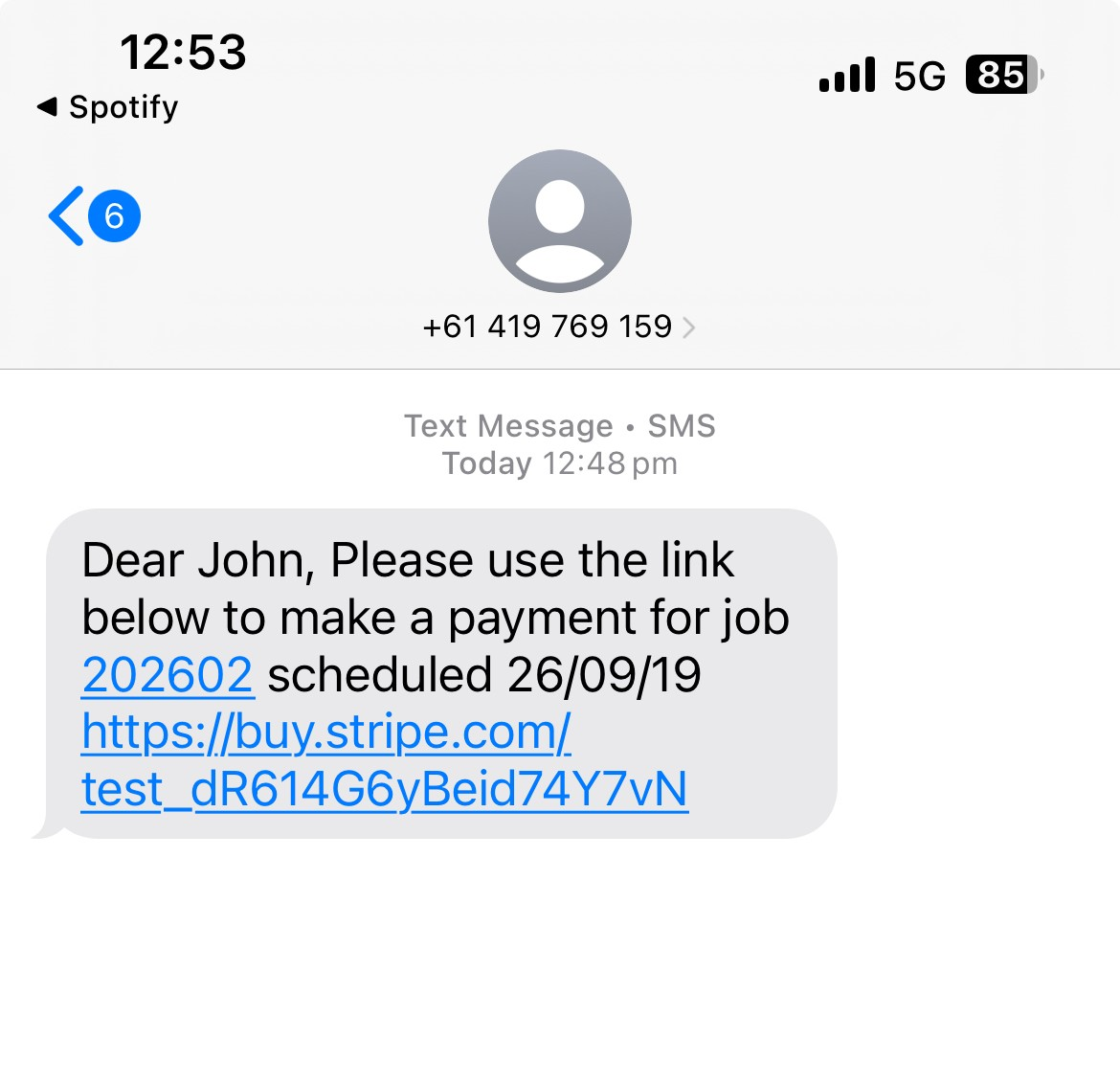
Payment request via SMS
If an SMS is sent, the customer will receive the following default message:
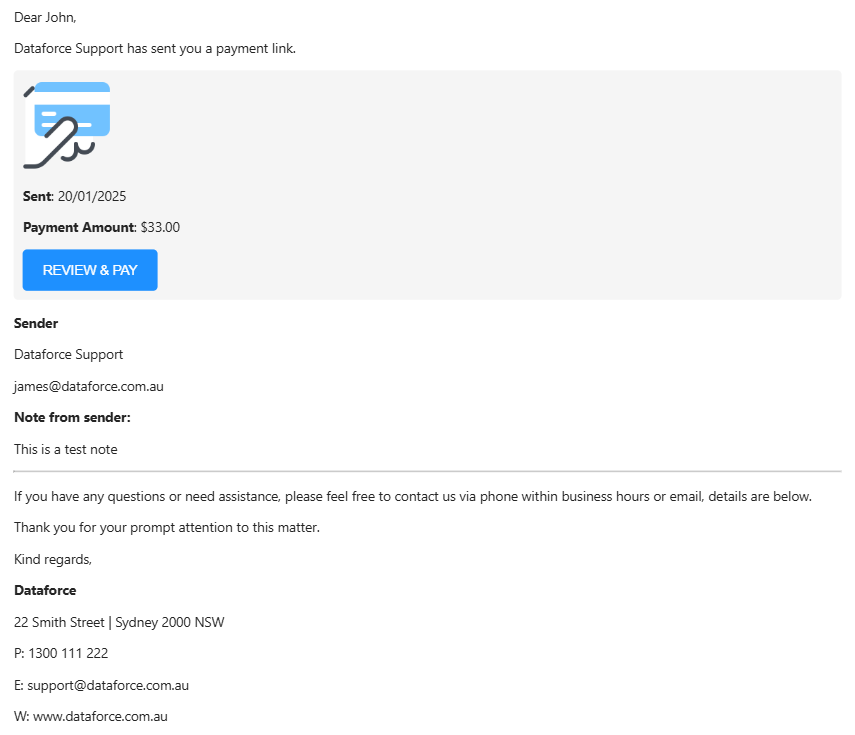
Payment request via Email
If an Email is sent, the customer will receive the following default email:
Customer Payment Process
-
The customer follows the payment link to the secure Stripe website.
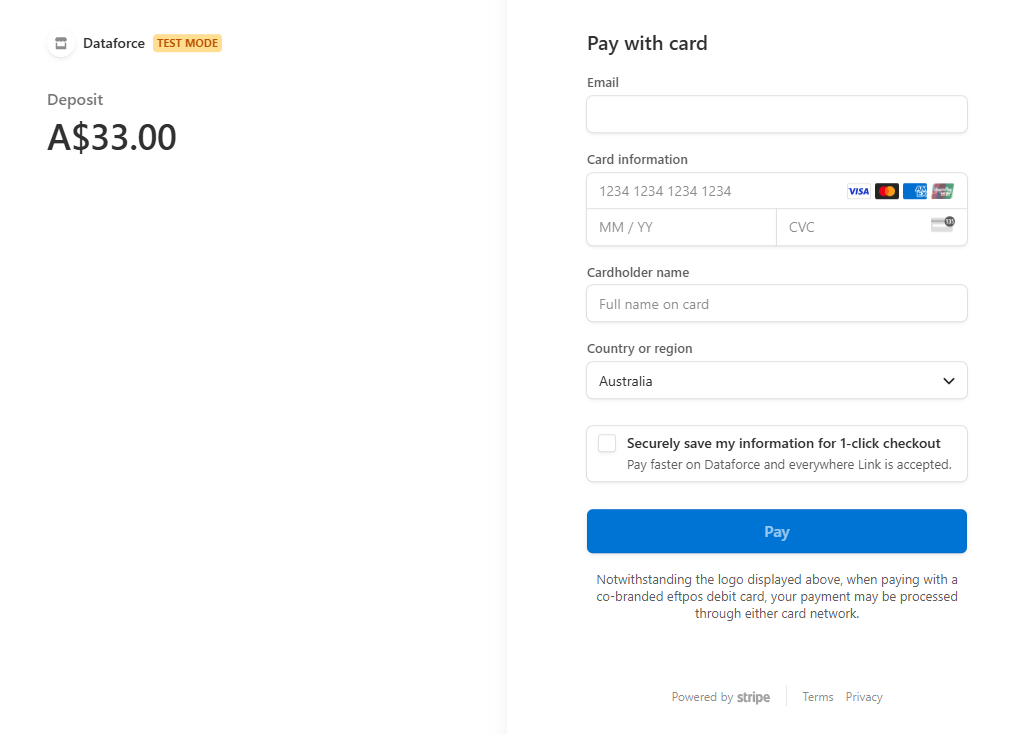
- The customer enters their payment details and confirms payment
-
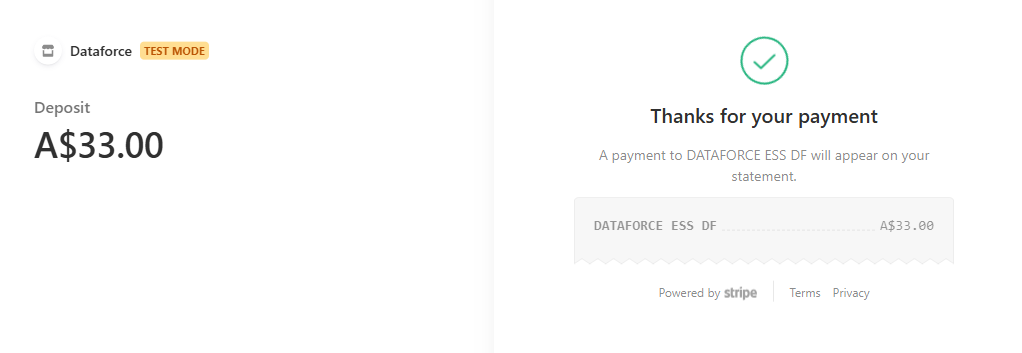
The customer receives a confirmation within the Stripe website:
QR Code and payment links on quotes and invoices
With Stripe payments active, you can now map the following new fields to your quote and invoice templates:
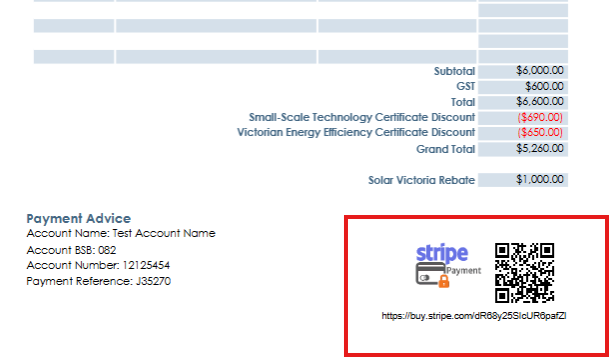
- QR Code (This can be scanned to open the payment link page)
- Payment link (This can be clicked to open the payment link page)
- Pay By Stripe logo (This can be clicked to open the payment link page)
Reviewing Stripe payments
You can view the payment made from Stripe in the Transactions & Payments tab:
