Viewing Calculation Breakdowns
The Calculations screen allows you to see both the calculated values for each product in a job and the detailed steps used to derive those values.
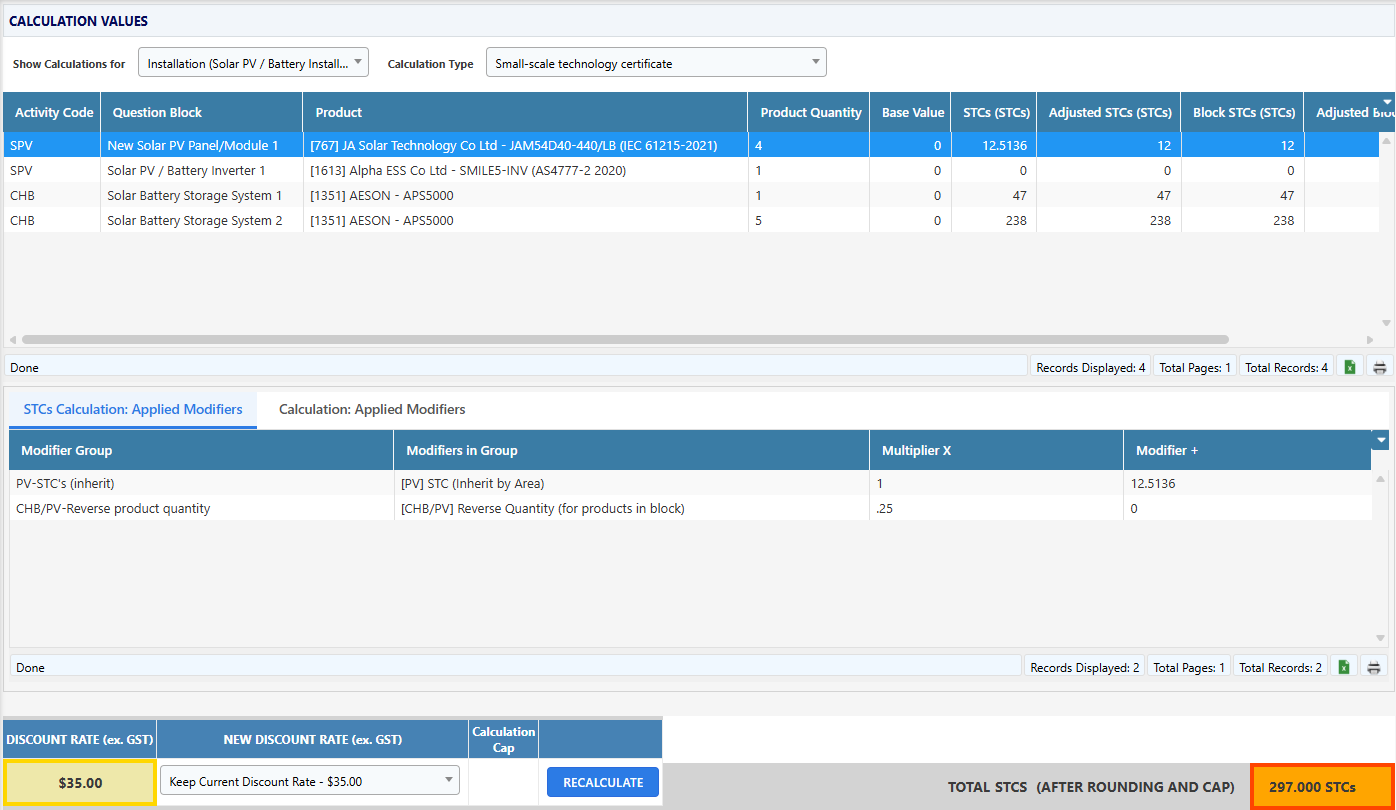
Top grid – Calculations per product
The top grid shows the calculated results for each product included in the job, for the selected Calculation Type.
Each row represents a product and displays its base value, adjusted values, and final calculated result.
Selecting a product row determines which calculation breakdown is shown in the grid below.
Bottom grid – Calculation breakdown (Modifier Groups)
The bottom grid shows a step-by-step breakdown of the calculation for the selected product.
Each row represents a Modifier Group, which is a logical grouping of one or more related modifiers that are applied together during the calculation.
The breakdown includes:
- Modifier Group – the category of calculation logic being applied
- Modifiers in Group – the individual modifiers included in that group
- Multiplier (×) – a value that multiplies the running total
- Modifier (+) – a value that is added to or subtracted from the running total
Modifier Groups and aggregation
A Modifier Group may contain multiple modifiers.
When this occurs:
- All modifiers in the group are aggregated into a single row
- The modifier names are listed in the “Modifiers in Group” column, separated by commas
- The values shown in the Multiplier (×) and Modifier (+) columns already represent the combined result of all modifiers in that group
This ensures each Modifier Group is applied as one calculation step, even if it is made up of multiple underlying rules.
How to read the calculation (step by step)
To read a calculation correctly, it is essential to follow the rows from top to bottom, applying each Modifier Group in sequence.
- Start with the product’s Base Value (shown in the top grid).
- For the first Modifier Group row:
- Apply the Multiplier (×) to the current running value
- Then apply the Modifier (+) (add or subtract)
- Move to the next Modifier Group row and repeat:
- Apply that row’s Multiplier (×)
- Then apply that row’s Modifier (+)
- Continue this process until all Modifier Groups have been applied.
- If applicable, apply the product quantity as part of the calculation.
Important:
Each row is applied as a pair (Multiplier first, then Modifier) before moving to the next row.
Multipliers and modifiers are not applied globally—the order shown in the grid directly affects the final result.
Example (based on the screenshot)
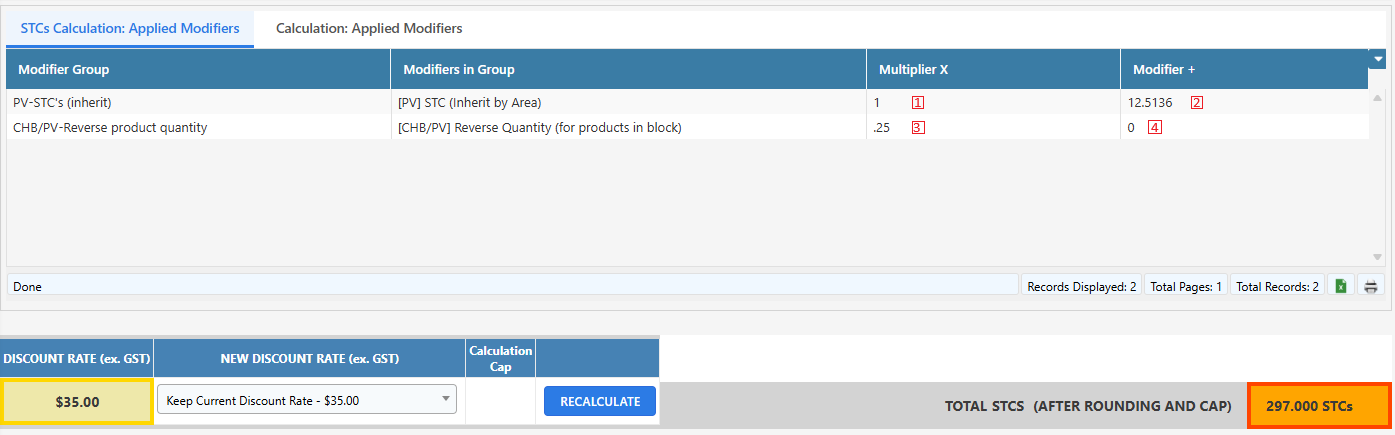
For the selected product:
- Start with Base Value = 0
- Modifier Group 1: × 1, then + 12.5136 → running value = 12.5136
- Modifier Group 2: × 0.25, then + 0 → running value = 3.1284
- Apply product quantity (4) → 3.1284 × 4 = 12.5136
This same process is performed independently for each product in the job.
All product results are then summed to produce the Total Calculation shown at the bottom of the screen (e.g. 297 STCs).
Multiple calculations (tabs)
Some calculation types include more than one calculation.
When this occurs, each calculation is shown in a separate tab at the bottom of the screen.
- Each tab represents a distinct calculation
- Switching tabs allows you to view the full breakdown for each calculation independently
This makes it easy to drill down into complex calculation logic and understand exactly how every value contributes to the final total.
Inherited and nested calculations
Some calculations are composed of multiple sub-calculations.
In these cases, a value shown in a Multiplier (×) or Modifier (+) column may not be a simple constant. Instead, it may represent a pre-calculated value inherited from another calculation.
When this occurs:
- The inherited value is already resolved and applied in the current calculation
- It appears as a normal multiplier or modifier in the breakdown grid
- The detailed logic used to produce that value belongs to a different calculation type
To view the breakdown of an inherited or nested calculation:
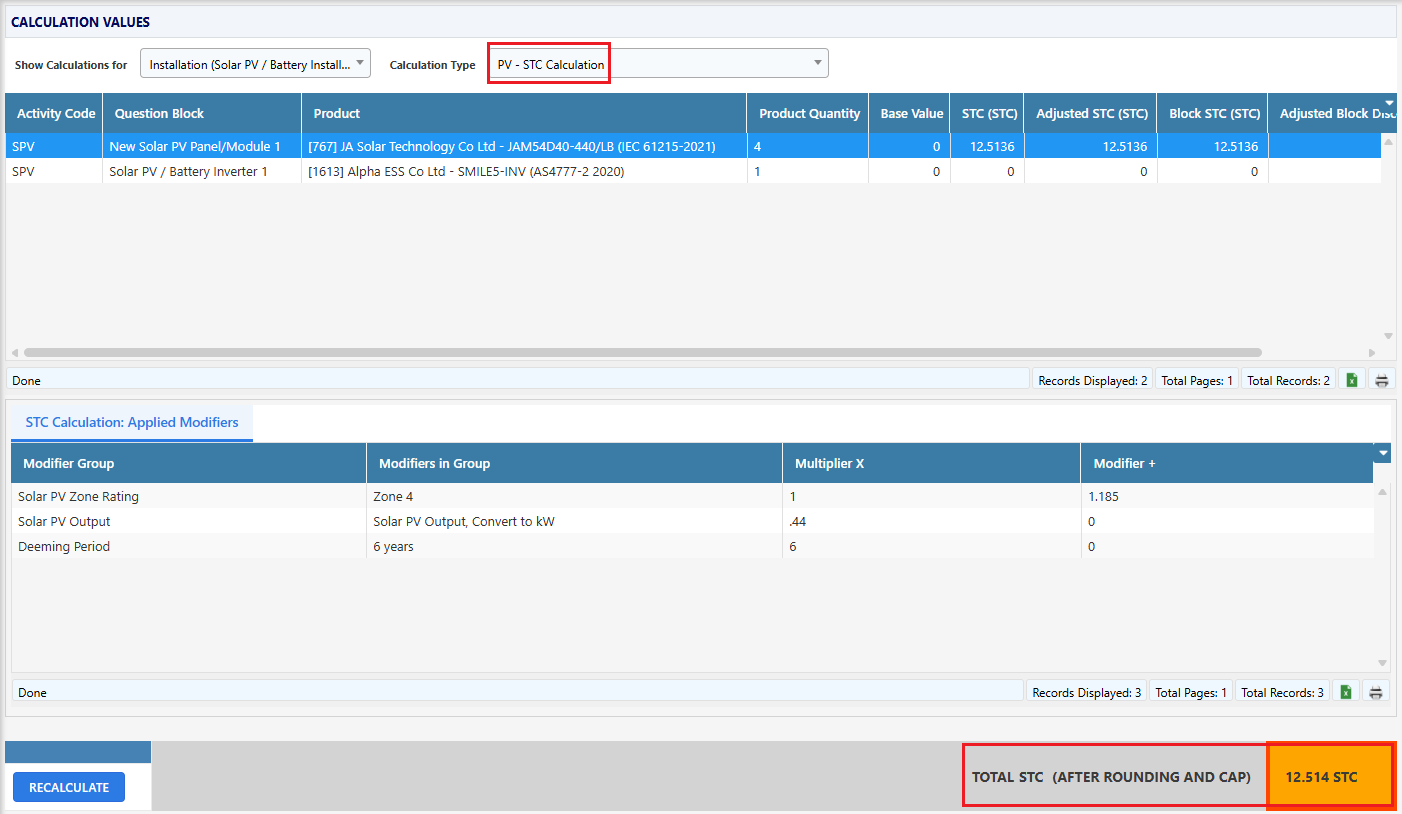
- Open the Calculation Type dropdown at the top of the screen
- Select the relevant calculation type
- The screen will update to show the full breakdown for that calculation
This allows you to progressively drill down through related calculations and fully trace how complex values are derived, even when calculations depend on the results of other calculations.