Overview
Snippets are reusable blocks of rich text - the paragraphs you find yourself typing again and again. Save them once, then insert them with two clicks wherever the editor offers the Snippets button:
- Appointment Correspondence
- Appointment Action - Add Comment
- Email Templates (Config)
Snippets can include variables (customer name, appointment dates, amounts and more) that are filled in automatically when the snippet is inserted.
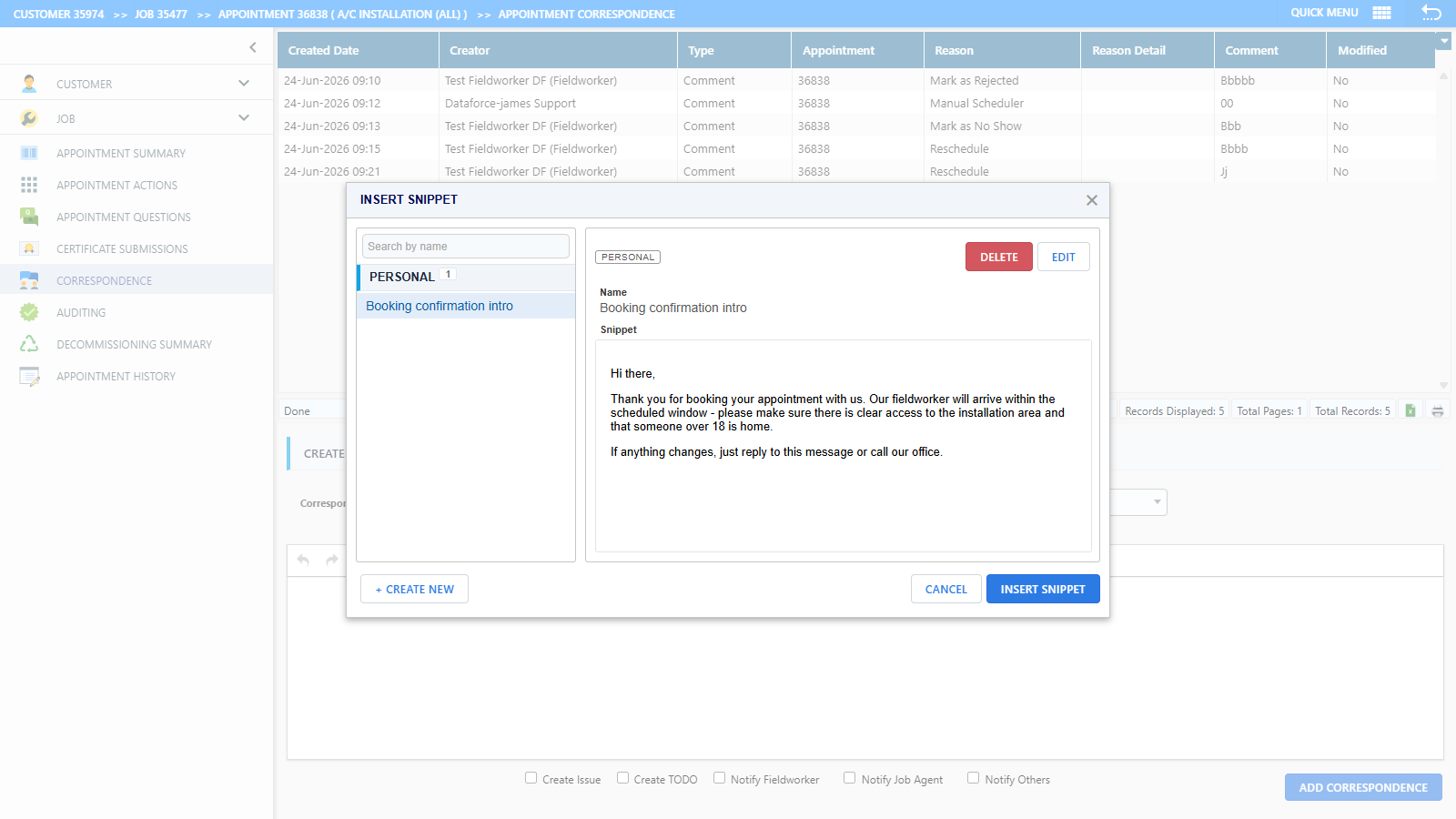
Inserting a snippet
- Click Snippets on the editor toolbar.
- The Insert snippet dialog lists your snippets in two groups - Personal and Shared - with a search box. Select one to preview it.
- Click Insert snippet (or just double-click the snippet in the list).
The snippet is inserted at your cursor. On correspondence and comment screens, any variables are substituted immediately with the real values for the appointment you are working on, so you can read and adjust the final text before sending.
Creating and editing snippets
Click + Create new in the Insert snippet dialog (or Edit on an existing one):
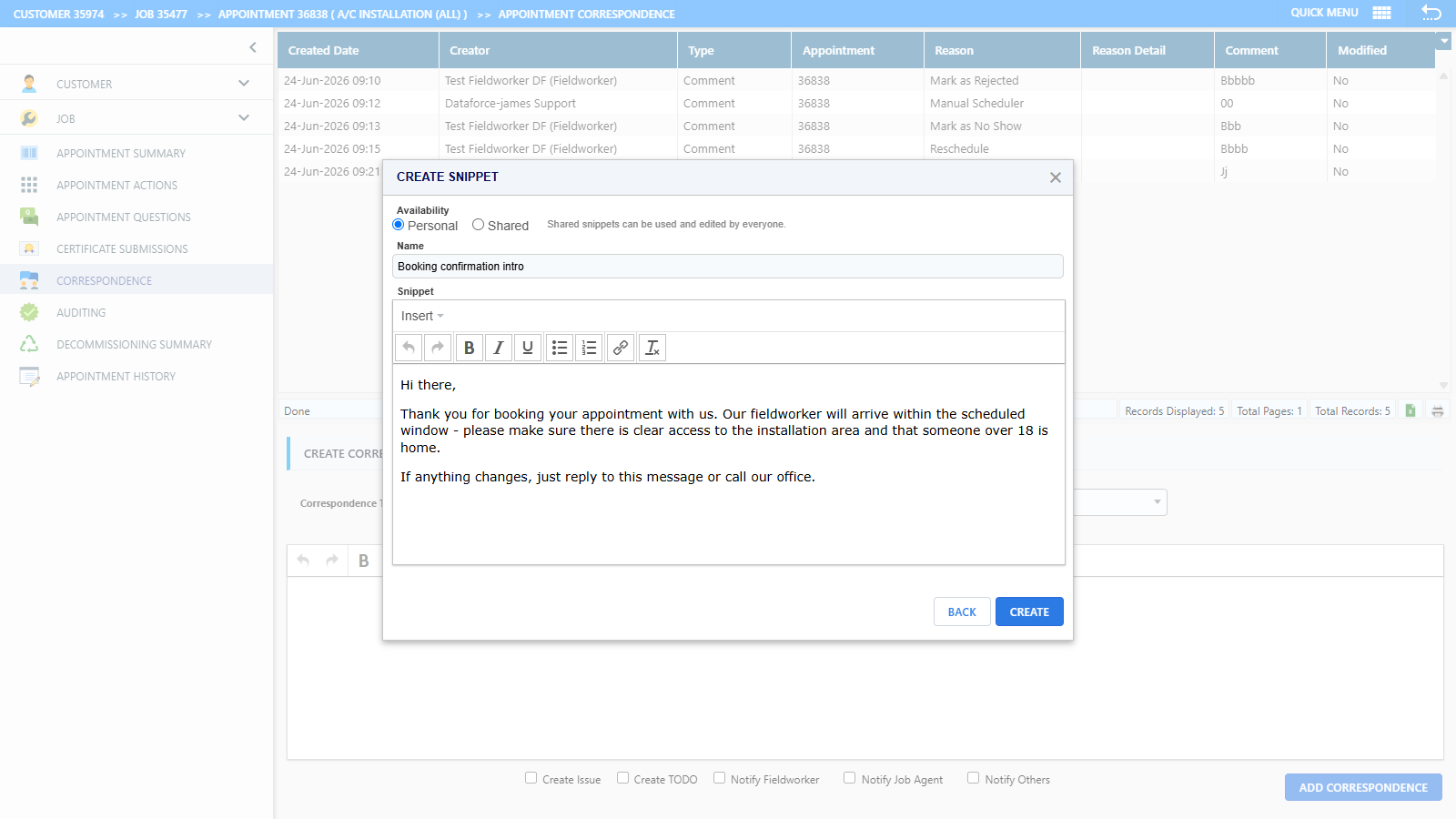
| Field | Purpose |
|---|---|
| Availability | Personal (only you can see and use it) or Shared (everyone can use and edit it). |
| Name | A unique name, up to 100 characters - this is what you search for. |
| Snippet | The content, with formatting (bold, lists, links). Use the Insert menu to add variables. |
A few rules to be aware of:
- Shared snippets can be edited by anyone, but only the owner can change a snippet between Personal and Shared.
- Only the snippet’s creator (or a global administrator) can delete it.
Variables
The snippet editor’s Insert menu offers variables grouped by subject:
- General - current date, your name and email
- Customer - name, company, contact details, address
- Job - job id, client, agent details, amounts due and paid
- Appointment - scheduled and completed dates and times, fieldworker details, appointment amounts
- Question Answers - insert the answer to a specific question by its question id
How variables behave depends on where you insert the snippet:
- Correspondence and comments - variables are replaced with real values at insert time. Anything that cannot be resolved is left as a visible
##token##so you can fix it before sending. - Email Templates - the variable tokens are kept in the template as-is, and are substituted when each email is sent (the same way as other email template fields).