Overview
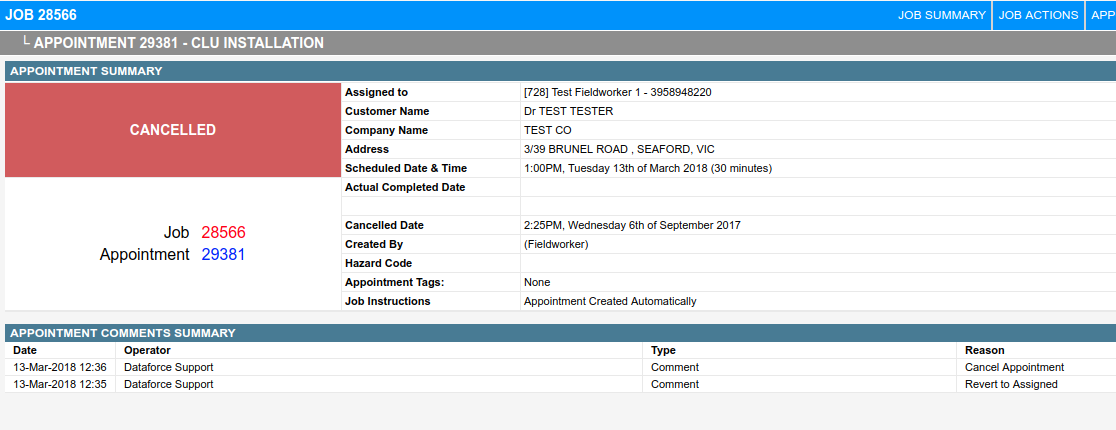
Cancel an appointment when it won’t go ahead, for example because the customer has withdrawn or the work is no longer needed.
Cancelling doesn’t delete anything. The appointment’s images, signatures, question answers and products are all kept. If you un-cancel the appointment later, it goes back to the status it had before it was cancelled, with all its data in place.
While an appointment is cancelled, it can’t go to certificate submission or invoicing.
Before You Start
Permissions
Your role needs the Cancel Appointment permission to cancel, and the Uncancel Appointment permission to un-cancel. If you don’t see these actions, ask your ASAP administrator.
When the Cancel action is available
Cancel Appointment only appears on the Appointment Actions tab when the appointment is:
- not already cancelled
- not submitted for certificates
- not invoiced
If the appointment has been submitted, revert the submission first. Refer to Certificate Submissions (Appointment).
Appointments with stock-tracked products
You can’t cancel an appointment that has stock-tracked products recorded against it. If you try, ASAP shows this message:
Appointment [number] has products with stock tracking enabled, please remove products from the appointment and try again.
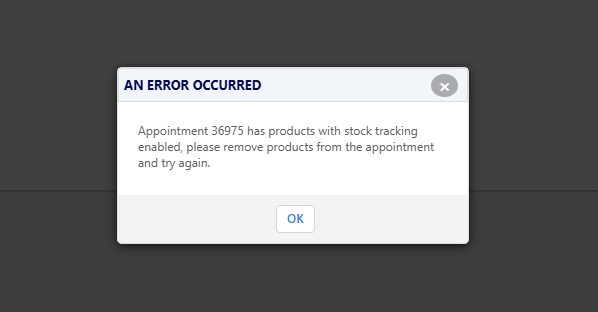
To fix this, revert the appointment to Assigned. This clears the question answers and products and returns the stock to the fieldworker’s stock on hand. Images are kept. Then cancel the appointment.
Refer to Revert an Appointment.
To Cancel an Appointment
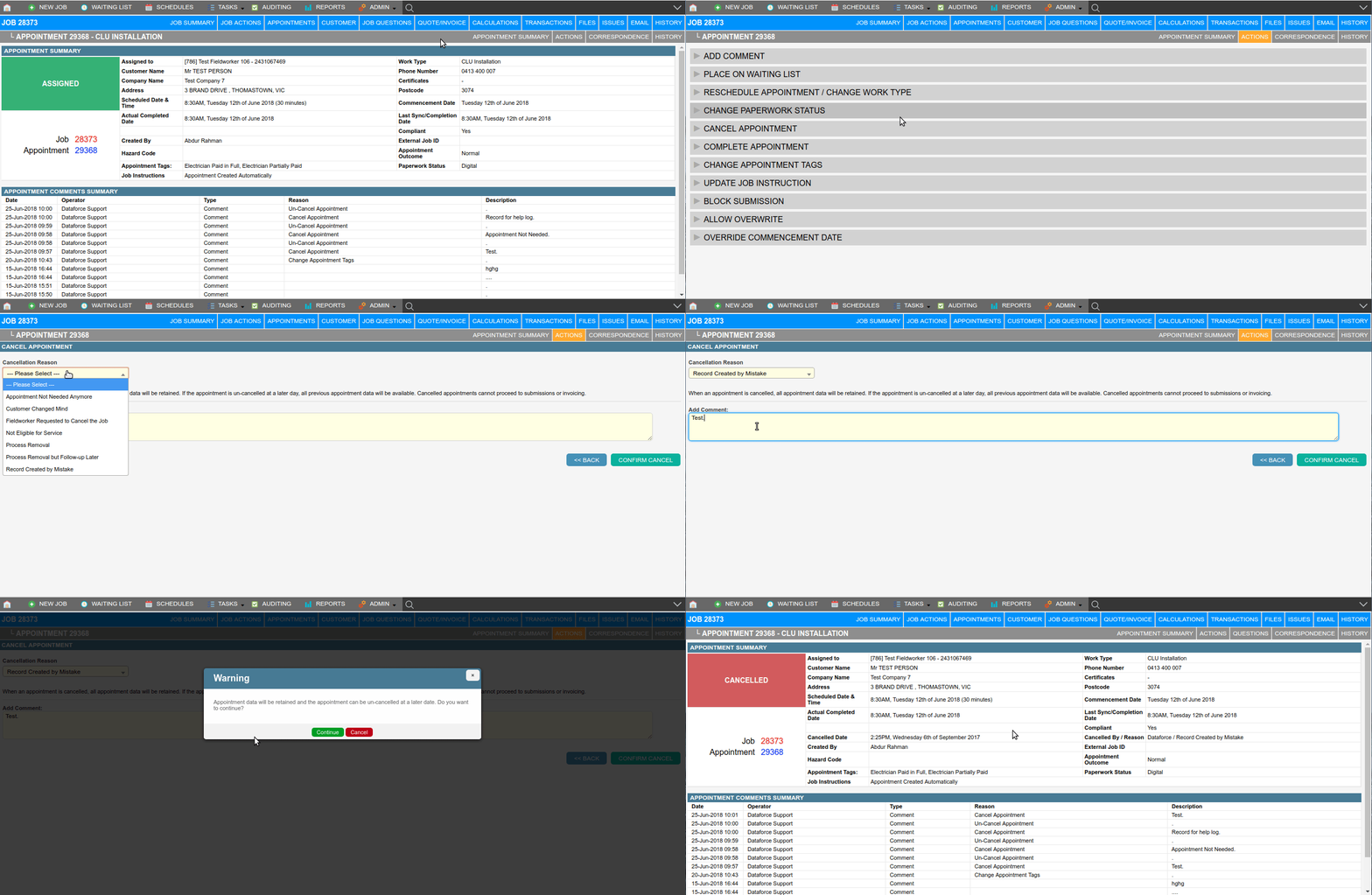
- Navigate to the Appointment Actions tab.
- Click the action, Cancel Appointment.
- Select a Cancellation Reason from the drop-down. This is required.
- Enter a Comment explaining why the appointment is being cancelled. This is also required.
- Select the Confirm Cancel button on the bottom right of the screen.
- Read the confirmation message, “Appointment data will be retained and the appointment can be un-cancelled at a later date. Do you want to continue?”, and click the Continue button.
The appointment status changes to Cancelled, and the Appointment Summary shows the cancellation reason.
What happens when an appointment is cancelled
- History: An “Appointment Cancelled” entry is added to the Appointment History with the reason you selected, and your comment is recorded on the appointment.
- Status: ASAP saves the appointment’s status and sub-status from before the cancellation, so that un-cancelling can restore it.
- Customer No Show: Any Customer No Show flag on the appointment is cleared.
- Billing and payment: Billing and paid flags for the appointment are cleared, and any certificates-paid calculation is reset.
- Payments and credits: System transactions for the appointment are removed, credits applied to it are returned to the job, and adjustments for the appointment are cleared.
- Completed appointments: If the appointment was already Completed or in Audit, the fieldworker’s product usage records are updated to reflect the cancellation.
- Integrations: If your system is connected to external platforms, they’re notified that the appointment status changed.
To Un-Cancel an Appointment
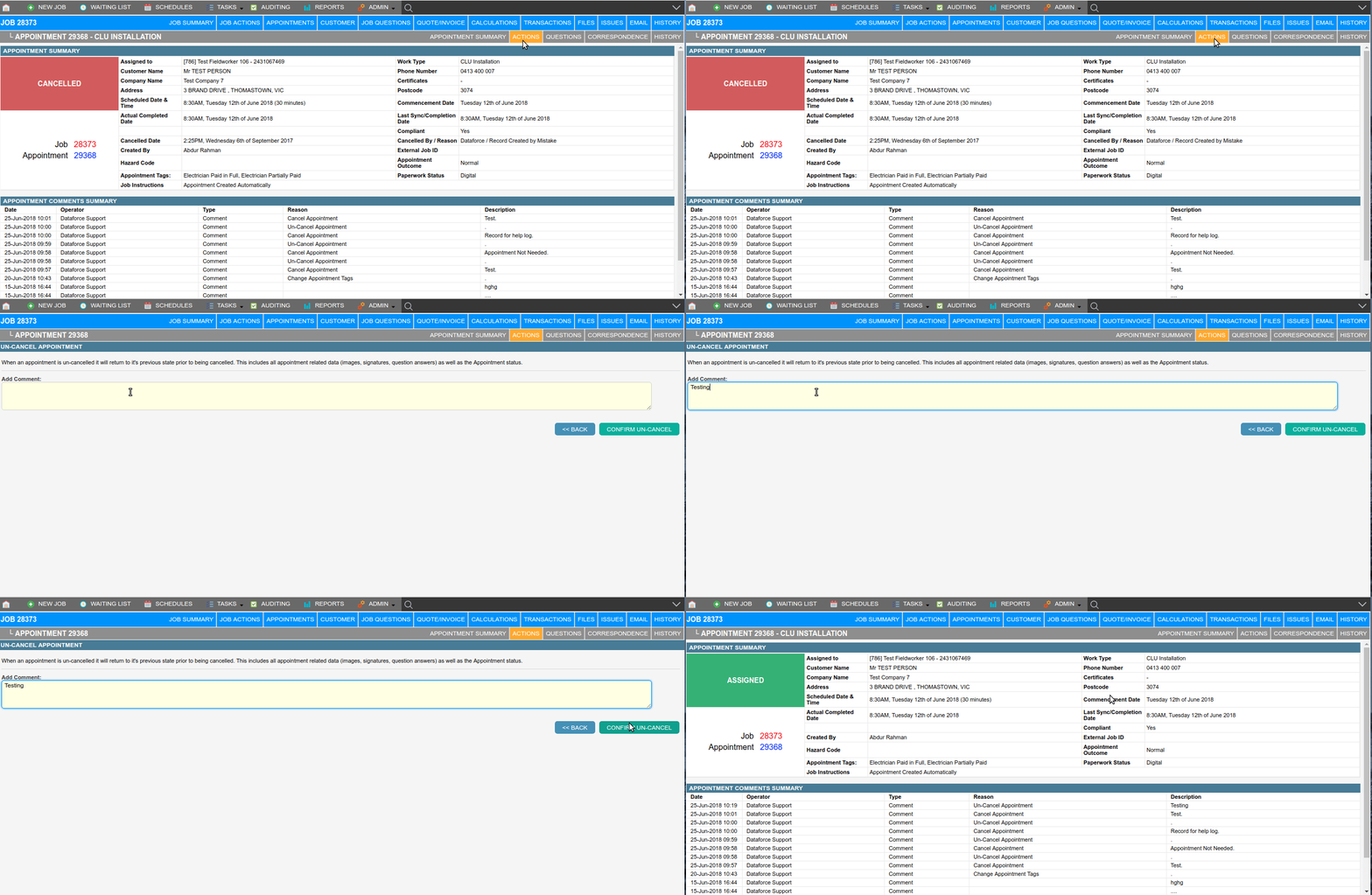
- Open the cancelled appointment and navigate to the Appointment Actions tab.
- Click the action, Uncancel Appointment. This action only appears when the appointment is Cancelled.
- Enter a Comment explaining why the appointment is being un-cancelled. This is required.
- Select the Confirm Un-Cancel button on the bottom right of the screen.
What happens when an appointment is un-cancelled
- Status: The appointment returns to its status and sub-status from before it was cancelled, for example Assigned, Waiting List or Completed.
- Data: All appointment data is available again, including images, signatures and question answers.
- History: An “Appointment Uncancelled” entry is added to the Appointment History, showing the status change (for example “Cancelled” to “Assigned”).
- Credits: For installation appointments, any open credits on the job are applied back to the appointment.
- Integrations: Connected platforms are notified that the appointment status changed.
Cancelling or Un-Cancelling Many Appointments
You can cancel or un-cancel several appointments together from the bulk update screen. The same permissions and rules apply to each appointment.
Refer to Appointment Bulk Update.
Cancellation Reasons
An administrator maintains the list of cancellation reasons under Admin > Appointment Cancellation Reasons. Only active reasons appear in the drop-down.