Overview
Warehouses represent the physical storage locations of your stock.
Adding a Warehouse will allow you to track and report on the stock levels in the warehouse at any point in time.
Warehouses are also essential for allocating stock from Suppliers to Field workers as stock must first be allocated from a Supplier to a Warehouses before it can be allocated to a Field worker.
The general flow of stock is:
Before you can begin allocating stock to your Warehouses you will first need to ensure that you have setup some suppliers and warehouses.
Add Warehouse
-
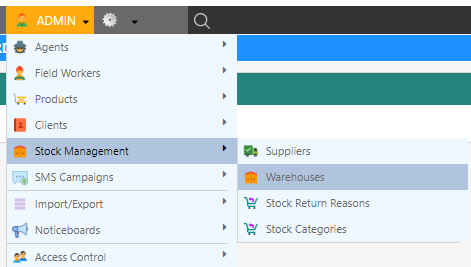
Open the Warehouse screen by clicking Admin Stock Management Warehouse.
-
Click ”+ Add Warehouse”. The warehouse editor opens in a drawer.
-
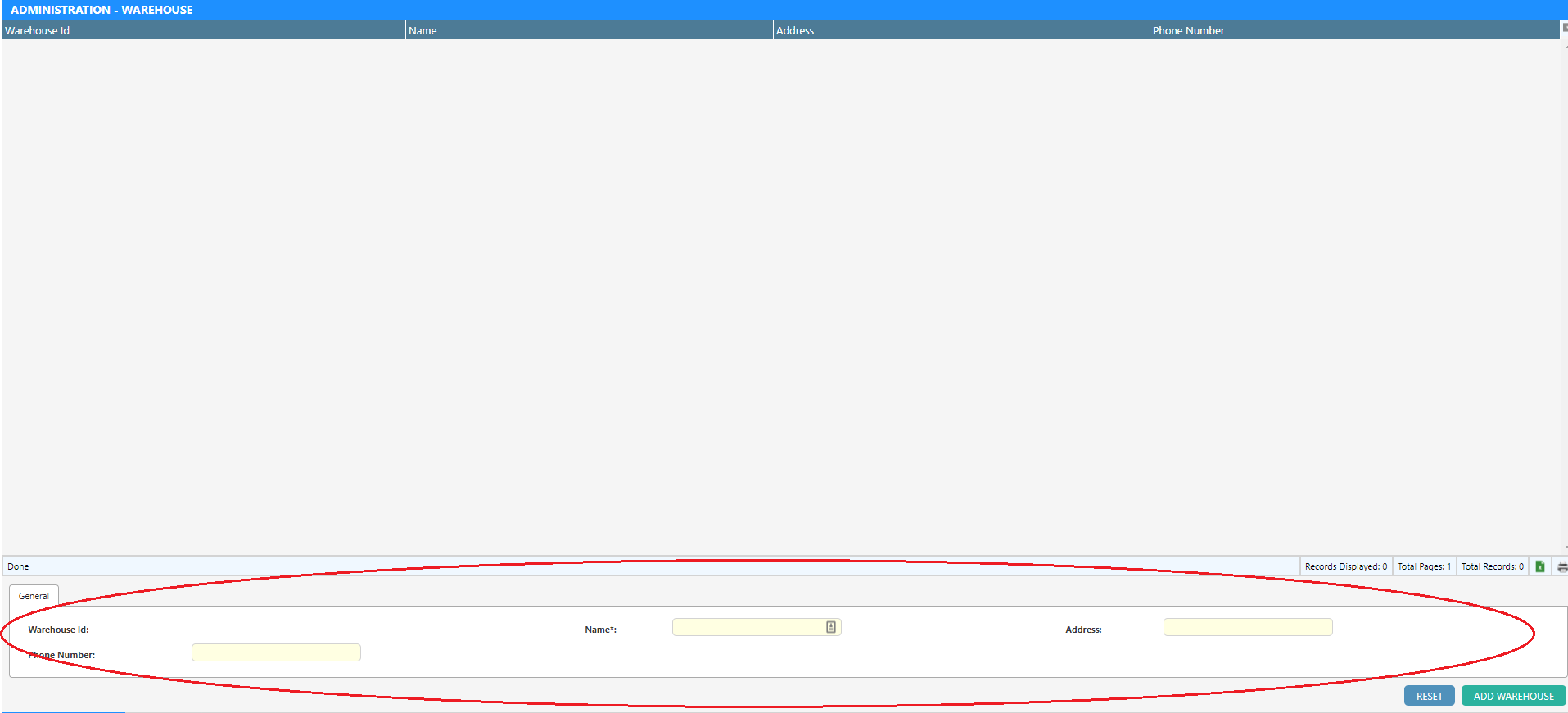
Enter the warehouse details into the provided fields.
-
Click “Add Warehouse” to save. To edit an existing warehouse later, click its row in the list.
Warehouse Property Details
| Property | Description |
|---|---|
| Name* | The warehouse name, shown wherever a warehouse is selected - the stock movement editors and stock reports. |
| Address | Address or location of the warehouse. |
| Phone Number | The phone number that can be contacted. |
| Agent | The agent this warehouse belongs to. Users only see warehouses of agents they are assigned to; leave blank to make the warehouse visible to all users. Also used by the Stock on Hand by Job Agent report. |
| Sort Order | Controls the order warehouses appear in selection lists (lowest first). |