Overview
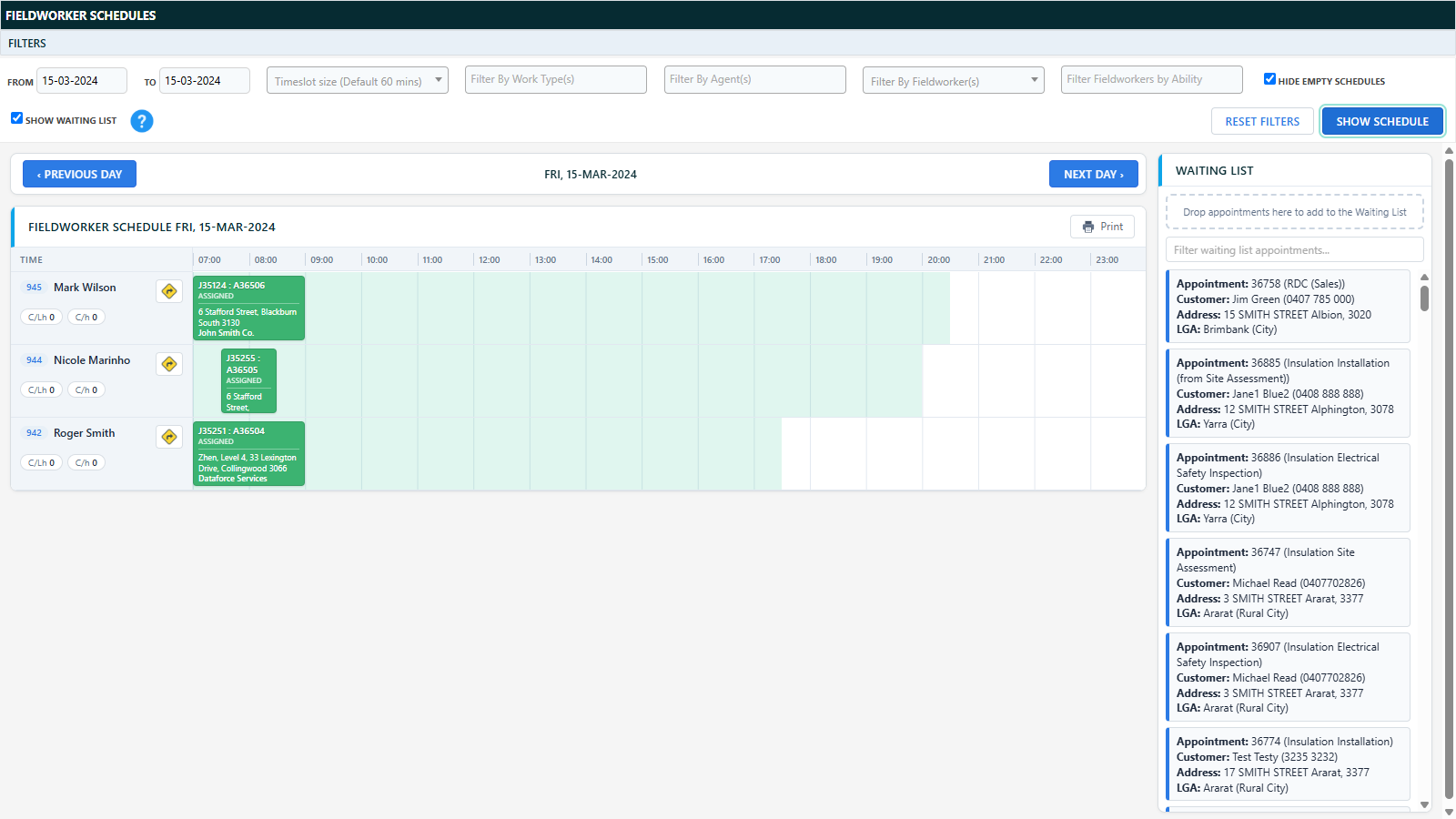
The Fieldworker Schedules screen shows every fieldworker’s timetable for a chosen date range, and lets you reschedule by drag and drop on the same screen. It replaces the previous separate View Schedules and Organise Schedules screens - viewing and editing now happen in one place.
Open it from Schedules Fieldworker Schedules.
Filters
- From / To dates (up to 14 days at a time)
- Timeslot size - 15, 30 or 60 minutes
- Filter by Work Type(s), Agent(s), Fieldworker(s), and (new) Fieldworker Ability
- Hide empty schedules - hides fieldworkers with nothing booked (on by default)
- Show Waiting List - shows the waiting list panel on the right (on by default)
Click Show Schedule to load, or Reset filters to start again.
The day navigation bar
A sticky bar above the timetable lets you step ‹ Previous Day / Next Day › without going back to the filters - all your other filters are kept, and the date fields at the top stay in sync.
The timetable
- One row per fieldworker, with a Show driving route button and productivity chips (certificates per labour hour / per hour).
- Availability windows are shown as tinted bands behind the appointments; a red line marks the current time on today’s timetable.
- Hover an appointment for its details; click it for a details dialog; the appointment can be opened from there.
Rescheduling by drag and drop
- Drag an appointment to a new time, or to a different fieldworker’s row.
- Drag the right edge of an appointment to change its duration (15-minute snapping).
- Two rules apply: the target fieldworker must be able to do the appointment’s work type, and only appointments in an Assigned status can be moved to another fieldworker. Blocked drops explain why.
- Every change opens a Confirm change dialog showing the new fieldworker, start, finish and duration, with a Reschedule Reason, an optional Email Booking Confirmation tick box and comments.

After a change the board refreshes in place - no page reload, and your scroll position is kept.
The Waiting List panel
With Show Waiting List ticked, a panel on the right lists waiting list appointments (with a filter box). You can:
- Drag an appointment from the timetable onto the panel to take it off the schedule and add it to the waiting list (Assigned appointments only - the fieldworker and scheduled date are cleared)
- Double-click a waiting list card to open the appointment
Printing
- Each day’s title bar has a Print button that prints just that day.
- The printout is a clean list - Time, Appointment, Status, Address, Customer - rather than the on-screen grid.
- Ctrl+P prints every day currently on screen.

Related changes - Fieldworker Availability
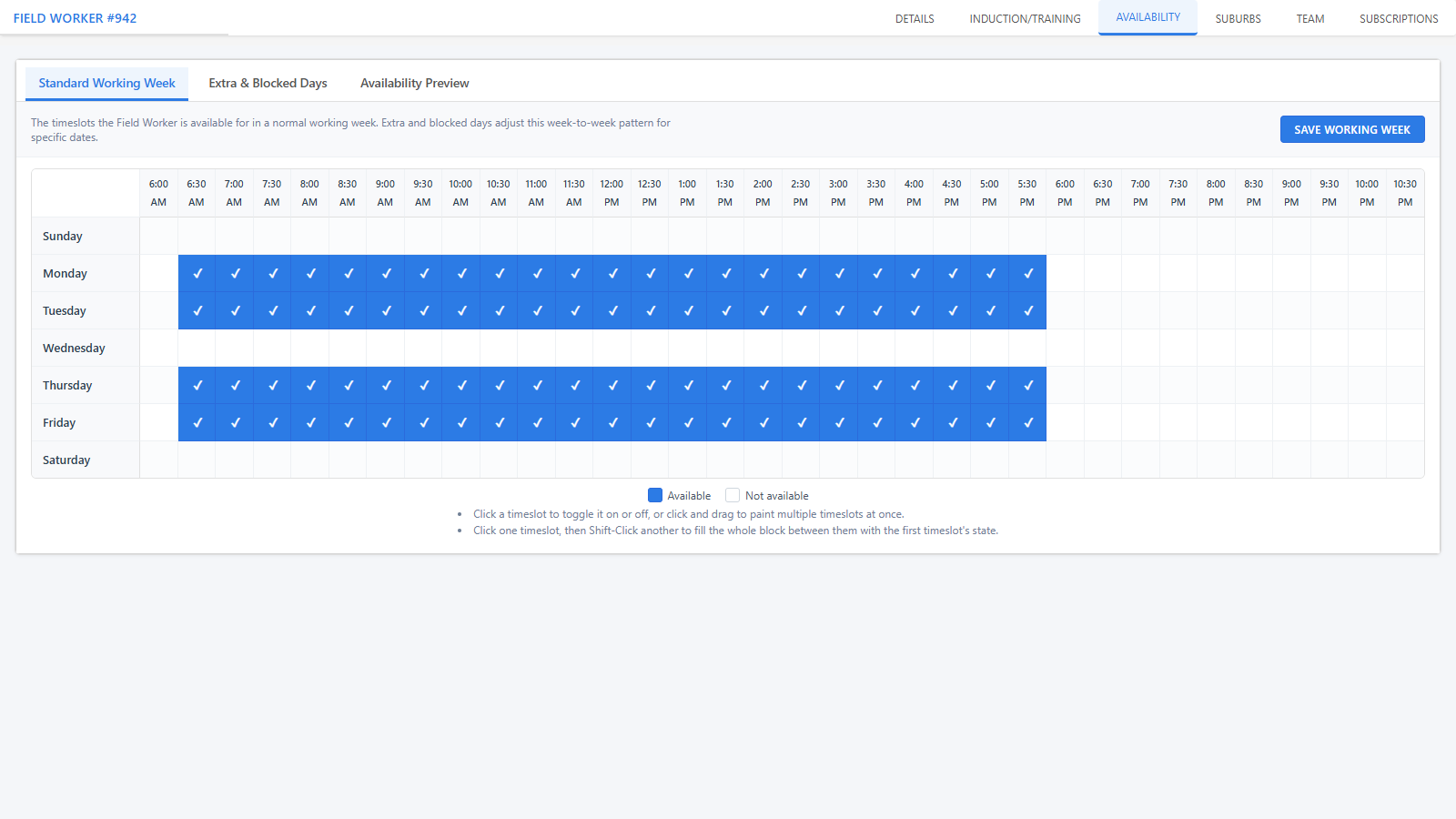
The fieldworker record’s four availability-related tabs (Work Days, Block Work Days, Add Work Days, Availability) have been consolidated into a single Availability tab with three sub-tabs:
- Standard Working Week - the weekly timeslot grid. Click to toggle a slot, click-and-drag to paint several, or Shift-click to fill a block.
- Extra & Blocked Days - one combined list of extra work days and blocked-out days, added and edited in a slide-over drawer.
- Availability Preview - a date-range preview of the resulting availability.
Old bookmarks to the removed tabs redirect to the merged Availability tab automatically.