Overview
The Building Commission of NSW (BCNSW) eCert Portal is the mandatory system for lodging a Certificate of Compliance for Electrical Work (CCEW) in NSW. Dataforce ASAP can lodge these certificates to BCNSW automatically over their API, so you don’t have to re-key each certificate into the Portal by hand.
This guide covers the day-to-day operator task: reviewing and submitting a CCEW to BCNSW from a job, and retrieving the certificate that BCNSW sends back.
Before you can submit, the following must already be in place:
- The BCNSW eCert integration is enabled for your instance.
- The eCert questions have been mapped to the relevant ASAP questions, and the fieldworker has answered them on the appointment.
- The fieldworker’s electrical licence is recorded and verified in ASAP (an unverified licence blocks submission).
How the fieldworker captures the CCEW (Runabout app)
The certificate data is captured in the field by the fieldworker on the Runabout mobile app during the appointment. Understanding what they complete helps you review the submission back in the office.
When the eCert integration is set up, the appointment on Runabout shows two extra tabs: BCNSW eCert and BCNSW eCert Other Equipment.
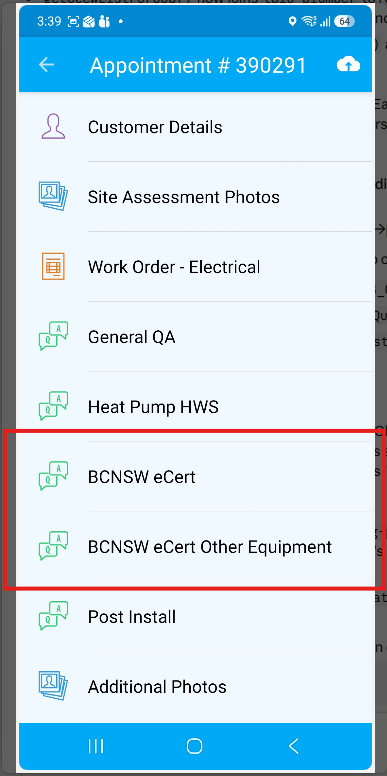
The BCNSW eCert tab
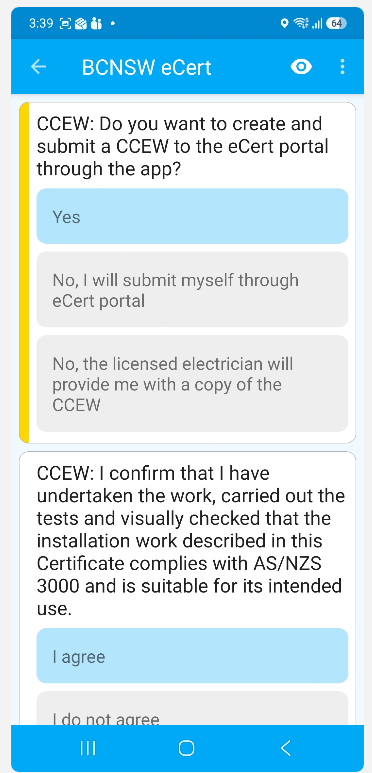
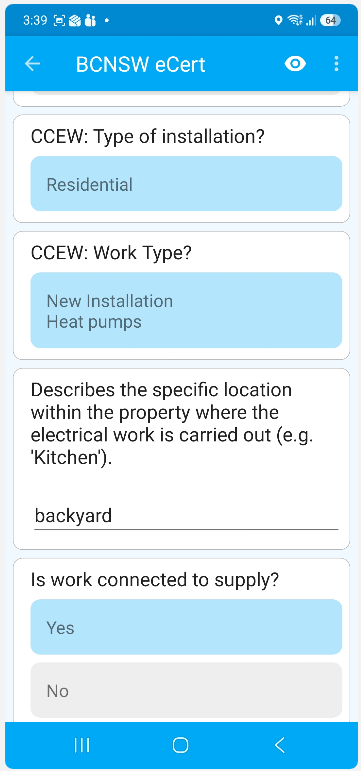
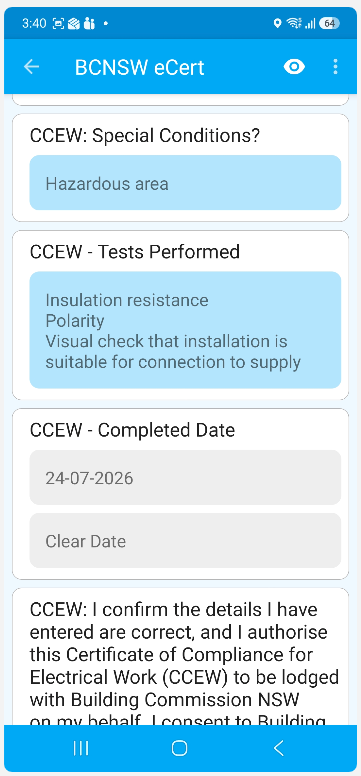
Opening the BCNSW eCert tab presents the certificate questions the fieldworker answers, including:
- whether they want to create and submit a CCEW through the app;
- the declaration - confirming they have undertaken the work, carried out the tests, and that the installation complies with AS/NZS 3000 and is suitable for its intended use;
- the type of installation (e.g. Residential) and the work type (e.g. New Installation, Heat pumps);
- a description of the work location within the property;
- whether the work is connected to supply;
- any special conditions;
- the tests performed;
- the completed date; and
- the authorisation/consent - authorising the CCEW to be lodged with Building Commission NSW on their behalf.
The BCNSW eCert Other Equipment tab (if required)
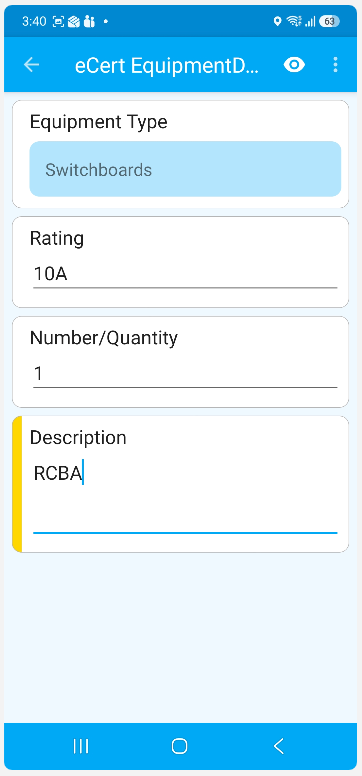
If the job involves additional equipment, the fieldworker records each item in the BCNSW eCert Other Equipment tab. This is a repeatable set - they tap the + button to add one entry per item of equipment.
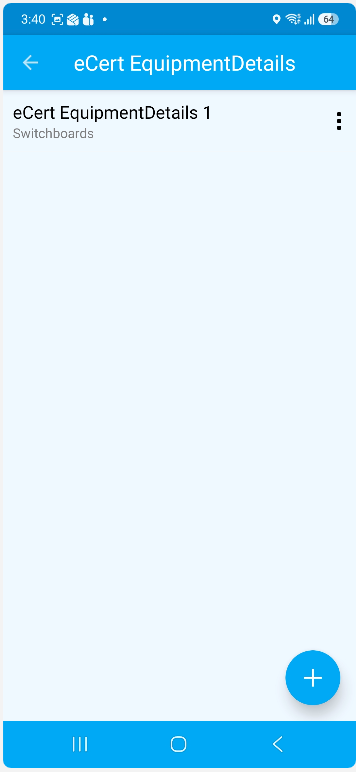
Each equipment entry captures the Equipment Type, Rating, Number/Quantity and a Description.
Finishing up in the field
Once all the eCert questions are answered, the fieldworker completes the rest of the appointment as normal and syncs/submits from the app as usual. Nothing else is required from them - the certificate is then available in the back office for review and lodgement to BCNSW, which is covered in the rest of this guide.
Finding the eCert Submissions tab
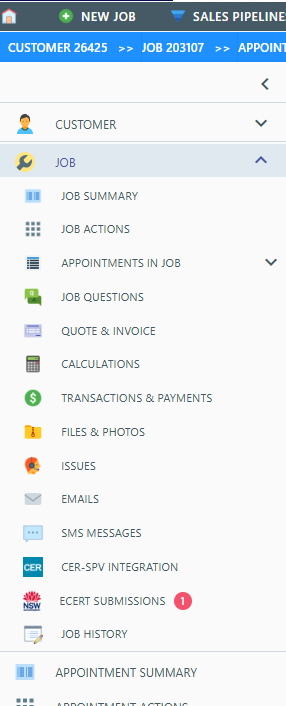
Open the job you want to submit a certificate for. When the eCert integration is enabled, a new eCert Submissions tab appears in the job’s left-hand navigation.
If there are certificates still waiting to be submitted, the tab shows a badge with the number of pending CCEWs, so you can see at a glance that a job has outstanding submissions.
The eCert Submissions list
The tab lists the CCEWs for this job - one row per appointment that qualifies (an appointment qualifies once the fieldworker has answered the mapped eCert questions).
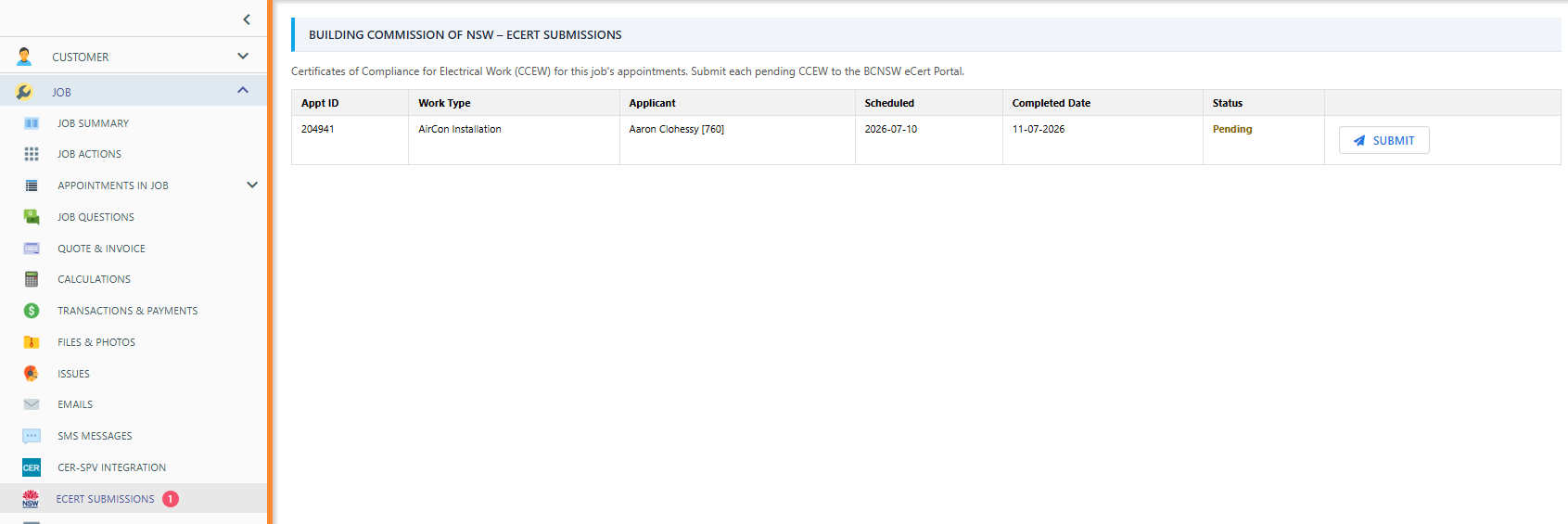
Each row shows:
| Column | What it shows |
|---|---|
| Appt ID | The appointment the certificate is for. |
| Work Type | The type of electrical work being certified. |
| Applicant | The fieldworker (electrician) who will be named as the applicant on the certificate. |
| Scheduled | The appointment’s scheduled date. |
| Completed Date | The completion date captured for the work (from the mapped question). |
| Status | Pending (not yet submitted) or Submitted (with the BCNSW certificate reference number). |
Reviewing a CCEW before submitting
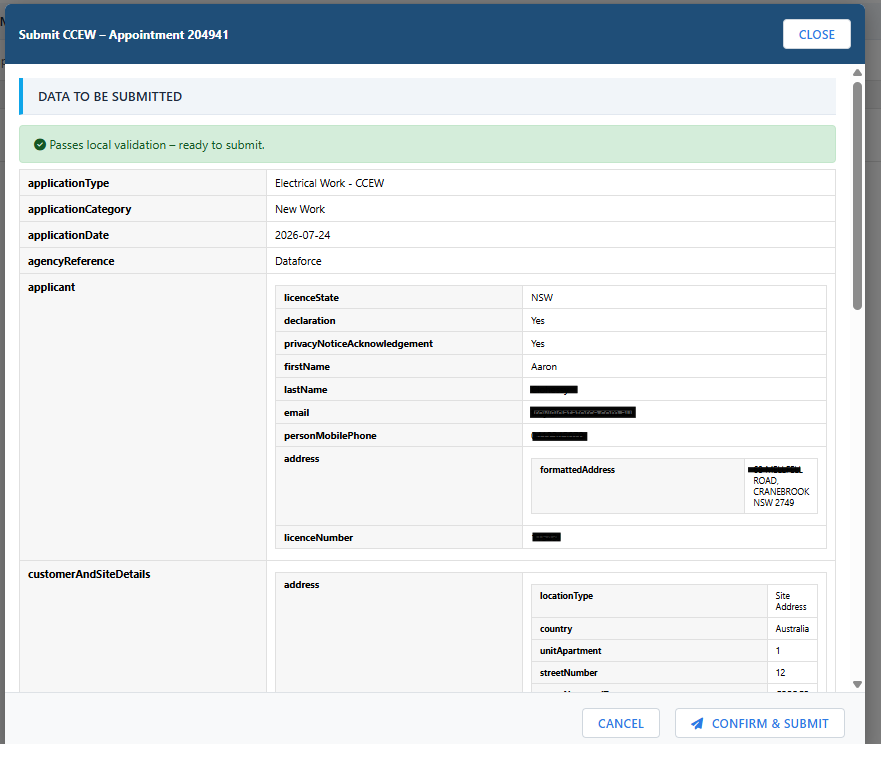
Click Submit on a pending row. A window opens where you review exactly what will be sent to BCNSW.
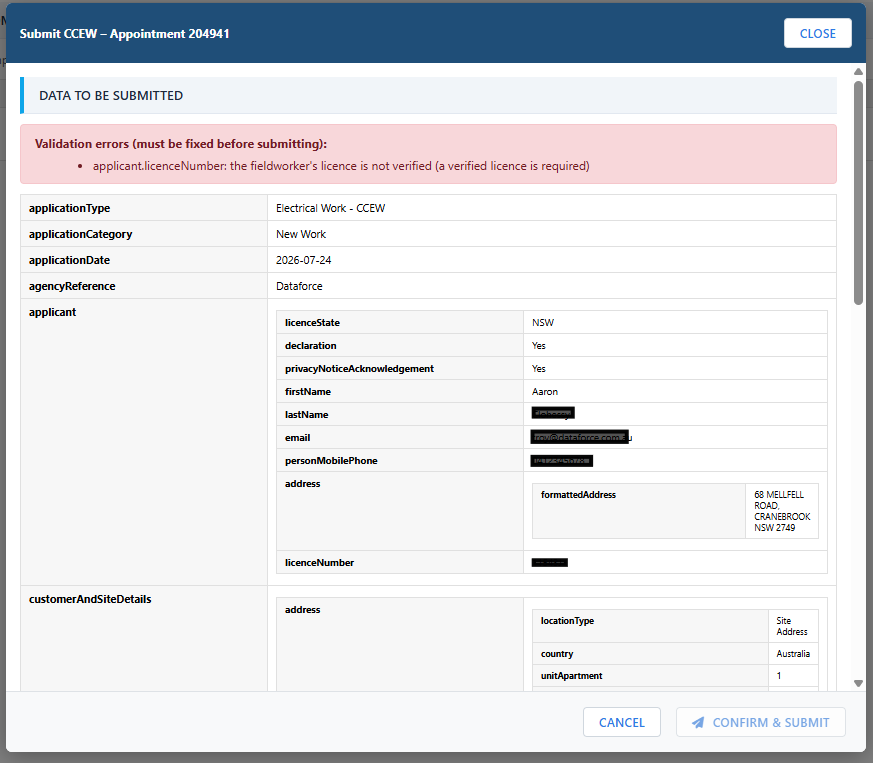
The certificate is always lodged under the fieldworker assigned to the appointment - the person who answered the eCert questions on the app - shown in the Applicant column of the list. There is no applicant to choose.
The Data to be submitted section shows the full certificate that will be sent, along with two kinds of feedback:
- Validation errors (red) - problems that must be fixed before the certificate can be sent. While any validation error is present, the Confirm & Submit button stays disabled. Typical examples:
- the fieldworker’s licence is not verified;
- a required field is missing (for example a completion date or a test result);
- the site address is not in NSW, or a required address field is blank.
- Warnings (yellow) - fields that aren’t mapped yet and will be sent empty or omitted. These do not block submission, but are worth checking so the certificate isn’t missing information.
When everything is in order you’ll see a green “Passes local validation - ready to submit” message and the Confirm & Submit button becomes available.
Submitting the CCEW
When you’re satisfied with the preview, click Confirm & Submit. ASAP sends the certificate to the BCNSW eCert Portal and waits for BCNSW’s response.
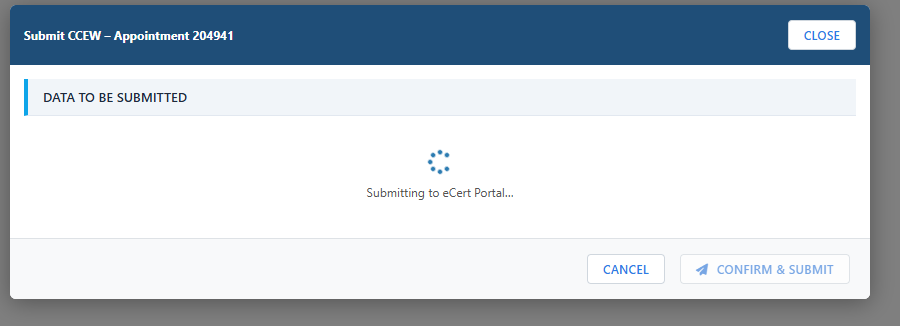
On success, the window closes and the row updates to Submitted, showing the certificate reference number returned by BCNSW.

If a submission is rejected
There are two ways a submission can fail:
- It didn’t pass validation - ASAP caught a problem and did not send anything to BCNSW. The window shows the validation errors to fix (same as the red errors described above). Correct them and try again.
- BCNSW rejected it - the certificate reached BCNSW but was declined. ASAP shows BCNSW’s own rejection message and detail so you can see exactly what BCNSW objected to, along with a reference (correlation ID) for support.
Retrieving the returned certificate
After BCNSW accepts a submission, they issue the finished CCEW certificate (PDF) and email it back. ASAP receives it automatically, files it against the job, and notifies the person who submitted it.
The user who submitted the CCEW receives a notification in their notifications area (the bell icon at the top of the screen) confirming the certificate has been received and attached to the job.
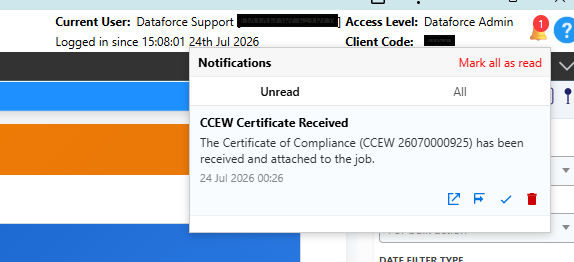
Once the certificate has been filed, you can access it in three ways:
- a Download certificate link appears next to the Submitted status, so you can open or save the official PDF straight from the eCert Submissions list;
- the PDF is also stored on the job’s Files & Photos screen alongside the job’s other documents; and
- it is emailed to the customer automatically, so no manual send is required.

Reporting on eCert submissions across jobs
The job’s eCert Submissions tab shows one job at a time. To see CCEWs across all jobs - for example, everything still waiting to be lodged - use the BCNSW eCert Submissions report.
Open Reports from the global toolbar and select BCNSW eCert Submissions from the Certificates group. The report is only listed when the eCert integration is enabled. (See Reports for general report usage.)
The report lists one row per qualifying appointment with an eCert Status of:
| Status | Meaning |
|---|---|
| Pending | The appointment qualifies as a CCEW but nothing has been submitted yet. |
| Submitted | The CCEW was successfully lodged; the BCNSW certificate reference number is shown. |
| Failed | Submission has been attempted but has not succeeded; the most recent error message is shown so the problem can be fixed. |
You can filter the results by Scheduled From / Scheduled To (the appointment’s scheduled date), Work Type and eCert Status.
Alongside the status, each row shows the appointment, customer, work type, scheduled date, certificate reference number, applicant, who submitted it and when, and the date and error of the last attempt. The Job Id column links straight to that job’s eCert Submissions tab, so you can jump from a pending or failed row to the screen where it can be reviewed and submitted.
A CCEW must be lodged no later than 7 days after the electrical safety testing is completed. For rows that have not yet been submitted, the report shows the Deadline (7 days after the completed date captured for the testing) and the Days Left until that deadline. The Days Left value is highlighted in amber as the deadline approaches, red in the final days, and dark red once the deadline has passed, so at-risk certificates stand out. The same deadline columns and highlighting appear on the Pending BCNSW eCerts dashboard widget.
The Pending BCNSW eCerts dashboard widget
To keep outstanding CCEWs visible day to day, add the Pending BCNSW eCerts widget to a dashboard. It lists every appointment that qualifies as a CCEW but has not yet been successfully submitted, ordered most urgent first, showing the job, appointment, customer, work type, scheduled date, the submission Deadline and the Days Left until it - with the same amber/red/dark-red highlighting as the report as the deadline approaches or passes.
To add it:
- Open your dashboard and choose to add a widget.
- Select Pending BCNSW eCerts from the widget list.
- Choose the program(s) to include and how many months back to look (based on the appointment’s scheduled date).
Programs that don’t have the eCert integration deployed simply contribute no rows, so the widget is safe to use on multi-program dashboards.
Finding jobs with pending eCerts (Advanced Search)
The Advanced Search panel can also find work with an outstanding CCEW. Under Other Filters, the BCNSW eCert Portal group contains a Pending BCNSW eCert Submission option - selecting it limits the search results to appointments that qualify as a CCEW but have not yet been submitted.
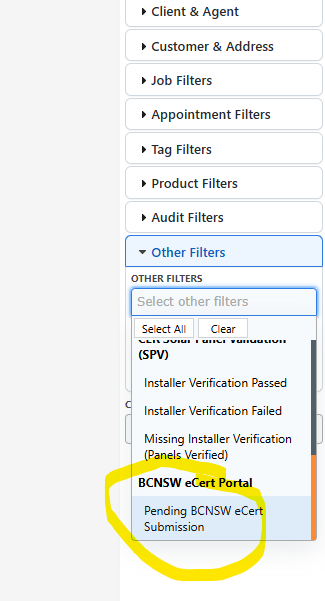
This combines with the other search criteria as normal (for example a date range, agent or work type), and can be saved as a Custom Quick Filter for one-click reuse.