Overview
Payment providers give Dataforce ASAP a secure way to take card payments. Stripe is the preferred provider - customers pay on their own device through a payment link. The card gateways (SecurePay, Eway, BPoint) are for programs where an operator or fieldworker needs to key card details directly into Dataforce ASAP or Runabout.
Every provider is enabled as an integration. By default each agent enables its own integration from the agent’s Integrations tab and enters its own account credentials there; the agent’s profile then selects which enabled provider to use. Alternatively, a provider can be switched to one program-wide connection shared by all agents - the setting is under Config Program Preferences, category Integrations.
Provider-specific setup walkthroughs:
- Enabling Stripe Payment Links (preferred)
- SecurePay Setup
Supported Payment Gateways
- Stripe - payment links (preferred). Set up as the agent’s Payment Link Provider
- Securepay (Australia Post) - direct card payments
- Eway - direct card payments
- BPoint (CommBank) - one integration covers both the Direct mode (card details entered in Dataforce ASAP / Runabout) and the Hosted mode (customer redirected to the BPoint payment page), selected by the integration’s Mode setting
What each provider supports
| Capability | Stripe | SecurePay | Eway | BPoint (Direct) | BPoint (Hosted) |
|---|---|---|---|---|---|
| Set up on the agent as | Payment Link Provider | Payment Gateway Provider | Payment Gateway Provider | Payment Gateway Provider | Payment Gateway Provider |
| Payment requests by email / SMS (Payment Request) | Yes | No | No | No | No |
| QR code and pay-by-link on quotes and invoices | Yes | No | No | No | No |
| Customer pays on their own device | Yes | No | No | No | Yes - redirected to the BPoint hosted page |
| Card details keyed by an operator in Dataforce ASAP (Job Transactions) | No | Yes | Yes | Yes | Via the BPoint hosted page |
| Card payments taken in Runabout | Via payment link (used when no gateway is set on the agent) | Yes | Yes | Yes | Via the BPoint hosted page |
| Refunds from the Transactions screen | Yes | Yes | Yes | Yes | No |
| Partial refunds (multiple refunds per payment) | Yes | Yes | Yes | Yes | No |
| Apple Pay / Google Pay | Yes - offered automatically on the Stripe payment page on supported devices (controlled in your Stripe dashboard) | No | No | No | No |
Enabling a card gateway integration
-
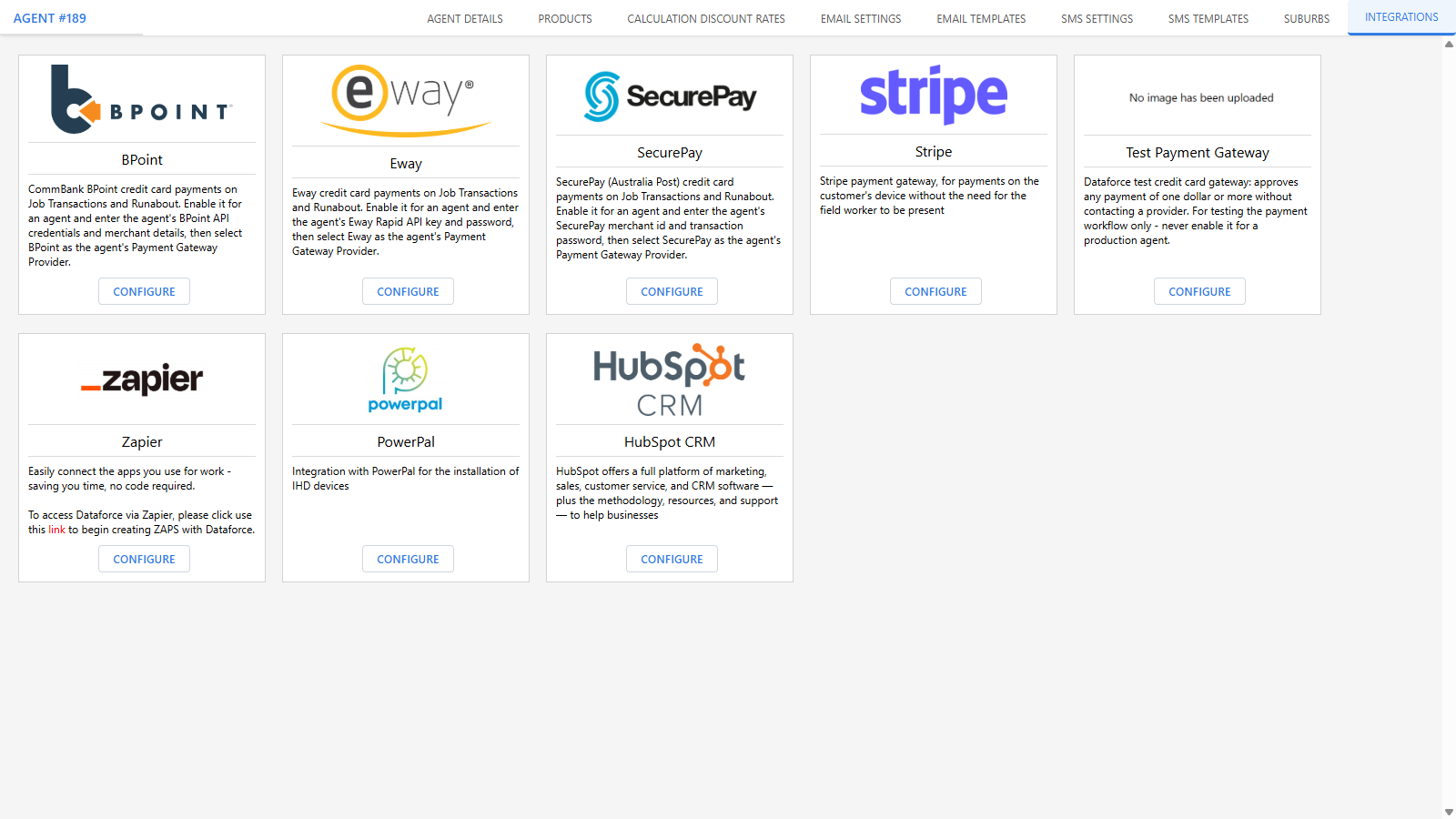
Open the agent (Admin Agents Agent Register) and click its Integrations tab. For a program-wide connection, use Config Integrations Integration Settings instead.
-
Click Configure on the gateway, switch it on, and enter the account details from your provider:
Gateway Settings SecurePay Merchant ID, Transaction Password Eway Rapid API Key, Rapid API Password, Pay Now Button API Key (optional) BPoint Mode (Direct or Hosted), API Username, API Password, Merchant Number (also used to validate BPoint settlement file imports), Biller Code, and - in Hosted mode only - Shop ID -
Click Update to save.
Disabling a gateway integration removes it from the agent’s Payment Gateway Provider options and stops card payments through that gateway for the agent.
Setting the active payment gateway on the agent
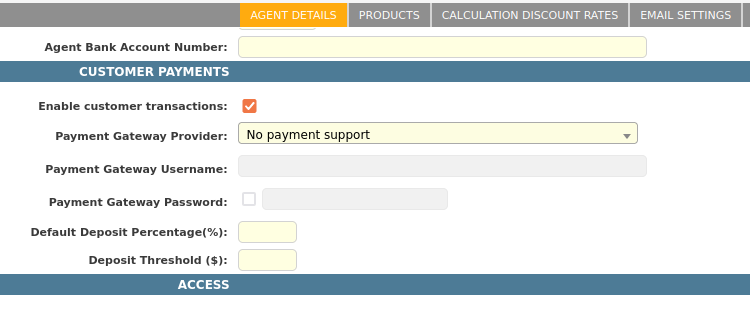
- Open the agent’s Details tab (Admin Agents Agent Register).
- Select the gateway from the Payment Gateway Provider dropdown. Only gateways whose integration is enabled for the agent (or program-wide) are listed - if none are, the dropdown shows a hint telling you to enable one first. For BPoint, the entry offered matches the Mode set on the integration.
- Click Save Details.
Enabling credit card payments in Runabout
To let fieldworkers take card payments in the Runabout mobile app:
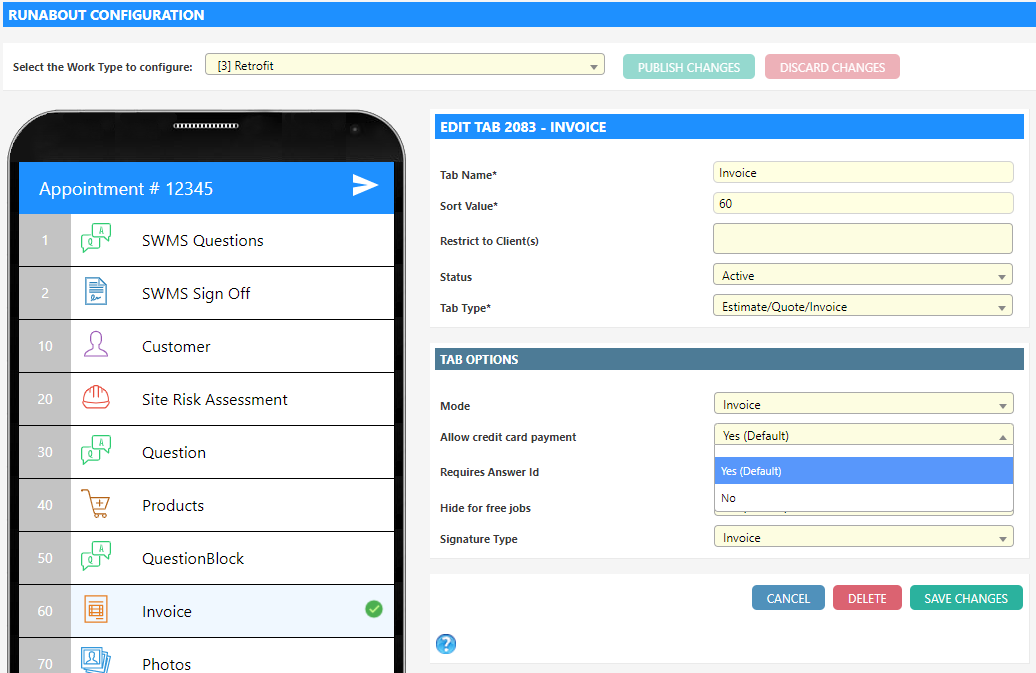
- Navigate to the Runabout Configuration screen ( Gear Icon Runabout).
- Select the work type you wish to enable credit card payments for from the dropdown at the top of the screen.
- Select the Quote or Invoice Runabout tab.
- Set the Allow credit card payment option to Yes (Default).
- Click Save Changes, then Publish Changes.
Runabout uses the agent’s Payment Gateway Provider for card payments. If the agent has only a Payment Link Provider (Stripe), Runabout offers a payment link instead.
Testing a payment
Before rolling payments out to fieldworkers, confirm they reach your provider account:
- Create a test job and appointment.
- Make a small test payment (for example $1) - see how to process a payment.
- Check the Transactions screen: a receipt number means the payment went through. You can also confirm it in your provider’s portal.
- Refund the test payment - see how to refund a payment.