Overview
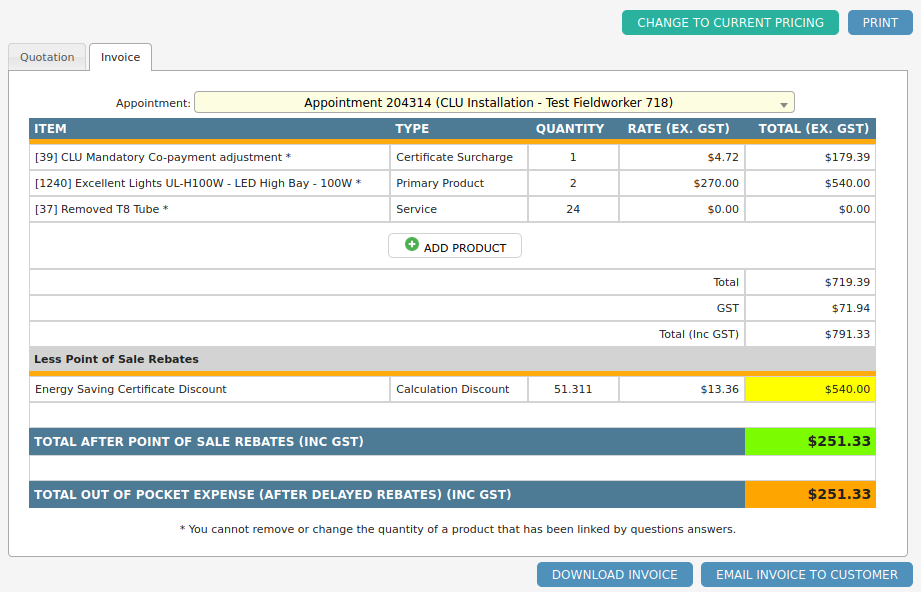
Within Dataforce ASAP, quotes and invoices are used to determine the cost of a job or appointment based on the products applied and any applicable discounts.
When a quote is completed using Job Questions, it is referred to as a Desktop Quote. Quotes generated during an assessment appointment are referred to as Assessment Quotes.
Desktop Quotes are completed by operators, while Assessment Quotes are typically completed by Field Workers using the mobile app.
Every job will have a single quote. This quote is sourced either from a Desktop Quote or, if the job is created through Dataforce Runabout, from the assessment appointment.
If an assessment appointment is completed, its Assessment Quote will override any existing Desktop Quote. When the installation appointment is completed, an invoice is generated.
Manually Add a Product
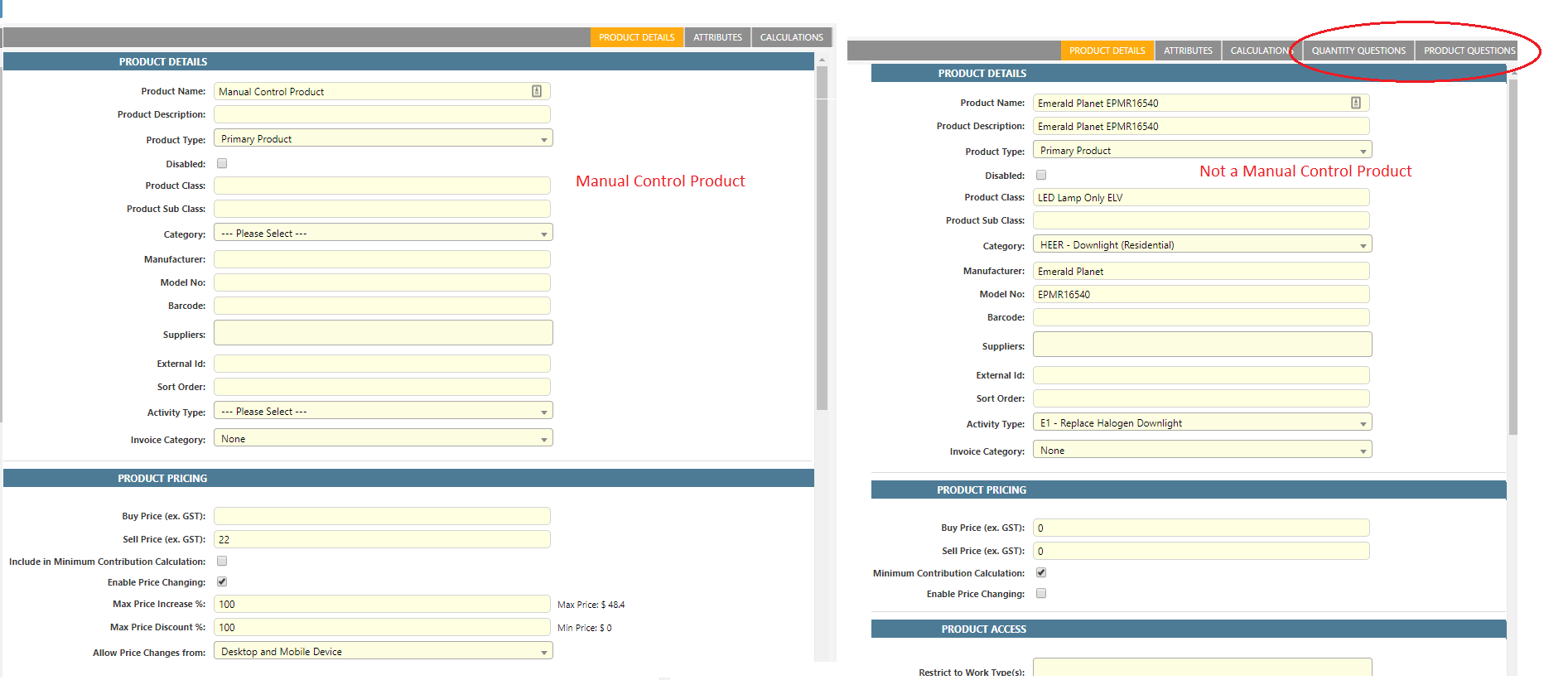
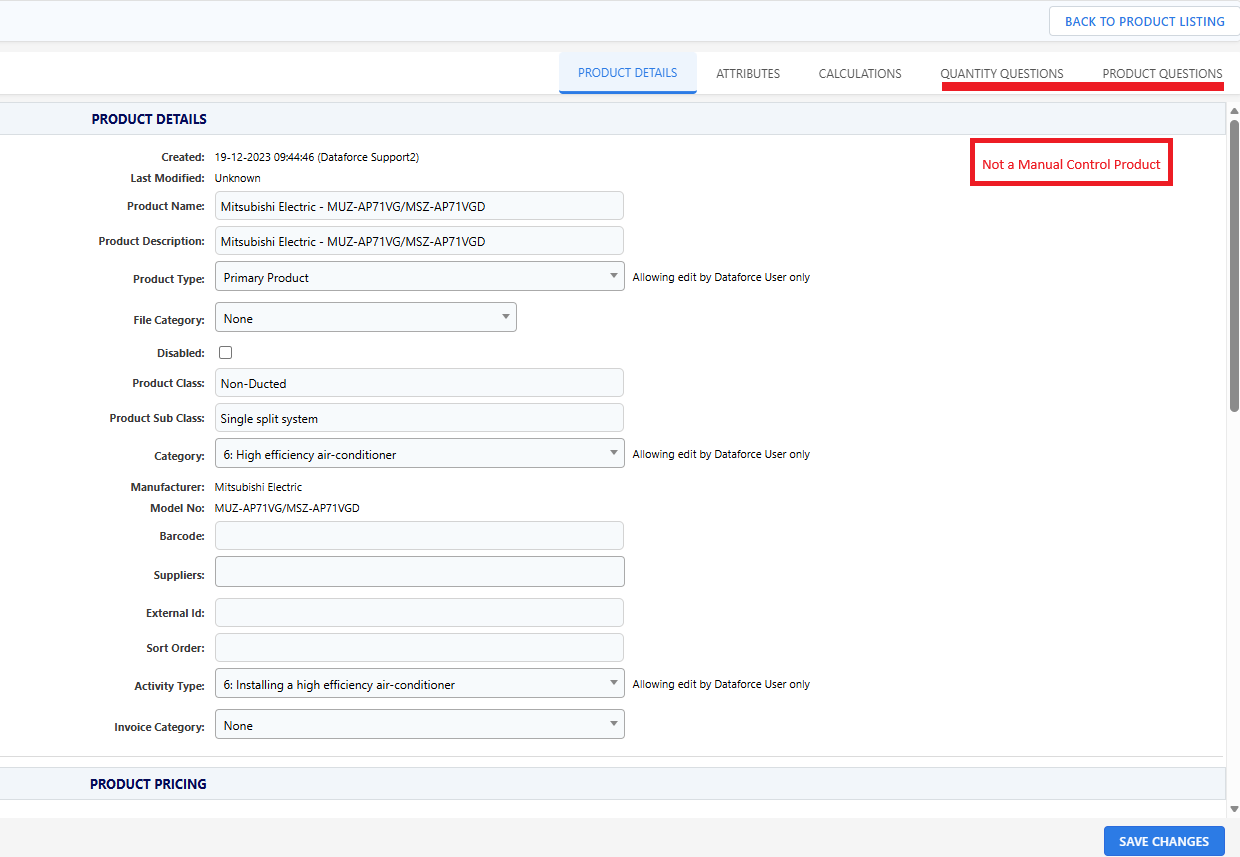
Before manually adding a product, ensure that the product is not linked to any product questions. This can be verified by opening the product in the Product Management page. A manual control product will not display Quantity Questions or Product Questions tabs on the product page.
| Manually Controlled | Question Controlled |
|---|---|
 |
 |
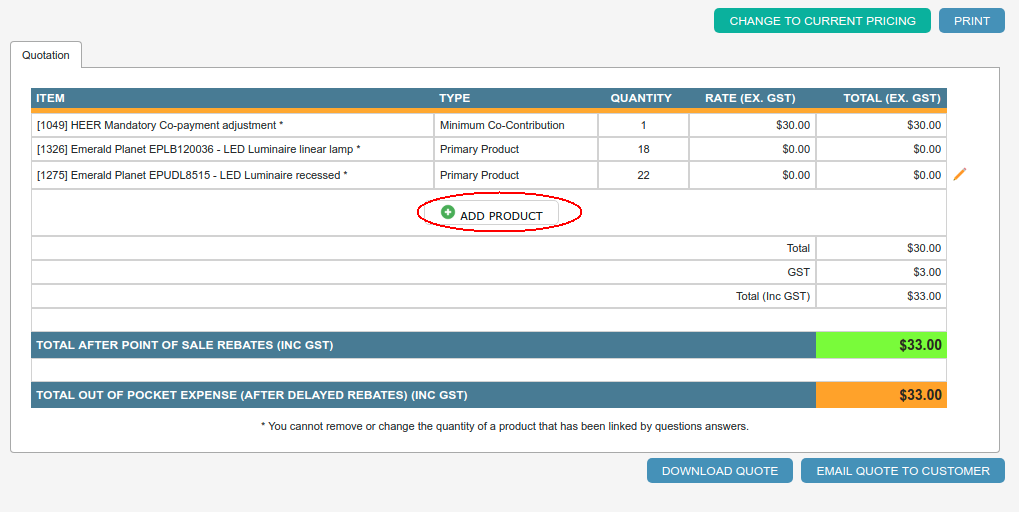
- Select the job stage where you want to add the product, quotation or invoice.
-
Click the “Add Product” button.
-
Select the product by clicking the drop down list.
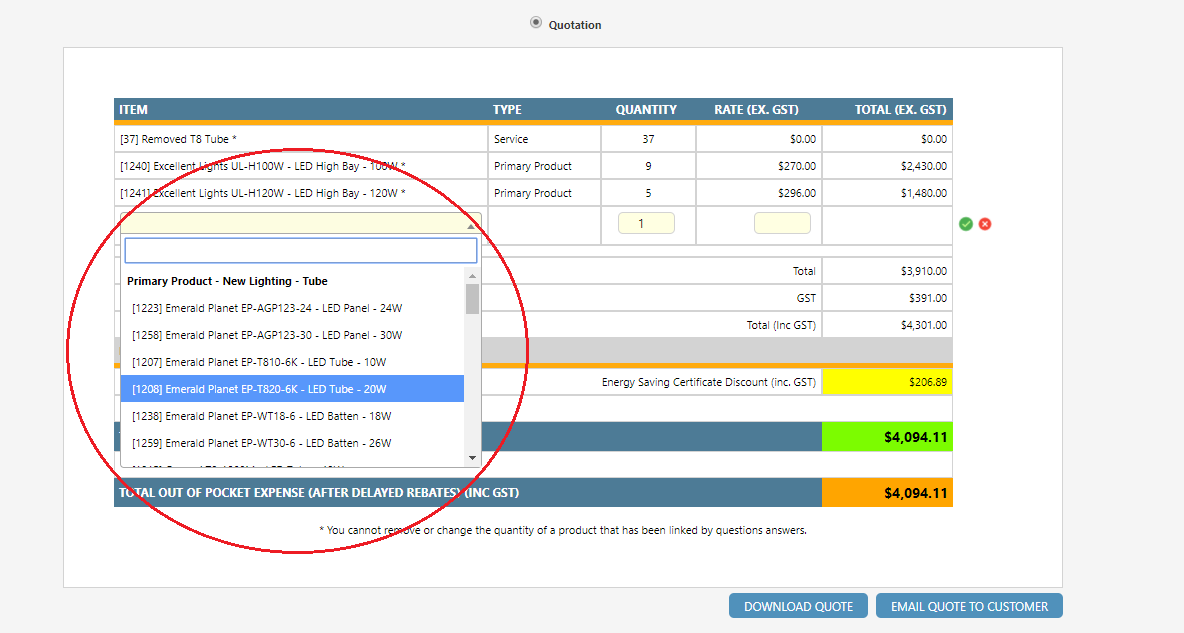
- Modify the quantity and price.
- Click the tick button to save the product.
Refresh a Product’s price
When an appointment or Desktop Quote is first completed, Dataforce ASAP saves the sell rate for each product. These saved rates are then used for any subsequent installation appointments. If an operator later updates a product’s sell price in the Product Register, the rate for existing jobs will not be updated automatically.
If a new price is required for an existing appointment, the operator can use one of the following options:
- If the product has the price change flag enabled, use the Price Change option on this screen.
- Use the Refresh button to update the rates for all products in both the quote and installation.
- Remove the product from the quote and then re-add it. This clears the stored rates and applies the current sell price.
When the appointment is at the installation stage, the operator must first refresh the quote and then refresh the installation.
Override the rate of a product
Products that have the price change flag enabled can have their unit rate overridden by an operator using this screen.
- Look for the pencil icon shown on the right hand side and click it to open the product for editing.

- Enter a new rate into the text field under the rate column shown below, and click the green tick to save, or the red x to discard.

Change all products to the current Pricing.
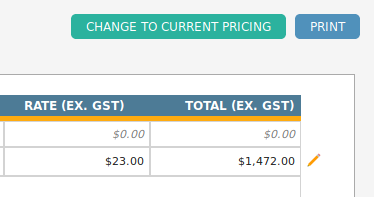 This screen provides an option to refresh all products prices. This can be done by clicking the button titled Change to Current Pricing.
Please note that this will update both quote and installation stages.
This screen provides an option to refresh all products prices. This can be done by clicking the button titled Change to Current Pricing.
Please note that this will update both quote and installation stages.
View Appointments Invoice
To view each appointment’s invoice the operator can:
- Ensure the Invoice Tab is selected.
- Click the appointment selection dropdown.

- Select the appointment using the mouse.
Job Costs & Profit Tab
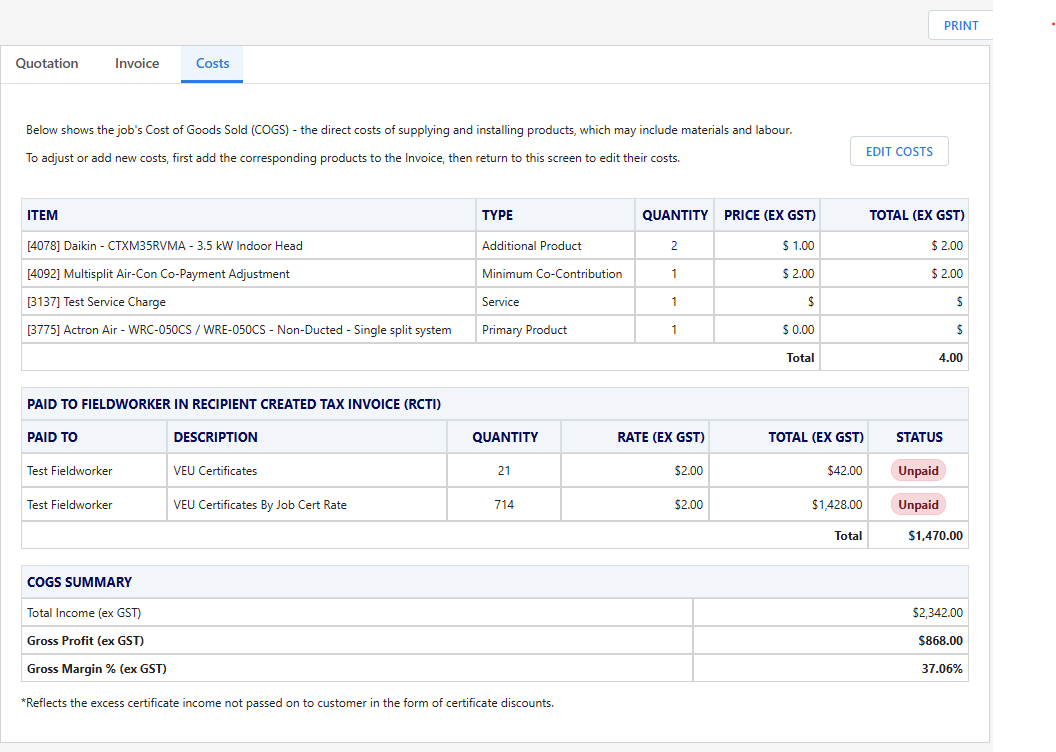
The Costs tab provides a breakdown of a job’s Cost of Goods Sold (COGS) and profitability. It is used to view and manage the direct costs associated with supplying and installing products, including materials, labour, and field worker payments.
This tab displays:
- COGS items derived from products added to the invoice, including quantities, unit prices, and totals.
- Field worker payments, shown as Recipient Created Tax Invoices (RCTIs), including payment status.
- A COGS Summary, which calculates total income, gross profit, and gross margin (ex GST).
To adjust or add costs, the corresponding products must first be added to the Invoice. Once added, operators can return to the Costs tab and use Edit Costs to modify cost values where permitted.
The Costs tab allows operators and administrators to clearly assess job profitability and understand how product pricing and field costs impact margins.
FAQ
Q: I cannot see the pencil icon to edit this product.
A: The pencil icon is only displayed if the product the Price Change flag enabled.
Q: I am able to set a product rate that exceeds the maximum or minimum price shown in the popup.
A: Accounts with Global Admin privileges, or accounts with the Override Price Bounds permission, are not restricted by these limits.
Q: I am unable to change a rate to my intended value.
A: The product has minimum and maximum price limits configured in the Product Register. Standard operators and Field Workers cannot exceed these bounds.
Q: I cannot find the product when clicking the add button.
A: The product may be disabled or may have failed agent or client access checks. These controls are configured in the Product Register.