Overview
The Reschedule Board replaces the old Mass Reschedule screen. It is a three-column drag-and-drop board for bulk rescheduling: find appointments on the left, drag them onto a fieldworker’s timeslots in the middle, or drop them on the waiting list on the right - then save all the changes at once.
Open it from Schedules Reschedule Board.
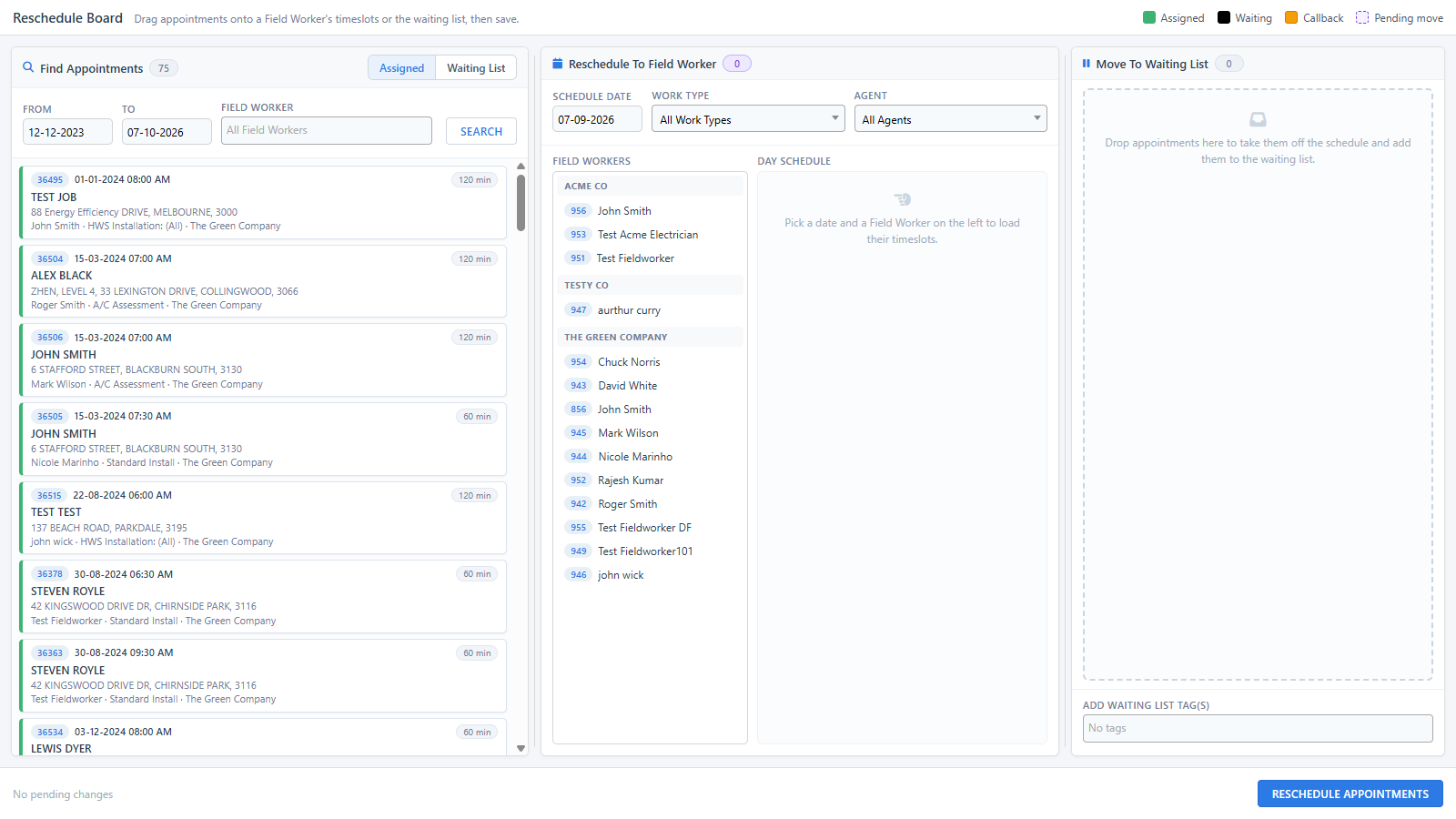
The three columns
The dividers between the columns are draggable, so you can resize the board to suit your screen.
1. Find Appointments
Search for the appointments you want to move. A toggle switches between two sources:
- Assigned - search scheduled appointments by date range and fieldworker(s)
- Waiting List - search the waiting list by outcome (Normal / Call Back / No Show) and suburb
Each result card shows the appointment id, date and time, callback and duration chips, the customer, address, fieldworker, work type and job agent. The column header shows a live count.
2. Reschedule To Fieldworker
Pick a Schedule date, and optionally filter by Work type and Agent. The fieldworker list (grouped by agent) shows who is eligible; select one to load their day schedule, then drag appointment cards onto the timeslots.
- The work type filter respects each fieldworker’s work type restrictions, and shows how many fieldworkers are eligible.
- Dropping an appointment on a fieldworker who cannot do that work type is blocked with an explanation.
3. Move To Waiting List
Drop appointments here to take them off the schedule and place them on the waiting list. You can also choose waiting list tags to apply to everything dropped here.
Pending changes and saving
Moved cards are marked with a Pending move style (see the legend strip in the toolbar, which also shows your configured appointment status colours) until you save. The action bar at the bottom summarises what is staged.
Click Reschedule Appointments to save. A Confirm Reschedule dialog summarises the changes and requires Reschedule comments before the changes are applied.

What changed from the old Mass Reschedule screen
- The stacked search/results/waiting-list panels are replaced by the three named, resizable columns above.
- Appointment cards carry much more context (status colours, callback and duration chips, customer and address).
- Reschedule comments are now captured in the confirmation dialog and are required.
- Moves can be undone before saving by dragging the card back to the Find Appointments column.
- Waiting list tag choices are limited to tags flagged for waiting list use.