Stock Management within Dataforce ASAP provides a mechanism for tracking stock levels for warehouses and field workers.
In order to begin using stock tracking, there are a number of prerequisite requirements which must first be met.
Pre-requisite Requirements
-
You must have created at least one supplier
Refer to Add Supplier
-
You must have created at least one warehouse
Refer to Add Warehouse
-
You must have products created and configured correctly
Refer to Adding a product
-
Select the product that you wish enable stock tracking on.
Refer to Modifying a Product for the step-by-step tutorial on how to select a product.
-
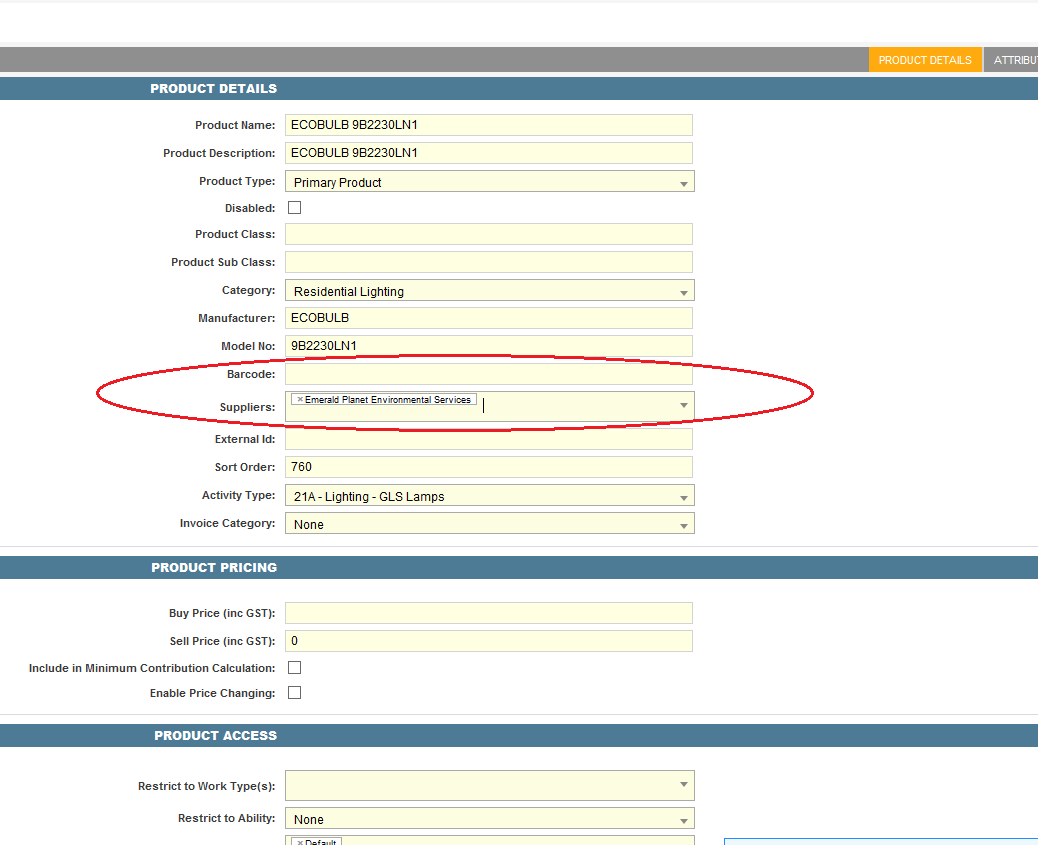
Enter all of the suppliers that will supply this product.
-
(Optional) Enter the barcode of the product. The stock screens can find the product by its barcode when recording movements and searching stock levels.
-
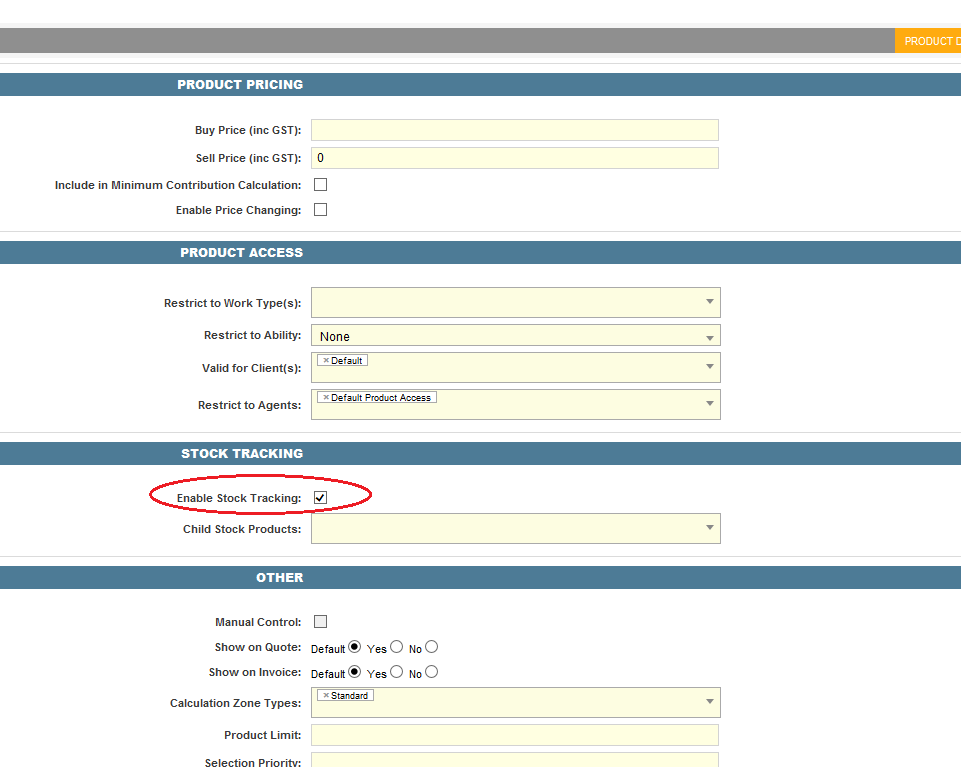
Check the “Enable Stock Tracking” flag.
-
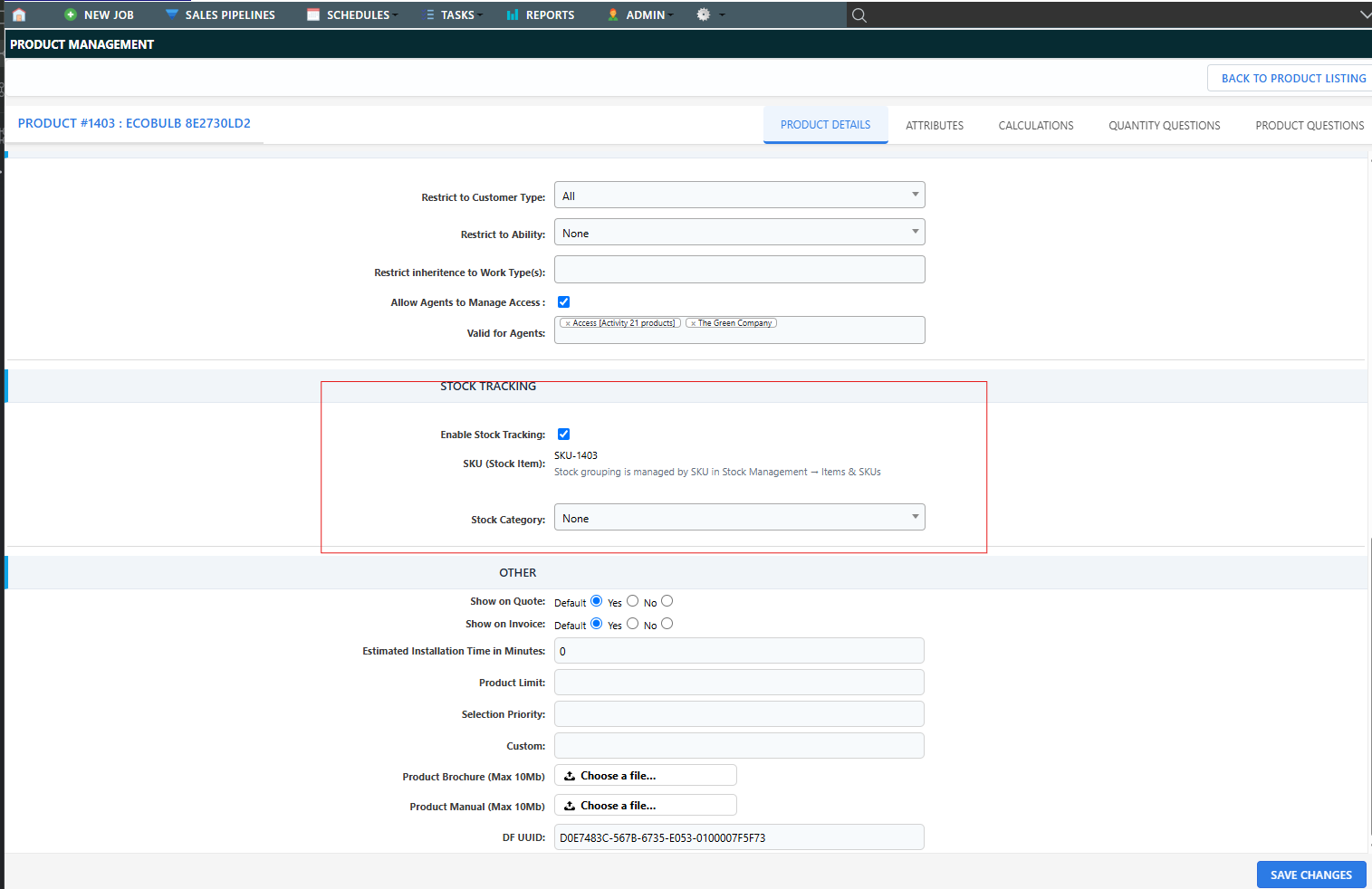
The product’s SKU is shown read-only on the product details screen and is assigned automatically the first time stock is tracked. If you have duplicated products in the product list that are physically the same item (for example the same product under different activities or prices), give them the same SKU from the Stock Management screen’s Items & SKUs tab so their stock is tracked together as one item.
-
Disabling stock tracking
Stock tracking can be switched off for a product at any time, with two rules:
- Stock history is always kept - disabling tracking never deletes past movements.
- Tracking cannot be disabled while the product’s SKU still has stock on hand and no other tracked product shares that SKU. Return, write off or stocktake the stock to zero first.
Re-enabling tracking later resumes from the preserved stock position.