Overview
In Dataforce ASAP, a work type represents an appointment’s type, such as: assessment, installation, meter installation or field audit.
Many features within Dataforce ASAP include work type restrictions, such as:
- Field Workers
- Products
- Questions
- Forms
- Emails
- Invoices
When restrictions are applied to these features, an appointment will only display those which match its work type.
These restrictions can be utilised to accurately represent the workflow of an appointment.
Work types also contain options that control an appointments:
Creating a Work Type
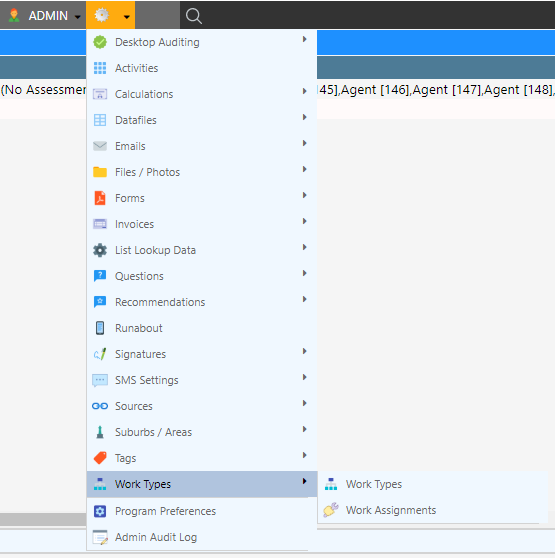
- Open the Work Type Management screen by selecting Admin Advanced Configuration [L - Z] Work Types
- Enter any necessary configuration options
- Select Add Work Types
Editing a Work Type
- Open the Work Type Management screen by selecting Admin Advanced Configuration [L - Z] Work Types
- Edit any necessary configuration options
- Select Update Work Types
Work Type Hierarchy
Work types can be arranged in a parent/child structure using the Parent Work Type setting on the General tab. A child work type represents a follow-on step: for example, an installation work type can be configured as a child of the assessment work type that precedes it.
The hierarchy affects appointment creation in three ways:
- A child work type only becomes available once its parent exists in the job. An appointment for a child work type will not be created unless the job already contains an active (non-cancelled) appointment of the parent work type.
- The first appointment in a job must be a top-level work type. Work types with a parent can never be the first appointment of a job. The first appointment must also be an assessment type work type.
- Children of the most recent appointment are preferred. When Dataforce ASAP evaluates what the next appointment should be, work types that are children of the just-completed appointment’s work type are prioritised ahead of unrelated work types.
Automatic Appointment Creation
The Auto-Create Appointment setting on the Scheduling tab controls whether Dataforce ASAP can automatically create an appointment of this work type as a job progresses. There are three options:
| Option | Behaviour |
|---|---|
| Never | The work type will never be created automatically. Appointments of this type can only be added manually. |
| Always | The work type is always considered a valid candidate for the next appointment — no question answer is required. It must still pass the standard eligibility checks. |
| Use question to decide | The work type is only created when a specific question has been answered with a specific value, configured in the Auto-Create on Question Answer field. If any of the configured answers is present on the job — whether captured against the job itself, during any of its appointments, or during an audit of an appointment — the work type becomes a valid candidate. |
Use question to decide is the most common configuration. For example, an installation work type might be triggered by the answer Yes to a question such as “Did the property pass the safety inspection?” captured during an earlier appointment.
How the Next Appointment Is Chosen
When a job is created, or when an appointment is completed, Dataforce ASAP evaluates all work types to determine which appointment should be created next. A work type is a valid candidate only if all of the following are true:
- Its Auto-Create Appointment setting is not Never
- If set to Use question to decide, at least one of its trigger answers is present on the job, one of its appointments, or an audit of one of its appointments
- If it has a Parent Work Type, the parent already exists as an active appointment in the job
- If Requires Parent Completion (Requirements tab) is checked, the parent appointment must have been completed
- If Requires Quotation Acceptance (Requirements tab) is checked, the job’s assessment appointment must have an accepted quote
- For the first appointment in a job: it is an assessment type work type and has no parent work type
- Its Customer Type restriction (Requirements tab) matches the customer on the job; work types set to All are available to every customer
- If the work type is restricted to specific agents (Restrict to Agent(s) on the Requirements tab), the job’s agent is one of them
- The work type’s work assignment has timeslots configured
- The job does not already contain an active appointment of the same work type — a job can only ever have one active appointment per work type. A cancelled appointment does not count, so a cancelled appointment’s work type can be created again.
If more than one work type is a valid candidate, Dataforce ASAP selects a single winner using the following order of precedence:
- Question-triggered work types first. A work type whose trigger answer is present on the job takes precedence over an Always work type with no matching answer.
- Children of the current appointment next. Among the remaining candidates, work types whose parent is the just-completed appointment’s work type are preferred.
- Lowest Sort Order wins. Any remaining tie is resolved by the Sort Order value — the lower the number, the higher the priority.
Worked Example
The following hypothetical workflow shows how these settings combine. The work type names are illustrative only — your own work types will have names specific to your business.
- An Assessment work type (top-level) is created as the first appointment when the job is created, triggered by a job-level answer identifying the type of work required.
- During the assessment, the assessor answers Yes to a question asking whether a safety inspection is required. This answer triggers a Safety Inspection work type, which is created and scheduled automatically.
- If the inspection identifies issues, the fieldworker’s answers trigger a Rectification work type (configured as a child of the inspection work type), assigned and scheduled using the date, time, and fieldworker questions answered on site.
- Once the property is confirmed safe, the relevant answer triggers the Installation work type — a child of the original assessment — and the installation is booked for the date and time agreed with the customer.
At each step, Dataforce ASAP evaluated all valid candidates and selected one automatically, using the question answers, the work type hierarchy, and the sort order you configured.
Configuration Options
Work types have a number of configuration options, broken into tabs:
-
Configuration options for the work type
-
Criteria that must be met before an appointment of this work type can be created
-
Configuration options for the automatic generation and scheduling of an appointment, with this work type
-
Configuration options for the work type’s invoice
-
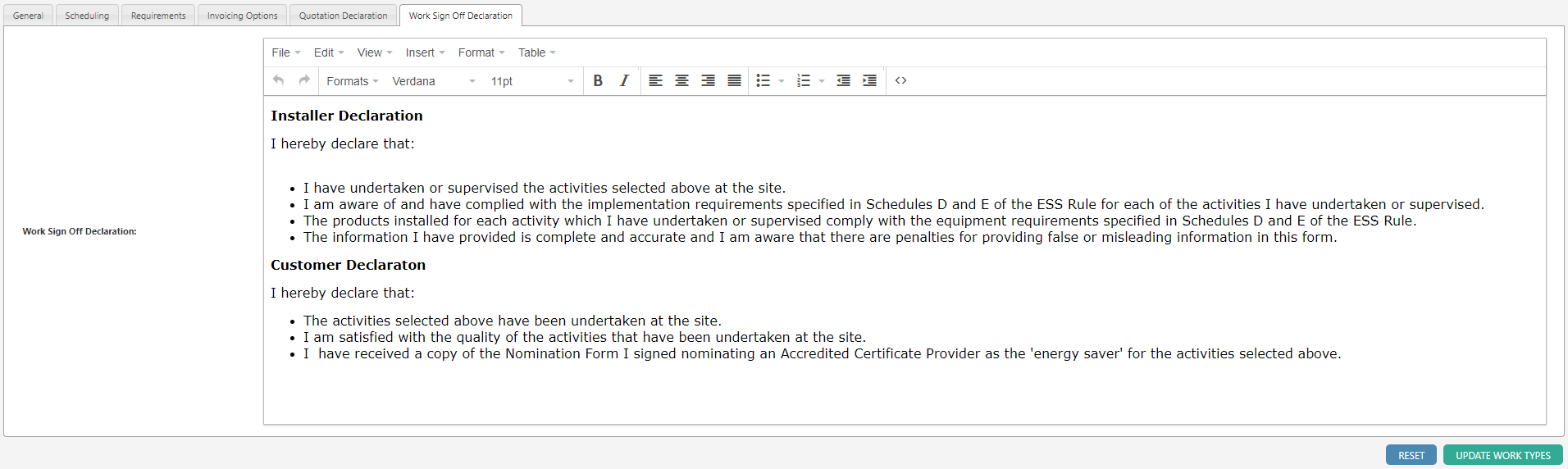
Declarations
Text fields displayed on the Dataforce Runabout quotation and work sign-off tabs if no PDF alternative is available
Configuration Descriptions
General Information

| Configuration | Description |
|---|---|
| Work Type Id | System generated ID |
| Name | The name of the appointment type |
| Appointment Type | A list of preset appointment types to help Dataforce ASAP better assess appointments (e.g. assessment type appointments will always be the first appointment scheduled) |
| Sort Order | A sorting method used for the creation of appointments; when automatically generating an appointment Dataforce ASAP will prefer work types with lower sort orders |
| Representation Name | The title of the field worker in reference to the appointment, i.e. auditor, installer, assessor |
| Skip Audit | If a phone / paper audit is required before invoice |
| Close Job On Completion | When an appointment of this work type is completed, the parent job’s status will be set to closed |
| Optional | A method of making appointments of this work type mandatory for jobs |
| Parent Work Type | A work type that must exist before this work type can be created i.e. an installation appointment may have a parent work type called assessment; see Work Type Hierarchy |
| Work Assignment | The work assignment associated with the work type |
| Restrict Questions by Work Type | Only show questions where the work type is selected, i.e. do not show questions with no work type filter |
| Default Timeslots | The number of timeslots an appointment of this work type occupies by default |
| Inherit Job Instruction From | The question from which the appointment inherits its job instruction |
| Prevent New Appointment Creation (API) | Disallow the creation of new appointments of this work type via the API |
| Propagate Field Audit Status | When enabled, the field audit status is propagated from this appointment |
| Do not Export (API) | Disallow this work type on Dataforce Runabout |
Requirements

| Configuration | Description |
|---|---|
| Requires Parent Completion | The parent appointment must be in a completed status before this work type can be created |
| Requires Quotation Acceptance | The job’s assessment appointment’s quote must be in an accepted status before this work type can be created |
| Customer Type | Restricts the work type to Business or Residential customers; work types set to All are available to every customer |
| Restrict to Agent(s) | Limits the work type to jobs belonging to the nominated agent(s); when left empty, the work type is available on all jobs regardless of agent |
Scheduling

| Configuration | Description |
|---|---|
| Timeslot Type | Controls how the appointment’s time is represented, for example Date & Time for a precise booking |
| Auto-Create Appointment | Whether an appointment of this work type can be created automatically: Never, Always, or Use question to decide; see Automatic Appointment Creation |
| Auto-Create on Question Answer | The question answer(s) that trigger automatic creation of this work type, when Auto-Create Appointment is set to Use question to decide |
| Assign To | Who the new appointment is assigned to: Waiting List (created unassigned, placed on the waiting list), Parent Appointment Fieldworker (assigned to the field worker who performed the parent appointment), Use question to decide (taken from the answer to the Fieldworker Question), or First available Fieldworker |
| Waiting List Answer | The question answer that sends the appointment to the waiting list, when the waiting list behaviour is answer-driven |
| Fieldworker Question | The question in the parent appointment which provides the field worker to automatically schedule the appointment of this work type to, when Assign To is set to Use question to decide |
| Assign To Date/Time | When the new appointment is scheduled: Use question to decide (date and time taken from the Schedule on Date Question and Schedule at Time Question), Minutes after parent appointment (a fixed offset from the parent appointment), or Either of the above (question takes priority) (uses the question answers when provided, falling back to the fixed offset when they aren’t) |
| Schedule on Date Question | The question in the parent appointment which provides the date to automatically schedule the appointment of this work type to |
| Schedule at Time Question | The question in the parent appointment which provides the time to automatically schedule the appointment of this work type to |
| Force Schedule Change | If checked, the scheduling rules will always apply regardless of the current status of the appointment. If unchecked, the scheduling rules will only apply if the appointment has not been created, has a status of cancelled, or has a status of waiting |
Invoicing Options

| Configuration | Description |
|---|---|
| Invoice Requires Certificate Submission | If checked, the appointment cannot be invoiced on a datafile or agent invoice until it has been given a status of submitted |
| Invoice Wait Work Type | Invoice eligible only after the selected work type has a status matching ‘Wait Work Type Appointment Status’ |
| Wait Work Type Appointment Status | Invoice eligible only after the ‘Invoice Wait Work Type’ appointment has the selected status |
| Invoice Wait Work Type Client | Client invoice eligible only after the ‘Invoice Wait Work Type Appointment’ appointment has been invoiced |
| Invoice Wait Worktype Eligible | Invoice eligible only after the ‘Invoice Wait Work Type’ appointment is invoice eligible |
Troubleshooting
No appointment was created after an appointment completed. Check that a work type exists whose auto-create trigger answer was actually captured, that its parent (if any) exists on the job, and that its Requirements tab restrictions match the job — Customer Type, Restrict to Agent(s), Requires Parent Completion (the parent appointment must be completed), and Requires Quotation Acceptance (the job’s assessment appointment must have an accepted quote). If no work type passes all eligibility checks, no appointment is created.
The wrong work type was created. Compare the Sort Order of the candidates. If two work types share a trigger answer, the one with the lower Sort Order is selected. Also check whether one of the candidates is a child of the completed appointment’s work type, as children are preferred.
A work type is never being picked up. Confirm its Auto-Create Appointment setting is not Never, that its work assignment has timeslots configured, and that the job doesn’t already contain an active appointment of that work type — each work type can only appear once per job unless the earlier appointment was cancelled.