Overview
Posted stock movements are permanent - they cannot be edited or deleted. This protects the stock history as a trustworthy audit trail of where every unit came from and went. Instead of editing a mistake, you correct it by posting a movement in the opposite direction, or by running a stocktake.
Correcting a movement recorded in error
Open Tasks Stock Management Stock Management, select the New Stock Movement tab, and post the opposite movement:
| Mistake | Correction |
|---|---|
| Issued too much to a field worker | Post a Field worker Return for the difference |
| Issued to the wrong field worker | Post a Field worker Return from that field worker, then an Issue to the correct one (or a Field worker Transfer between them) |
| Received the wrong quantity from a supplier | Post a Supplier Return for the difference |
| Transferred to the wrong warehouse | Post a Warehouse Transfer back |
| Recorded the wrong product | Post the opposite movement for the wrong product, then the correct movement |
Use the same docket number as the original movement so the correction and the mistake are easy to match up in the history.
When the system quantity is simply wrong
If the stock level in Dataforce ASAP does not match what is physically on the shelf (or in the vehicle) and the cause is unknown, run a stocktake for the warehouse or field worker: the counted quantities become the system quantities and the variances are recorded as correction movements. Refer to The Stock Management Screen.
Correcting a docket number
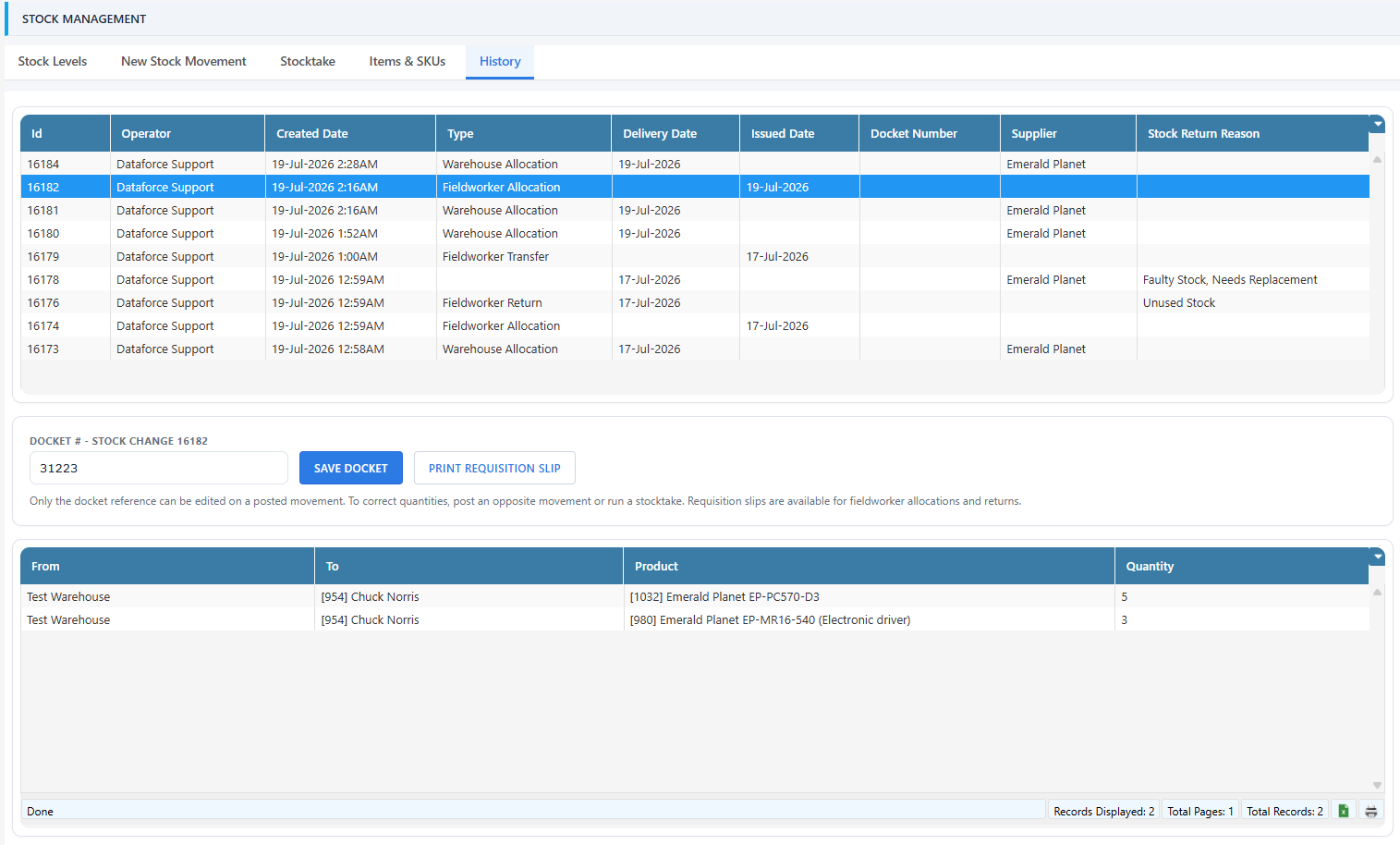
The docket reference is the one detail of a posted movement that can be edited. Open the History tab, select the movement, update the Docket # field and click Save Docket. The change is applied to the movement and its related records everywhere the docket is shown.
Movement dates and quantities cannot be changed - dates drive the stock reports, and quantities are corrected with the movements described above.