Step 1: Click the “New Job” button in the top navigation bar
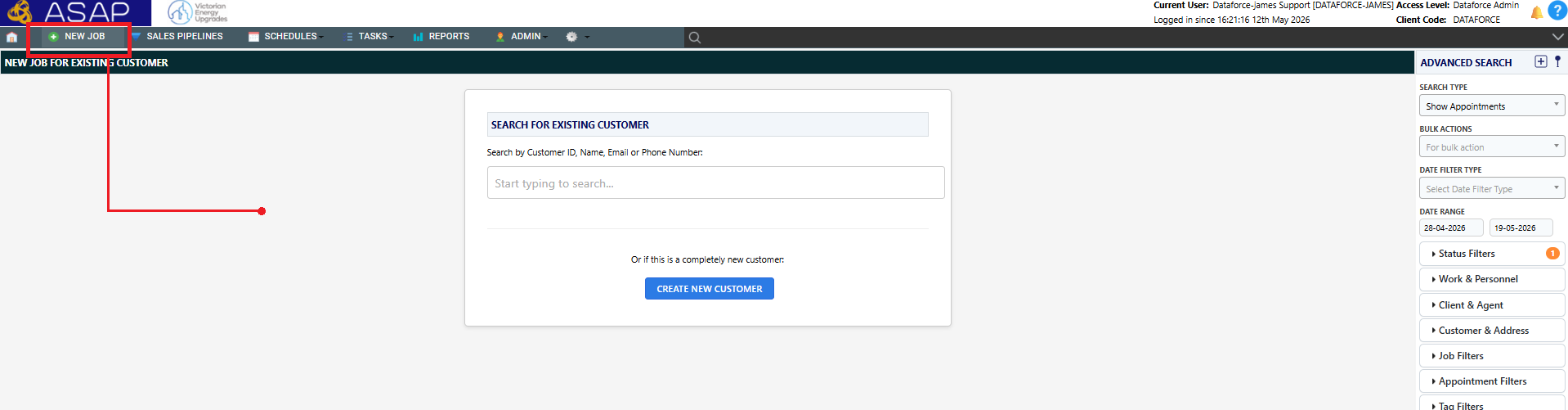
Step 2: Search for existing Customer record
If no customer records exists, then you can click the Create New Customer button
- Click on the search box and enter any one of the following customer details:
- Phone
- First Name
- Last Name
- Address

Step 3: Enter Address Details
- Start typing the address into the search bar and the address search / autofill feature will populate the address
- Ensure all relevant fields are completed accurately

Step 4: Create Customer
- Click Create Customer to save the record
Using Address Search
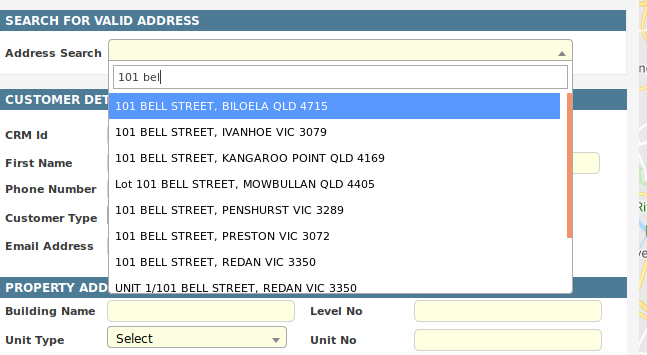
To save time, Dataforce ASAP has an address search. To search for an address, click the Address Search field and start typing an address, starting with the street or unit number. If the address matches, it can be selected from the drop down menu.
When an address is selected from the drop down, it automatically fills the address details in the associated fields on the page.
Validation Error: No Access or Suburb does not Exist.
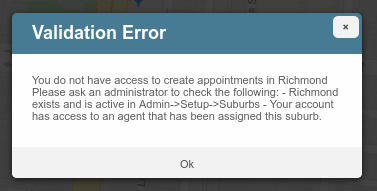

This error can occur when:
- The suburb does not exist in the current locality (state).
- The suburb is not assigned to the job agent as a sales territory.
- The suburb does not exist at the value entered in the postcode.
If you believe the suburb to be correct, please contact your Dataforce ASAP administrator and they can either enter the suburb into the database and / or assign this suburb to the creation agent.
Validation Error: Address Fails verification.
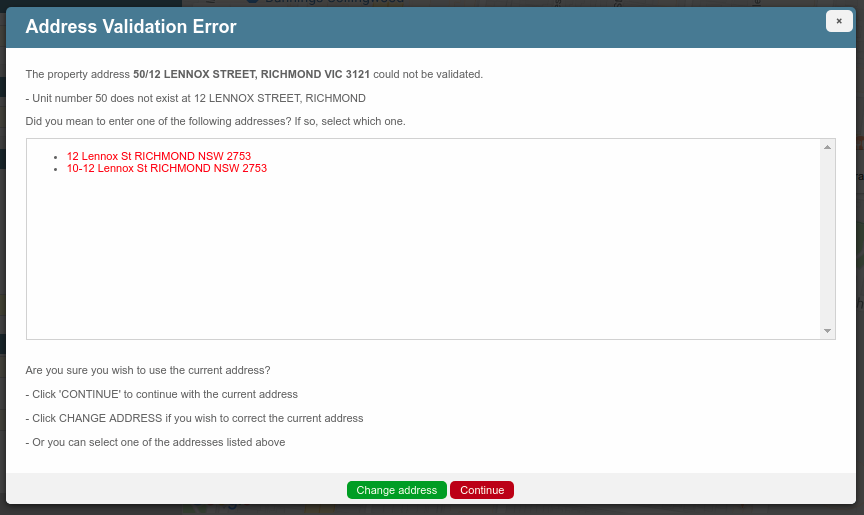
If the address has failed verification, the above model will be displayed.
If the verification service has suggestions, it will include them for the appropriate selection, if one of the suggestions is appropriate. Use the mouse to hover over the address and right click to switch the address to the suggestion and, after doing so, click the button, Create Customer to try again.
If you’d like to correct the address and try again, please click the green button, Change Address. If you’d like to use the current address, please click the red button, Continue.
Validate ABN or ACN and Company Name
For business customers, you can verify the ABN/ACN or company name using the ASIC Australian Business Records search
- Search by Company Name to Auto-fill ABN/ACN
- Select Business from Customer Type, enter a company name and click the ASIC icon.
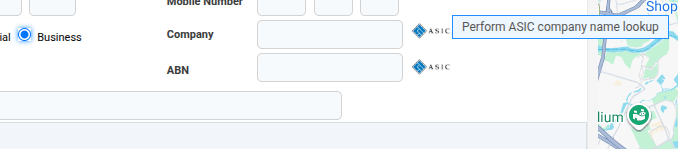
- Review the results displayed in the pop-up.
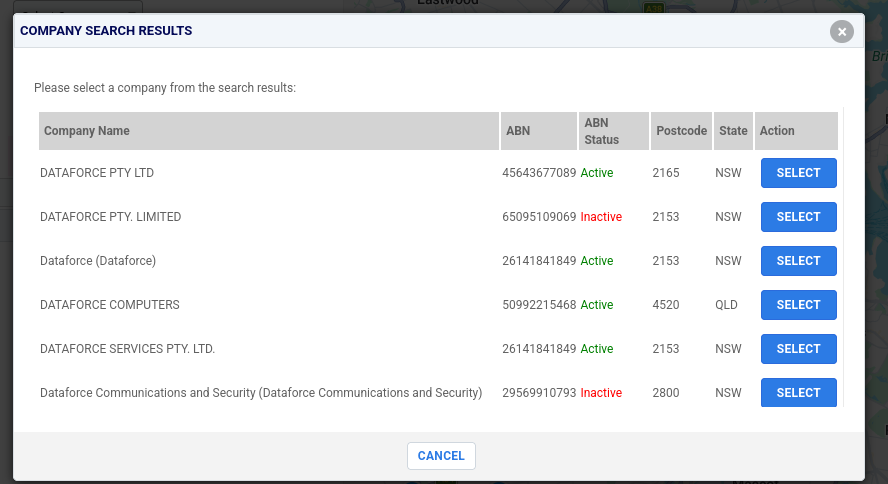
- Click Select to populate the company name and ABN/ACN fields automatically.

- Select Business from Customer Type, enter a company name and click the ASIC icon.
- Validate ABN/ACN
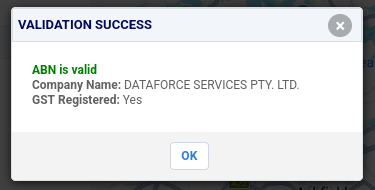
- Select Business from Customer Type and enter an ABN/ACN and click the ASIC icon.

- Review the results displayed in the pop-up.
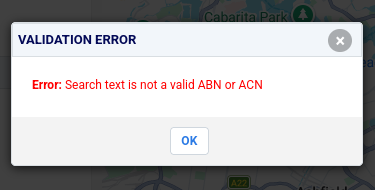
- If validation fails, the error message appears below.
- Select Business from Customer Type and enter an ABN/ACN and click the ASIC icon.

