Overview
Stripe is Dataforce ASAP’s preferred payment provider and its payment link provider: it powers the Payment Request feature, where a customer receives a secure link (by email, SMS, or a QR code on a quote or invoice) and pays on their own device.
Stripe is enabled as an integration. By default each agent connects its own Stripe account from the agent’s Integrations tab, so payments land in that agent’s Stripe account. Alternatively, one program-wide Stripe connection can be shared by all agents.
Step 1: Choose agent-level or program-level
- Agent level (default) - each agent enables and connects Stripe on its own Integrations tab. Best when agents take payments into their own accounts.
- Program level - a single Stripe connection shared by every agent, enabled once from Config Integrations Integration Settings.
To switch between the two, open Config Program Preferences, category Integrations, and set the Stripe option to Agent level or Program level.
Step 2: Connect your Stripe account
- Open the Stripe integration:
- Agent level: Admin Agents Agent Register, open the agent, then click its Integrations tab.
- Program level: Config Integrations Integration Settings.
-
Click Configure on the Stripe integration.
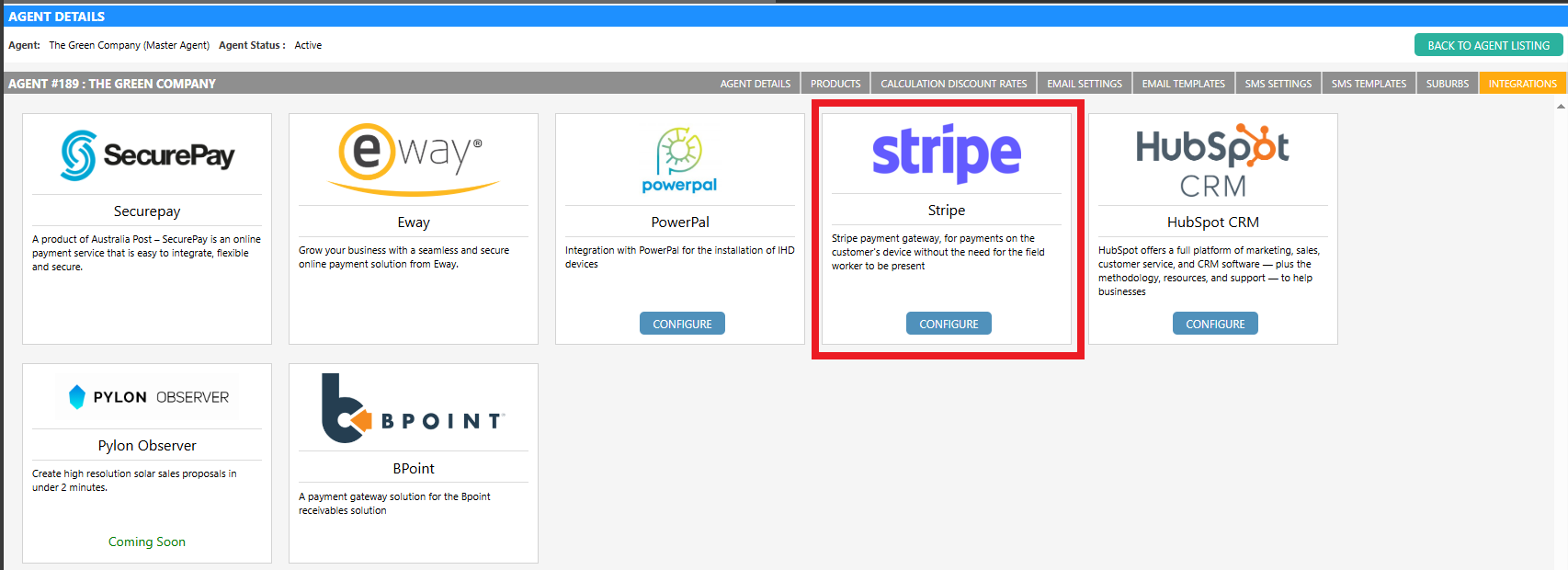
You will be directed to the Stripe website, which guides you through the account setup and authorisation process. When creating an account, Stripe collects details such as business and ownership information - refer to the Stripe account creation documentation for details.
- On completion you are returned to the Stripe integration page. Click Enable.
Step 3: Set Stripe as the agent’s Payment Link Provider
Each agent that should send payment requests needs Stripe selected as its Payment Link Provider:
- Navigate to Admin Agents Agent Register and open the agent.
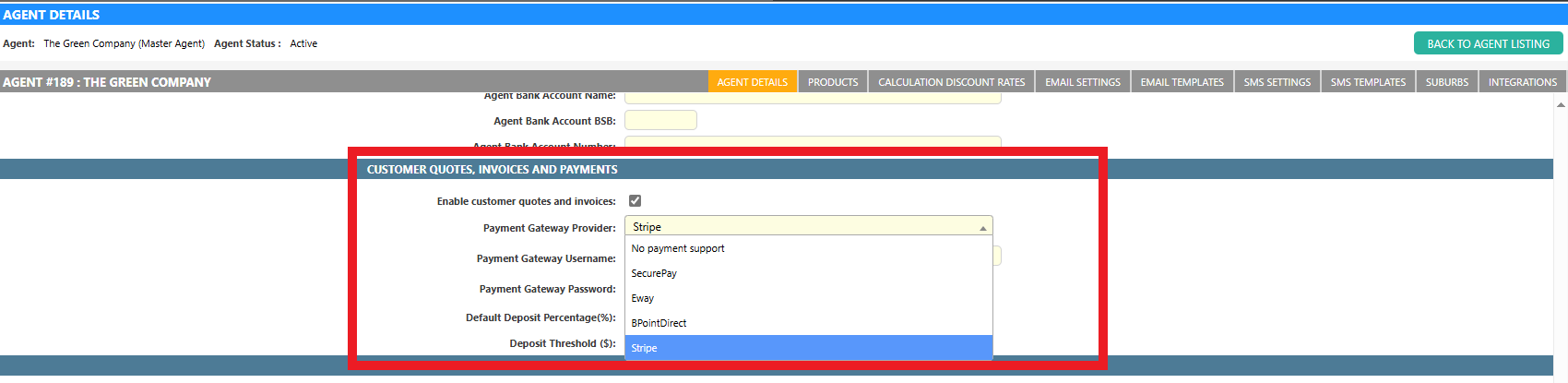
- On the Details tab, select Stripe from the Payment Link Provider dropdown. Only enabled Stripe connections are offered.
-
Click Save Details.
What’s next
With Stripe connected and selected on the agent, operators can send payment requests from a job’s Files & Photos or Quote & Invoice tabs, and quotes and invoices can carry a payment QR code and link. See Payment Request.