Overview
Dataforce ASAP includes two AI-powered features, both running on AWS Bedrock in Australia (photos and content do not leave the country):
- AI Photo Verification - automatically checks that photos captured in the field show what they are supposed to show
- AI Assist - a writing helper in the email template editor
All AI usage is logged and subject to daily limits (see below).
AI Photo Verification
When enabled, every photo a fieldworker captures is checked against criteria written for its file/photo category - for example, “the photo must show a heat pump hot water system, showing the full unit including the compressor”. Photos that are too blurry or unusable to identify the subject fail automatically. If a barcode was scanned with the photo, the check also confirms the serial/barcode label is fully visible.
The goal is to catch a wrong, blurry or badly framed photo while the fieldworker is still on site, so it can be retaken on the spot instead of triggering a return visit.
What the fieldworker sees
When the feature is On, the verdict is returned to Runabout with the upload. A failed photo prompts the fieldworker with a short plain-language reason (for example, “photo shows a gas storage unit, not a heat pump”) and asks for a retake. Nothing is blocked - the original photo is always kept, the retake simply arrives as a new photo.
What the operator sees
On the Job Files screen, each verified photo carries an icon:
- a pass icon - “AI photo verification passed”
- a fail icon - “AI photo verification failed: (reason)”

Configuration
Three pieces need to line up:
- The program switch - the
PHOTO_AI_VERIFICATIONprogram parameter: Off (default), Shadow (verify and record, but tell the fieldworker nothing - useful for tuning criteria before going live), or On. Contact Dataforce to have this enabled for your program. -
Photo Verification Types - under Admin Files / Photos Photo Verification Types, define named criteria sets:
Field Purpose Name e.g. “Hot Water System” Criteria Plain-English description of what the photo must show. Avoid criteria a photo cannot prove (serial values, model numbers). Minimum Confidence 0 - 1 (default 0.7). A pass below this confidence is treated as a fail. Enabled Untick to retire a type without deleting it. 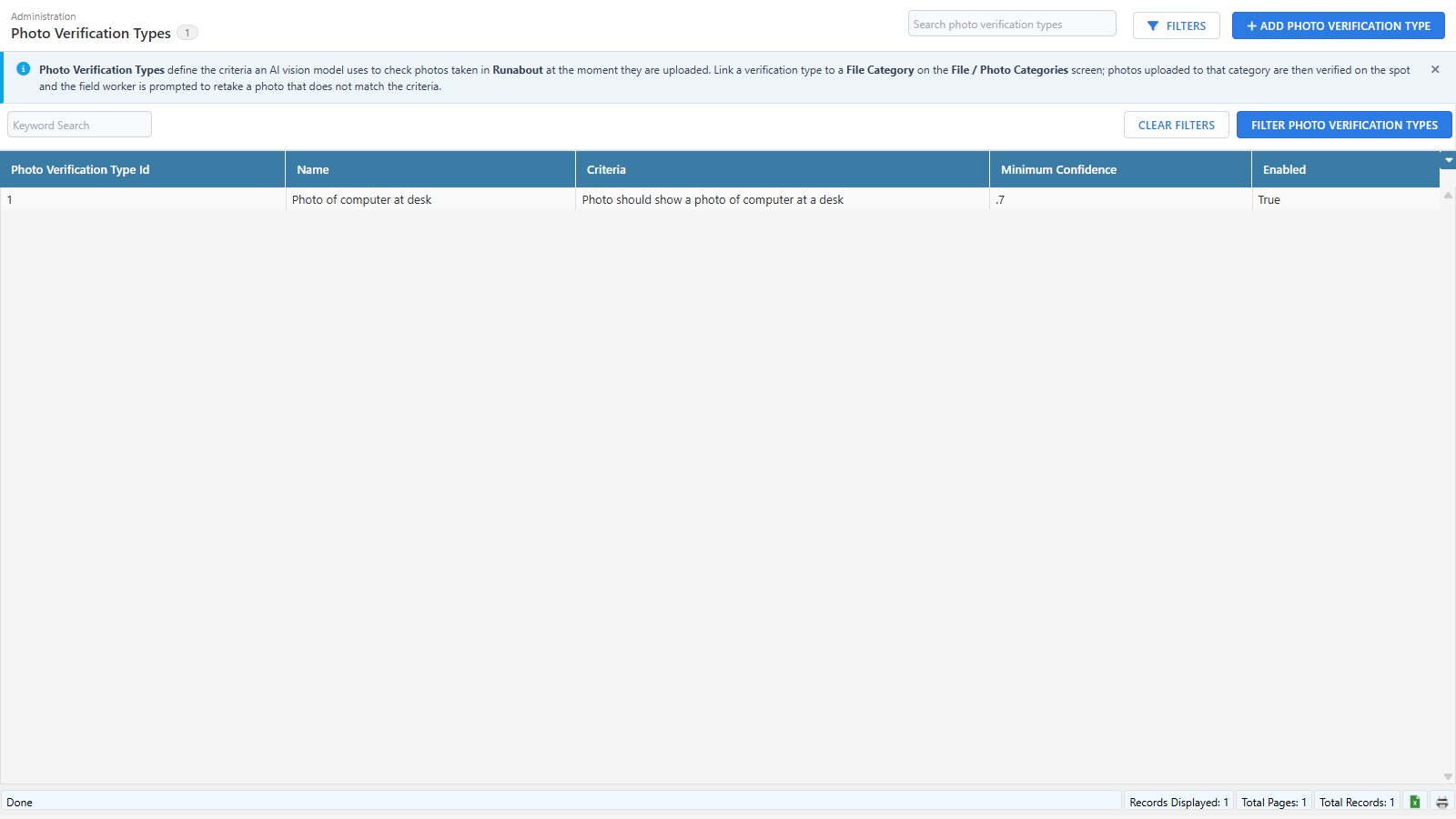
- Link categories - on Admin Files / Photos File / Photo Categories, set the new AI Photo Verification field: None, Use File Category Name as prompt, Use Question Description as prompt, or a specific Photo Verification Type.
AI Assist
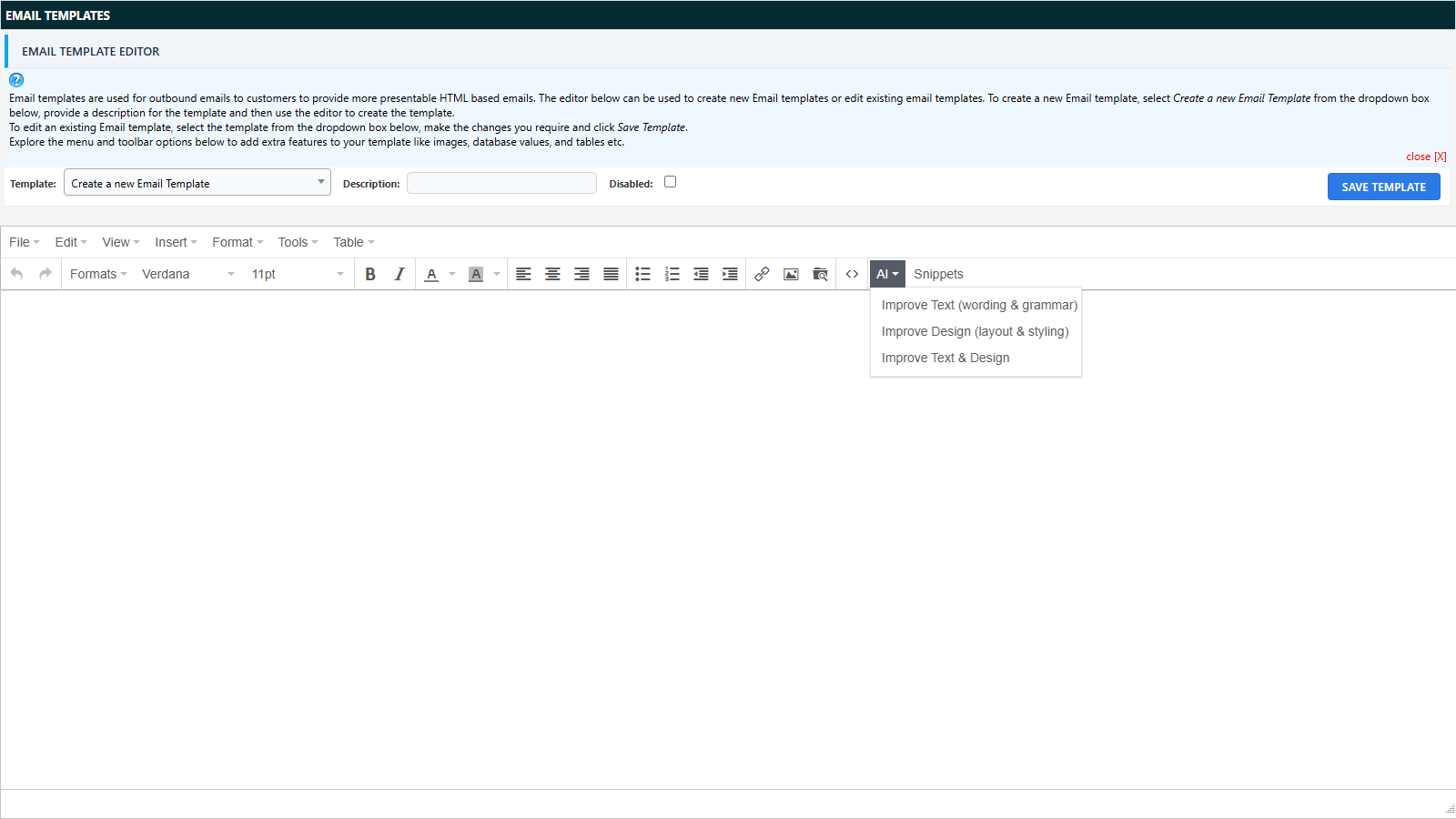
On the Email Templates screen (Config), the editor toolbar includes an AI button offering three actions:
- Improve Text (wording & grammar) - fixes wording, spelling, grammar and tone, leaving the layout alone
- Improve Design (layout & styling) - improves the visual design and HTML structure, leaving the wording alone
- Improve Text & Design - both
The design actions first ask for a style reference - pick one of your existing email templates and the result will match its design, colours and fonts (never its wording).
The result appears in a review dialog so nothing changes until you click Use This Content; the replacement is a single undo step. Template placeholders (##...## tokens) are always preserved exactly.

Usage limits
Every AI request is logged with its token usage. Daily limits apply per program and per user (defaults: 500 requests / 2,000,000 tokens per program per day, 100 requests / 250,000 tokens per user per day - adjustable per program). When a limit is reached, AI Assist reports it plainly and is available again the next day.