Overview
Most VEU activities are submitted from Dataforce ASAP straight to the VEU Registry through its API, as described in VEU Submissions (From May 2025). For some activity types the Essential Services Commission (ESC) does not provide an API, and these activities have to be entered into the VEU portal’s Submit a new activity form, one activity at a time, across several pages.
The VEU Portal Assistant currently supports these activity types:
| Activity | Description |
|---|---|
| 22 | High efficiency refrigerator and freezer (22A to 22D) |
| 24 | High efficiency television |
| 46 | Induction cooktops |
Residential and business sector batches are supported for activities 22 and 24; activity 46 is residential only. Activity 48 (ceiling insulation) also has no API yet; support for it will be added to the VEU Portal Assistant soon.
The VEU Portal Assistant is a Chrome extension from Dataforce that fills that form for you. You prepare the batch in Dataforce ASAP exactly as you would for an API submission, download it as a payload file, and load the file into the assistant while you are logged in to the VEU portal. The assistant fills each page of the form, stops at the portal’s review page for you to check the VEEC count and press Submit, records the activity ID the portal returns, and moves on to the next activity. When the batch is finished it produces the response file that closes the batch in Dataforce ASAP, in the same way an API response does.
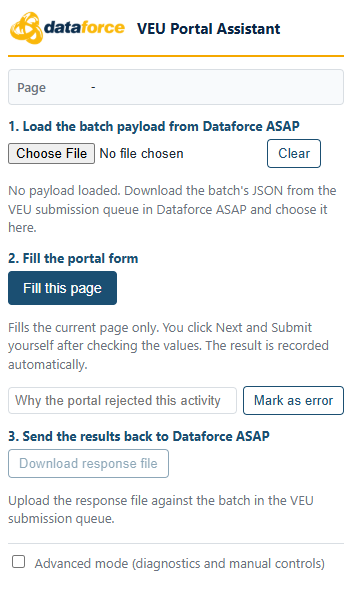
What the assistant does
- Fills every page of the VEU portal’s activity form from the batch data
- Checks each value after filling it and shows anything the portal did not accept
- Stops on any validation message so you can correct the page by hand
- Records the portal activity ID and VEEC count for each submitted activity
- Produces the response file that closes the batch in Dataforce ASAP
What the assistant never does
- Press Submit on the portal. You check the review page and submit each activity yourself, so you remain the person making the declaration to the ESC.
- Send your data anywhere. The payload file, your progress and the response file stay in your browser.
- Use your VEU portal login. You sign in to the portal as usual.
Before You Start
- Submission method. The datafile type for the activity must have its Submission Method set to VEU Portal (extension). Dataforce sets this up for the activity types that need it; if a batch for one of these activities still offers to send to the VEU API, contact our support desk.
- VEU Portal Integration. The integration must be configured with your ACP account, as described in Configuring the Integration. The assistant does not use the API, but the batch is prepared through the same screens.
- Install the assistant. Open the Dataforce ASAP VEU Portal Assistant listing on the Chrome Web Store and click Add to Chrome. Pin it to the toolbar (puzzle-piece icon, then the pin) so the yellow Dataforce icon is always visible.
Step 1 - Prepare the Batch in Dataforce ASAP
Create the submission batch as usual: see Start a New Submission. Then, in Manage Submission Batches:
- Click Download to review the datafile. The Confirm button unlocks; for these batches its tooltip reads Prepare for VEU Portal Assistant.
- Click Confirm and select the ACP Account the activities will be claimed under.
- Click Start Submission, then Prepare Payload for Download. The batch is validated exactly as an API submission would be; any validation errors are listed on screen (see Handling Validation Errors).
- On the Ready for the VEU Portal Assistant page, click Download Payload (JSON) and save the file. Nothing has been sent to the VEU portal at this point.
The batch now sits in the VEU Submission Queue waiting for its response file. You can download the payload again at any time from the queue with the Download JSON button.
Step 2 - Submit the Activities in the VEU Portal
- Log in to the VEU portal in Chrome and open Activities Submit a new activity, so the first page of the form is on screen.
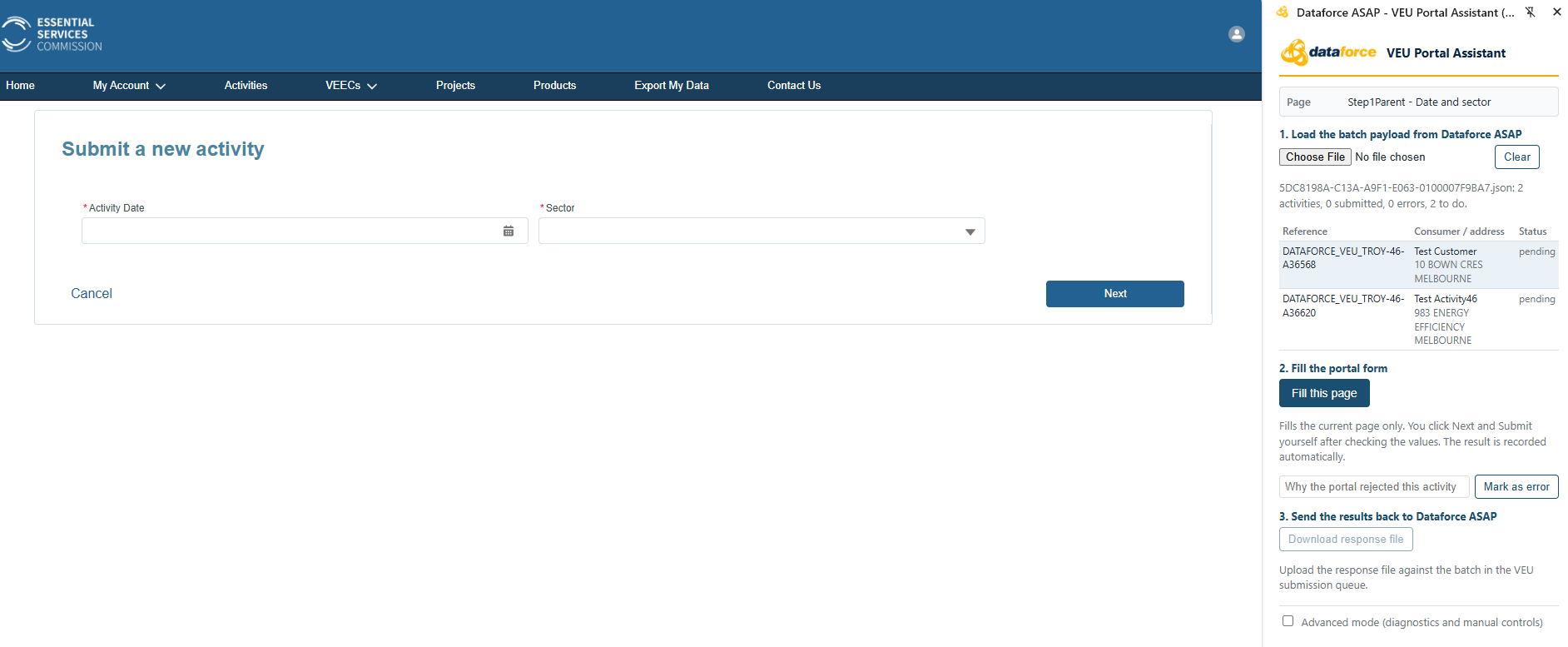
- Click the assistant’s icon on the toolbar. The side panel opens beside the portal and shows which page of the form it can see.
-
Under 1. Load the batch payload from Dataforce ASAP, click Choose File and pick the payload you downloaded. The activities in the batch are listed with their status; the first one is selected. Click a row to work on a different activity.
-
Under 2. Fill the portal form, click Fill and advance. The assistant fills the page, checks the values the portal accepted, clicks Next, and continues page by page: date and sector, activity type and address and consumer details, the product details, and the justifications. The message at the top of the panel tells you what it has done.
For refrigerators and freezers and televisions, the product brand and model are chosen from the VEU product register as the portal lists them, so the product names in Dataforce ASAP must match the register exactly. Some brands appear in the register under two spellings (for example “CHiQ” and “Chiq”) with different models under each, so use the spelling the model is listed under. If a name does not match exactly one entry, the assistant stops on that field for you to choose the product by hand.
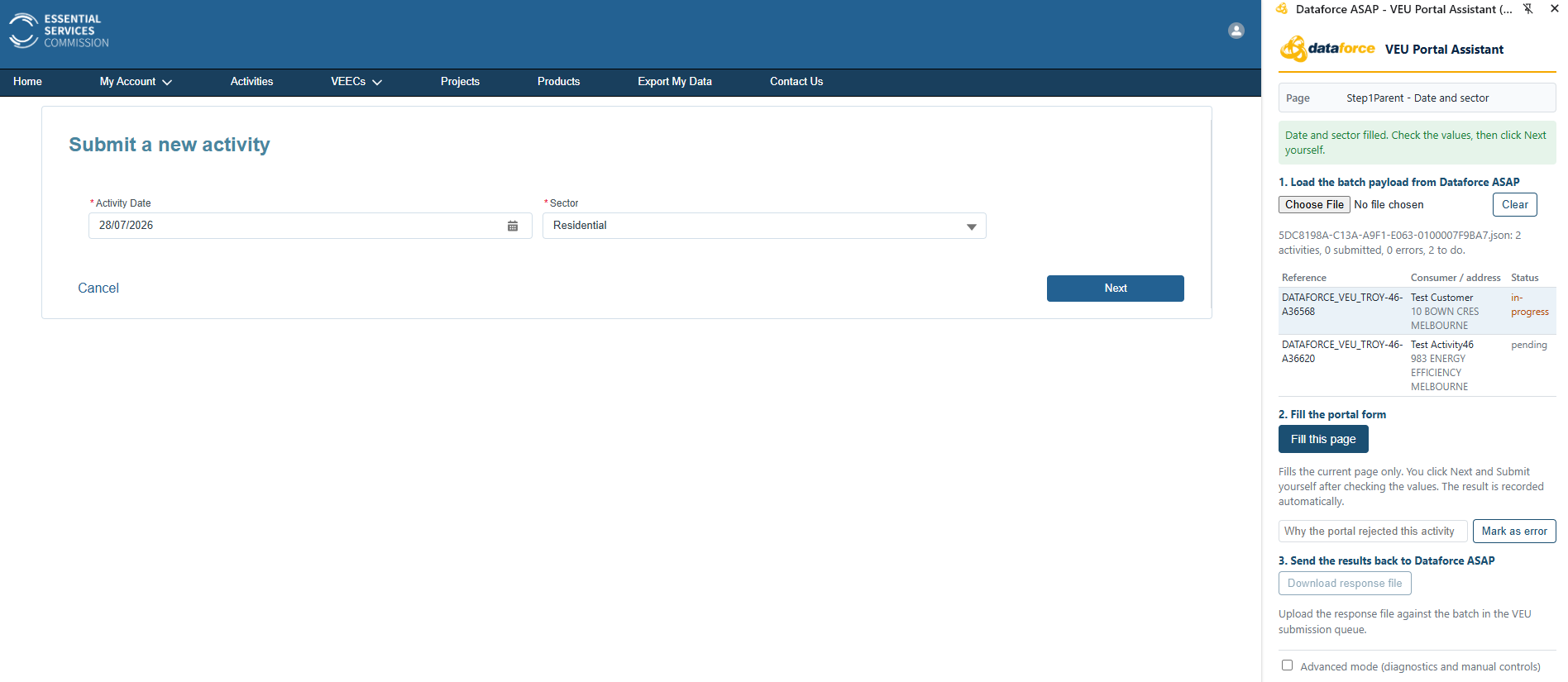
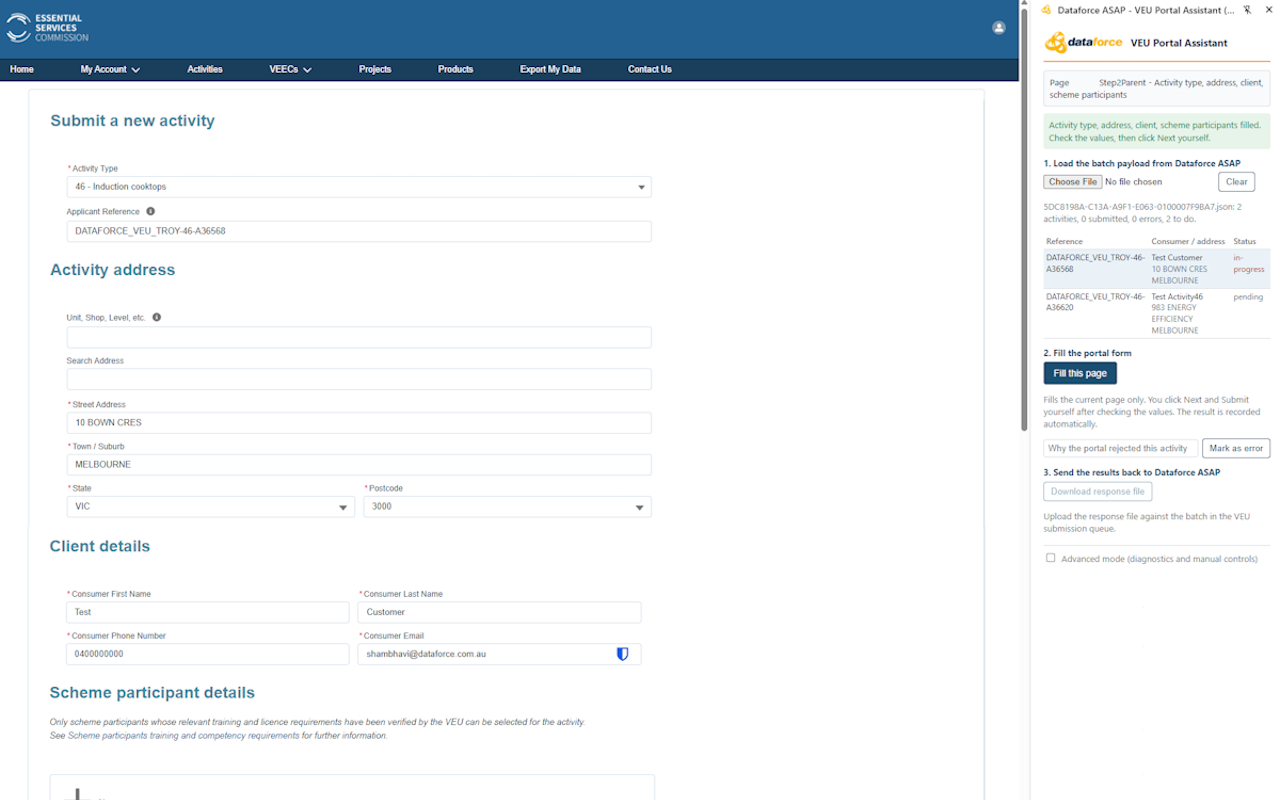
If the assistant cannot fill a field, or the portal shows a validation message after Next, it stops and lists the fields that need attention. Correct the page by hand, click Next yourself, then click the fill button again on the following page.
-
The assistant always stops at the portal’s Review activity page. Check the activity details and the number of VEECs to be created, then click the portal’s Submit button.
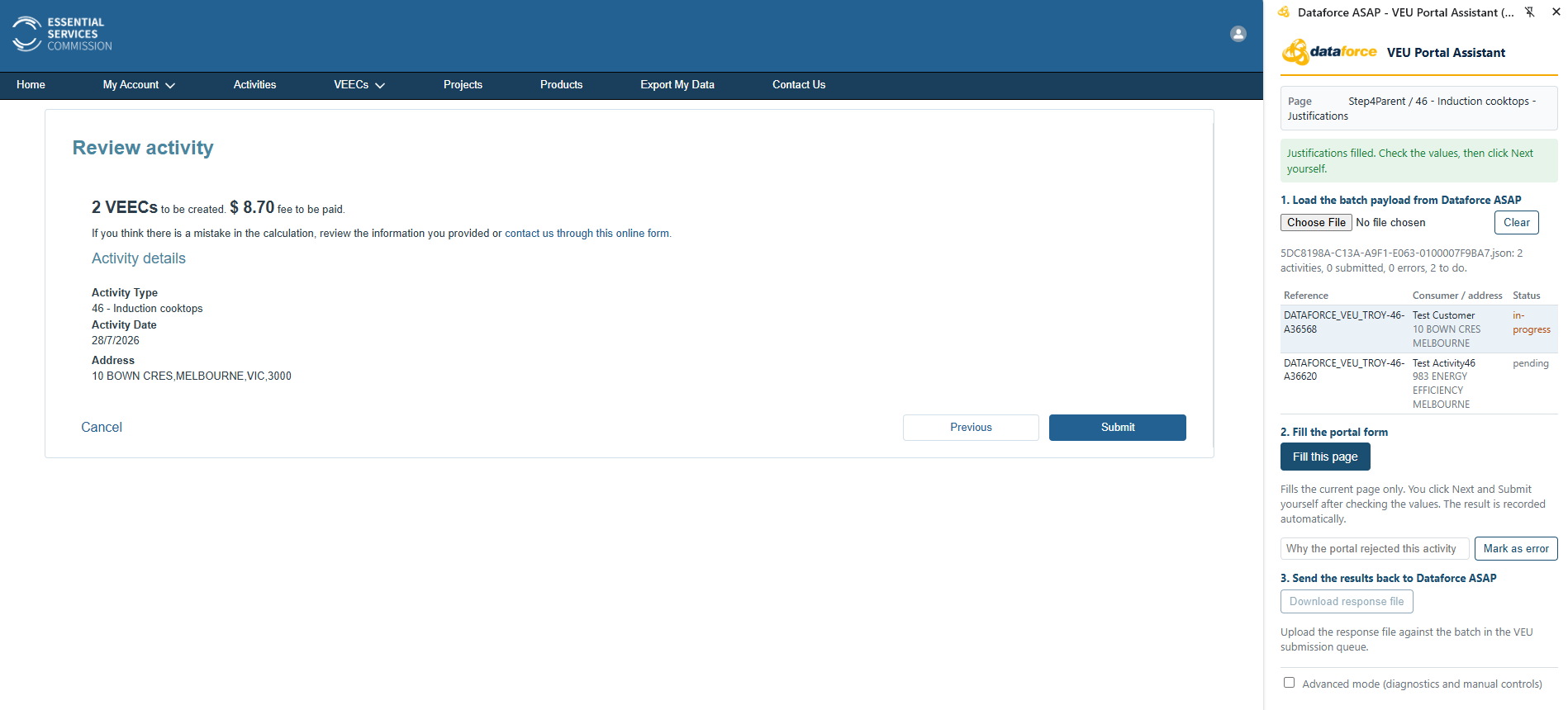
-
When the portal shows its confirmation, the assistant records the activity ID and VEEC count against the activity, marks it submitted, clicks + Submit another activity and starts filling the next one. Repeat from step 5 for each activity.
- If the portal rejects an activity and it cannot be corrected on the spot, type the reason in the box under the fill button and click Mark as error. The reason is recorded for the response file, and the assistant moves to the next activity. Cancel the portal form or click + Submit another activity before filling the next one.
Step 3 - Return the Results to Dataforce ASAP
- When every activity is submitted or marked as an error, click Download response file under 3. Send the results back to Dataforce ASAP. The file is a CSV in the same layout as the VEU response files emailed for API submissions.
- In Dataforce ASAP, open Tasks Submissions and Datafile Manage Submission Batches and click Upload Response File on the batch.
- Choose the response file and click Upload and Validate.
The same upload is also available from the VEU Submission Queue (filter for Incomplete batches, then Upload), if you are already there.
Activities recorded as submitted become accepted in Dataforce ASAP with the portal’s activity ID and VEEC count; activities marked as errors become rejected with the reason you entered, and can be corrected and resubmitted in a new batch as described in Handling Failed Registrations.
The response file only contains activities that have a result, so if you submit part of a batch now and the rest later, each upload updates only the activities it contains.
Deleting a Batch
A batch prepared for the assistant can be deleted from Manage Submission Batches until a response file has been uploaded against it. Deleting it also removes its entry from the VEU Submission Queue. Once a response file has been uploaded the batch can no longer be deleted, the same as an accepted API batch.
Deleting a batch reverts every appointment in it to not submitted in Dataforce ASAP. If some of those activities had already been submitted in the portal, record them as accepted without submitting them again, so they are not picked up by a later batch. This is done in Dataforce ASAP with a response file you write yourself; the assistant is not involved:
- Create a new batch containing those appointments and prepare it as usual (see Step 1), so the batch is recorded as handed over. Do not load it into the assistant.
- In the portal’s Activities list, note the activity ID and the number of VEECs the portal recorded for each one.
- Create a CSV file with the header row
applicantReference,status,message,activityId,numberOfVEECsand one row per activity: the Own Reference from the batch,success, a short message, the portal activity ID and the VEEC count. This is the same layout as the response file the assistant produces. - Upload it against the batch with Upload Response File in Manage Submission Batches (see Step 3). The appointments become accepted in Dataforce ASAP with their portal activity IDs.
Tips and Troubleshooting
- “The active tab is not the VEU portal.” The assistant works on the browser tab in front. Click into the portal tab and try again.
- The activity type is not offered. The portal only lists the activity types your ACP account is approved for on the activity date and sector. The assistant stops with the list of types the portal offered; check the account and the date.
- The assistant stopped on a page. The panel lists the fields that need attention, or the portal’s own validation message (for example an activity date that is no longer open for submission, or an address outside Victoria). Fix the page by hand and click Next yourself.
- The portal form has changed. If the ESC updates the form, the panel shows a warning that the form version has changed. Check every value before clicking Next, and let our support desk know.
- The confirmation was not recorded. The assistant only records a confirmation for the activity it was working on; a confirmation page left on screen from a previous activity is ignored, and the assistant starts a fresh form instead. If an activity shows as submitted without an activity ID, find the activity in the portal’s Activities list and add the ID to the response file before uploading it.
- Auto-advance off. Untick Auto-advance at the top of the panel and the button becomes Fill this page: the assistant fills one page at a time and you click Next yourself. Useful when you want to check each page as you go.
- Advanced mode. The checkbox at the bottom of the panel reveals diagnostics and manual controls: the detected form version, Probe fields, Read review and the full log of every value sent and stored. Our support desk may ask you to turn it on when investigating a problem.
Privacy
The assistant runs only on the VEU portal website. The payload file, the activity list, each activity’s progress and the response file are stored in Chrome’s extension storage on your computer, and nothing is transmitted by the assistant itself. Data reaches the ESC only when you press Submit on the portal.