Overview
All jobs in Dataforce must be linked to a customer record that includes a valid property address.
This customer information is used across Dataforce ASAP for core system functions, including:
- Sending manual or automated emails using the customer’s email address.
- Applying location-based logic, such as filtering eligible field workers or determining which calculations apply to a job.
- Automatically populating customer details in forms and outbound communications.
Adding a Customer
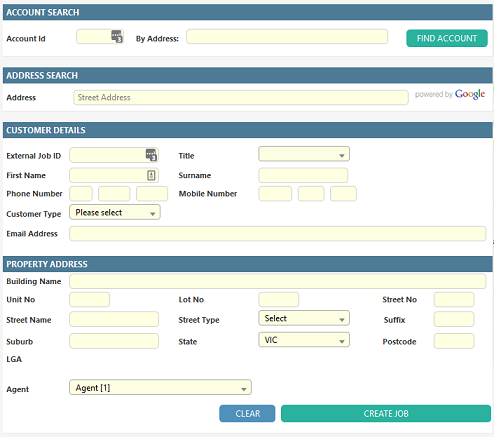
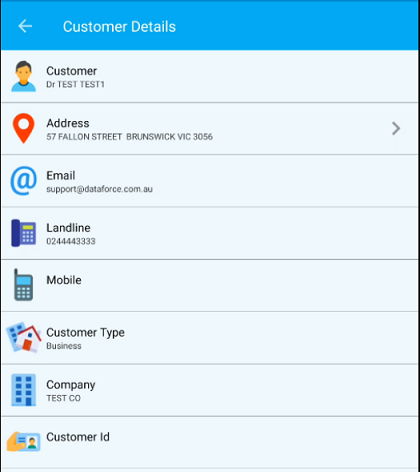
A customer record is automatically created when a new job is submitted, using the mandatory fields entered in either Dataforce Runabout (Android/IOS app) or Dataforce ASAP.
| Dataforce ASAP | Runabout |
|---|---|
 |
 |
Editing a Customer
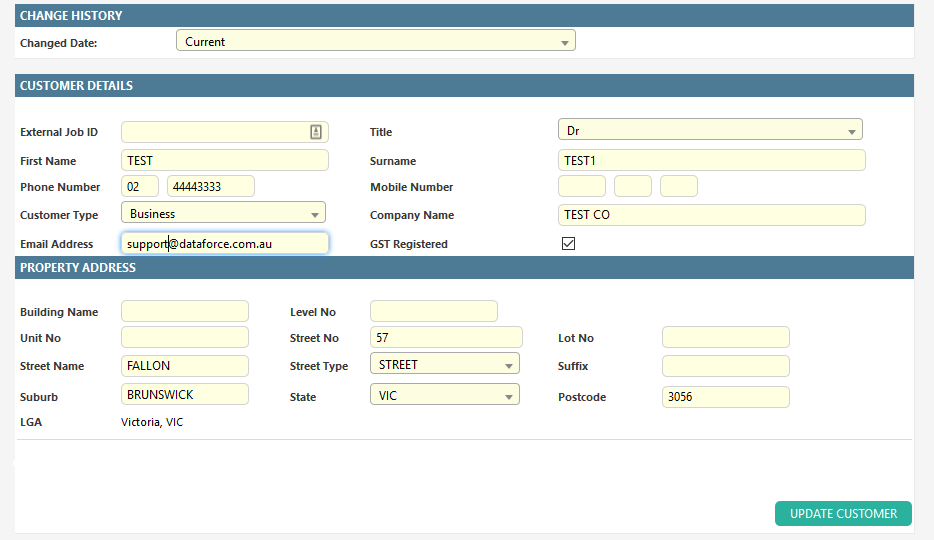
Once created, a customer’s details can be updated via the Customer tab within the job.
Any update to a customer record is saved as a new version. This allows changes to be reversed by restoring a previous version of the customer record.
To revert a change, select the required version from the change history drop-down menu.
Address Validation
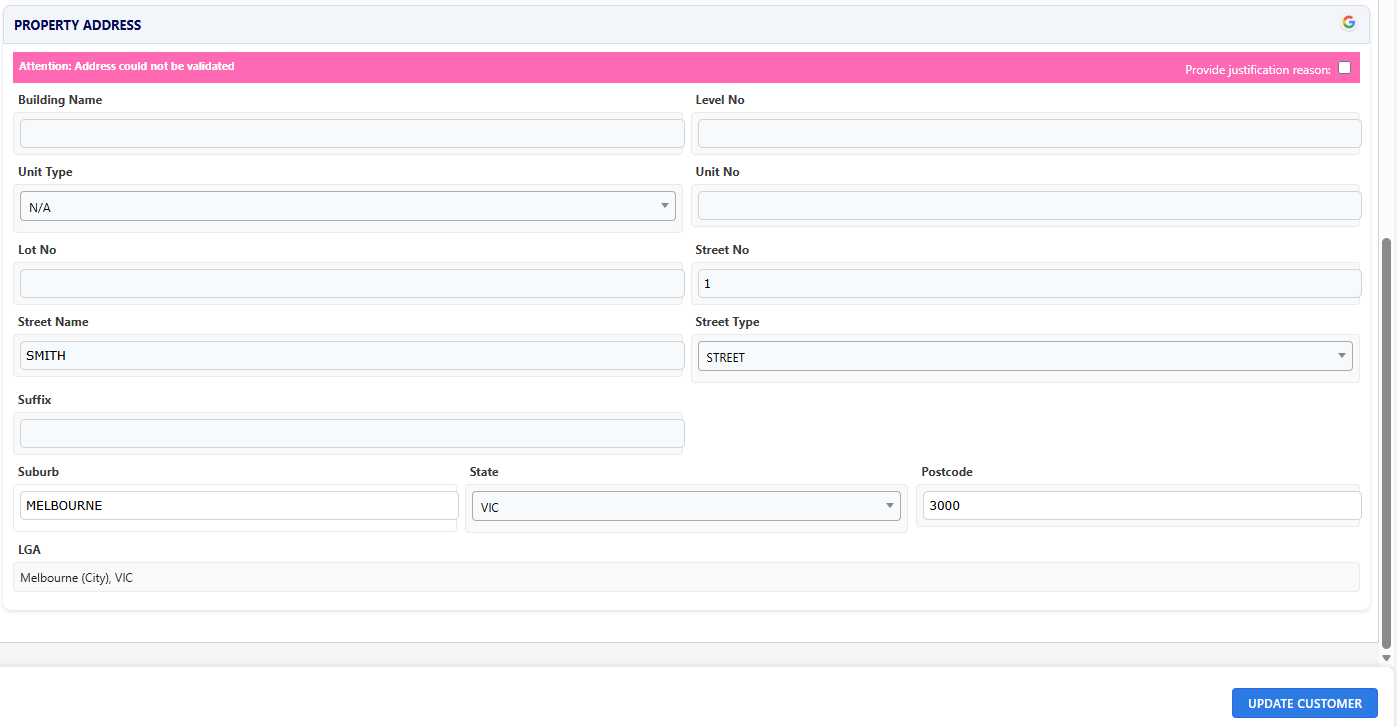
When the street address is modified, Dataforce ASAP automatically attempts to validate the address.
The address validation process performs the following checks:
- Confirms that the suburb and postcode exist.
- Verifies that the suburb falls within the Sales Territory or Contract Area assigned to the job’s agent.
- Attempts to match the address against a known entry in the Geocoded National Address File (G-NAF).
Suburb or Postcode does not exist or Outside Contract Area
When an operator enters values into the suburb and postcode fields, the system verifies that the suburb–postcode combination exists and falls within the permitted contract area.
The screenshot below shows a validation failure, as postcode 3300 does not correspond to Melbourne.
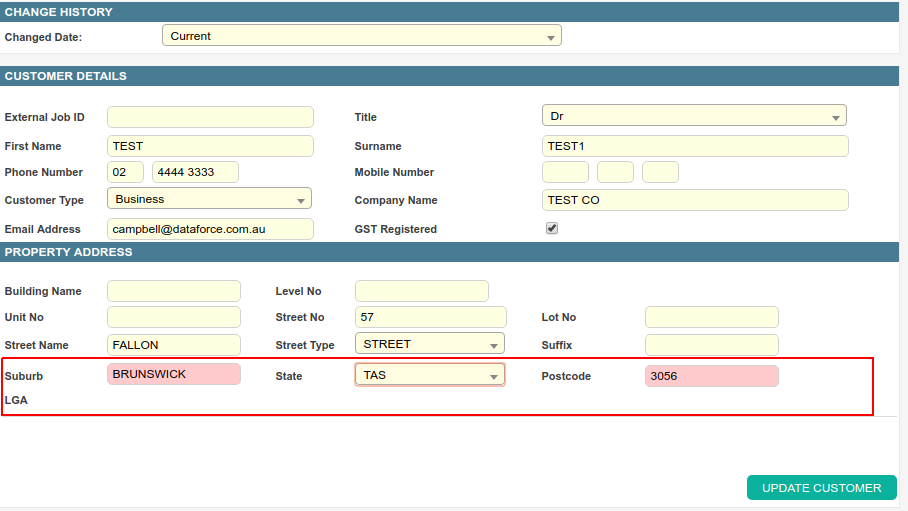
The operator must resolve the invalid suburb–postcode combination before they can proceed.
To correct this issue:
- Confirm the suburb name is spelled correctly and that the postcode is accurate.
- Ask an administrator to verify that the suburb–postcode combination exists in the suburb register.
- Ask an administrator to confirm that the job’s agent has access to the specified suburb.
Address Validation Failed
The address validation process runs after the operator clicks Update Customer.
The validator can return one of the following results:
- The address is invalid and no suggestions are available.
- The address is invalid, but one or more suggested matching addresses are available.
- The address is valid and complete.
- The address was valid but incomplete and has been automatically corrected.
Address Invalid and unable to make suggestions
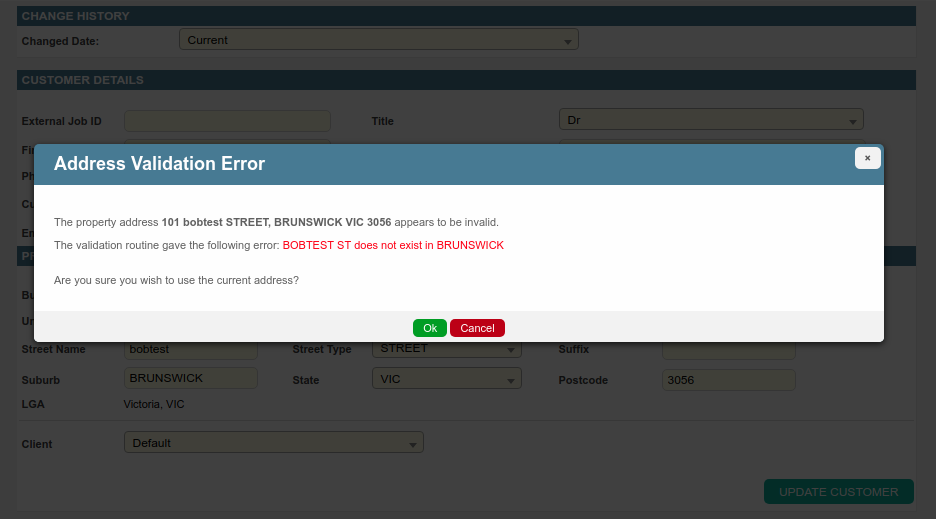
The screenshot above is displayed when the address is invalid and no suggested alternatives are available. The operator may either continue using the current address or select Cancel to amend the details and retry validation.
If the operator chooses to continue, the address is marked as invalid and a justification is required. This justification can be provided by the operator after the address has been saved. An example of this is shown in the screenshot below.
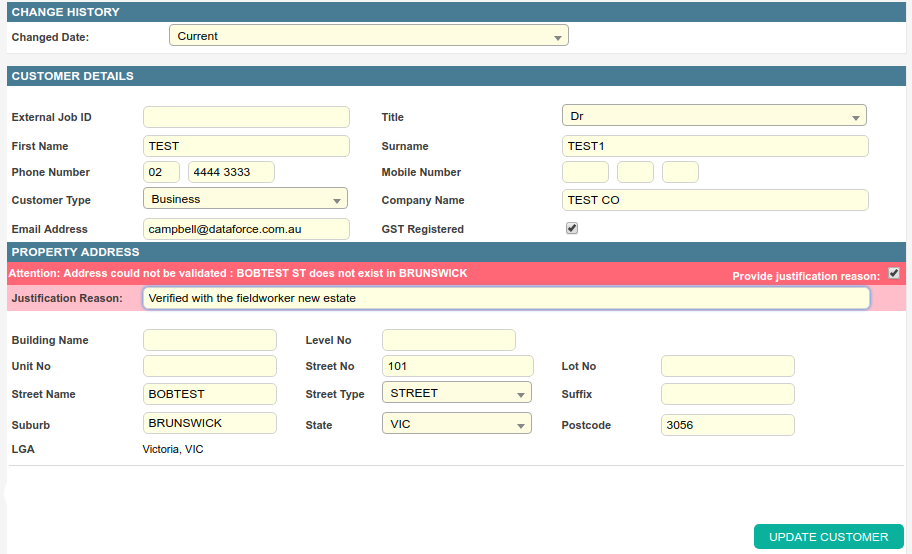
To save the justification, the operator must click Update Customer again. Once a justification reason has been provided, the address validation process is no longer triggered for that address.
Address is Invalid but has suggestions on other addresses that may match.
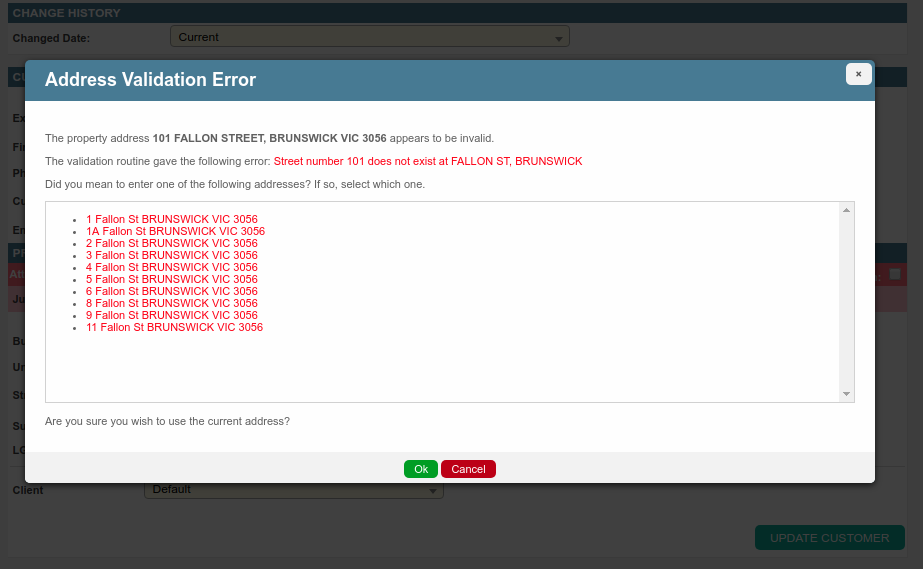
When the address validator returns suggested matches, they are displayed as shown above.
If the operator wishes to retain the current address, they should click OK. If they wish to use one of the suggested addresses, they can select the relevant address from the list. This will populate the selected address into the Customer tab, after which the operator must click Update Customer again to save the change.