What are Invoice Line Items?
An Invoice Line Item is one rule on an Invoice Type. Each time an invoice of that type is generated, every line item of the type is evaluated for the invoice period:
- The line item counts something for the fieldworker, agent or client being invoiced (installed products, appointments, certificates or a calculation value), limited by its filters.
- The count is multiplied by the line item’s rate.
- The result is printed on the invoice as a line with the line item’s description.
Line items with a zero quantity are not printed. The lines of an invoice are added together to give the invoice total, before any variations and adjustments.
Each line item also carries the accounting fields (Account Code, Item Code and Tracking Options) that decide whether GST is added to the line and how the line is coded when the invoice is exported to your accounting system by the Xero integration.
For the overall invoicing process see the RCTI overview.
Opening the Invoice Line Items screen
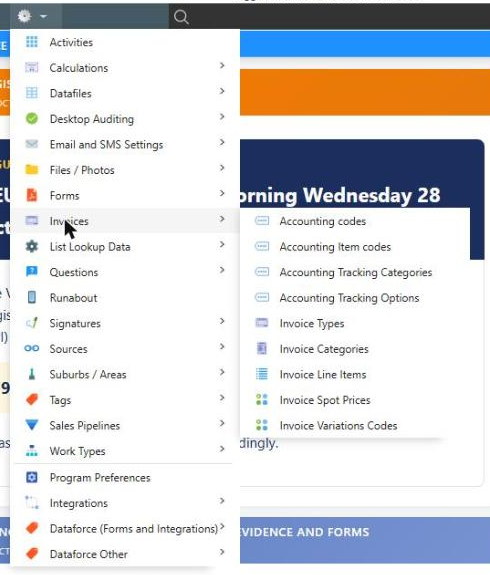
Navigate to (Configuration icon) Invoices Invoice Line Items
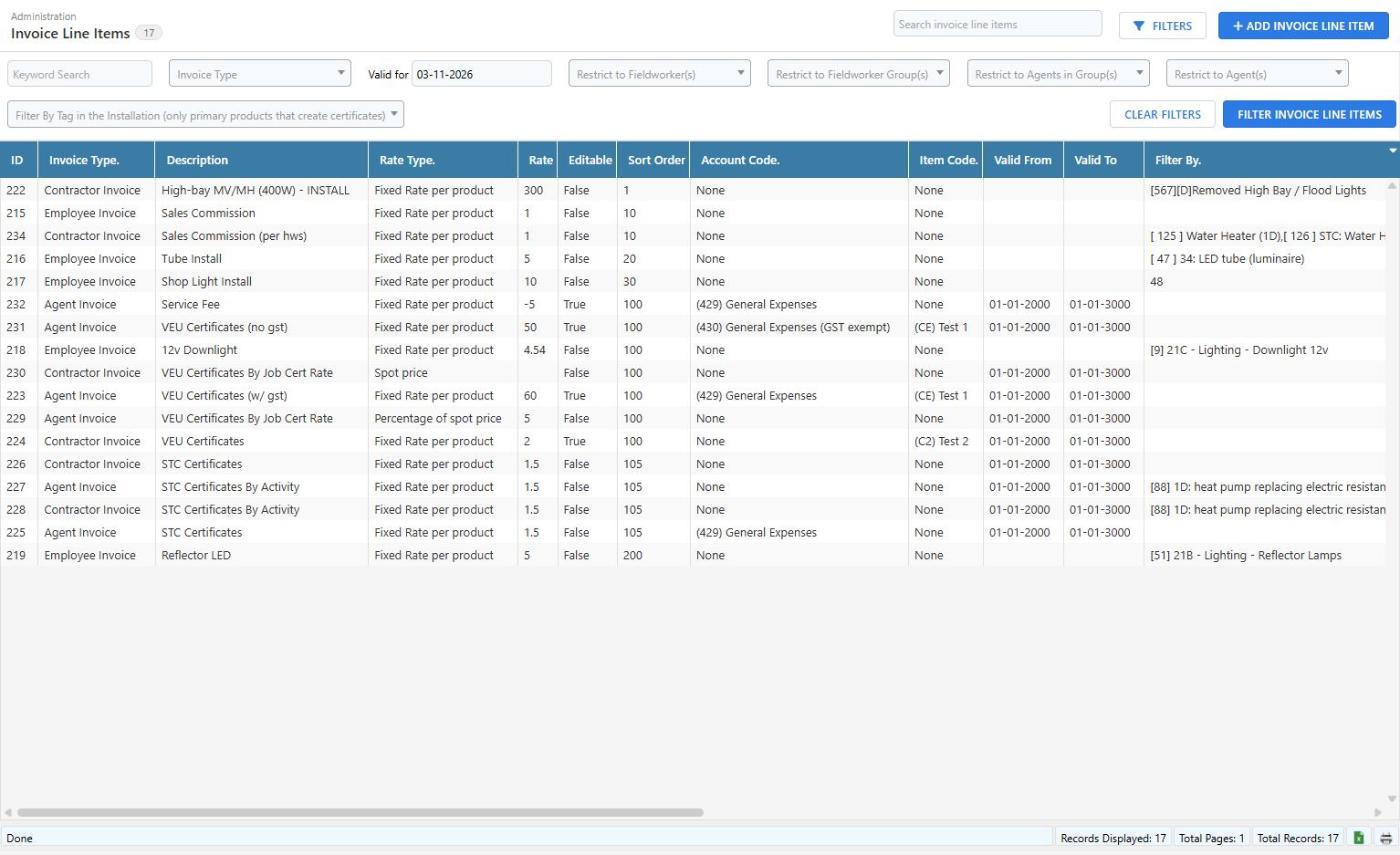
The list shows every line item that is valid on the Valid for date (today by default). Use the filters above the list to narrow it down, then click Filter Invoice Line Items:
| Filter | Description |
|---|---|
| Keyword Search | Matches the line item description or ID. |
| Invoice Type | Show the line items of one invoice type. |
| Valid for | Show line items whose Valid From / Valid To range includes this date. Clear the date to show every line item regardless of validity. |
| Restrict to Fieldworker(s), Fieldworker Group(s), Agents in Group(s), Agent(s) | Show line items restricted to the selected fieldworkers, groups or agents. |
| Filter By Tag in the Installation | Show line items that filter on the selected product tags. |
Adding or editing a line item
- Click Add Invoice Line Item in the top right of the screen, or click an existing row to open it.
- Complete the General section, then expand Filters to set what the line counts.
- Click Add Invoice Line Item (or Update Invoice Line Item).
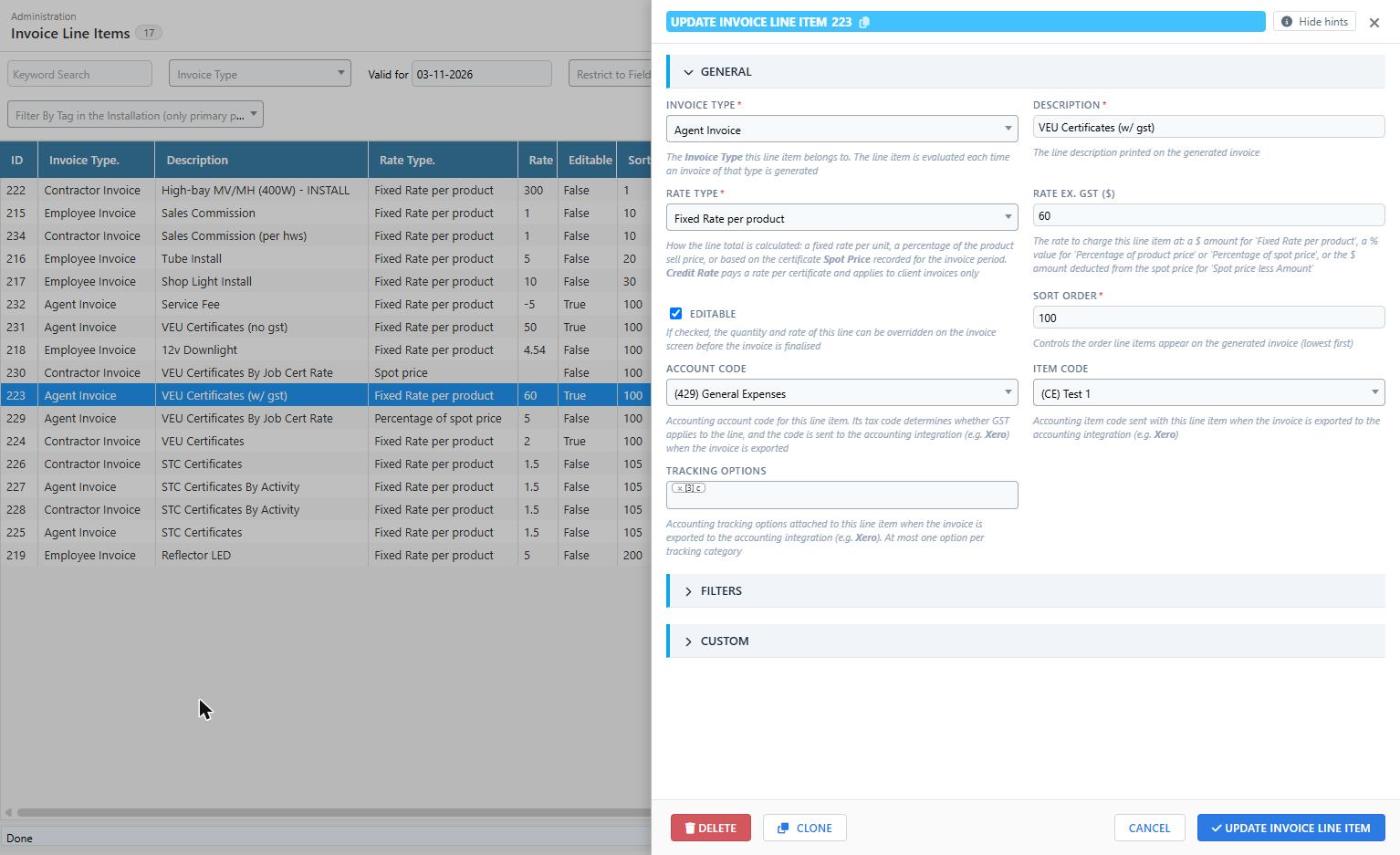
Clone creates a copy of the open line item, which is the quickest way to add a similar line (for example the same product at a different rate for another fieldworker group). Delete removes the line item; invoices already generated keep their lines.
General
| Field | Description |
|---|---|
| Invoice Type | The Invoice Type this line item belongs to. The line item is evaluated each time an invoice of that type is generated. |
| Description | The line description printed on the generated invoice. |
| Rate Type | How the line total is calculated. Fixed Rate per product pays the Rate for each unit counted. Percentage of product price pays the Rate as a percentage of the product sell price. Spot price, Percentage of spot price and Spot price less Amount use the certificate spot price recorded for the invoice period. Credit Rate (Client Invoice Only) pays a rate per certificate and only applies to client invoice types. |
| Rate ex. GST ($) | The rate to apply: a dollar amount for Fixed Rate per product, a percentage for Percentage of product price and Percentage of spot price, or the dollar amount deducted from the spot price for Spot price less Amount. Not shown for the Spot price rate type. |
| Editable | If ticked, the quantity and rate of this line can be overridden on the invoice screen before the invoice is finalised. |
| Sort Order | Controls the order lines appear on the generated invoice (lowest first). |
| Account Code | The Accounting Code for this line. Its tax code decides whether GST applies to the line, and the code is sent to the accounting integration when the invoice is exported. |
| Item Code | The Accounting Item Code sent with this line when the invoice is exported to the accounting integration. Optional. |
| Tracking Options | The Accounting Tracking Options attached to this line when the invoice is exported. Options are grouped by tracking category and you can pick at most one option per category. Optional. |
| Activity Credit Rate (Client Invoice Only) | Only shown for client invoice types. The dollar amount paid per certificate when the Rate Type is Credit Rate: the line total is the total certificates multiplied by this rate. |
| Activity Description (Client Invoice Only) | Only shown for client invoice types. Text printed in the Activity column of this line on client invoices. |
Filters
The Filters section controls what the line item counts and which appointments it applies to.
| Field | Description |
|---|---|
| Filter Type | What to count. See Filter types below. |
| Filter By | The specific products, activities, categories, invoice categories or calculation types to count, depending on the selected Filter Type. Not used by the Count Number of Appointments and Custom filter types. |
| Restrict to Product Types | Only count products of the selected product types. |
| Restrict to Client | Only count appointments on jobs belonging to the selected client. |
| Restrict to Agent(s) / Agents in Group(s) | Only apply this line item to the selected agents, or to agents in the selected agent groups. |
| Restrict to Fieldworker(s) / Fieldworker Group(s) | Only apply this line item to the selected fieldworkers, or to fieldworkers in the selected groups. |
| Restrict to Zone(s) | Only count appointments in the selected zones. |
| Restrict to Work Type(s) | Only count appointments of the selected work types. |
| Valid From / Valid To | The line item only applies to appointments completed after the Valid From date and before the Valid To date. Use these to change a rate from a given date: set Valid To on the old line item and clone it with the new rate and a Valid From. |
| Self Generated Appointments Only | Only count appointments on self generated jobs, where the fieldworker or agent generated the lead. |
| Filter By Tag in the Installation | Only count appointments where the certificate-creating primary products in the installation carry one of the selected tags. |
| Rounding Options | Rounding applied to the certificate quantity for Calculation based filter types. |
| Rate Scaling | Applies volume, tiered or range based rates per appointment, based on the product count or appointment count. Both Min Quantity and Max Quantity must be set on each band. The field help in the editor gives worked examples of each scaling type. |
| Min Quantity / Max Quantity | The lower and upper bounds of the quantity band used by Rate Scaling. |
| Calculation Type | The certificate type used when counting certificates for Calculation based filter types, and for selecting the matching spot price. Leave as None to use the program default. |
| Customer Type | Only count appointments for Residential or Business customers. Leave as None to include both. |
Filter types
Filter types are grouped by where the quantity comes from.
| Group | Filter types | Use for |
|---|---|---|
| Count Number of Appointments | Any Appointment, Any Appointment (Exclude Non-Billable Callbacks), Assessment Appointment, Installation Appointment, Installation Appointment (Exclude Non-Billable Callbacks) | Paying a flat amount per appointment. |
| Count Value From Installation Appointment (Appointment is an Assessment) | Product, Product Activity, Product Category, Invoice Category, Calculation, Calculation (By Activity), Calculation (By Product Category), Calculation (By Product), Calculation X Job Cert Rate | Paying an assessor or sales representative based on what was later installed on the job. The invoiced appointment is the assessment; the quantities come from the installation appointment. |
| Count Value From Invoiced Appointment (Appointment is an Install) | Product, Product (Excluding Non Billable Callbacks), Product Activity, Product Category, Invoice Category, Calculation, Calculation (By Activity), Calculation (By Category), Calculation (By Product), Calculation X Job Cert Rate | Paying the installer based on the quantities in the invoiced installation appointment. This is the usual choice for contractor and agent invoices. |
| Custom | Custom Query, Static Value | Reserved for Dataforce. Contact Dataforce support if you need a line that the standard filter types cannot express. |
Within each group: Product counts only the selected products; Product Activity counts every product with the selected activity; Product Category and Invoice Category count every product in the selected category; the Calculation types return the certificate calculation value for the selected calculation type, in total or broken down by activity, category or product; and Calculation X Job Cert Rate multiplies the certificates by the certificate rate recorded on the job.
Custom
The Custom section is only visible to Dataforce administrators. It holds the extra SQL conditions appended to the line item’s query. Contact Dataforce before changing it.
Accounting fields and GST
The three accounting fields in the General section are what connect an invoice line to your accounting system:
- Account Code is required for GST and for the Xero integration. GST is added to a line only when the Account Code’s tax code is GST on Income or GST on Expenses and the fieldworker or agent being invoiced is GST registered. A line with no Account Code never attracts GST. See Accounting Codes.
- Item Code is optional and links the line to a product or service item in your accounting system. See Accounting Item Codes.
- Tracking Options are optional and tag the line with the tracking category options of your accounting system. See Accounting Tracking Options.
When the Xero integration is enabled, each line of a finalised fieldworker or agent invoice is sent to Xero with these three values, so review them on every line item of your fieldworker and agent invoice types before you enable the integration.