Overview

In Dataforce ASAP, calculation modifiers represent a single multiplication/division (multiplier) and a single addition/subtraction (modifier) within a calculation type.
A modifier’s multiplier and modifier values can be sourced through the following:
- Fixed Value
- Question Answer
- Product Quantity
- Product Attribute
- Calculation Result
To be included in an appointment’s calculation, a modifier must be linked to an appointment by:
- Selecting the mandatory requirement on the modifier’s group (will force all modifiers within the group to be applied to the calculation regardless of whether it is linked)
- Attaching the modifier to a question answer

Note: Even when linked (or mandatory), a modifier only applies if it passes
all of its restrictions: calculation zone, customer type, valid from/to dates and any attached
conditions.
Adding a Modifier
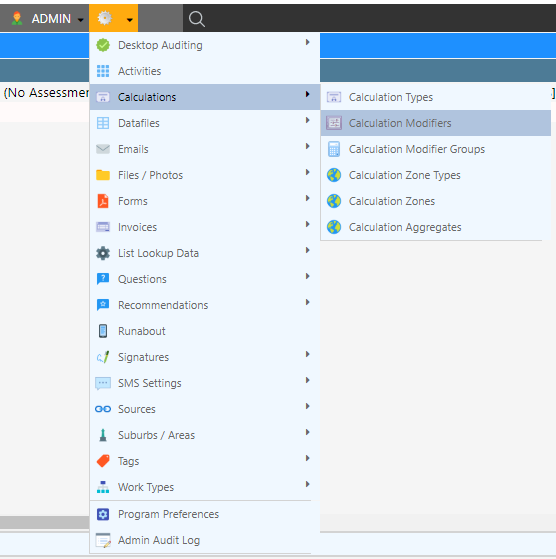
- Navigate to the Calculation Modifier Management screen through Calculations Calculation Modifiers
- Fill the configuration options
- Select Add Calculation Modifier
Updating a Modifier
- Navigate to the Calculation Modifier Management screen through Calculations Calculation Modifiers
- Select the Calculation Modifier
- Update the configuration options
- Select Update Calculation Modifier
Important: When a scheme rule change alters a factor from a given date, do
not edit the value of an existing modifier - set its Valid To date and create a replacement
modifier with the new value and a matching Valid From date. This keeps historical
appointments correct when they are recalculated.
Configuration Options



General
| Configuration | Description |
|---|---|
| Calculation Modifier ID | A system-generated identifier |
| Name | A description of the modifier - shown when linking question answers and in the appointment calculation breakdown |
| Modifier Group | The Modifier Group this modifier will be included in. The group controls which calculation types and product categories the modifier can apply to, the order it is applied in, and any caps or rounding |
| Modifier Type | Defines whether the modifier will be applied to primary or secondary calculations. (Select base for both) |
| Disabled | A method of soft deletion; when selected, this modifier will not be applied to any calculations and can no longer be linked to question answers |
Requirements
All requirements must be met for the modifier to be applied.
| Configuration | Description |
|---|---|
| Valid From / To | The modifier only applies when the appointment’s activity date (its expected installation date, falling back to the scheduled date) is inside this range. Leave blank for no limit. Used to phase factors in and out across scheme rule changes |
| Customer Type | Restricts the modifier to only apply for appointments whose customer type is selected. (Blank for both) |
| Calculation Zone | The modifier only applies when the job’s suburb falls in the selected calculation zone. Leave as All to apply in every zone |
| Additional Condition(s) | Modifier Conditions attached to this modifier. Every selected condition must be satisfied at calculation time or the modifier is skipped for that product |
Modifier (addition / subtraction)
| Configuration | Description |
|---|---|
| Modifier Value Type | Where the modifier value comes from: Fixed Value, Question Answer, Product Quantity, Product Attribute or Calculation Result. Selecting a source reveals the matching source field below |
| Mod Operation | Addition adds the value to the result; Subtraction subtracts it |
| Mod Question | For Question Answer: the question whose (numeric) answer supplies the value. If the answer is not numeric the default value is used |
| Modifier Product Attribute | For Product Attribute: the attribute of the product being calculated that supplies the value. If the attribute has no numeric value the default value is used |
| Modifier Calculation Value | For Calculation Result: takes the value from another calculation’s already-computed result - By Product uses the product’s per-unit result, By Area the area subtotal, By Appointment the appointment total. The selected calculation must have a lower run order so it is calculated first |
| Modifier Default Value | The amount added (or subtracted) when the selected source provides no numeric value, or when the value type is Fixed Value. Blank counts as 0 |
Multiplier / Divisor
| Configuration | Description |
|---|---|
| Multiplier Value Type | Where the multiplier value comes from - the same source options as the modifier value type above |
| Mul Operation | Multiplication multiplies the result by the value; Division divides the result by it |
| Mul Question | For Question Answer: the question whose (numeric) answer supplies the value |
| Multiplier Product Attribute | For Product Attribute: the product attribute that supplies the value |
| Multiplier Calculation Value | For Calculation Result: the other calculation’s result to use (By Product / By Area / By Appointment), as for the modifier above |
| Multiplier Default Value | The value multiplied (or divided) when the selected source provides no numeric value, or when the value type is Fixed Value. Blank counts as 1. A value of 0 is respected and will zero the result |
Meta
| Configuration | Description |
|---|---|
| Description | Notes on what this modifier does - informational only, searchable from the listing |
| Group 1 / Group 2 | Free text classification tags (e.g. an activity code) shown as listing columns - not used by the calculator |
Note: Within a group, all applied multipliers are combined into one figure
and all applied modifier values into another before the group is applied to the calculation - see
Calculation Modifier Groups.