Overview
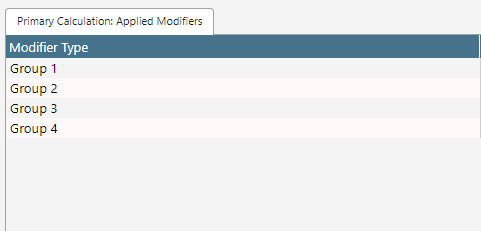
A calculation modifier group is a method of grouping modifiers so that a configuration group will apply to all modifiers within.
Additionally, when grouped, all modifiers within the group have their multiplier values multiplied together and their modifier values summed into single figures, which are then applied to the calculation in one step (result × combined multiplier + combined modifier). Utilizing this functionality, a group can effectively represent a bracket in a calculation. See the calculation overview for an example of this implementation.
Groups are applied sequentially in priority order - each group is applied to the running result produced by the groups before it. The calculator does not use mathematical order of operations; the group order is the order of operations.
Adding a Modifier Group
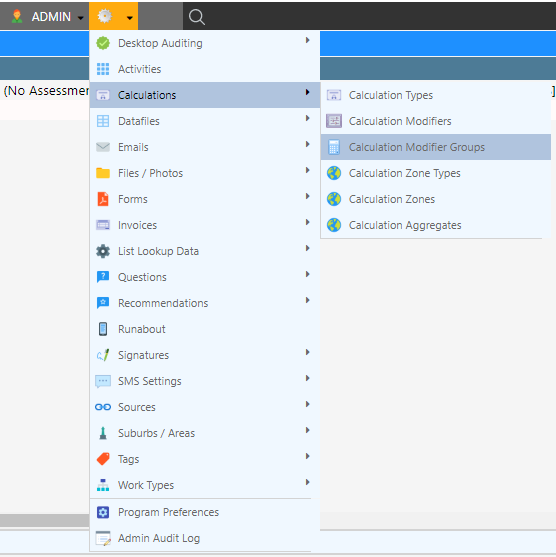
- Navigate to the Calculation Modifier Group Management screen through Calculations Calculation Modifier Groups
- Fill the configuration options
- Select Add Calculation Modifier Group
Updating a Modifier Group
- Navigate to the Calculation Modifier Group Management screen through Calculations Calculation Modifier Groups
- Select the Calculation Modifier Group
- Update the configuration options
- Select Update Calculation Modifier Group
Configuration Options

| Configuration | Description |
|---|---|
| Calculation Modifier Group ID | A system-generated identifier |
| Name | A description of the group |
| Valid for Calculation Types | A list of calculation types where this group’s modifiers will be applied |
| Valid for Product Categories | The group’s modifiers only apply to calculations for products in the selected categories. Leave empty to apply to all products |
| Mandatory | Checking this option will force all modifiers within the group to be applied to any job which meets the group’s criteria, even if the modifier is not linked through a question answer. Each modifier’s own restrictions (zone, customer type, valid dates and conditions) still apply |
| Max Count | The maximum quantity of modifiers in this group that can be applied to a job; if more than this value are linked, they are filtered through the settings in max count select |
| Max Count Select | Used to determine which calculation modifiers will be used in a calculation when more than the number specified in max count have been linked to an appointment. For example, lowest will pick the first max_count modifiers with the lowest multiplier and modifier values (with multiplier taking priority over modifier in the comparison) |
| Min / Max Multiplier | Determines the maximum and minimum values for the group’s combined multiplier; if the combined value falls above / below the limit it is capped at the set value |
| Priority | Determines the order in which calculation groups are applied within the calculation type, lowest first. Because groups apply sequentially, this is effectively the order of operations in the formula |
| Min / Max Modifier | Determines the maximum and minimum values for the group’s combined modifier; if the combined value falls above / below the limit it is capped at the set value |
| Rounding Method | Rounding applied to the group’s combined multiplier and combined modifier before they are applied to the calculation: NORMAL rounds to the nearest whole number (or to 1 or 2 decimal places), FLOOR rounds down and CEIL rounds up to a whole number |
| Description | Notes on what the group is used for - informational only, searchable from the listing |
| Group 1 / Group 2 | Free text classification tags (e.g. an activity code) shown as listing columns - not used by the calculator |
| Cfc ID | A deprecated feature which is still in use in some systems but has been replaced by the product categories configuration option |