What are Accounting Item Codes?
Item codes are the unique identifiers an accounting system uses for the products and services you buy and sell. In Xero they are the Code of each item under Business Products and services. Each item in Xero carries its own description, pricing, tax treatment and account allocation, so coding a line to an item is a quick way to apply all of those details at once and to report on how much of each item has been bought or sold.
In Dataforce ASAP, an Accounting Item Code is a copy of one of those item codes. It is assigned to an Invoice Line Item through its Item Code field, and is sent with that line when a finalised fieldworker or agent invoice is synced to the accounting integration (for example Xero).
Opening the Item Codes screen
Navigate to (Configuration icon) Invoices Accounting Item codes
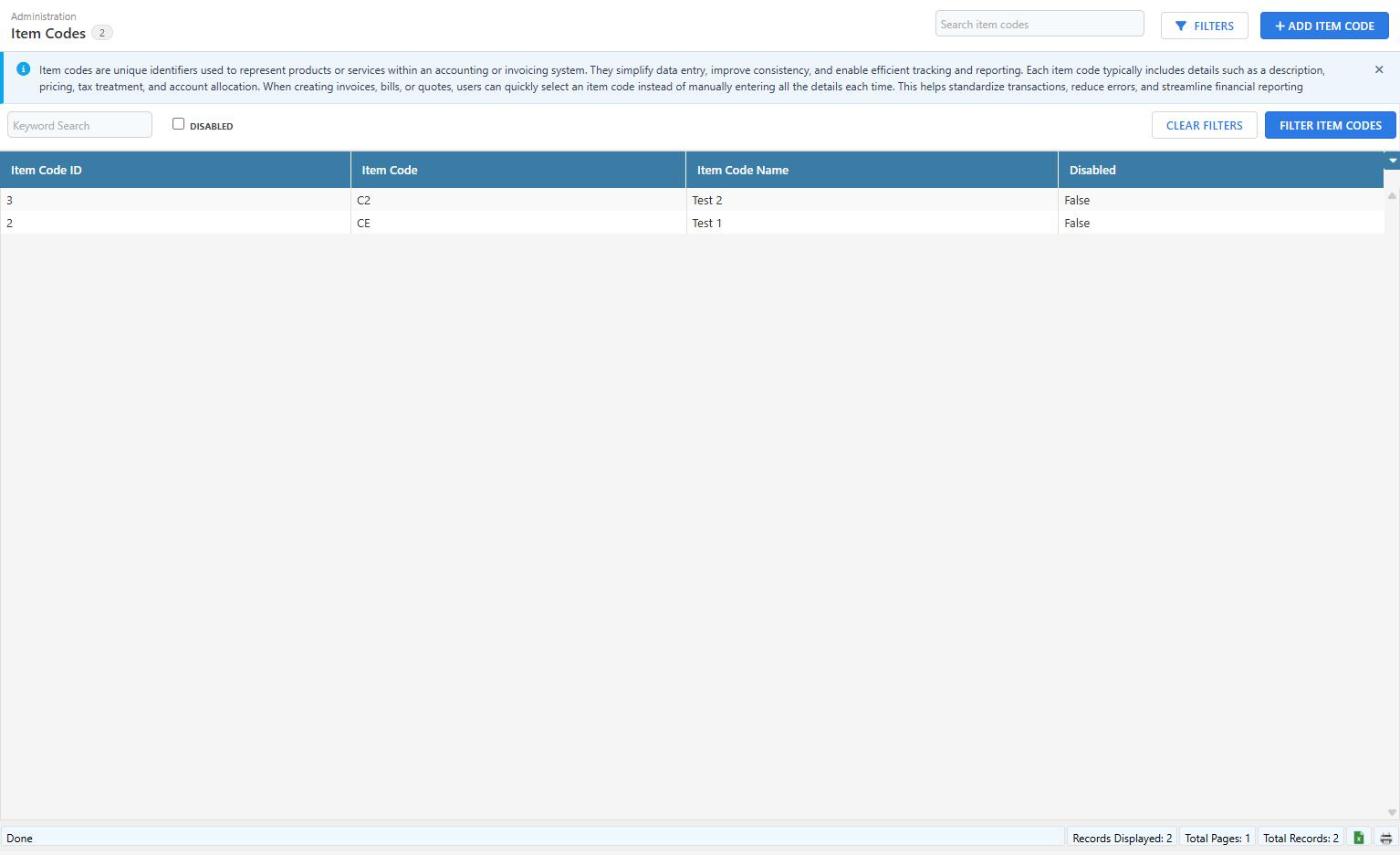
The list shows every active item code. Tick the Disabled filter and click Filter Item Codes to include disabled codes.
Adding an Item Code
- Click Add Item Code in the top right of the screen.
- Enter the fields in the drawer.
- Click Add Item Code.
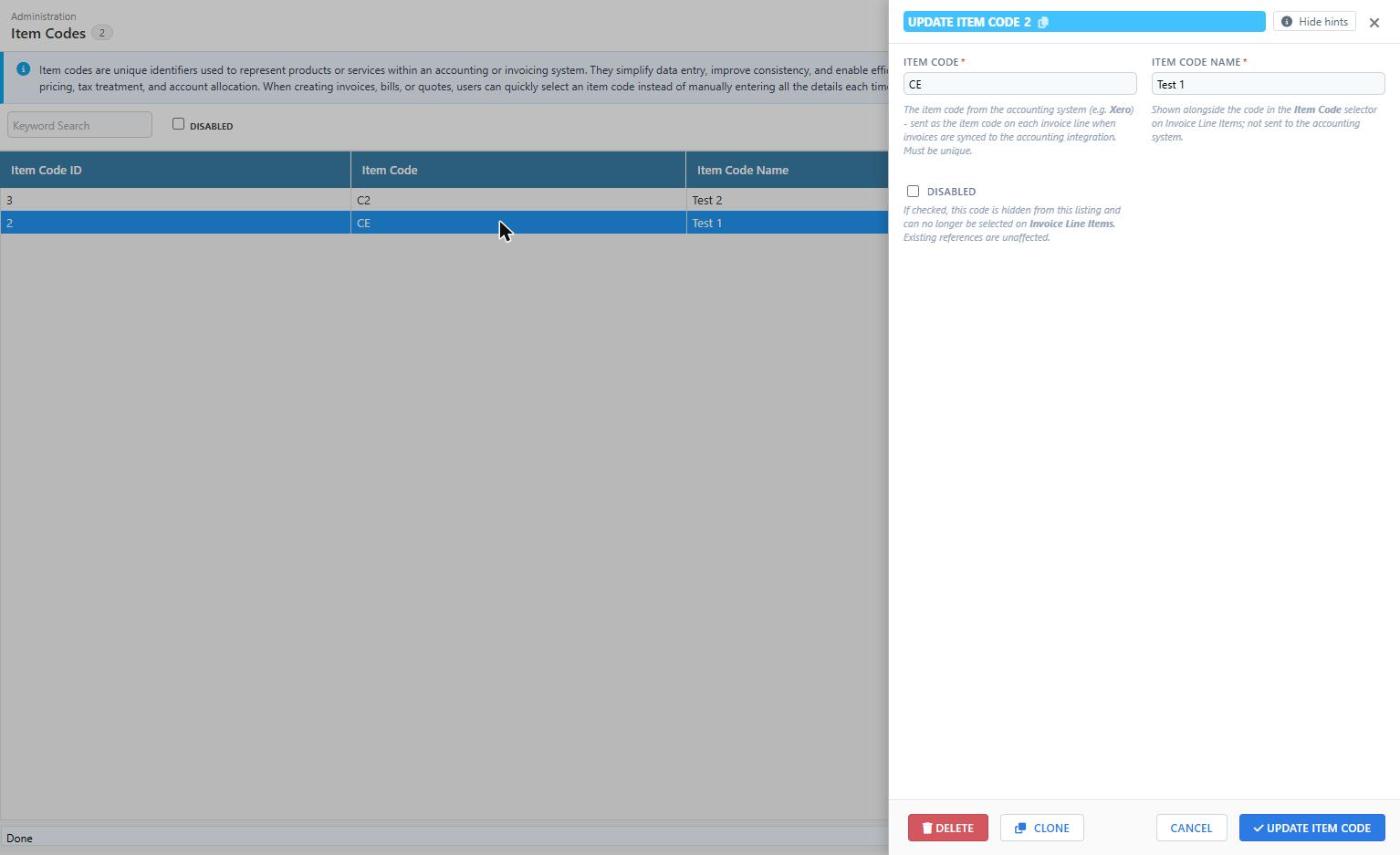
| Field | Description |
|---|---|
| Item Code | The item code exactly as it appears in your accounting system (for example VEEC or STC). Must be unique. This is the value sent as the item code on each invoice line. |
| Item Code Name | A name shown next to the code in the Item Code selector on Invoice Line Items. It is not sent to the accounting system. |
| Disabled | Tick to hide the item code from the listing and from the Item Code selector. Existing line items that already use it are unaffected. |
To change an existing item code, click its row, edit the drawer and click Update Item Code. Clone creates a copy of the open record to save typing when adding similar codes.
Assigning an Item Code to an invoice line
- Open (Configuration icon) Invoices Invoice Line Items.
- Click the line item to open it.
- In the General section, choose the item in the Item Code field.
- Click Update Invoice Line Item.
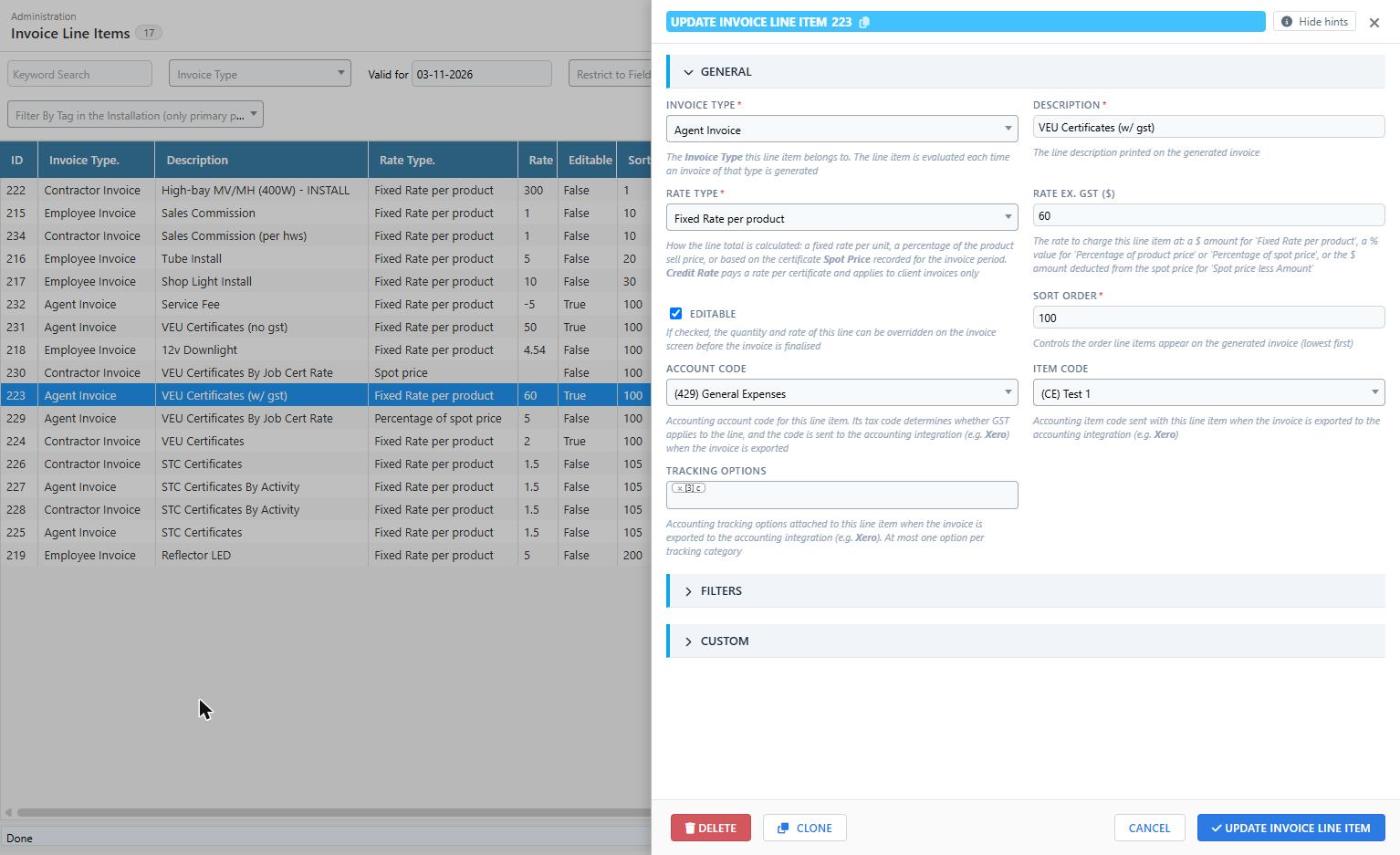
See Invoice Line Items for the other fields on this screen.
How Item Codes relate to Xero
When the Xero integration creates a bill for a finalised fieldworker or agent invoice, each bill line is sent with the Item Code of its Invoice Line Item (when one is set). In Xero this links the bill line to the matching item under Business Products and services, so the item’s purchase history and reporting are updated.
Keep these points in mind:
- The Item Code in Dataforce ASAP must match the Xero item Code exactly. Xero rejects a bill line whose item code does not exist.
- The item in Xero must be one you purchase (have “I purchase this item” ticked), because fieldworker and agent invoices are created as bills.
- The Accounting Code on the Invoice Line Item still controls the account and tax code sent with the line. It should agree with the purchase account configured on the Xero item.
- Tracked inventory items in Xero update stock on hand when the bill is approved. Only use tracked items if that is what you intend.