Overview

Calculation zones provide a method for linking a product to a calculation type.
Additionally, this connection defines the calculation’s base value (the first number in a calculation) through the product based on the appointment’s suburb.
Dataforce ASAP retrieves this value through the following process:
- When performing a calculation, Dataforce ASAP will identify if the appointment’s suburb has any zones linked (a global zone matches every suburb automatically).
- If a zone is associated with the appointment, the system tests for any products linked to the zone (products link through their activity, see step 4 below).
- If these products are also attached to the appointment, Dataforce ASAP will retrieve the zone’s value defined in the product’s calculation tab and utilize it as the base value for the product’s calculation.
There are two primary components of a zone configuration:
- The calculation zone - Provides the link between a suburb and the product’s base value.
- The calculation zone type - A method of grouping calculation zones. A suburb can only hold one zone of each zone type, and an activity selects one zone type per calculation type.
Configuration
-
Zone types only require a description. This description is then used to group zones and as the selector when linking activities to calculations.

-
This process includes defining the zone’s type and the calculation types that it will apply to.

-
Add the zones to the required suburbs.
This step links the calculation type to a suburb through the zone. Skip this step for global zones - they apply to every suburb and are not offered in the suburbs editor.

-
Select the zone type for each calculation type on the product’s Activity.
Products take part in calculations through their activity. Navigate to (Configuration icon) Activities, open the activity, and tick the calculation type / zone type combination in the Calculation Zone Type(s) field. Only one zone type may be selected per calculation type.
Important: This activity link is what switches a calculation on - if an activity is not linked to the calculation type, no calculation will be performed for its products.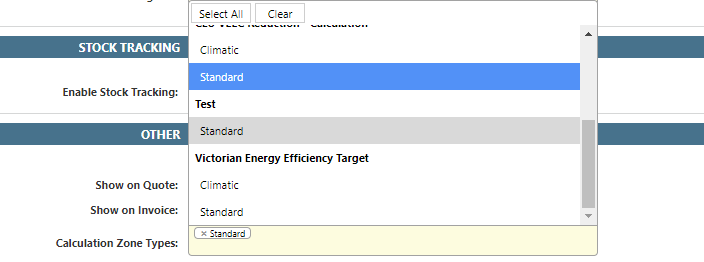
-
Set the products base value for each zone.
This step provides the base value for the calculation, entered on the product’s Calculations (Certificates) tab - one value per zone.
Note: Products without a value entered use a base value of 0. This is normal when the entire result is built by modifiers, but at least one modifier must then add a value - a multiplier alone cannot produce a result from a base of 0.
Calculation Zones
Adding a Calculation Zone
- Navigate to the Calculation Zone Management screen through Calculations Calculation Zones.
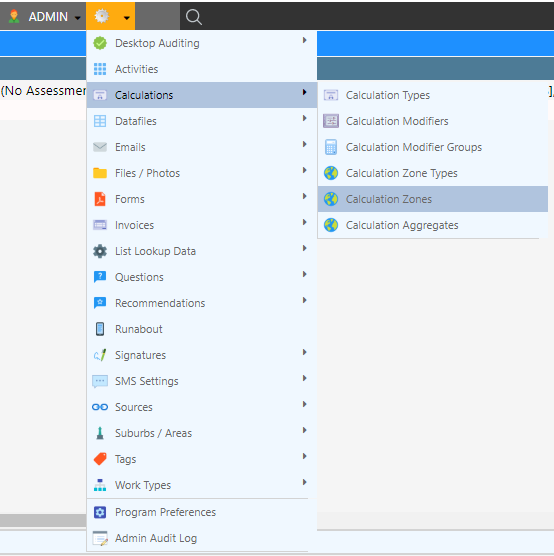
- Fill the configuration options.
- Select Add Calculation Zone.
Updating a Calculation Zone
- Navigate to the Calculation Zone Management screen through Calculations Calculation Zones.
- Select the calculation zone.
- Update the configuration options.
- Select Update Calculation Zone.
Configuration Options
| Configuration | Description |
|---|---|
| Calculation Zone ID | A system-generated identifier. |
| Zone Name | A description of the the calculation zone, shown when assigning zones to a suburb and when configuring product base values. |
| Calculation Type(s) | Calculation types that will utilise this calculation zone (this can also be configured from the calculation type). |
| Zone Number | The scheme’s numeric identifier for this zone (e.g. a BCA climate zone number). Used to order zones in lists and referenced by submission datafile and invoice fields. |
| Global Zone | If selected, the zone will apply to all suburbs, so it is not offered for assignment in the suburbs editor. |
| Zone Type | The zone type that this zone belongs to. A suburb can only be assigned one zone of each zone type. |
Calculation Zone Types
Adding a Calculation Zone Type
- Navigate to the Calculation Zone Type Management screen through Calculations Calculation Zone Types.
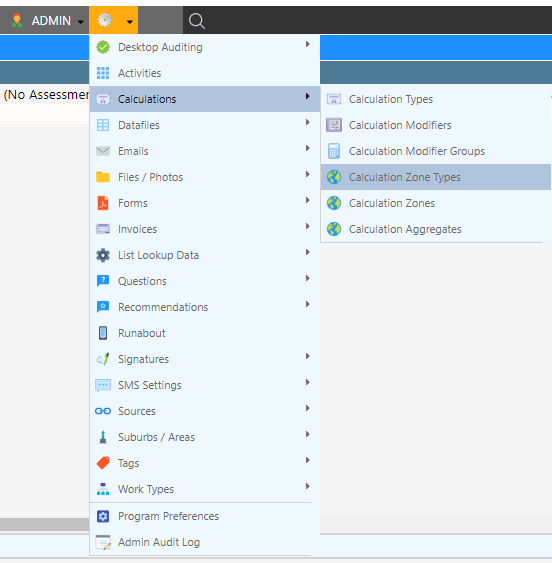
- Add a zone type name.
- Select Add Calculation Zone Type.
Updating a Calculation Zone Type
- Navigate to the Calculation Zone Type Management screen through Calculations Calculation Zone Types.
- Select the Calculation Zone Type.
- Update the zone type name.
- Select Update Calculation Zone Type.