Overview
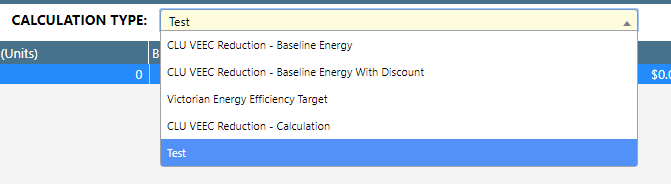
Calculation types represent distinct calculations within Dataforce ASAP e.g. certificates vs certificates with reduction factor
Appointments can contain multiple calculation types available through the calculations tab.
Calculation types contain a primary calculation which can be utilised for the discount value, if configured.
Optionally, each type can contain a secondary calculation which often contains a complementary calculation (e.g. primary = certificate & secondary = energy)
Adding a Calculation Type
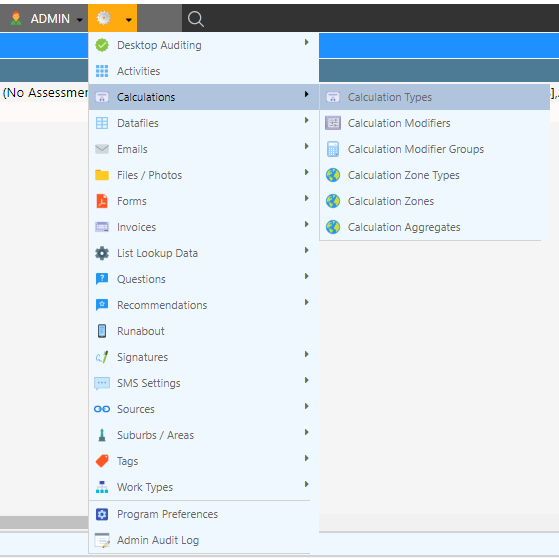
- Navigate to the Calculation Type Management screen through Calculations Calculation Types
- Fill in the configuration options
- Select Add Calculation Type
Updating a Calculation Type
- Navigate to the Calculation Type Management screen through Calculations Calculation Types
- Select the Calculation Type
- Update the configuration options
- Select Update Calculation Type
Configuration Options


General
| Configuration | Description |
|---|---|
| Calculation Type ID | A system-generated identifier |
| Calculation Type Name | A description of the the calculation type |
| Decimal Places | The number of decimal places the calculation result will round to if no rounding method is set |
| Calculation Run Order | Controls the order calculation types appear in Dataforce ASAP lists and the order the calculator processes them. If a calculation reads another calculation’s result (through a modifier value or condition), the calculation being read must have a lower run order so it is processed first. Each type must have a unique run order |
| Calculation Cap | A maximum value for the primary calculation result (must be a whole number). Can be overridden per job from the job calculations tab |
| Zone(s) | The calculation zones this calculation type applies to. The calculator picks the product base value from the zone matching the property’s suburb (or a global zone) |
| Primary Calculation Name | A description for the primary calculation |
| Primary Calculation Units | The unit label for the primary calculation e.g. 1.25 certificates |
| Primary Calculation Term | The term label for the primary calculation e.g. 1.25 certificates / year |
| Primary Calculation Format | The format in which the primary calculation will appear |
| Primary Rounding Method | The rounding method (NORMAL / FLOOR / CEIL) applied to the primary result. Rounding is applied at the activity level by default |
| Calculation Limit | An optional validation threshold for Runabout. Unlike the calculation cap, it does not change the result - it triggers a validation message when the calculation exceeds the value |
| Calculation Limit Type | How the limit behaves in Runabout: a soft limit shows a warning, a hard limit fails validation |
| Dual Calculation | If selected, a secondary calculation will be added to the calculation type. This will add all of the primary fields above for the secondary type. A common usage of the secondary calculation type is primary = certificates, secondary = energy savings. Only the primary calculation is used for discounts |
| Secondary Calculation Name / Units / Term / Format | Shown when Dual Calculation is ticked - the equivalent labels and formatting for the secondary calculation |
| Is the default calculation | If selected, this calculation type is the program’s main calculation: it is selected by default on the job calculations screen and used by homepage charts, summaries and picking slips. Only one calculation type can be the default |
| Show Block Total | If selected, the calculations for each block/area are added together and a total value is displayed |
| Show in Search Result | If selected, this calculation’s primary result is shown as an extra column in appointment search results (for operators allowed to view job calculations) and highlighted on the job summary |
Discounts
| Configuration | Description |
|---|---|
| Discount Type | A discount associated with the calculation, which can include: - None: No discount - Point of Sale: Will apply the calculated discount to job balance (quote/invoice) - Delayed: Will still calculate a discount but will not apply to the job |
| Discount Rate (ex. GST) | The dollar value per unit of the calculation, should be in a decimal format e.g. If the rate is set to 12.60 and the calculation results in 2.4, the discount will equate to $30.24 (ex GST). See Calculation Rates for how this default interacts with agent-level and job-level rates |
| Detailed Discount | If selected, the discount will appear with a quantity, rate and total on appointment invoice/quotes. If unchecked, the discount will appear as a single dollar value |
| Add GST (if applicable) | Add GST to the discount rate if applicable (e.g. business customers) |
| Exclude from Minimum co-contribution | If checked, this discount is ignored (added back) when calculating the customer’s minimum co-contribution. Only applies to Point of Sale discounts |
| Cascade rate CHANGES into this calculation type | When the discount rate for this calculation type is changed on a job, the new rate is also copied to the selected calculation type on that job. Useful when two calculation types must always share a rate |
| Disable Editing of Discount Rate | When checked, disables editing of the discount rate on the quote/invoice and calculations screens |
Note: An appointment only performs this calculation when the product's
activity is linked to the calculation type on the Activities screen. See
Setting up Calculations.