What are Accounting Codes?
An Accounting Code is a copy of one account from your accounting system’s chart of accounts (for example the 429 - General Expenses account in Xero), together with the tax treatment that applies to it.
Accounting Codes are used in three places:
- Invoice Line Items - the Account Code field on each line item of a fieldworker or agent invoice type.
- Invoice Variation Types - the Accounting Code field on each variation type ( (Configuration icon) Invoices Invoice Variations Codes).
- Xero integration settings - the default account codes used for invoice adjustments and variations.
They do two jobs:
- GST on RCTI invoices. The Tax Code of the Accounting Code linked to a line decides whether GST is added to that line when the invoice is generated (see Tax codes and GST below).
- Export to your accounting system. When the Xero integration is enabled, every line of a finalised fieldworker or agent invoice is sent to Xero with the Accounting Code and Tax Code of its account, so the bill lands in the correct account without any re-keying.
Opening the Accounting Codes screen
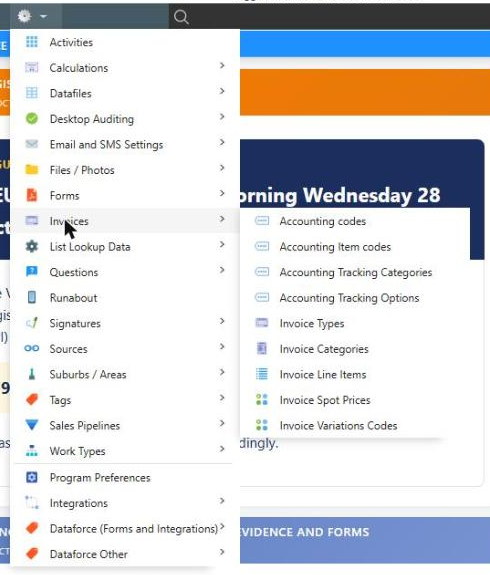
Navigate to (Configuration icon) Invoices Accounting codes
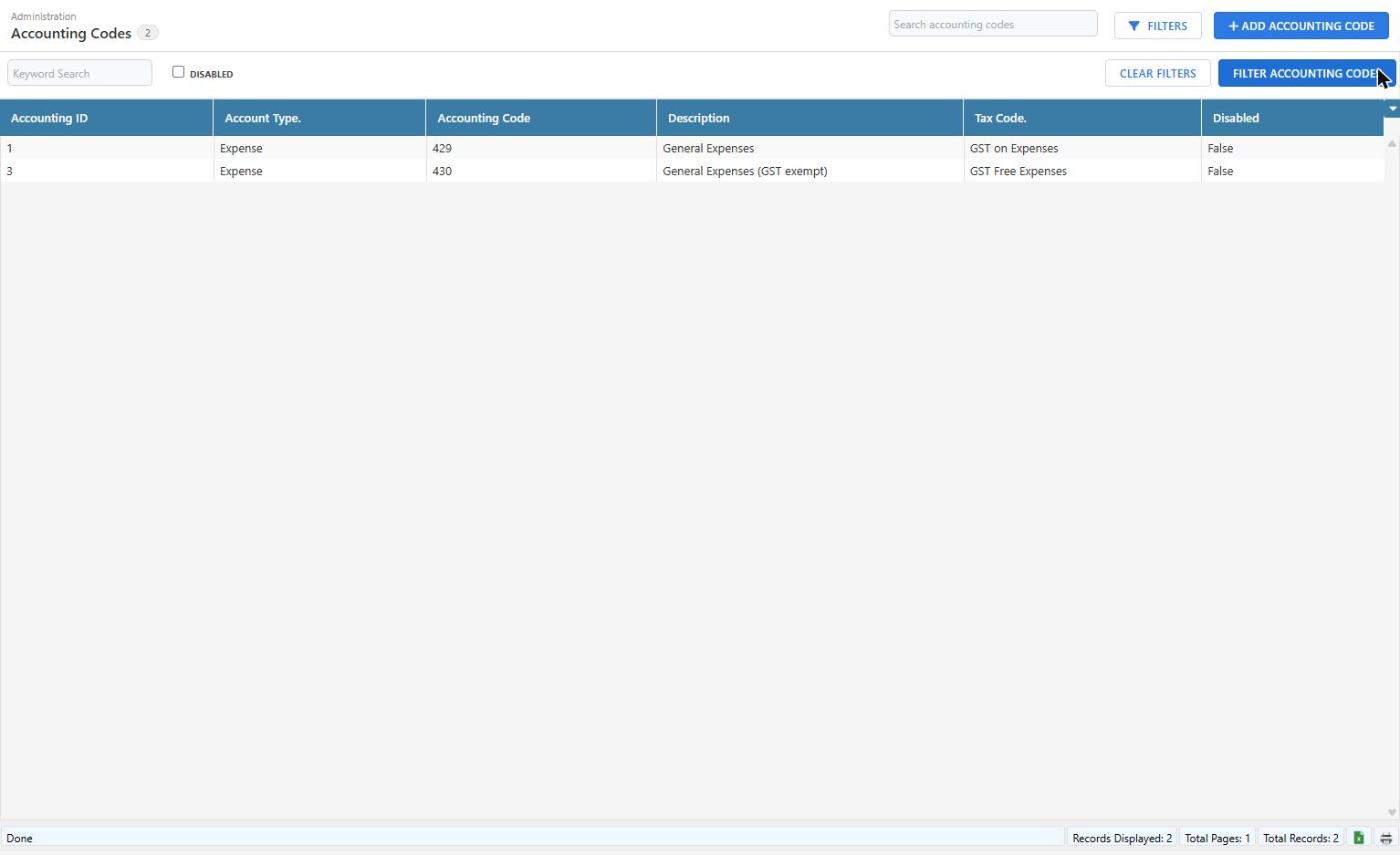
The screen lists every active Accounting Code. Tick the Disabled filter and click Filter Accounting Codes to include codes that have been disabled.
Adding an Accounting Code
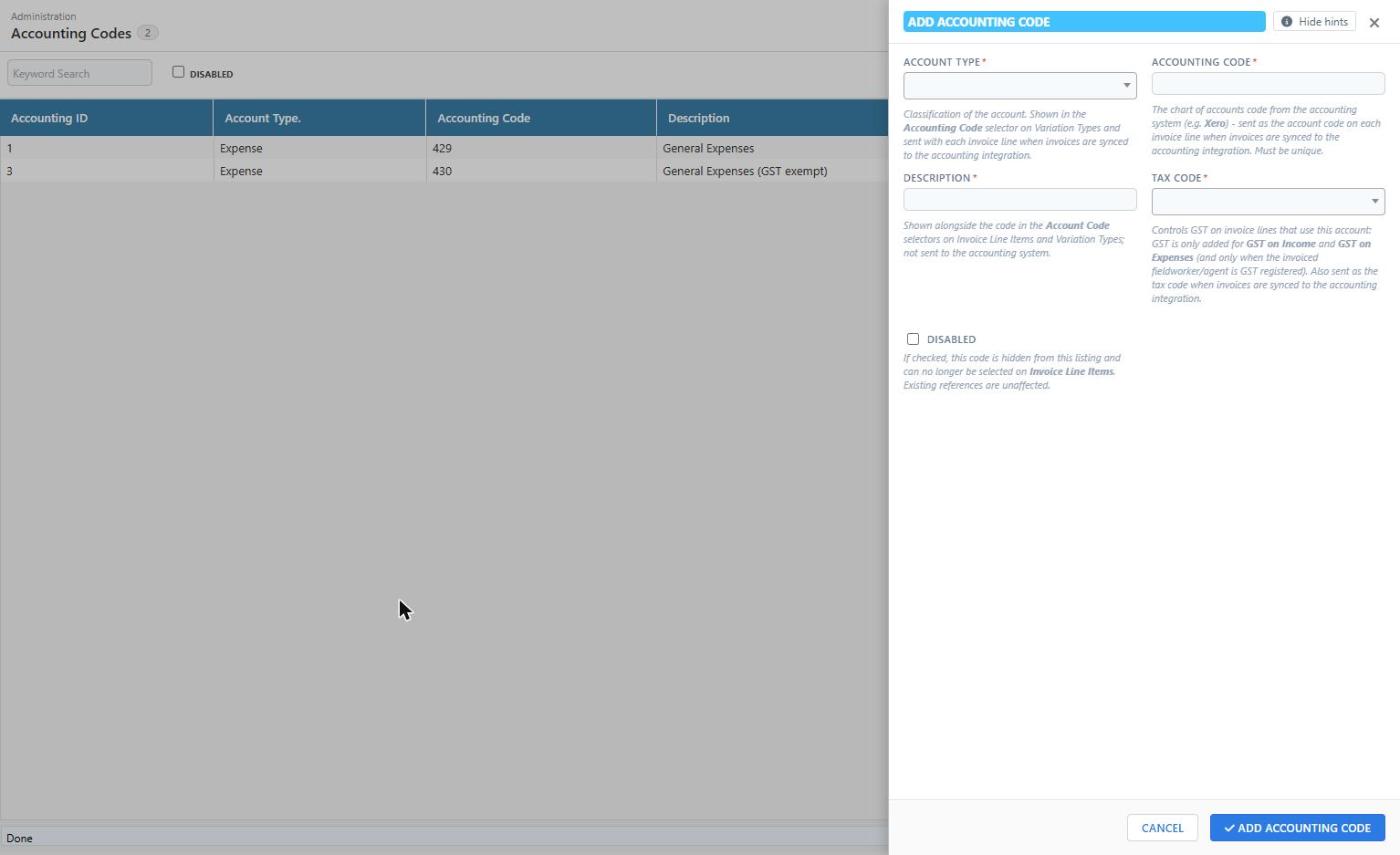
- Click Add Accounting Code in the top right of the screen.
- Complete the fields in the drawer (all fields marked
*are mandatory). - Click Add Accounting Code at the bottom of the drawer.
| Field | Description |
|---|---|
| Account Type | Classification of the account: Revenue/Income, Expense, Liability or Asset. Shown in the Accounting Code selector on Variation Types and sent with each invoice line to the accounting integration. Fieldworker and agent RCTI invoices are bills (money you pay out), so their lines normally use Expense accounts. |
| Accounting Code | The account code exactly as it appears in your accounting system’s chart of accounts, for example 429. Must be unique. This is the value sent as the account code on each invoice line. |
| Description | A description shown next to the code in the Account Code selectors on Invoice Line Items and Variation Types. It is not sent to the accounting system, so it does not need to match the account name in Xero. |
| Tax Code | The tax treatment of the account: GST on Income, GST on Expenses, GST Free Income, GST Free Expenses or BAS Excluded. Controls GST on invoice lines (see below) and is sent as the tax code when invoices are synced to the accounting integration. |
| Disabled | Tick to hide the code from the listing and from the Account Code selectors. Existing line items and variation types that already use the code are unaffected. |
To change an existing code, click its row in the list, edit the fields in the drawer and click Update Accounting Code.
Tax codes and GST
When a fieldworker or agent invoice is generated, GST is added to a line only when both of the following are true:
- the Tax Code of the line’s Accounting Code is GST on Income or GST on Expenses, and
- the fieldworker or agent being invoiced is GST Registered (the GST Registered checkbox on the Field Worker or Agent record).
Lines whose Accounting Code has a GST Free or BAS Excluded tax code never attract GST, and neither do lines with no Accounting Code at all. The same rule applies to variations, using the Accounting Code of the Variation Type.
Disabling an Accounting Code
Accounting Codes cannot be deleted, because invoices that have already been generated refer to them. Instead:
- Open the code from the list.
- Tick Disabled.
- Click Update Accounting Code.
The code disappears from the list and from the Account Code selectors. Anything already linked to it keeps working, so disable a code only after you have moved the Invoice Line Items and Variation Types that use it to a replacement code.
How Accounting Codes relate to Xero
When the Xero integration is enabled, each line of a finalised fieldworker or agent invoice becomes a line on a Xero bill, and Dataforce ASAP sends the line’s Accounting Code and Tax Code with it. For this to work:
- The Accounting Code must be the Code of an account in the Xero organisation’s chart of accounts (in Xero: Accounting Advanced Chart of accounts). Xero rejects a bill line whose account code does not exist, so check the code carefully and keep it in sync if the account is renumbered or archived in Xero.
- The Tax Code names match Xero’s standard Australian tax rates (GST on Income, GST on Expenses, GST Free Income, GST Free Expenses and BAS Excluded). The tax code sent from Dataforce ASAP is applied to the Xero bill line, overriding the default tax rate configured on the account in Xero.
- The account must allow payments or purchases to be coded to it. Bank accounts and system accounts in Xero cannot be used on bill lines.
- Xero only needs the code and tax code. The Description and Account Type are for your reference in Dataforce ASAP.