What are Webhooks?
Webhooks allow Dataforce to notify an external system in real time when a specific event occurs.
When an event is triggered, Dataforce sends a lightweight notification to your configured endpoint containing key identifiers and basic event details. This notification is intended to alert your system that something has changed - your system should then use the included identifiers to query the REST API and retrieve the full details of the change.
How can they be used?
Webhooks are useful when an external system needs to be notified of events such as:
- An appointment being completed
- An appointment status changing
- A job being created or updated
- A payment being received or refunded
- A submission batch being created or deleted
- An SMS reply being received
When one of these events occurs, Dataforce sends a webhook request to the configured endpoint URL.
Enabling Webhooks
Before adding webhooks, ensure the integration is enabled in your settings.
-
Navigate to ( (Configuration icon) Integrations Integration Settings)
-
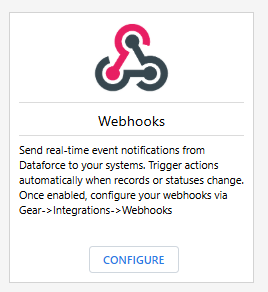
Click the Configure button on the Webhooks integration
-
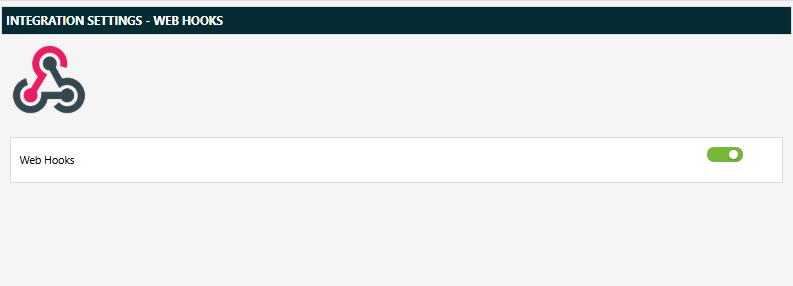
Toggle the integration to Enabled.
Adding Webhooks
-
Navigate to the Webhooks screen
( (Configuration icon) Integrations Webhooks)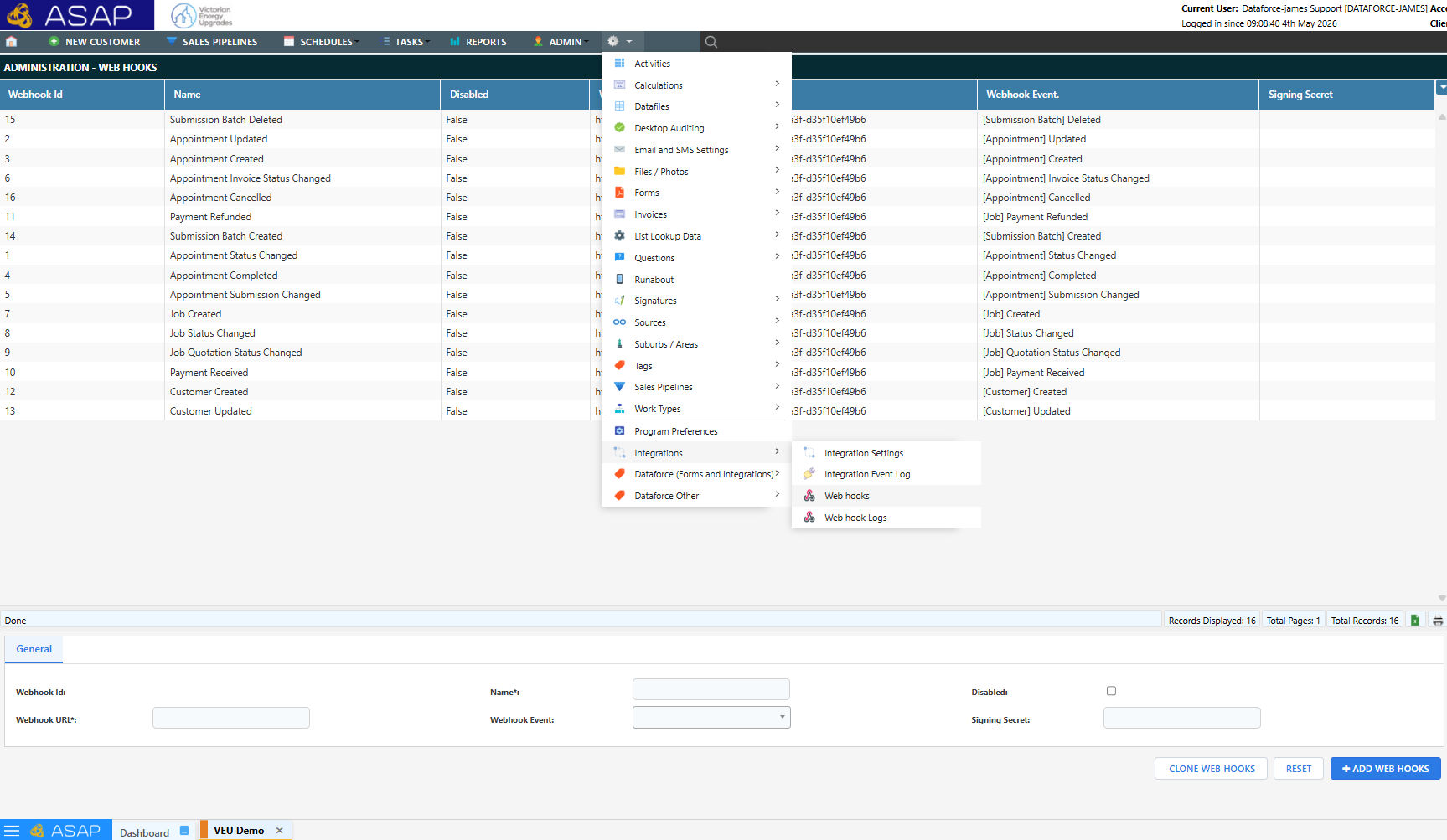
-
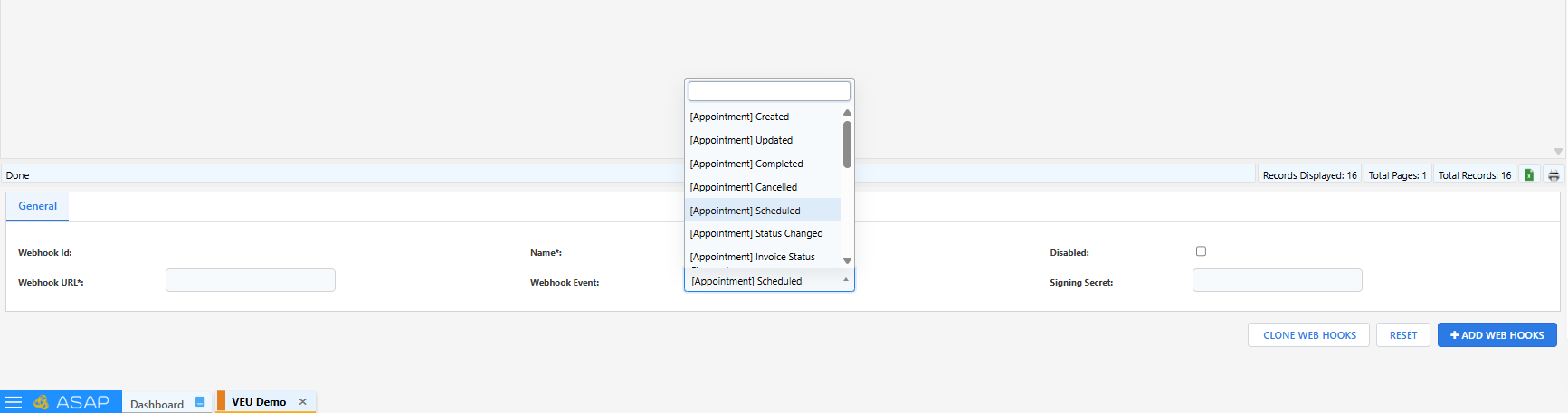
Select a webhook event from the list
-
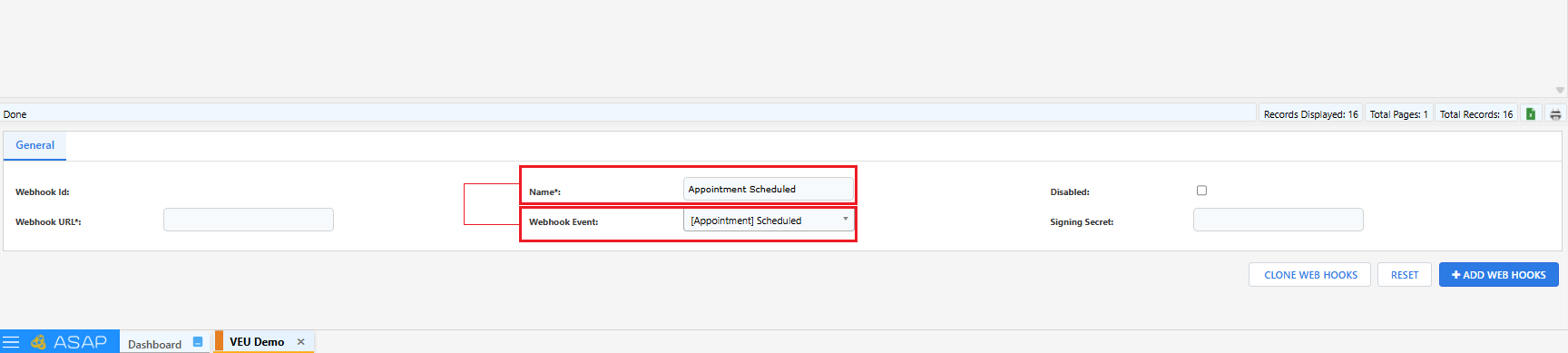
Enter a name for the webhook
- Enter the webhook URL that the payload should be sent to
Note: The webhook URL is the external endpoint that Dataforce will send the webhook request to. When the selected event is triggered, Dataforce sends a JSON payload to this URL for the receiving system to process.
For more information please visit the API Documentation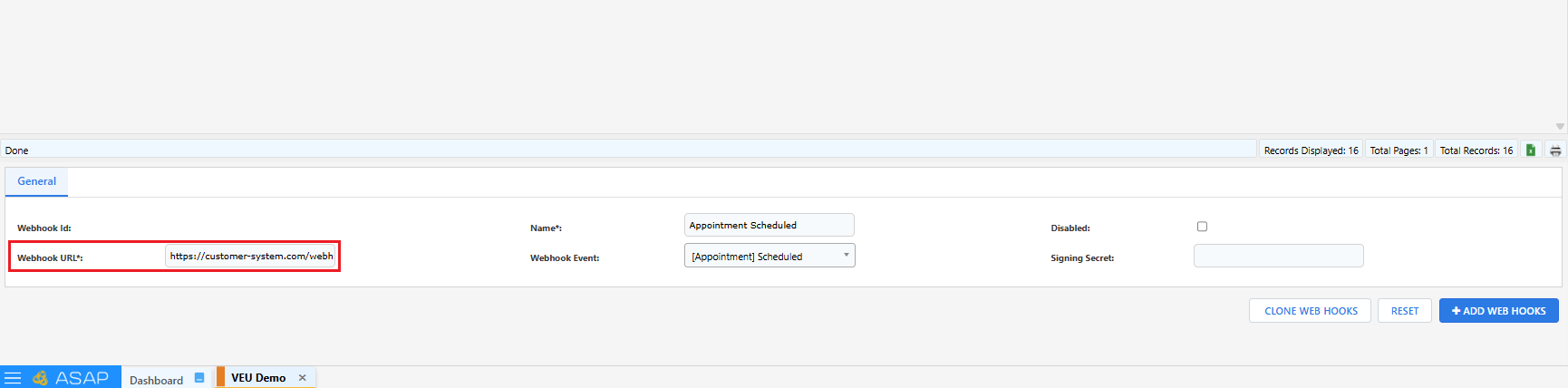
- Click Add Webhook to save your changes
Webhook Event Log
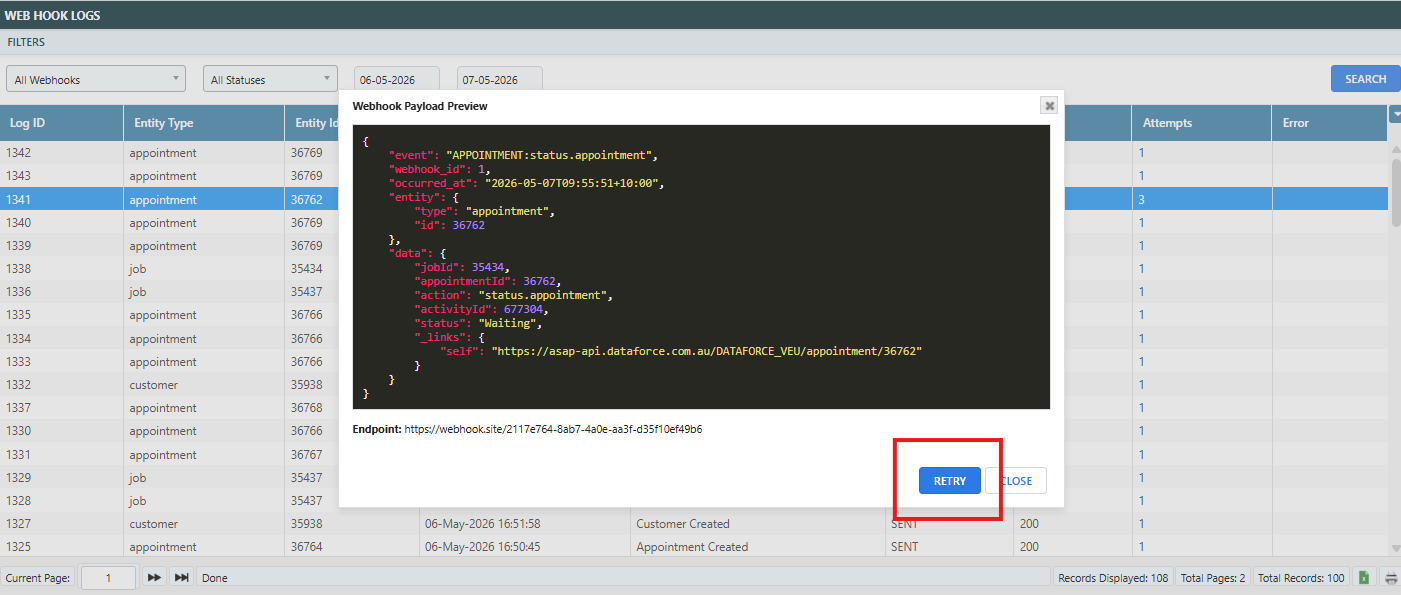
The Webhook Event Log provides a record of all webhook events that have been triggered based on your configured webhooks. Use this log to monitor webhook activity and troubleshoot any delivery issues.
The Webhook Event Log can be accessed from ( (Configuration icon) Integrations Webhook Event Log)
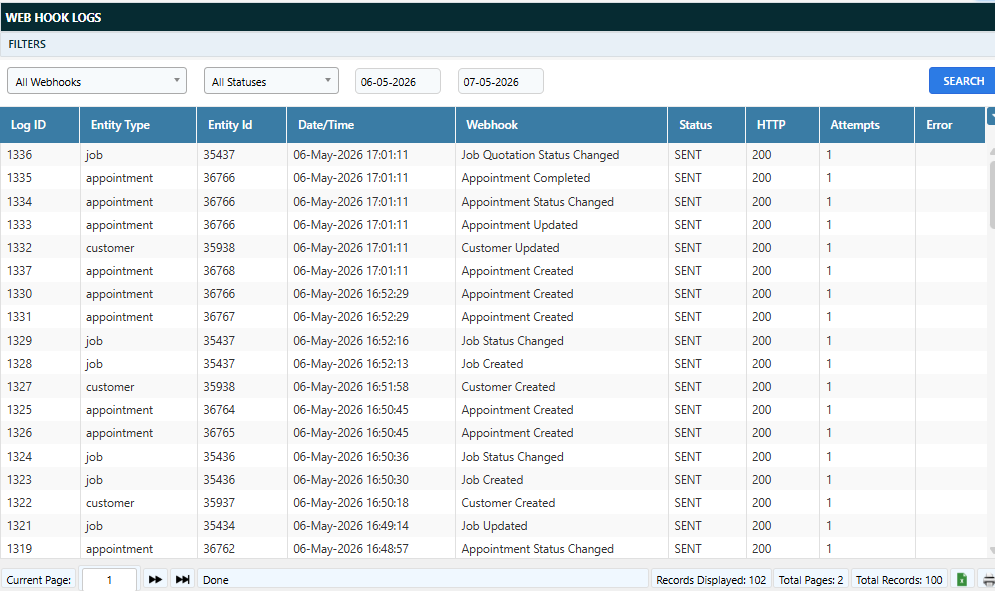
Clicking on an event will display the full JSON payload that was sent to the configured endpoint.
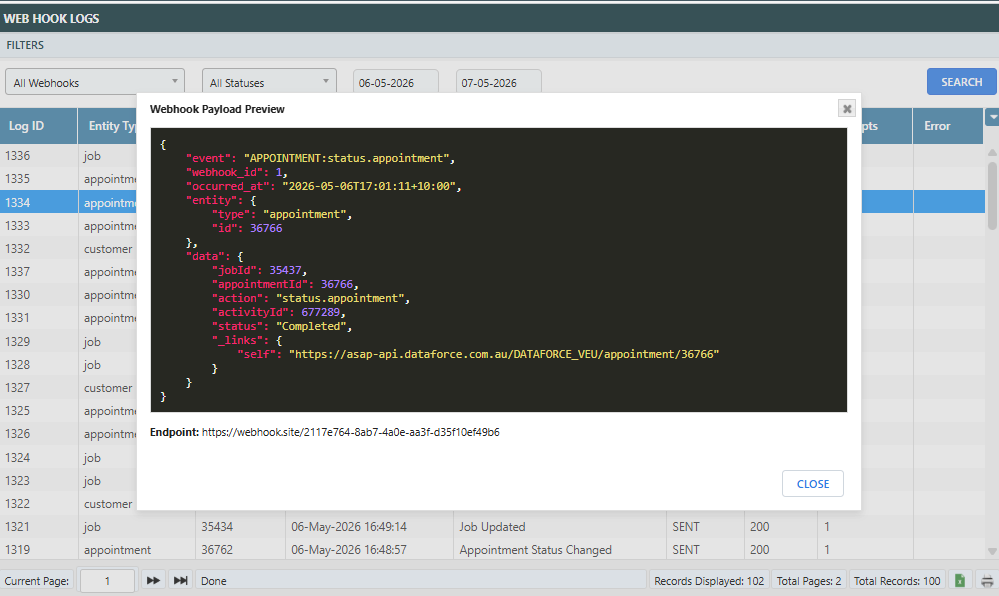
Each event will display one of the following statuses:
| Status | Description |
|---|---|
| QUEUED | The webhook is pending delivery. Dataforce will attempt to send the webhook up to 3 times. |
| SENT | The webhook was successfully delivered to the configured endpoint. |
| FAILED | All 3 delivery attempts were unsuccessful. |
Retrying Failed Webhooks
If a webhook has a FAILED status, it can be manually retried by clicking the event and then clicking the Retry button. This will reset the status back to QUEUED and attempt delivery another 3 times.