What are Accounting Tracking Categories?
Tracking categories are the way accounting systems such as Xero let you report on different parts of your business without creating a separate chart of accounts for each one. A tracking category is a label such as Region, Department or Program, and each category has a list of tracking options (for example North, South and West for a Region category). Every transaction line can carry one option from each category, and reports in the accounting system can then be filtered or grouped by those options.
In Dataforce ASAP, an Accounting Tracking Category is a copy of one tracking category from your accounting system. On its own it does nothing; it is the parent of the Accounting Tracking Options that you attach to Invoice Line Items. When a finalised fieldworker or agent invoice is synced to the accounting integration (for example Xero), each invoice line is sent with the category name and option name of every tracking option attached to its line item.
Opening the Tracking Categories screen
Navigate to (Configuration icon) Invoices Accounting Tracking Categories
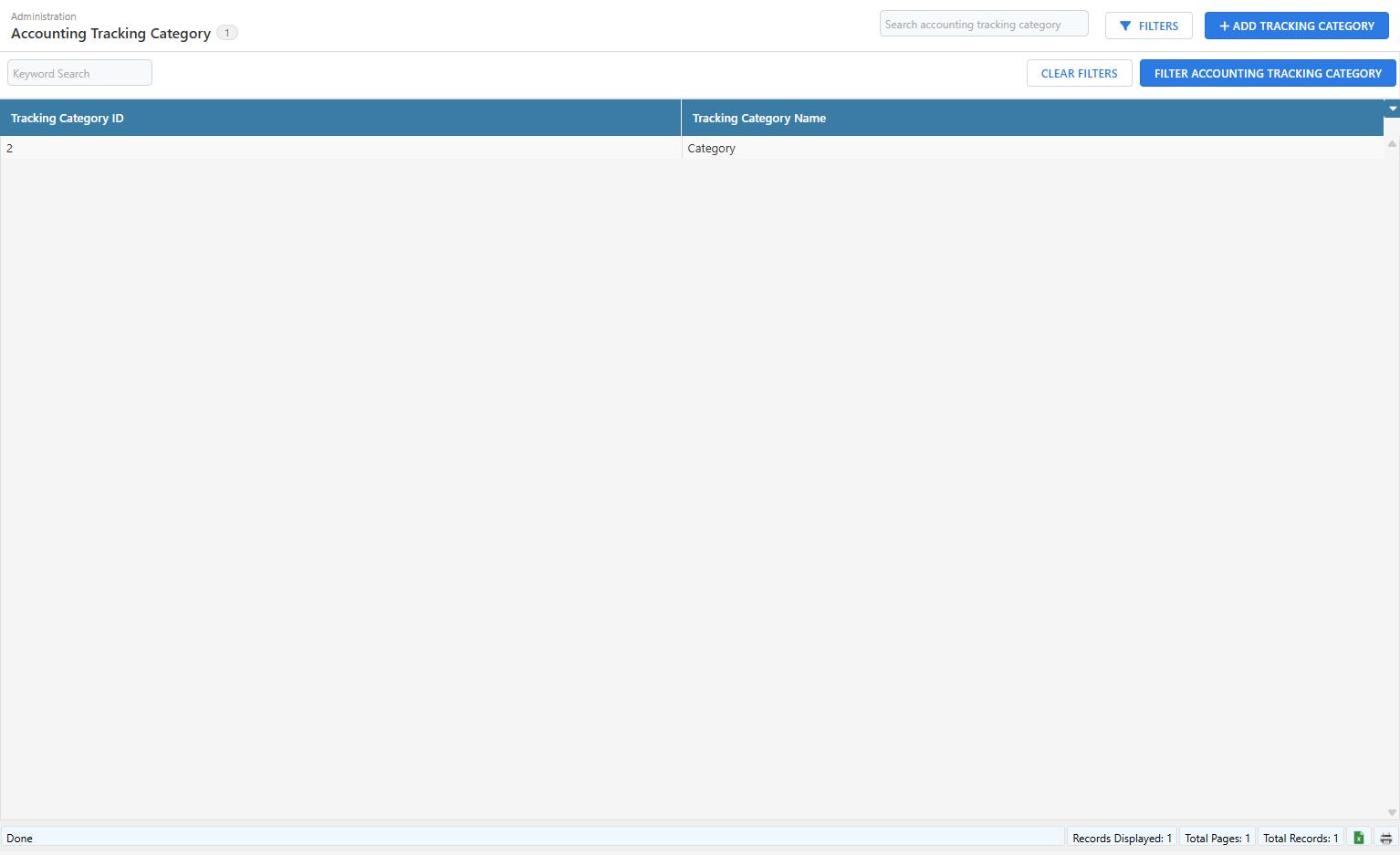
Adding a Tracking Category
- Click Add Tracking Category in the top right of the screen.
- Enter the Tracking Category Name.
- Click Add Tracking Category.
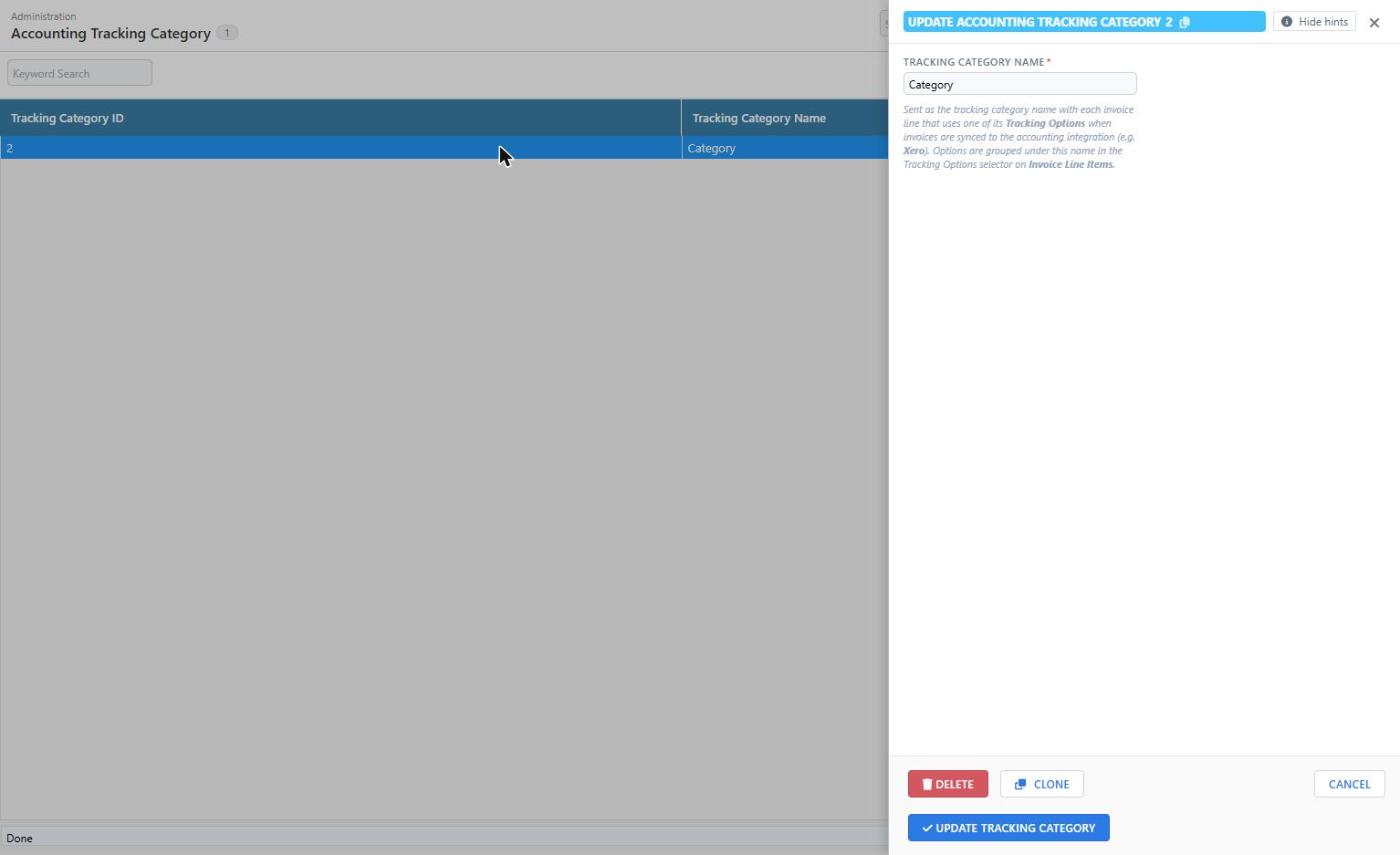
| Field | Description |
|---|---|
| Tracking Category Name | The name of the tracking category exactly as it is set up in your accounting system, for example Region. It is sent as the tracking category name with each invoice line that uses one of its Tracking Options, and it is the group heading the options appear under in the Tracking Options selector on Invoice Line Items. |
To rename a category, click its row, change the name and click Update Tracking Category. Renaming a category does not change the options under it, but remember to rename it in your accounting system as well, otherwise the names no longer match.
To remove a category, delete its Tracking Options first, then open the category and click Delete.
Next step: add the options
A category is only useful once it has options. Continue to Accounting Tracking Options to add the options for each category and attach them to your Invoice Line Items.
How Tracking Categories relate to Xero
Xero tracking categories are managed in Xero under Accounting Advanced Tracking categories. When the Xero integration creates a bill for a finalised fieldworker or agent invoice, each bill line is sent with the tracking category name and option name of every Tracking Option attached to the line item.
- The Tracking Category Name in Dataforce ASAP must match the category name in Xero exactly (including capitalisation). Xero rejects a bill line that refers to a tracking category or option it does not have.
- Xero allows a maximum of two active tracking categories per organisation, so you will normally have at most two Accounting Tracking Categories.
- Xero accepts at most one option per category on a line. Dataforce ASAP enforces the same rule when you attach Tracking Options to an Invoice Line Item.